
Apache Guacamole 1.6.0 on AWS User Guide
Overview
This guide covers launching and verifying Apache Guacamole 1.6.0 on Ubuntu 24.04 from cloudimg on Amazon EC2. It is one version of the cloudimg Hardened WireGuard VPN & VPN, Proxy and Remote Access AMIs listing on AWS Marketplace; you pick it as the software version when you subscribe and launch. The other VPN, proxy and remote access servers in the listing are described on the listing's guide hub.
Apache Guacamole is a clientless remote desktop gateway: your users open a web page and get a full RDP, VNC or SSH session to a server behind it, with nothing installed on their own machine. Users, connections and permissions are kept in Guacamole's own database, and you manage them from Guacamole's Settings pages. (If you want sign-in through an identity provider with multi-factor authentication, the same listing also offers Apache Guacamole 1.6.0 + Keycloak on Ubuntu 24.04.)
What is on the image:
- Apache Guacamole 1.6.0: the web application on Apache Tomcat 9.0.123 and the
guacdproxy daemon, built by cloudimg from the published 1.6.0 source, with RDP, VNC and SSH support - PostgreSQL 16 holding Guacamole's users, connections, permissions and history, on
127.0.0.1only - nginx serving HTTPS on port 443 only, with a certificate generated for your instance on first boot
- The Guacamole extensions for PostgreSQL authentication and brute-force protection (
guacamole-auth-ban) - A self-test,
guacamole-selftest, and a helper to move the instance to a DNS name or Elastic IP,guacamole-set-host
Default user: ubuntu · Architecture: x86_64 · Root volume: 12 GiB gp3
Security posture
- No default credential. Guacamole's published
guacadmin/guacadminaccount is never created. First boot creates the administratorcloudimg-adminwith a password generated for this instance only, together with the database password and the TLS key, and writes the sign-in details to/root/guacamole-credentials.txt(root only). - No shared database. The image carries no PostgreSQL data at all: first boot creates a brand-new database cluster on your instance, so no password hash or identifier is shared with any other instance.
- One public port. nginx listens on TCP 443. Tomcat (8080),
guacd(4822) and PostgreSQL (5432) listen on127.0.0.1only. The listing's security group opens SSH (22) and HTTPS (443). - Fixed host name. nginx answers only to the name this instance is configured for (its public IPv4 address, or the DNS name you set in Step 8) and closes the connection for any other
Hostheader. - Real client addresses. nginx overwrites
X-Forwarded-Forwith the address it sees, and Tomcat trusts forwarded headers from127.0.0.1only, so Guacamole's logs and its brute-force ban see the real client and a forged header changes nothing. - Brute-force protection.
guacamole-auth-banbans an address for 5 minutes after 5 failed sign-ins from it. - Cross-site protection. A Guacamole WebSocket tunnel or a state-changing request whose
Originis not this instance's own address is refused with 403, so another web site cannot open a session with your users' credentials. - No SSRF to instance credentials.
guacd, Tomcat, PostgreSQL and nginx each carry anIPAddressDenyrule for the metadata addresses (169.254.169.254, fd00:ec2::254, 168.63.129.16), and the AMI is registered IMDSv2 only.guacdcan still reach every other address, so your RDP, VNC and SSH targets work. - Patched components. Tomcat 9.0.123 is the current 9.0 release. The Guacamole 1.6.0 web application bundles Jackson 2.19.0 and Logback 1.3.15, which have published security fixes; this image replaces exactly those libraries with Jackson 2.21.8 and Logback 1.3.16.
guacdis built against Ubuntu's supported FreeRDP 3 libraries, and no build tools ship. - Fails closed. Every service starts only after first boot has written this instance's configuration and a ready marker, and first boot finishes only after it has proved that the administrator can sign in over HTTPS. If it cannot, every service stays stopped and first boot starts over on the next boot.
- Per-instance identity. SSH host keys and the machine ID are generated fresh on every instance.
Prerequisites
- An AWS account and permission to launch EC2 instances
- An EC2 key pair in the Region you launch in
- The public IP ranges your users connect from, and network access from the instance to the servers you want to reach (security groups, VPC routing or a VPN)
Recommended instance type: m5.large (2 vCPU, 8 GiB). Tomcat and PostgreSQL use well under 1 GiB at rest; add memory and CPU for many concurrent sessions.
Connecting to your instance
| Version | Operating system | SSH user |
|---|---|---|
| Apache Guacamole 1.6.0 on Ubuntu 24.04 | Ubuntu 24.04 LTS | ubuntu |
Step 1: Launch the instance
Option A: AWS Marketplace console
- Open the cloudimg Hardened WireGuard VPN & VPN, Proxy and Remote Access AMIs listing on AWS Marketplace and choose View purchase options, then Subscribe. One subscription covers every version in the listing.
- Once the subscription is active, choose Launch your software.
- Choose One-click launch from AWS Marketplace (or Launch from EC2 Console for the full launch wizard). In Version, choose Apache Guacamole 1.6.0 on Ubuntu 24.04, then choose your Region.
- Pick an instance type (
m5.largerecommended; the software charge is $0.04 per vCPU per hour) and your key pair. - Security group: allow SSH (22) from your own address and HTTPS (443) from the ranges your users connect from. Nothing else is needed.
- Choose your VPC and a public subnet (or attach an Elastic IP later), leave the metadata defaults (the image already requires IMDSv2), then choose Launch.
Option B: AWS CLI
Run this on your own workstation. Replace the AMI ID with the one shown for your Region on the Marketplace launch page, and the VPC, subnet, key pair and CIDR ranges with your own:
SG=$(aws ec2 create-security-group --group-name apache-guacamole \
  --description "Apache Guacamole" --vpc-id vpc-0123456789abcdef0 \
  --query GroupId --output text)
aws ec2 authorize-security-group-ingress --group-id "$SG" --protocol tcp --port 22  --cidr <your-mgmt-cidr>
aws ec2 authorize-security-group-ingress --group-id "$SG" --protocol tcp --port 443 --cidr <your-client-cidr>
aws ec2 run-instances \
  --image-id ami-0123456789abcdef0 \
  --instance-type m5.large \
  --key-name my-key-pair \
  --security-group-ids "$SG" \
  --subnet-id subnet-0123456789abcdef0 \
  --associate-public-ip-address \
  --tag-specifications 'ResourceType=instance,Tags=[{Key=Name,Value=apache-guacamole}]'
You do not need --metadata-options: the AMI already makes IMDSv2 required.
Step 2: Connect and read the sign-in details
Connect as ubuntu with the key pair you chose:
ssh -i ~/.ssh/my-key-pair.pem ubuntu@<public-ip>
First boot takes under a minute: it creates the database and the administrator, issues the certificate, starts the services and then proves that the administrator can sign in. The details are in /root/guacamole-credentials.txt, readable only by root. This command prints everything except the password line:
sudo grep -v '^GUACAMOLE_ADMIN_PASSWORD=' /root/guacamole-credentials.txt
# Apache Guacamole 1.6.0 - generated on first boot by guacamole-firstboot.service.
# Every value below is unique to this instance; nothing was baked into the image.

GUACAMOLE_URL=https://52.87.161.224/

# Sign in to Guacamole with this administrator (change the password under Settings > Preferences).
GUACAMOLE_ADMIN_USER=cloudimg-admin

# The certificate is self-signed and unique to this instance (browsers warn on the first visit).
TLS_CERT_SHA256=51:71:EA:26:DC:3E:F5:98:14:32:82:A4:68:E2:04:28:7E:8C:44:07:C9:1A:92:89:59:5B:0F:7E:BC:C9:75:4F

# New DNS name or Elastic IP:  sudo guacamole-set-host <name-or-ip>
# Self-test:                   sudo guacamole-selftest
# Guide: https://www.cloudimg.co.uk/guides/apache-guacamole-1-6-0-on-ubuntu-24-04-aws/
Sign in to Guacamole as cloudimg-admin (GUACAMOLE_ADMIN_USER), a Guacamole administrator. Print the password only when you need it:
sudo sed -n 's/^GUACAMOLE_ADMIN_PASSWORD=//p' /root/guacamole-credentials.txt
Step 3: Confirm the stack is running
All four services and the first-boot unit are active, and only SSH and HTTPS listen on a public address:
systemctl is-active postgresql@16-main.service guacd.service tomcat.service nginx.service guacamole-firstboot.service
/usr/local/sbin/guacd -v
sudo ss -Htln | awk '{print $4}' | sort -u
active
active
active
active
active
Guacamole proxy daemon (guacd) version 1.6.0
0.0.0.0:22
0.0.0.0:443
127.0.0.1:4822
127.0.0.1:5432
127.0.0.53%lo:53
127.0.0.54:53
[::]:22
[::]:443
[::ffff:127.0.0.1]:8080
127.0.0.53 and 127.0.0.54 are Ubuntu's local DNS resolver.
Step 4: Run the self-test
The self-test checks that every service is active and that guacd loads its RDP, VNC and SSH plugins, then signs in as cloudimg-admin through nginx and TLS exactly as a browser does, checks that the account is an administrator and signs out again. It also proves that no guacadmin account exists. It makes no failed sign-in (which the brute-force ban would count) and prints no password:
sudo guacamole-selftest
services: postgresql@16-main, guacd, tomcat and nginx are active
guacd plugins: rdp(88 params, VERSION_1_5_0) vnc(49 params, VERSION_1_5_0) ssh(42 params, VERSION_1_5_0)
sign-in: the per-instance administrator signs in over HTTPS (PostgreSQL data source, ADMINISTER) and signs out
defaults: the guacadmin account does not exist
SELFTEST_OK
Step 5: Sign in through the browser
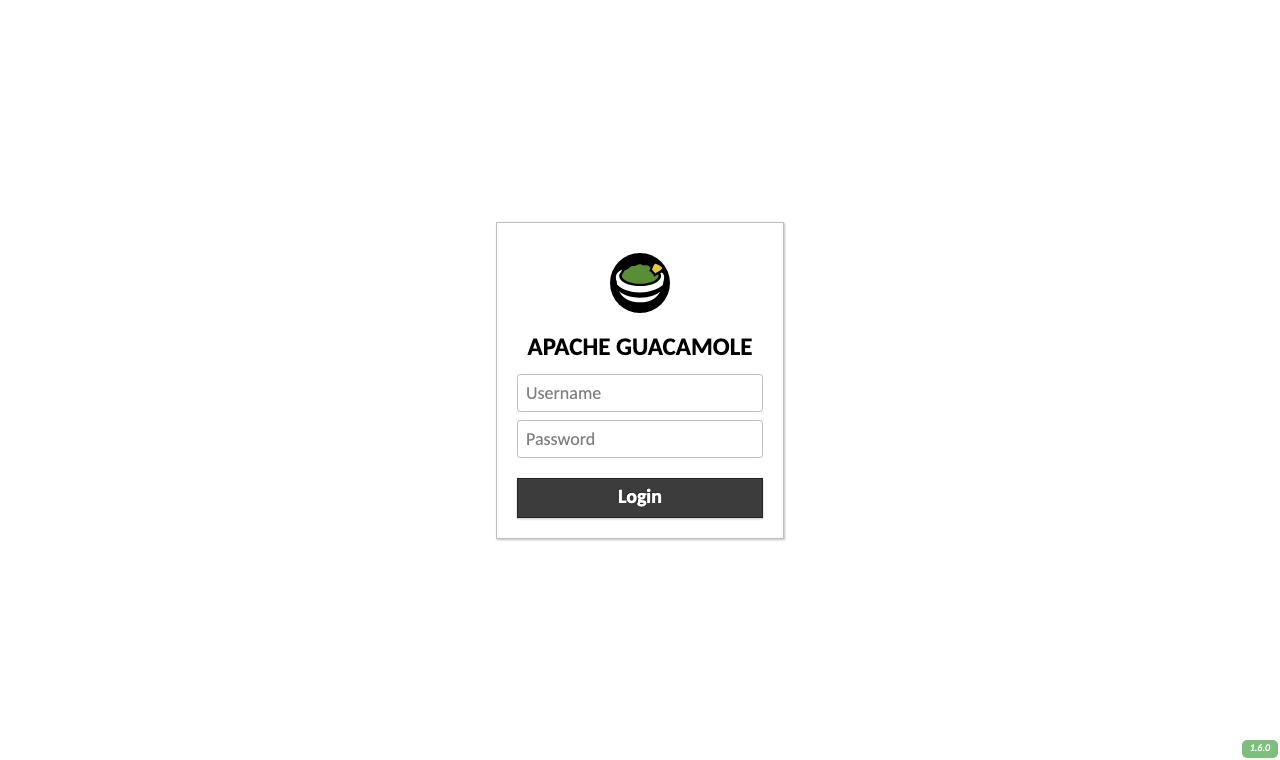
Open GUACAMOLE_URL from Step 2 (for example https://52.87.161.224/). The certificate is self-signed, so the browser warns on the first visit; compare the fingerprint it shows with TLS_CERT_SHA256 and continue (Step 9 replaces it with your own). Guacamole shows its sign-in page:
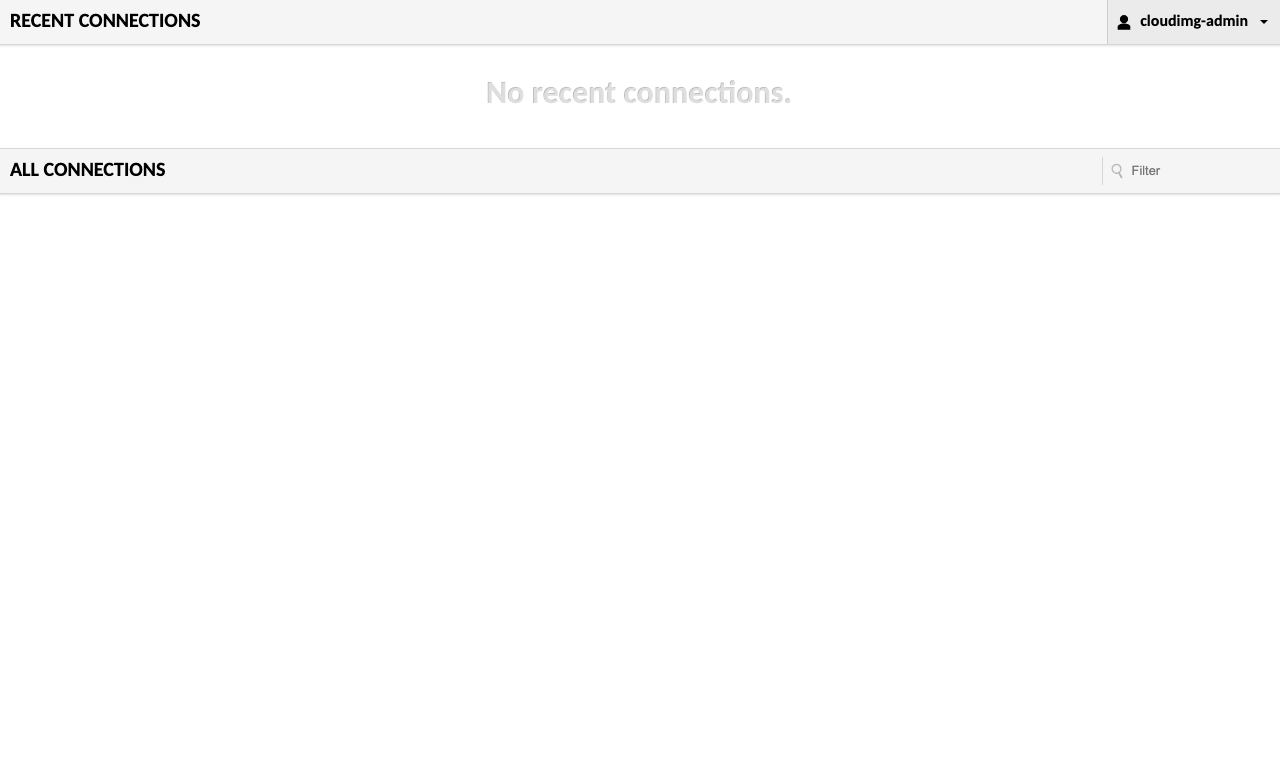
Sign in as cloudimg-admin with GUACAMOLE_ADMIN_PASSWORD. The home page lists your connections, empty until you add one:
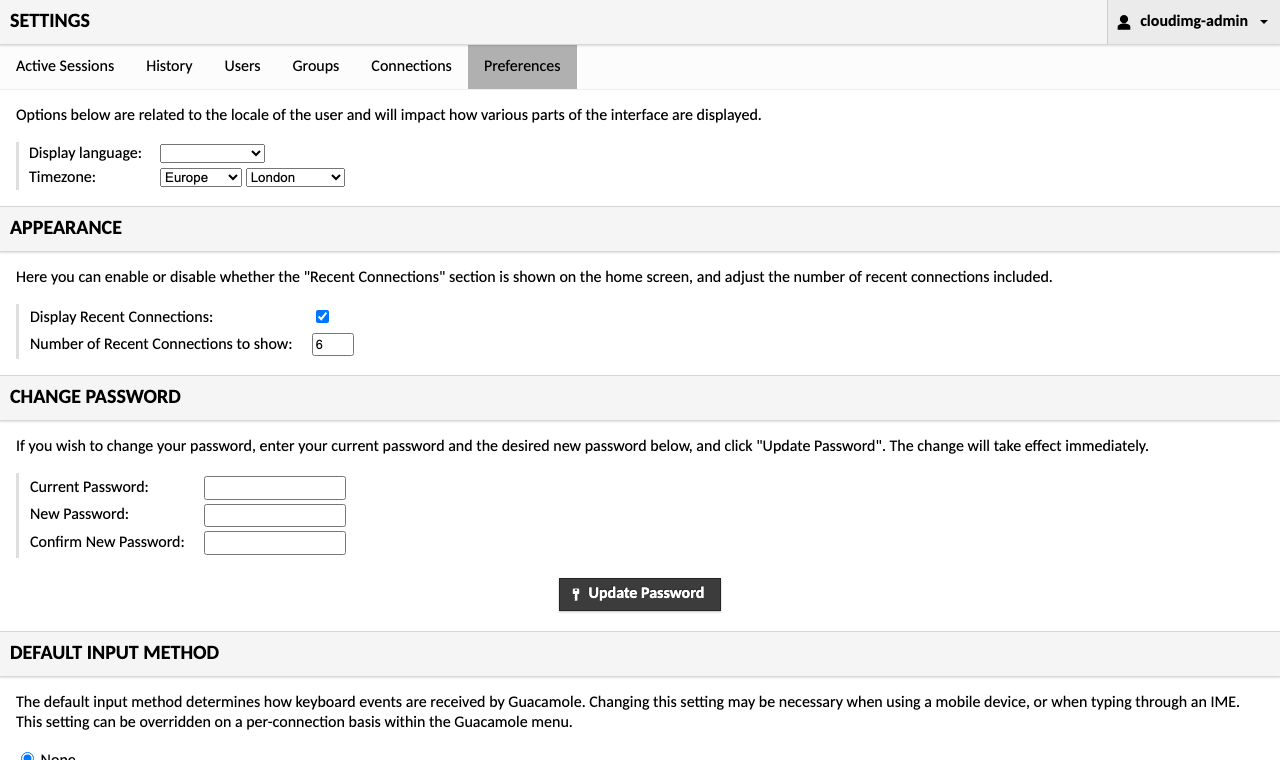
Change the generated password to one of your own under Settings > Preferences (top-right user menu). If you do, sudo guacamole-selftest reads the password from the credentials file, so put the new one there too or the sign-in check fails.
Step 6: Add your first connection
Open the user menu (top right), choose Settings, then Connections and New Connection. Give it a name, choose the protocol and fill in the target's Hostname and Port under Parameters > Network (3389 for RDP, 5900 for VNC, 22 for SSH), plus the credentials under Authentication if you want Guacamole to sign in for the user. Save, and the connection appears on the home page.
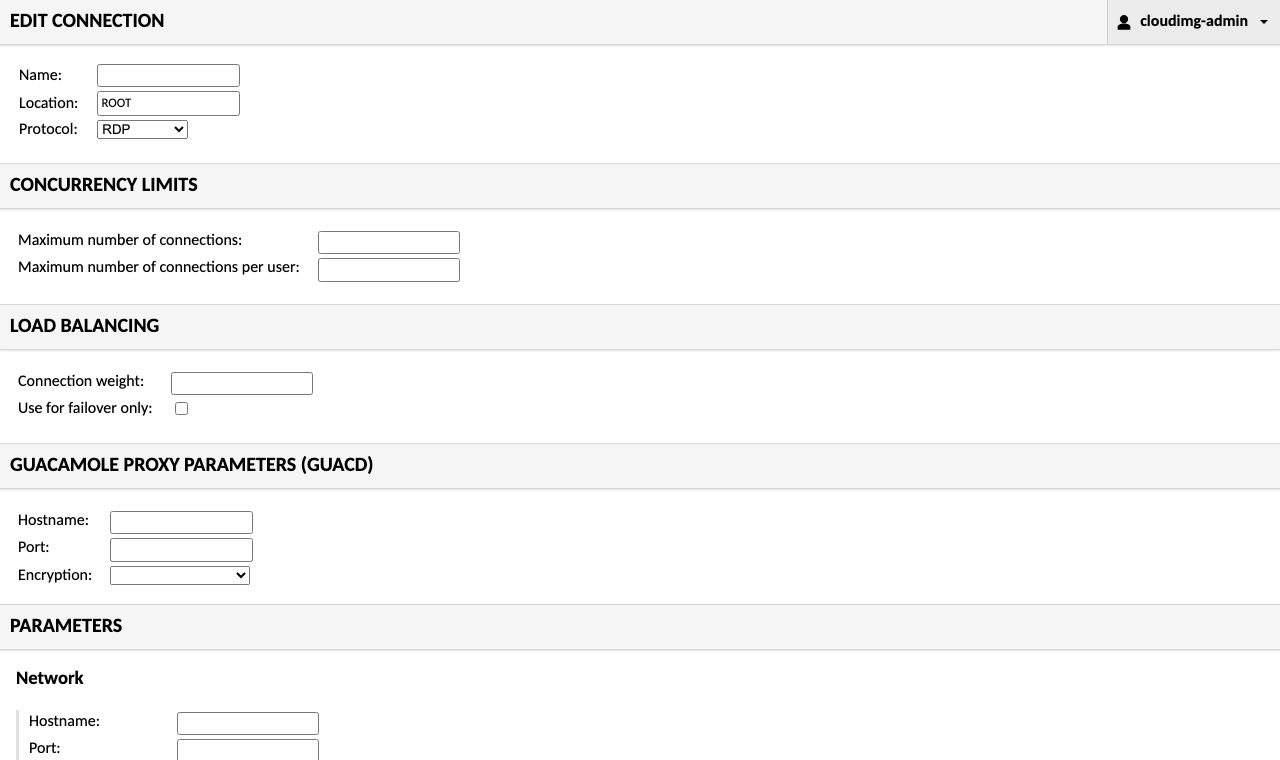
This image's guacd supports RDP, VNC and SSH. The form also lists Telnet and Kubernetes, which this build does not include (Telnet is unencrypted). The target must be reachable from the instance: allow RDP, VNC or SSH from the Guacamole instance's security group on the target, not from the internet.
Step 7: Add users
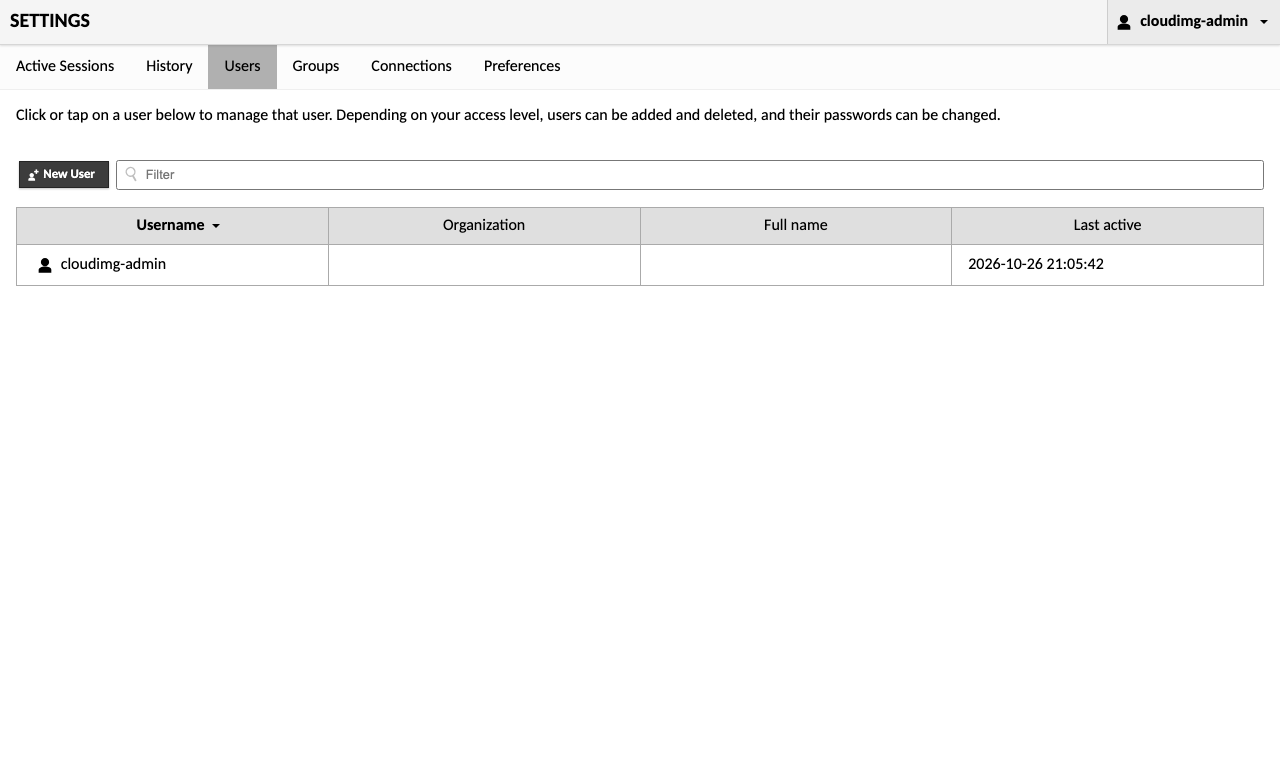
Choose Settings > Users > New User, set a user name and password, and tick the connections (or connection groups) the user may open under Connections. Tick Administer system only for people who should manage Guacamole itself. Give every person their own user: Guacamole records each session under the user's name in Settings > History.
Guacamole also supports time-based one-time passwords (TOTP), LDAP, SAML and OpenID Connect through extensions published by the Apache Guacamole project; download the 1.6.0 extension, place the .jar in /etc/guacamole/extensions/, add its settings to /etc/guacamole/guacamole.properties and restart Tomcat.
Step 8: Brute-force protection
Guacamole loads the brute-force extension next to the PostgreSQL extension, and its settings are in guacamole.properties (5 failed sign-ins from one address ban that address for 300 seconds):
sudo ls /etc/guacamole/extensions
sudo grep -E '^ban-' /etc/guacamole/guacamole.properties
guacamole-auth-ban-1.6.0.jar
guacamole-auth-jdbc-postgresql-1.6.0.jar
ban-max-invalid-attempts:      5
ban-address-duration:          300
Because nginx passes the real client address and Tomcat trusts it from 127.0.0.1 only, the ban applies to the attacker's address, not to everyone behind the proxy.
Step 9: Use a DNS name or an Elastic IP
nginx, the certificate and the Origin check all name one host. First boot uses the instance's public IPv4 address. If you stop and start the instance without an Elastic IP, the public address changes and the site stops answering on the new address until you run the helper (the login message warns you when this happens). With no argument, guacamole-set-host reads the current address from the instance metadata:
sudo guacamole-set-host | tail -3
Host changed from 52.87.161.224 to 52.87.161.224: Guacamole https://52.87.161.224/
Certificate SHA-256: 16:23:A2:FA:D1:F1:59:EB:A5:3C:A6:BA:8A:1C:F5:33:FA:F4:CC:AA:53:23:68:68:F2:C5:7E:D4:C1:62:47:B1
SET_HOST_OK
To use your own name, point a DNS record at the instance (attach an Elastic IP first so the address never changes) and pass the name: sudo guacamole-set-host guac.example.com. The helper updates nginx and the URL in the credentials file, issues a new self-signed certificate for that name, reloads nginx and proves the sign-in again. If nginx rejects the change it restores the previous settings.
Step 10: Use your own certificate
After Step 9 has set the name, copy your certificate (full chain) and key over the self-signed pair and reload nginx:
sudo install -m 0644 fullchain.pem /etc/nginx/tls/server.crt
sudo install -m 0600 privkey.pem /etc/nginx/tls/server.key
sudo nginx -t && sudo systemctl reload nginx
Running guacamole-set-host again later issues a new self-signed certificate, so copy your certificate back afterwards. Alternatively, put an Application Load Balancer with an AWS Certificate Manager certificate in front of port 443 and keep the self-signed certificate between the load balancer and the instance.
Step 11: Metadata access is blocked
Every service of the stack carries an IPAddressDeny rule for the metadata addresses, so a connection someone configures in Guacamole, or anything else a user can influence, cannot reach the instance's credentials:
for u in postgresql@16-main guacd tomcat nginx; do printf '%-20s %s\n' "$u" "$(systemctl show -p IPAddressDeny --value "$u.service")"; done
postgresql@16-main   fd00:ec2::254/128 168.63.129.16/32 169.254.169.254/32
guacd                fd00:ec2::254/128 168.63.129.16/32 169.254.169.254/32
tomcat               fd00:ec2::254/128 168.63.129.16/32 169.254.169.254/32
nginx                fd00:ec2::254/128 168.63.129.16/32 169.254.169.254/32
Step 12: How the fail-closed start works
Every service is gated on /var/lib/cloudimg/guacamole.ready, which first boot writes only after this instance's database, configuration and certificate exist. The files holding secrets are readable only by root and the one service that needs them:
systemctl cat tomcat.service nginx.service | grep '^ConditionPathExists='
sudo stat -c '%a %U:%G %n' /root/guacamole-credentials.txt /etc/guacamole/guacamole.properties /etc/nginx/tls/server.key
ConditionPathExists=/var/lib/cloudimg/guacamole.ready
ConditionPathExists=/var/lib/cloudimg/guacamole.ready
600 root:root /root/guacamole-credentials.txt
640 root:tomcat /etc/guacamole/guacamole.properties
600 root:root /etc/nginx/tls/server.key
Network ports
| Port | Listens on | Purpose |
|---|---|---|
| 22/tcp | all addresses | SSH administration (restrict to your own address) |
| 443/tcp | all addresses | Guacamole over HTTPS |
| 8080/tcp | 127.0.0.1 | Tomcat (Guacamole web application), behind nginx |
| 4822/tcp | 127.0.0.1 | guacd |
| 5432/tcp | 127.0.0.1 | PostgreSQL 16 |
Port 80 is not used: give your users the https:// address.
Where things live
| Path | What it is |
|---|---|
/root/guacamole-credentials.txt |
Sign-in URL, the administrator and its per-instance password |
/etc/guacamole/guacamole.properties |
Guacamole settings (database, brute-force ban) |
/etc/guacamole/extensions/ |
Guacamole extensions (PostgreSQL authentication, brute-force ban) |
/etc/nginx/sites-available/cloudimg-guacamole |
The HTTPS site; /etc/nginx/tls/ holds the certificate |
/opt/tomcat/ |
Tomcat 9.0.123 with the Guacamole web application |
/usr/local/sbin/guacd |
guacd 1.6.0 |
/var/lib/postgresql/16/main |
PostgreSQL data (created on first boot) |
Logs are in the journal: journalctl -u tomcat (Guacamole sign-ins and connections), journalctl -u guacd, and journalctl -u guacamole-firstboot for first boot.
Troubleshooting
- The browser shows "connection closed" or nothing at all: you used a name nginx is not configured for. Use
GUACAMOLE_URLexactly, or runsudo guacamole-set-host(Step 9). - "Too many failed authentication attempts":
guacamole-auth-banbanned your address for 5 minutes after repeated failures. Wait, or restart Tomcat to clear the list. - A connection fails to start: check that the target allows RDP, VNC or SSH from the Guacamole instance and look at
journalctl -u guacd. - First boot did not finish:
journalctl -u guacamole-firstbootshows the step that failed; every service stays stopped until it succeeds, and a reboot retries it.
Security recommendations
- Keep TCP 443 open only to the ranges your users connect from, and TCP 22 only to your management addresses.
- Change the generated administrator password, and give each person their own Guacamole user with only the connections they need.
- Add TOTP or your identity provider for a second factor (Step 7).
- Attach an Elastic IP and a DNS name, and use a certificate your users' browsers already trust (Steps 9 and 10).
- Leave unattended security upgrades on, and reboot after kernel updates.
Support and licensing
Apache Guacamole and Apache Tomcat are projects of the Apache Software Foundation, distributed under the Apache License 2.0. This image builds the unmodified Guacamole 1.6.0 server source, ships the Guacamole 1.6.0 web application with its Jackson and Logback libraries updated as described above, and ships the unmodified Tomcat 9.0.123 release. cloudimg provides the packaging, the integration, the secure defaults, the per-instance credentials and certificate, the metadata block, the fail-closed start, the self-test and 24/7 support.
cloudimg is not affiliated with or endorsed by the Apache Software Foundation. Apache, Apache Guacamole, Guacamole and Apache Tomcat are trademarks of the Apache Software Foundation. They are used here only to identify the software.
For help with deployment or configuration, email support@cloudimg.co.uk or visit cloudimg support.