
Beszel on AWS User Guide
Overview
This image runs Beszel, the open source, lightweight server and container monitoring hub - a clean web dashboard with historical CPU, memory, disk, network and temperature metrics, configurable alerts and a multi-system overview. Lightweight agents report metrics back to the hub, including Docker container statistics. Beszel is deployable entirely within your own VPC.
The Beszel hub is a single Go binary that serves both the REST API and the web UI. It is a PocketBase application with an embedded SQLite datastore. The hub runs behind nginx as a reverse proxy: it listens on 127.0.0.1:8090 and is reached through nginx on port 80 (and 443 once you add TLS). A Beszel agent is also preinstalled on this host so you can monitor the server itself out of the box once you add it in the dashboard.
On the first boot of every deployed instance, a one-shot service recreates the datastore (which yields fresh per-instance signing keys) and creates a single administrator account with a per-instance password. The login is written to /root/beszel-credentials.txt with mode 0600. Beszel has no default administrator and no shared credentials ship in the image.
Prerequisites
Before you deploy this image you need:
- An Amazon Web Services account where you can launch EC2 instances
- IAM permissions to launch instances, create security groups, and subscribe to AWS Marketplace products
- An EC2 key pair in the target Region for SSH access to the instance
- A VPC and subnet in the target Region, with a security group allowing inbound port 22 from your management network and inbound ports 80 and 443 from the networks your users will reach Beszel on
- The AWS CLI (version 2) installed locally if you plan to deploy from the command line
Step 1: Launch the Instance from the AWS Marketplace
Sign in to the AWS Management Console, open the EC2 service, and select Launch instance. Under Application and OS Images choose AWS Marketplace AMIs and search for Beszel. Select the cloudimg listing and choose Select, then Continue on the subscription summary.
Pick an instance type of t3.small or larger. Choose your EC2 key pair under Key pair (login). Under Network settings select your VPC and subnet, and either create or select a security group that allows inbound port 22 from your management network and inbound ports 80 and 443 from the networks your users use. Leave the root volume at the default size or larger.
Select Launch instance. First boot initialisation takes under a minute after the instance state becomes Running and the status checks pass.
Step 2: Launch the Instance from the AWS CLI
The following block launches an instance from the cloudimg Beszel Marketplace AMI into an existing subnet and security group. Replace <ami-id> with the AMI ID shown on the Marketplace listing, <key-name> with your EC2 key pair name, <subnet-id> with your subnet ID, and <security-group-id> with a security group that opens ports 22, 80, and 443 as described above.
aws ec2 run-instances \
  --image-id <ami-id> \
  --instance-type t3.small \
  --key-name <key-name> \
  --subnet-id <subnet-id> \
  --security-group-ids <security-group-id> \
  --block-device-mappings '[{"DeviceName":"/dev/sda1","Ebs":{"VolumeSize":20,"VolumeType":"gp3"}}]' \
  --tag-specifications 'ResourceType=instance,Tags=[{Key=Name,Value=beszel-01}]'
The command prints a JSON document on success. Note the instance ID, then retrieve its public address once it is running with aws ec2 describe-instances --instance-ids <instance-id> --query "Reservations[].Instances[].PublicIpAddress" --output text.
Step 3: Connect and Retrieve the Administrator Login
Connect over SSH with the key pair you selected and the public IP address from step 2. The SSH login user depends on the operating system of the AMI variant you launched:
| AMI variant | SSH login user |
|---|---|
| Beszel 0.18 on Ubuntu 24.04 | ubuntu |
ssh -i <path-to-key.pem> ubuntu@<instance-public-ip>
The administrator email and password are generated uniquely on this instance during first boot and written to a root-only file. Retrieve them with:
sudo cat /root/beszel-credentials.txt
The file contains the hub URL, the administrator email (beszel.admin.user) and the per-instance password (beszel.admin.pass). Keep these somewhere safe.
Step 4: Confirm the Services Are Running
Beszel is delivered as two systemd services: the hub (beszel.service) and the nginx reverse proxy (nginx.service). A Beszel agent (beszel-agent.service) is also installed so the host can monitor itself. Confirm the hub and proxy are active:
systemctl is-active beszel.service nginx.service
Both report active. Confirm the hub binary version:
/usr/local/bin/beszel --version
This prints beszel version 0.18.7. The hub exposes an open health endpoint through nginx; check it returns an HTTP 200 with a healthy message:
curl -s http://localhost/api/health
The response is {"message":"API is healthy.","code":200,"data":{}}. You can confirm the listening sockets - nginx on port 80 and the hub bound to loopback on 8090:
sudo ss -tlnp | grep -E ':80|:8090'
Step 5: Sign In to the Web Dashboard
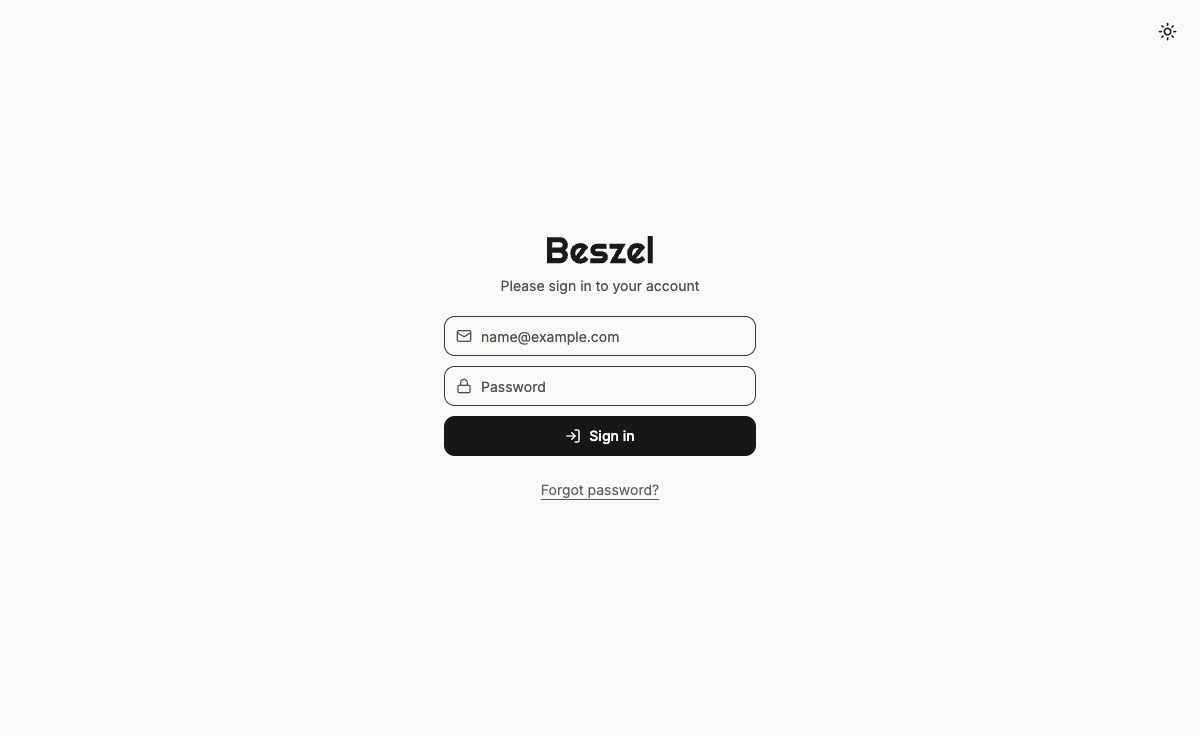
Browse to http://<instance-public-ip>/. The Beszel sign-in page appears. Enter the administrator email and password from /root/beszel-credentials.txt and select Sign in.
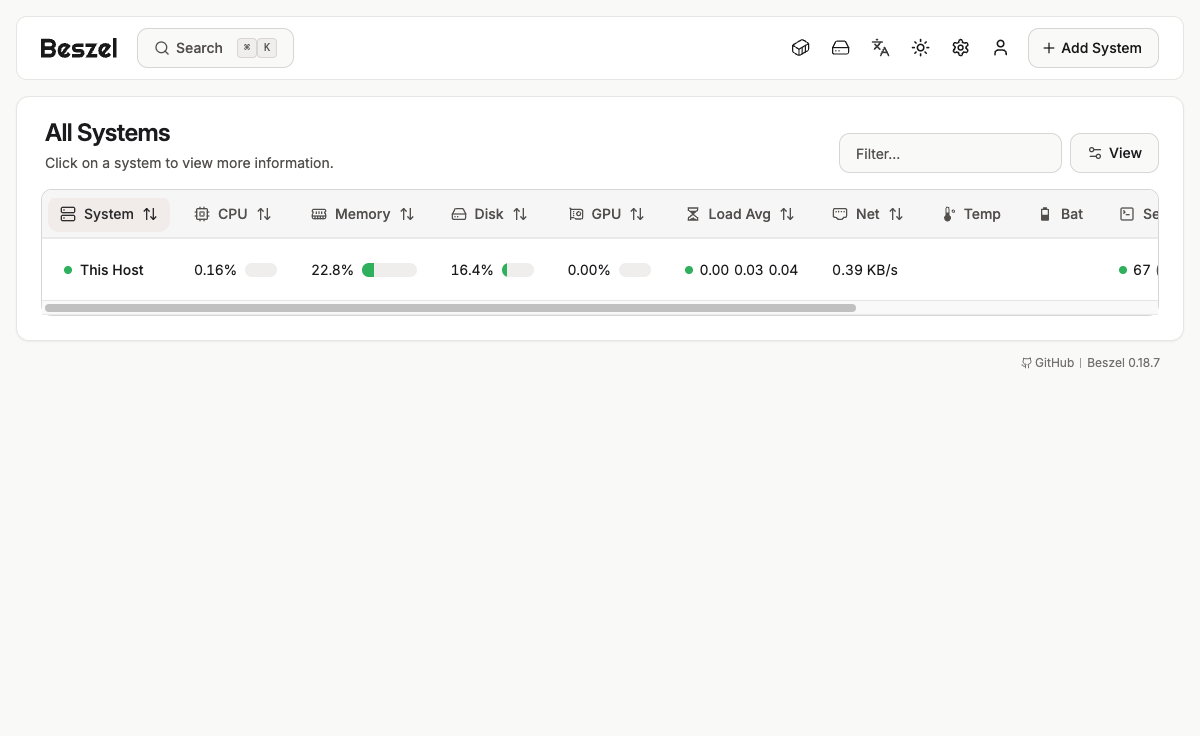
After signing in you reach the All Systems dashboard. It is empty until you add your first system.
Step 6: Add the Preinstalled Local Agent
A Beszel agent is already installed on this host as beszel-agent.service. To monitor the server itself, add it as a system in the dashboard. Beszel issues a unique public key and token for each system you add, so this step is done from the web UI rather than baked into the image.
In the dashboard select Add System. In the dialog choose the Binary tab, enter a Name (for example This Host), set Host / IP to localhost, and leave the Port as 45876. The dialog shows a Public Key and a Token for this system - copy both.
On the instance, write the key and token into the agent's environment file and restart the agent. Edit /etc/beszel-agent.env as root and set the KEY and TOKEN values to the ones the dialog showed you (the file already contains commented placeholders):
KEY=ssh-ed25519 AAAA...the public key from the dialog...
TOKEN=...the token from the dialog...
LISTEN=45876
Then restart the agent so it picks up the key:
sudo systemctl restart beszel-agent
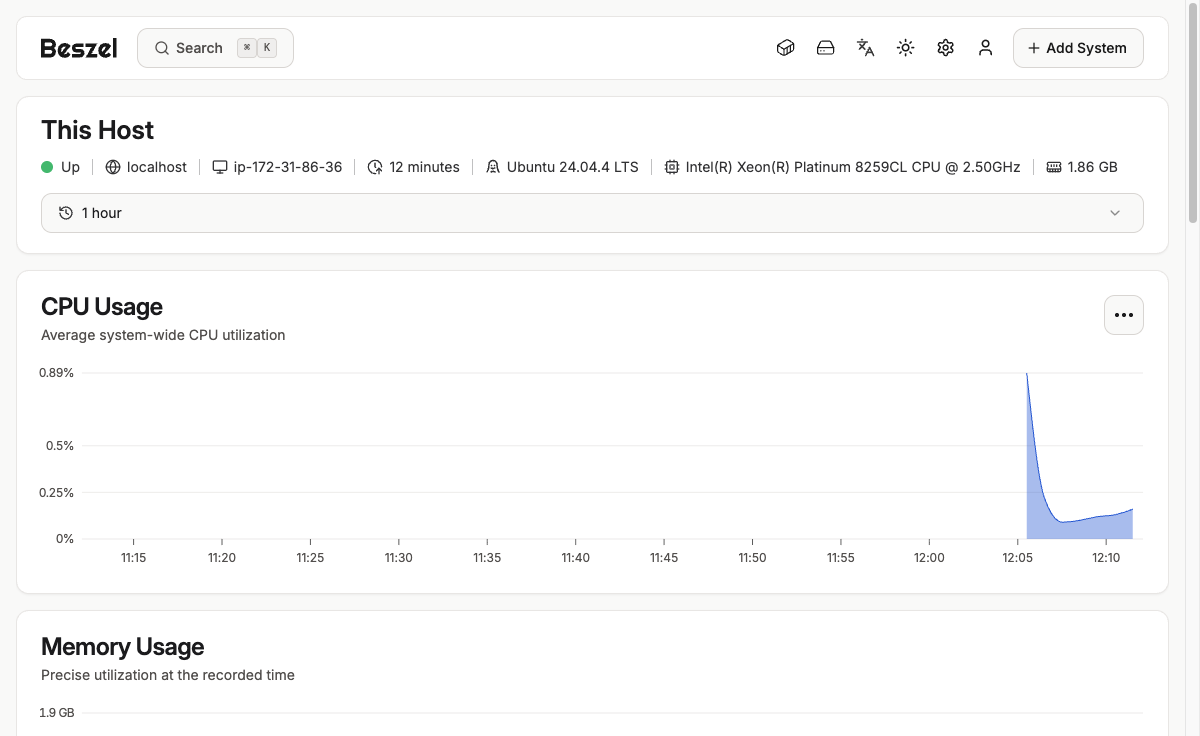
Back in the dialog, select Add System. Within a few seconds the system appears in the dashboard reporting live CPU, memory, disk, network and load metrics. Select the system name to open its detail view with historical charts.
To monitor other servers, install the Beszel agent on each one (the Beszel project provides agent packages and a Docker image), add a new system in the dashboard for each, and pair it with the issued key and token in the same way.
Step 7: Configure Alerts and Settings
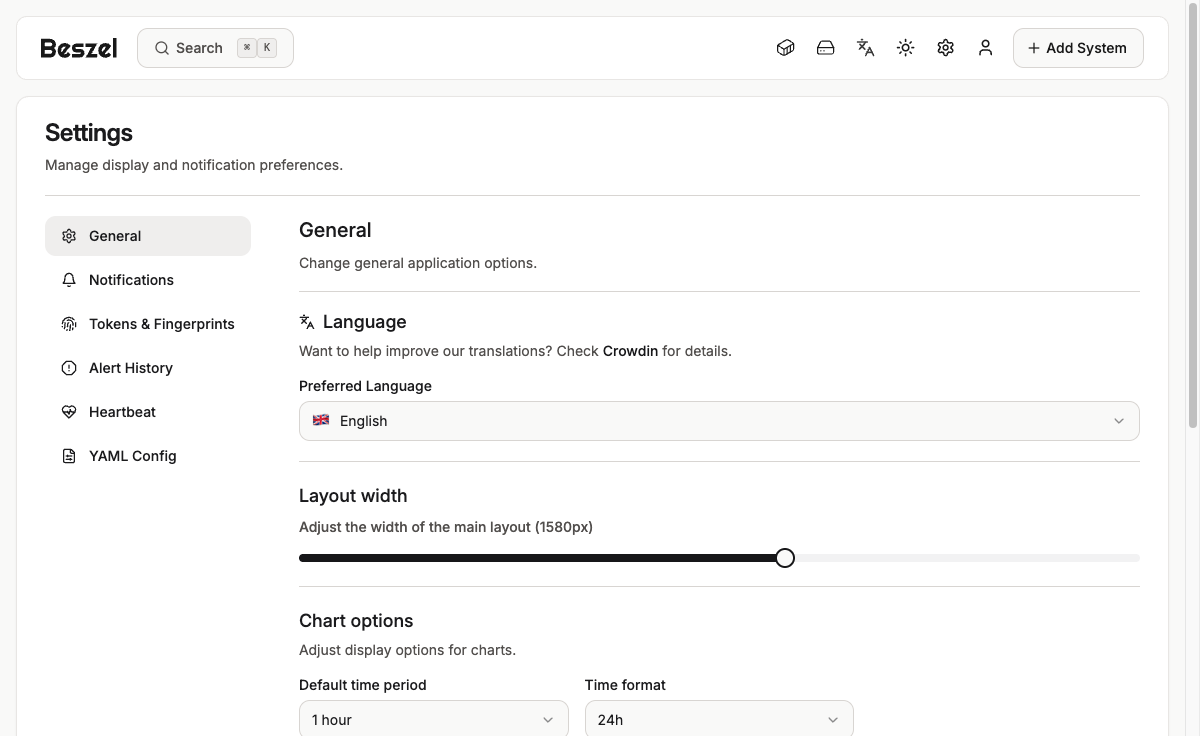
Beszel can alert you when a system goes down or a metric crosses a threshold. Open a system's detail view and use its alert controls, or manage notification channels and display preferences from Settings. The Settings area covers general display options, notification channels, tokens and fingerprints, alert history, heartbeat and a YAML configuration view.
Step 8: Use the REST API
Because the hub is a PocketBase application it exposes a REST API under /api/. The health endpoint is open; most other endpoints require authentication. Authenticate as the administrator (a PocketBase superuser) to obtain a token. Read the login into shell variables first so the password never appears in your shell history, then request a token:
BZ_USER=$(sudo grep '^beszel.admin.user=' /root/beszel-credentials.txt | cut -d= -f2-)
BZ_PASS=$(sudo grep '^beszel.admin.pass=' /root/beszel-credentials.txt | cut -d= -f2-)
curl -s -H 'Content-Type: application/json' \
  -d "{\"identity\":\"$BZ_USER\",\"password\":\"$BZ_PASS\"}" \
  http://localhost/api/collections/_superusers/auth-with-password | head -c 80
A successful authentication returns a JSON document containing a token field, which you can pass as an Authorization header on subsequent API calls.
Step 9: Configure HTTPS
For production use, terminate TLS in front of Beszel. The simplest path is to point a DNS name at the instance and use Let's Encrypt with Certbot. Install Certbot and the nginx plugin, then request a certificate for your domain - replace your-domain.example.com with your DNS name:
sudo apt-get update
sudo apt-get install -y certbot python3-certbot-nginx
sudo certbot --nginx -d your-domain.example.com
Certbot edits the nginx configuration to serve Beszel over HTTPS on port 443 and sets up automatic renewal. Make sure your security group allows inbound port 443 from your users' networks.
Step 10: Back Up and Maintain
All Beszel state - the embedded SQLite metrics database, the PocketBase configuration and the per-instance signing keys - lives under /var/lib/beszel/pb_data, which is mounted on a dedicated EBS volume separate from the operating system disk. Confirm the data volume is mounted:
df -h /var/lib/beszel | tail -1
To back up Beszel, snapshot the data EBS volume, or stop the hub briefly and archive /var/lib/beszel/pb_data. To grow storage, expand the EBS volume and the filesystem - no reinstall is required because the data lives on its own disk.
Service logs are available through journald:
sudo journalctl -u beszel.service --no-pager | tail -20
Support
This image is provided by cloudimg with 24/7 technical support covering deployment, upgrades, integrations, TLS termination and adding agents. Beszel is open source software distributed under the MIT license; this image repackages it for convenient deployment on AWS. Beszel is a trademark of its respective owner. Use of the name does not imply any affiliation with or endorsement by them.