Claroline Connect LMS 15.0.15 on AWS User Guide
Overview
This guide covers launching and using Claroline Connect LMS 15.0.15 on Ubuntu 24.04 from cloudimg on Amazon EC2. It is one version of the cloudimg Hardened Moodle & E-Learning Platforms AMIs listing on AWS Marketplace; you pick it as the software version when you subscribe and launch. The other learning platforms in the listing are described on the listing's guide hub.
Claroline Connect is an open source learning management system (LMS) used by schools, universities and training organisations to build and deliver online courses. It brings workspaces, courses and training sessions, learning paths, exercises and quizzes, forums, resource libraries, badges and learner tracking together in one web interface. Claroline Connect is licensed under the GNU Affero General Public License version 3 or later (AGPL-3.0-or-later).
The image ships the platform already installed and migrated, with its React front end compiled at build time, so you sign in and start building courses. No courses, users or content are seeded apart from your administrator.
What is on the image:
- Claroline Connect 15.0.15 (the official release tag, checksum-verified) on PHP 8.3 FPM, served by nginx
- HTTPS from first boot: nginx serves the platform on port 443 with a certificate created on your instance's first boot, and port 80 redirects to HTTPS
- MySQL 8.0 on localhost only, with no database password: Claroline connects over the local socket as the
www-dataaccount using socket authentication - A dedicated 30 GiB EBS data volume mounted at
/data, holding the MySQL database and Claroline's files and uploads claroline-firstboot.service, which runs before the web server may start and creates your instance's administrator password, application secret and certificateclaroline-set-hostname, which moves the platform to your own DNS name- No build toolchain: Node.js, npm and Composer were used to build the image and are not on it. The five browser libraries Claroline serves from
/packages/(TinyMCE, MathJax, Font Awesome, flag-icons and video.js) ship as static files
Default user: ubuntu · Architecture: x86_64 · Root volume: 16 GiB gp3 · Data volume: 30 GiB gp3 at /data
Security posture
- No default login. The administrator account
adminis created on each instance's first boot with a random password, together with the Symfony application secret that signs sessions and tokens. None of them is in the image and no two instances share one. The installer's own hidden technical account ships disabled, removed and with no password. - No database password at all. MySQL's
rootand the application'swww-dataaccount use socket authentication: a connection is accepted only from the operating-system user of the same name, over the local socket. There is no password to steal, and neither account can log in over the network. - Fails closed. nginx and PHP-FPM start only after first boot has finished. If first boot cannot finish, the platform stays down rather than open.
- Only nginx faces the network. The listening set is exactly 22, 80 and 443. MySQL listens on
127.0.0.1:3306only, with the X protocol off. - The platform address comes from configuration, never from the request. First boot reads it from
/etc/cloudimg/claroline-hostnameor the EC2 instance metadata service (IMDSv2). nginx answers only that name, the instance's own IP addresses and localhost, and drops any other Host; Claroline is handed the configured name and itsTRUSTED_HOSTS, so a request cannot rewrite the links in emails. - Real client addresses. nginx removes client-supplied
X-Forwarded-For,X-Real-IP,ForwardedandX-Forwarded-Hostheaders before PHP sees them, so a forged header cannot make a remote caller look local. - No instance metadata access for any service. Claroline fetches URLs (PeerTube, YouTube and BigBlueButton integrations, images in PDF exports), so
nginx,php8.3-fpm,mysqland the first-boot unit are blocked from reaching the instance metadata service (169.254.169.254 and fd00:ec2::254). Only a small first-boot helper that runs no application code reads it, for the platform address. - IMDSv2 required. The AMI is registered with
ImdsSupport v2.0, so instances launched from it refuse token-less (IMDSv1) metadata requests. - Key-only SSH. Password and keyboard-interactive logins, root login and X11 forwarding are turned off in
/etc/ssh/sshd_config.d/00-cloudimg.conf; you sign in asubuntuwith your EC2 key pair. - Per-instance identity. SSH host keys, the machine ID, the site certificate and MySQL's server UUID are generated fresh on every instance.
Prerequisites
- An AWS account where you can subscribe to AWS Marketplace products and launch EC2 instances
- An EC2 key pair in the target Region
- A VPC and subnet, with a public IP address on the instance if your users reach it over the internet
- A security group that allows
22/tcpfrom your management network, and80/tcpand443/tcpfrom your users' networks. No other port is needed; do not open 3306
Recommended instance type: m5.large (2 vCPU, 8 GiB RAM). It serves a department or a small institution; use m5.xlarge or larger for many concurrent learners.
Step 1: Launch from AWS Marketplace
- Open the Hardened Moodle & E-Learning Platforms AMIs listing by cloudimg and choose View purchase options, then subscribe.
- Choose Continue to Configuration. Under Software version choose
Claroline Connect LMS 15.0.15 on Ubuntu 24.04, pick your Region, and choose Continue to Launch. - Under Choose Action select Launch through EC2.
- Set the instance type to m5.large, choose your key pair, and use the seller's security group settings (ports 22, 80 and 443), narrowing port 22 to your management network. Keep the image's data volume.
- Launch. First boot finishes within about a minute of the instance reaching the running state.
Step 2: Launch from the AWS CLI
Workstation commands. Replace <ami-id> with the AMI ID shown for the Claroline Connect LMS 15.0.15 on Ubuntu 24.04 software version on the listing's launch page, and use your own VPC, subnet, key pair and address ranges.
aws ec2 create-security-group --group-name claroline-sg \
  --description "Claroline Connect" --vpc-id <vpc-id>
aws ec2 authorize-security-group-ingress --group-id <security-group-id> \
  --protocol tcp --port 22 --cidr <your-ip>/32
aws ec2 authorize-security-group-ingress --group-id <security-group-id> \
  --protocol tcp --port 80 --cidr <users-cidr>
aws ec2 authorize-security-group-ingress --group-id <security-group-id> \
  --protocol tcp --port 443 --cidr <users-cidr>

aws ec2 run-instances --image-id <ami-id> --instance-type m5.large \
  --key-name <key-name> --subnet-id <subnet-id> \
  --security-group-ids <security-group-id> --associate-public-ip-address \
  --metadata-options HttpTokens=required \
  --tag-specifications 'ResourceType=instance,Tags=[{Key=Name,Value=claroline}]'

aws ec2 describe-instances --instance-ids <instance-id> \
  --query "Reservations[].Instances[].[PublicDnsName,PublicIpAddress]" --output text
Step 3: Connect over SSH
ssh -i <key.pem> ubuntu@<public-dns>
The login user is ubuntu.
Step 4: Retrieve your credentials
First boot writes your instance's credentials to a root-only file:
sudo cat /root/claroline-credentials.txt
It looks like this (your values differ):
CLAROLINE_URL=https://ec2-203-0-113-10.compute-1.amazonaws.com/
CLAROLINE_ADMIN_USER=admin
CLAROLINE_ADMIN_PASSWORD=<generated-per-instance>
CLAROLINE_URL is the platform address. First boot takes it from /etc/cloudimg/claroline-hostname if that file exists, otherwise from IMDSv2: the instance's public DNS name, else its public IPv4 address, else its private IPv4 address. If you keep credentials centrally, copy them into AWS Secrets Manager.
Step 5: Verify the services
systemctl is-active nginx php8.3-fpm mysql
ls /var/lib/cloudimg/claroline-firstboot.done
All three services print active, and the first-boot marker exists (first boot runs once; after a reboot its unit shows as skipped, which is expected). Only 22, 80 and 443 listen on a public address; MySQL is on 127.0.0.1:3306:
sudo ss -Hltn | awk '{print $4}' | sort -u
The health endpoint and the HTTPS front end on the configured name both answer 200, and port 80 redirects to HTTPS:
SITE=$(sed -n 's/^set \$cl_host "\(.*\)";$/\1/p' /etc/nginx/claroline-host.conf)
curl -s -o /dev/null -w "%{http_code}\n" http://127.0.0.1/healthz
curl -sk -o /dev/null -w "%{http_code}\n" --resolve "${SITE}:443:127.0.0.1" "https://${SITE}/"
curl -s -o /dev/null -w "%{http_code} %{redirect_url}\n" --resolve "${SITE}:80:127.0.0.1" "http://${SITE}/"
MySQL holds no password. Every account uses socket authentication or is locked, and Claroline's own connections arrive over the socket as www-data:
sudo mysql -e "SELECT user, host, plugin, account_locked FROM mysql.user;"
sudo -u www-data mysql -u www-data -N -e "SELECT CURRENT_USER();" claroline
The platform cannot reach the instance metadata service. This runs the same request from inside php8.3-fpm.service and from your shell; the first prints 000 (blocked), the second 200:
CG=$(systemctl show -p ControlGroup --value php8.3-fpm.service)
sudo bash -c "echo \$\$ > /sys/fs/cgroup${CG}/cgroup.procs; exec curl -s -m 5 -o /dev/null -w '%{http_code}\n' -X PUT -H 'X-aws-ec2-metadata-token-ttl-seconds: 60' http://169.254.169.254/latest/api/token"
curl -s -m 5 -o /dev/null -w '%{http_code}\n' -X PUT -H 'X-aws-ec2-metadata-token-ttl-seconds: 60' http://169.254.169.254/latest/api/token
Step 6: Sign in
- Open the
CLAROLINE_URLfrom Step 4 in a browser. Plainhttp://redirects to HTTPS. - The certificate is self-signed and unique to your instance, so the browser warns the first time. Accept it, or install a trusted certificate (Step 8).
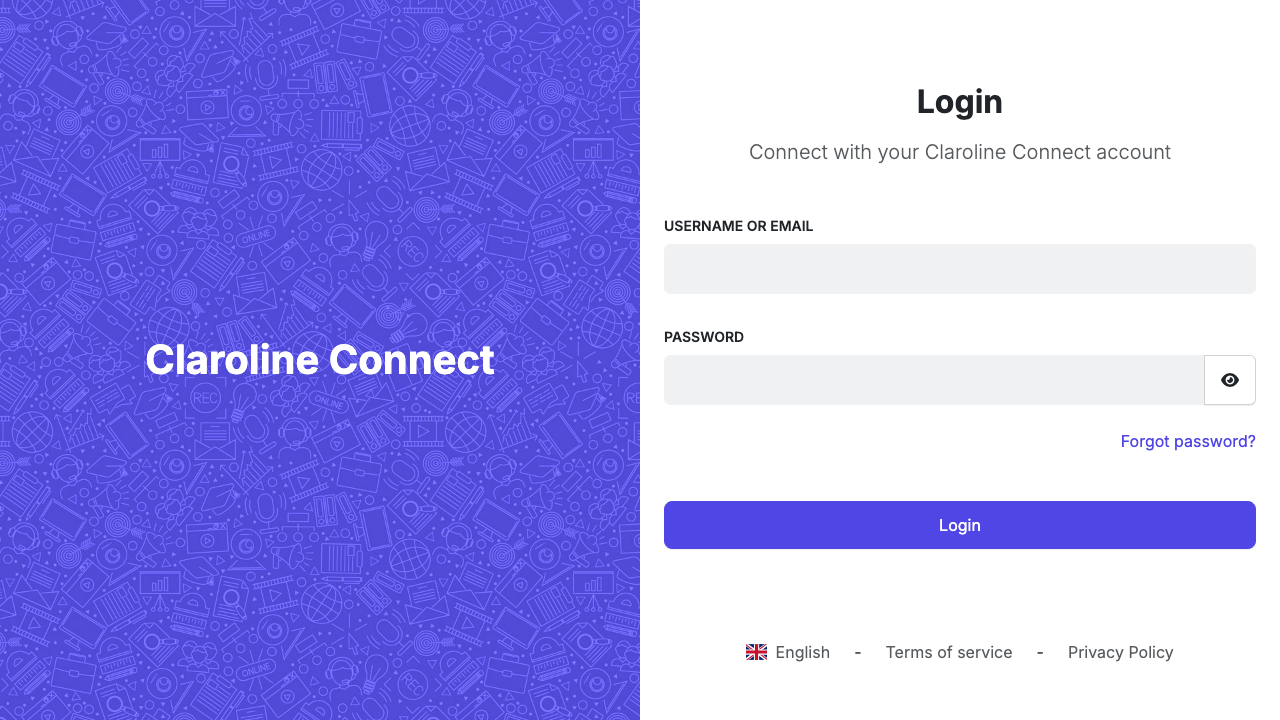
- The sign-in form opens. Enter admin as the username and the
CLAROLINE_ADMIN_PASSWORDvalue, then choose Login.
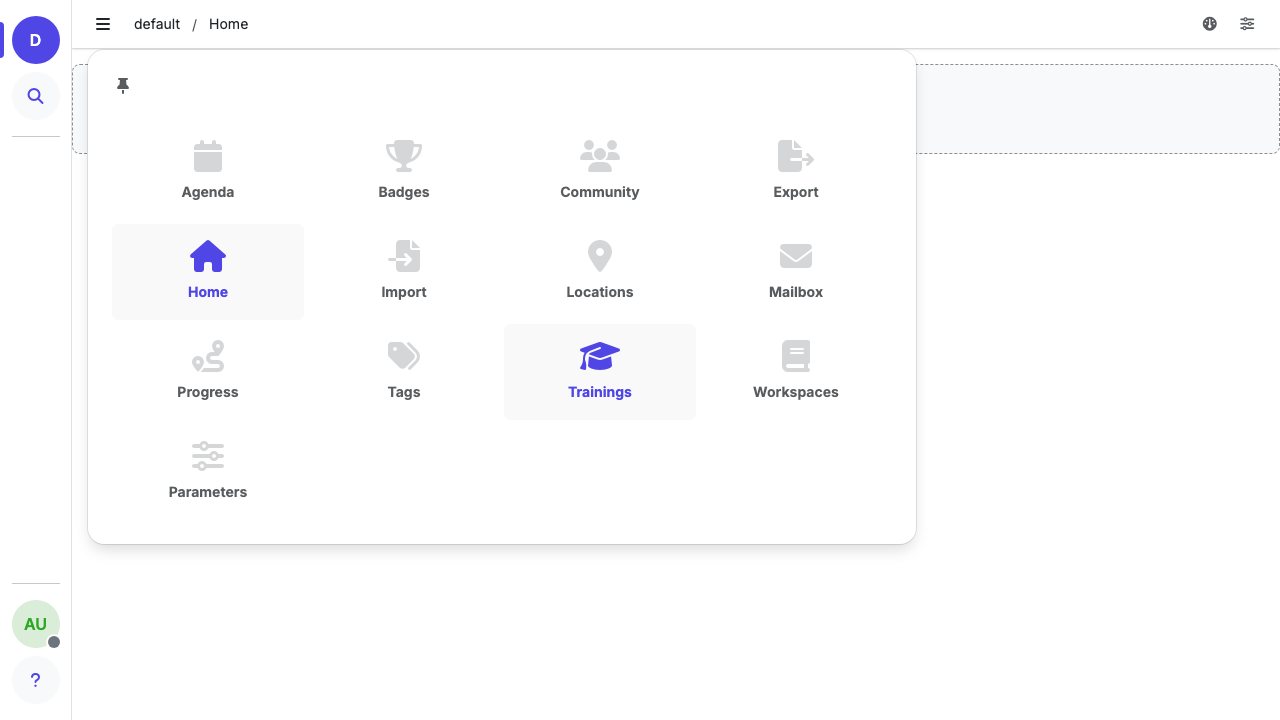
You land on your desktop. The menu at the top left opens the desktop tools: Workspaces, Trainings, Community, Badges, Agenda, Progress and the rest.
The platform answers only on its configured name, the instance's own IP addresses and localhost; a request naming any other host is dropped. Browse to the CLAROLINE_URL address, or the name you set in Step 7.
Step 7: Use your own hostname
Claroline builds the links in emails and notifications from its platform URL, which this image sets from configuration. To serve the platform on your own DNS name, point a DNS record (for example in Amazon Route 53) at the instance's public IP (an Elastic IP keeps it stable), then run on the instance:
sudo claroline-set-hostname learn.example.org
The helper writes the name to /etc/cloudimg/claroline-hostname, issues a new self-signed certificate for it, rewrites the nginx server name, Symfony's TRUSTED_HOSTS and Claroline's platform URL, updates CLAROLINE_URL in the credentials file, and reloads nginx. An instance without an Elastic IP gets a new public DNS name when it is stopped and started; run the helper with the new name so links and the certificate follow it.
Step 8: Install a trusted certificate
The site certificate is /etc/ssl/claroline/claroline.crt and its key /etc/ssl/claroline/claroline.key (mode 600, root). To use Let's Encrypt, first set your DNS name (Step 7), open port 80 to the internet, then:
sudo apt-get install -y certbot
sudo certbot certonly --standalone -d learn.example.org \
  --pre-hook "systemctl stop nginx" --post-hook "systemctl start nginx" \
  --deploy-hook "install -m 644 \$RENEWED_LINEAGE/fullchain.pem /etc/ssl/claroline/claroline.crt && install -m 600 \$RENEWED_LINEAGE/privkey.pem /etc/ssl/claroline/claroline.key"
certbot keeps the hooks for every renewal. Running claroline-set-hostname again replaces the certificate with a self-signed one, so run sudo certbot renew --force-renewal afterwards.
Step 9: Create your first workspace and course
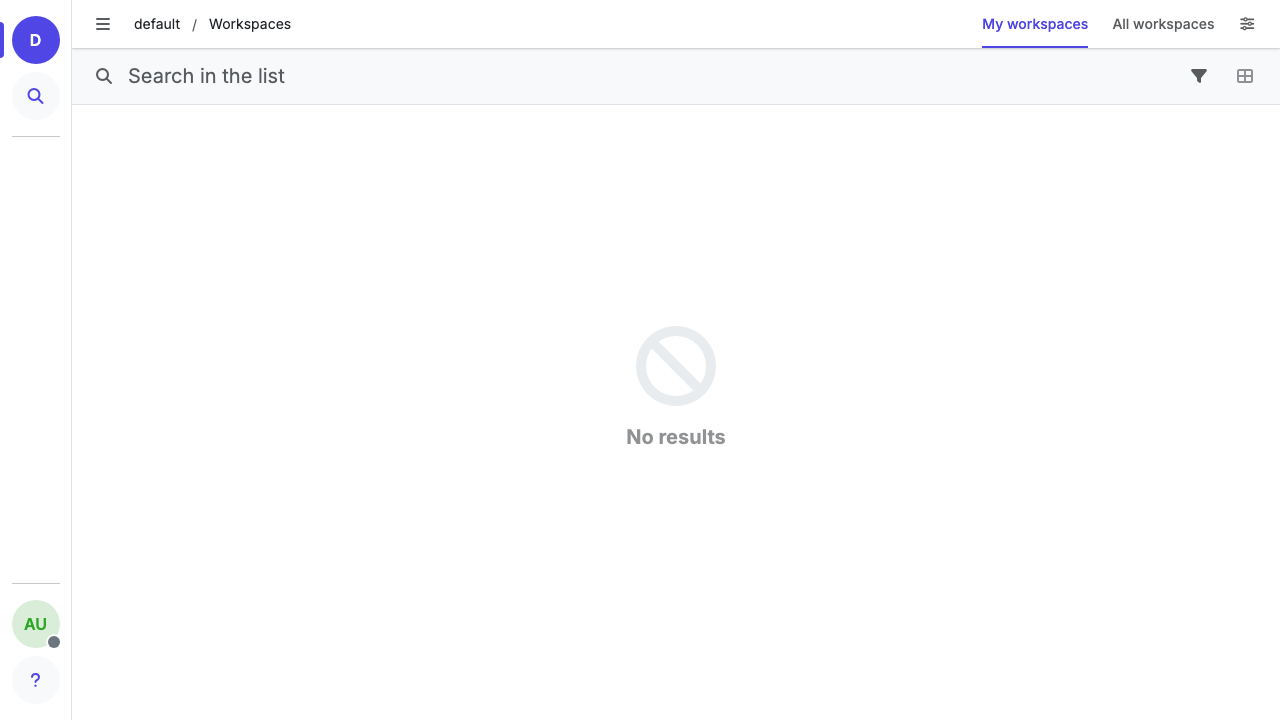
- Open Workspaces from the desktop tool menu. My workspaces lists the ones you belong to and All workspaces every workspace on the platform; choose the add button to create one. A workspace holds a course's resources, tools and members.
- Inside the workspace, add resources (documents, web pages, exercises, learning paths, forums) and register learners and trainers.
- To run scheduled training, use the Trainings tool to create a course and sessions that learners enrol in.
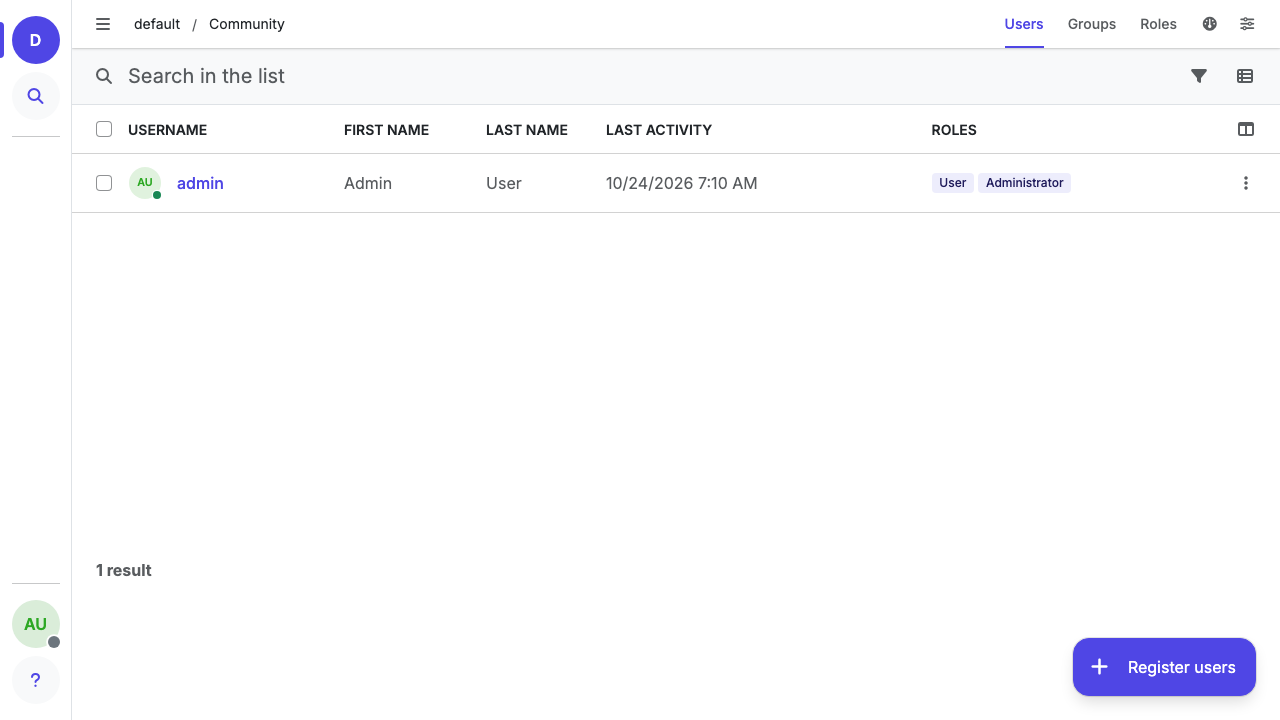
- Create learner accounts with Register users in the Community tool, or import them from a CSV file with the Import tool.
- Set your administrator's e-mail address under My account (first boot sets a placeholder) and configure outgoing mail before you rely on notifications or password resets.
Step 10: Server components
| Component | Version | Notes |
|---|---|---|
| Claroline Connect | 15.0.15 | github.com/claroline/Claroline, AGPL-3.0-or-later; /var/www/claroline/VERSION.txt |
| PHP | 8.3 (FPM) | Ubuntu 24.04 packages |
| nginx | 1.24 | TLS front end on 80/443 |
| MySQL | 8.0 | localhost only; socket authentication, no password |
The image updates the shipped PHP libraries to the releases that fix their published advisories (Symfony 7.4, Twig 3, Guzzle, Dompdf 3). The browser bundle includes MathJax 2.7.4, which Claroline pins: its only advisory (GHSA-v638-q856-grg8, a regular-expression denial of service) has no 2.x fix and is disputed by the MathJax maintainers, because those patterns are never applied to user input.
cat /var/www/claroline/VERSION.txt
php -v | head -n 1
mysql --version
Step 11: Filesystem layout
| Path | Purpose |
|---|---|
/var/www/claroline |
Claroline application (code owned by root; runtime directories by www-data) |
/var/www/claroline/config/parameters.yml |
Database and application secret settings (mode 640) |
/data/mysql (mounted at /var/lib/mysql) |
MySQL database on the data volume |
/data/claroline/files (mounted at /var/www/claroline/files) |
Claroline files and platform configuration |
/data/claroline/uploads (mounted at /var/www/claroline/public/uploads) |
Uploaded files |
/etc/nginx/sites-available/cloudimg-claroline |
nginx site |
/etc/ssl/claroline/ |
Site certificate and key |
/root/claroline-credentials.txt |
Your credentials (mode 600, root) |
/var/log/claroline-firstboot.log |
First boot log |
/var/lib/cloudimg/claroline-firstboot.done |
First boot marker; nginx and PHP-FPM start only when it exists |
for m in /data /var/lib/mysql /var/www/claroline/files /var/www/claroline/public/uploads; do findmnt -no TARGET,SOURCE "$m"; done
Step 12: Managing the services
systemctl status nginx php8.3-fpm mysql --no-pager -n 0
Restart PHP-FPM with sudo systemctl restart php8.3-fpm and reload nginx with sudo systemctl reload nginx. Logs are in /var/log/nginx/claroline-*.log and /var/www/claroline/var/log/; the Amazon CloudWatch agent can ship them to CloudWatch Logs. Claroline's console runs as the web user, for example:
sudo -u www-data php /var/www/claroline/bin/console list claroline
Custom themes are compiled with Node.js, which the image does not include; install Node.js 22 and run npm ci in /var/www/claroline first if you build your own theme.
Step 13: Backups
Dump the database as root over the socket (no password), and keep the files with it:
sudo mysqldump --single-transaction --routines --triggers claroline > ~/claroline-$(date +%Y%m%d).sql
sudo tar -czf ~/claroline-files-$(date +%Y%m%d).tar.gz -C /data/claroline files uploads
Copy both to an Amazon S3 bucket or another durable destination. EBS snapshots of the data volume are a simple whole-platform backup:
aws ec2 create-snapshot --volume-id <data-volume-id> --description "claroline $(date +%F)"
Step 14: Troubleshooting
The browser cannot connect, or the connection is dropped. Browse to the configured name (shown in CLAROLINE_URL); other host names are dropped by design. Check that ports 80 and 443 are open in the security group.
nginx or PHP-FPM is not running after launch. Both start only after first boot completes:
ls -la /var/lib/cloudimg/claroline-firstboot.done
sudo tail -n 20 /var/log/claroline-firstboot.log
If the marker is missing, first boot did not finish. Fix the cause, then run it again:
sudo systemctl restart claroline-firstboot
sudo systemctl start php8.3-fpm nginx
Confirm the administrator login works. The round-trip check signs in through the real login endpoint and confirms that wrong passwords are refused:
sudo /usr/local/sbin/claroline-cred-roundtrip.sh
It prints a line starting with OK.
Step 15: Security recommendations
- Keep port 22 limited to your management network.
- Change the administrator password from your user menu (My account) if you share it with anyone, and give trainers their own accounts rather than the administrator login.
- Keep MySQL on socket authentication. If a reporting tool must connect over the network, create a separate read-only account with its own password for it, bind it to the tool's address, and keep port 3306 closed in the security group.
- Apply Ubuntu security updates regularly (
sudo apt-get update && sudo apt-get upgrade); unattended upgrades are enabled for security updates.
Step 16: Support and licensing
Claroline Connect is licensed under the GNU Affero General Public License version 3 or later (AGPL-3.0-or-later); its source is at github.com/claroline/Claroline. You are responsible for the data protection of the learner records you enter. Claroline is a trademark of its owner; cloudimg is not affiliated with or endorsed by the Claroline Consortium.
cloudimg provides 24/7 technical support by email and live chat: support@cloudimg.co.uk. Every product in this listing is on the Hardened Moodle & E-Learning Platforms AMIs guide hub.