
Expose 3.2.0 on AWS User Guide
Overview
This guide covers launching and verifying Expose 3.2.0 on Ubuntu 24.04 from cloudimg on Amazon EC2. It is one version of the cloudimg Hardened WireGuard VPN & VPN, Proxy and Remote Access AMIs listing on AWS Marketplace; you pick it as the software version when you subscribe and launch. The other VPN, proxy and remote access servers in the listing are described on the listing's guide hub.
Expose is a self-hosted reverse tunnel server, an alternative to hosted tunnelling services such as ngrok. A developer runs the small Expose client on their own machine; it opens a WebSocket connection to this server, and the server then publishes the developer's local site at https://<name>.<your-domain>/, sending every request down the tunnel. That is useful for demos, for testing on real devices and for receiving webhooks from payment and source control providers on a laptop. Users, tunnel tokens, connected sites and request logs are managed in Expose's own web dashboard.
What is on the image:
- The Expose server 3.2.0 (exposedev/server), run by PHP 8.3 from Ubuntu, listening on
127.0.0.1only - nginx serving HTTPS on port 443 only, with a certificate generated for your instance on first boot, in front of the dashboard, the client connection and the tunnels
- Helpers:
expose-set-domain(switch to your own domain),expose-set-admin-passwordand the self-testexpose-selftest
Default user: ubuntu · Architecture: x86_64 · Root volume: 8 GiB gp3
Security posture
- No default credential. Upstream Expose ships a dashboard login of
username/secretand accepts tunnels from anyone. On this image the server configuration holds no credential at all: first boot generates an admin password and a tunnel token for this instance only and writes them to/root/expose-info.txt(root only). A start guard refuses to run the server if the login is missing, is a published default or is too short. - Not an open relay. Token validation is switched on in the configuration and forced on the command line, so only an Expose client presenting a token you issued can open a tunnel. A client with a wrong or missing token is refused.
- Dependency raise (CVE-2026-108082). The published Expose 3.2.0 server bundles symfony/http-foundation 7.2.3, whose
Cache-Controlparsing lets one unauthenticated request stall the server's single event loop. cloudimg rebuilds Expose 3.2.0 from its unmodified 3.2.0 source with the newer versions Expose's own dependency rules already allow: symfony 7.4 LTS (http-foundation 7.4.21), Twig 3.30, Guzzle 7.16 and guzzlehttp/psr7 2.13, and without the development packages. Step 10 shows the versions on your instance. - One public port. nginx listens on TCP 443. The Expose server listens on
127.0.0.1:8080only, as its own unprivileged user. The listing's security group opens SSH (22) and HTTPS (443); port 80 is not used. - Fixed host names. nginx answers only to this instance's address, your tunnel domain,
expose.<domain>and<name>.<domain>, and closes the connection for any otherHostheader. The dashboard is always handed one fixed host name. - Real client addresses. nginx overwrites
X-Forwarded-ForandX-Real-IPwith the address it sees, and Expose trusts forwarded headers from127.0.0.1only, so the application behind a tunnel sees the real visitor address and a forged header changes nothing. - Cross-site protection. A WebSocket upgrade or a state-changing request to the dashboard whose
Originis not one of this instance's names is refused with 403, so another web site cannot use a browser's saved dashboard login. - No token in the logs. The Expose client sends its token in the connection URL, so the control endpoint is never written to the nginx access or error log, and it is refused on tunnel names.
- Header limits. nginx caps request headers (1 KB buffer, four 8 KB buffers) in front of the Expose server.
- No SSRF to instance credentials. The Expose server and nginx carry an
IPAddressDenyrule for the metadata addresses (169.254.169.254, fd00:ec2::254, 168.63.129.16), and the AMI is registered IMDSv2 only. - Minimal PHP. Only the PHP extensions Expose needs are installed, all from Ubuntu main; PHP is the patched Ubuntu build and shell-out functions are disabled.
- Fails closed. The Expose server and nginx start only after first boot has written this instance's login, names and certificate, and first boot finishes only after it has proved the login over HTTPS. If it cannot, both stay stopped and first boot starts over on the next boot.
- Per-instance identity. SSH host keys and the machine ID are generated fresh on every instance; the firmware-update refresh timer (
fwupd-refresh) is masked, as EC2 has no updatable firmware.
Prerequisites
- An AWS account and permission to launch EC2 instances
- An EC2 key pair in the Region you launch in
- A DNS domain you control, for publishing tunnels under it (a subdomain such as
tunnels.example.comis fine) - The Expose client on each developer machine (PHP 8.2 or later, or the client's own installer; see the Expose documentation)
Recommended instance type: m5.large (2 vCPU, 8 GiB). Expose itself uses well under 200 MB of memory; size up for many concurrent tunnels.
Connecting to your instance
| Version | Operating system | SSH user |
|---|---|---|
| Expose 3.2.0 on Ubuntu 24.04 | Ubuntu 24.04 LTS | ubuntu |
Step 1: Launch the instance
Option A: AWS Marketplace console
- Open the cloudimg Hardened WireGuard VPN & VPN, Proxy and Remote Access AMIs listing on AWS Marketplace and choose View purchase options, then Subscribe. One subscription covers every version in the listing.
- Once the subscription is active, choose Launch your software.
- Choose One-click launch from AWS Marketplace (or Launch from EC2 Console for the full launch wizard). In Version, choose Expose 3.2.0 on Ubuntu 24.04, then choose your Region.
- Pick an instance type (
m5.largerecommended; the software charge is $0.04 per vCPU per hour) and your key pair. - Security group: allow SSH (22) from your own address and HTTPS (443) from the places tunnel visitors and your developers connect from (often everywhere, for webhooks). Nothing else is needed.
- Choose your VPC and a public subnet, leave the metadata defaults (the image already requires IMDSv2), then choose Launch. Attach an Elastic IP so the address your DNS records point at never changes.
Option B: AWS CLI
Run this on your own workstation. Replace the AMI ID with the one shown for your Region on the Marketplace launch page, and the VPC, subnet, key pair and CIDR ranges with your own:
SG=$(aws ec2 create-security-group --group-name expose \
  --description "Expose tunnel server" --vpc-id vpc-0123456789abcdef0 \
  --query GroupId --output text)
aws ec2 authorize-security-group-ingress --group-id "$SG" --protocol tcp --port 22  --cidr <your-mgmt-cidr>
aws ec2 authorize-security-group-ingress --group-id "$SG" --protocol tcp --port 443 --cidr 0.0.0.0/0
aws ec2 run-instances \
  --image-id ami-0123456789abcdef0 \
  --instance-type m5.large \
  --key-name my-key-pair \
  --security-group-ids "$SG" \
  --subnet-id subnet-0123456789abcdef0 \
  --associate-public-ip-address \
  --tag-specifications 'ResourceType=instance,Tags=[{Key=Name,Value=expose}]'
You do not need --metadata-options: the AMI already makes IMDSv2 required.
Step 2: Connect and read the generated details
Connect as ubuntu with the key pair you chose:
ssh -i ~/.ssh/my-key-pair.pem ubuntu@<public-ip>
First boot takes a few seconds: it generates the admin password, the tunnel token and the certificate, starts Expose and nginx, registers the token and then proves the dashboard login over HTTPS. The details are in /root/expose-info.txt, readable only by root. This command prints everything except the password and the token:
sudo grep -Ev '^EXPOSE_(ADMIN_PASSWORD|AUTH_TOKEN)=' /root/expose-info.txt
# Expose 3.2.0 (self-hosted tunnel server) - generated on first boot by expose-firstboot.service.
# Every value below is unique to this instance; nothing was baked into the image. Keep this file private.

# Admin dashboard (HTTP basic auth). Change the password: sudo expose-set-admin-password
EXPOSE_ADMIN_URL=https://54.173.245.255/
EXPOSE_ADMIN_USER=admin

# Tunnel token for the expose client (more tokens: dashboard > Users).

# Tunnel domain: tunnels are served as https://<name>.<domain>/ . Set your own domain (wildcard DNS record
# *.<domain> pointing here):  sudo expose-set-domain <domain>
EXPOSE_DOMAIN=ec2-54-173-245-255.compute-1.amazonaws.com
EXPOSE_SERVER_HOST=ec2-54-173-245-255.compute-1.amazonaws.com
EXPOSE_SERVER_PORT=443

# The certificate is self-signed and unique to this instance (/etc/expose/tls/expose.crt).
TLS_CERT_SHA256=C9:F3:03:B9:10:E0:6F:17:38:EE:7F:2E:B2:9C:94:A8:F8:56:26:39:BE:88:8C:34:58:97:A6:4D:FC:FE:4F:3C

# Self-test: sudo expose-selftest
# Guide: https://www.cloudimg.co.uk/guides/expose-3-2-0-on-ubuntu-24-04-aws/
Until you set your own domain (Step 6), the tunnel domain is the instance's EC2 DNS name. Print the dashboard password or the tunnel token only when you need them:
sudo sed -n 's/^EXPOSE_ADMIN_PASSWORD=//p' /root/expose-info.txt
sudo sed -n 's/^EXPOSE_AUTH_TOKEN=//p' /root/expose-info.txt
Step 3: Confirm the stack is running
The Expose server, nginx and the first-boot unit are active, and only SSH and HTTPS listen on a public address:
systemctl is-active expose-server.service nginx.service expose-firstboot.service
sudo ss -Htln | awk '{print $4}' | sort -u
active
active
active
0.0.0.0:22
0.0.0.0:443
127.0.0.1:8080
127.0.0.53%lo:53
127.0.0.54:53
[::]:22
[::]:443
127.0.0.53 and 127.0.0.54 are Ubuntu's local DNS resolver.
Step 4: Run the self-test
The self-test checks both services, then talks to the dashboard over HTTPS with this instance's certificate pinned: no login, the published defaults and a wrong password are refused, the per-instance login is accepted, the tunnel token from /root/expose-info.txt is registered and token validation is on. It prints no secret:
sudo expose-selftest
SELFTEST_OK expose-server+nginx active; dashboard 401 anonymous/default/wrong, 200 per-instance; token registered; token validation on; host 54.173.245.255
Step 5: Open the dashboard
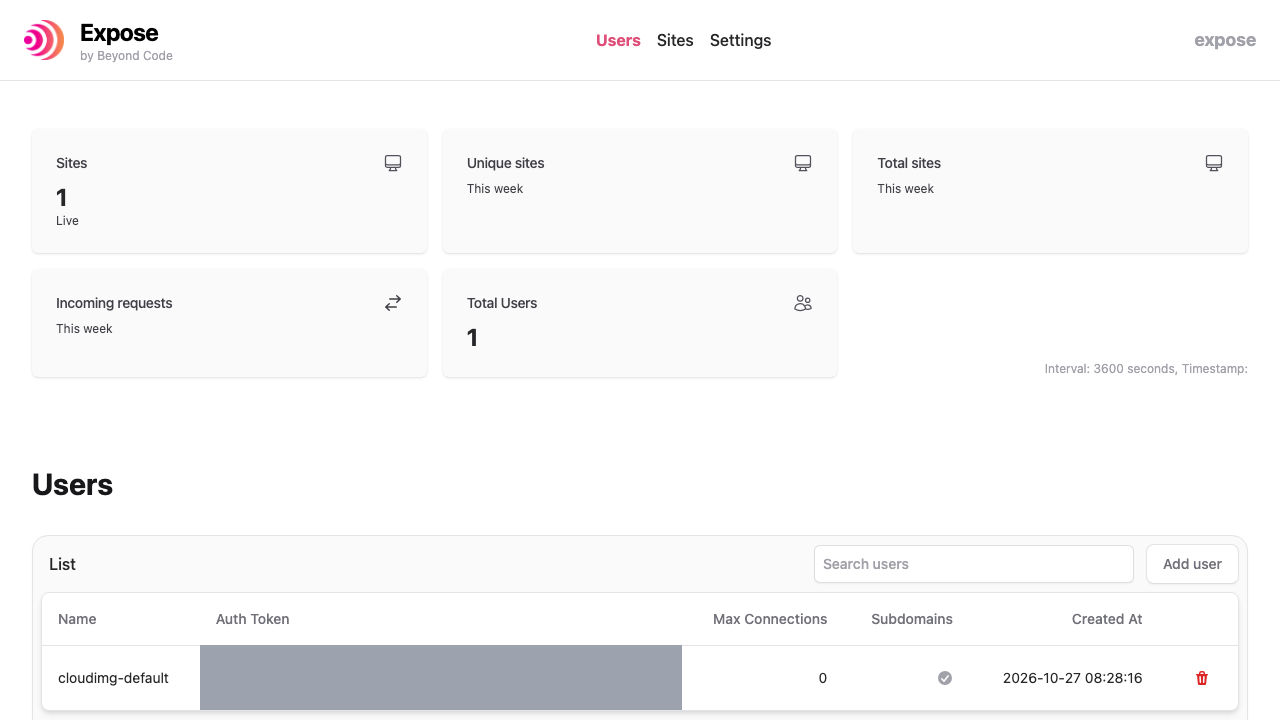
Browse to EXPOSE_ADMIN_URL (https://<public-ip>/), accept the certificate warning (the certificate is self-signed for this instance; Step 9 replaces it) and sign in as admin with EXPOSE_ADMIN_PASSWORD. The Users page lists the token holders; first boot created cloudimg-default holding the tunnel token from /root/expose-info.txt (masked in this screenshot):
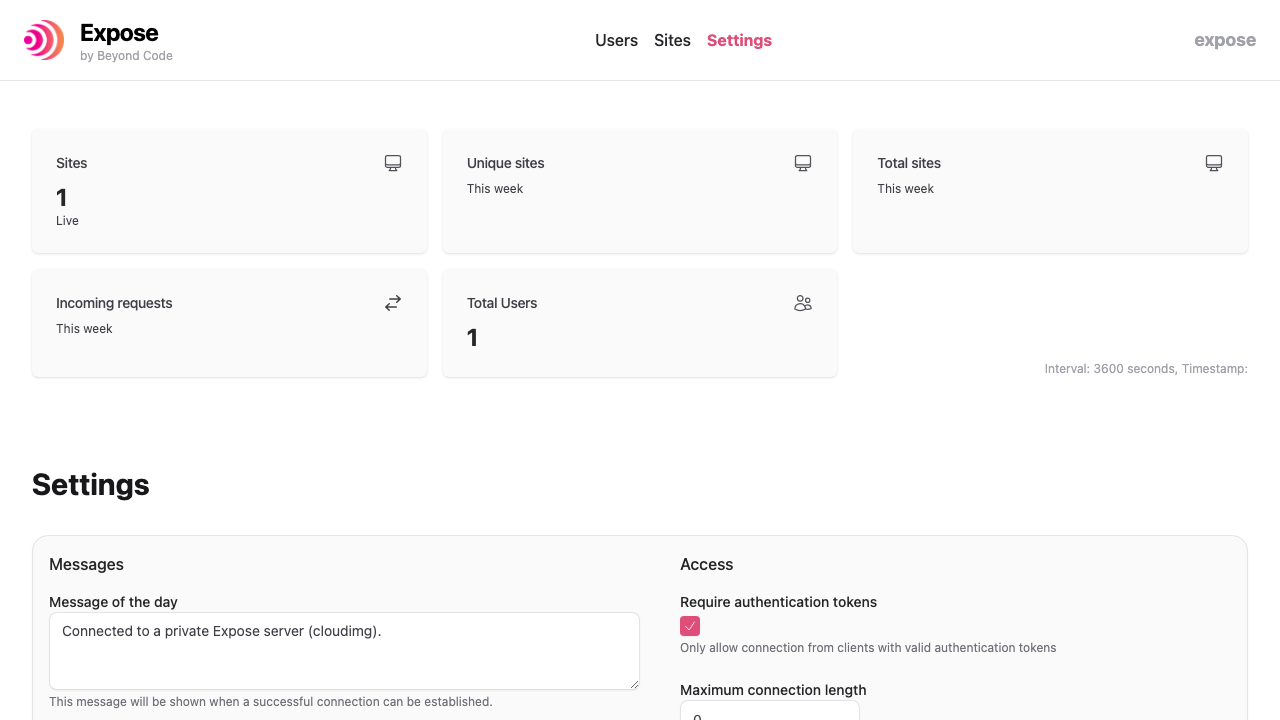
Settings shows the server options; Require authentication tokens is on:
To give another developer their own token, choose Add user on the Users page. Deleting a user revokes their token.
Step 6: Point your domain at the instance
Tunnels are published as https://<name>.<domain>/, so the server needs a domain with a wildcard DNS record. In your DNS provider, create both records pointing at the instance's Elastic IP:
tunnels.example.com      A   <elastic-ip>
*.tunnels.example.com    A   <elastic-ip>
Then switch the server to that domain. This rewrites the nginx names, issues a new self-signed certificate for tunnels.example.com, *.tunnels.example.com and expose.tunnels.example.com, restarts Expose and updates /root/expose-info.txt:
sudo expose-set-domain tunnels.example.com
SET_DOMAIN_OK domain=tunnels.example.com dashboard=https://54.173.245.255/ https://expose.tunnels.example.com/ tunnels=https://<name>.tunnels.example.com/
The tunnel domain must be a DNS name: Expose cannot serve tunnels under an IP address. Run sudo expose-set-domain with no argument to return to the instance's EC2 DNS name.
Step 7: Connect a client and share a local site
On a developer machine with the Expose client installed, share a local site with the token from /root/expose-info.txt. The client verifies the server's certificate, so until you install a certificate your machines already trust (Step 9), copy this instance's certificate (/etc/expose/tls/expose.crt, it is public) to the developer machine and point PHP at it:
php -d openssl.cafile=expose.crt "$(command -v expose)" share http://localhost:3000 \
  --subdomain=demo --server-host=tunnels.example.com --server-port=443 --auth=<auth-token>
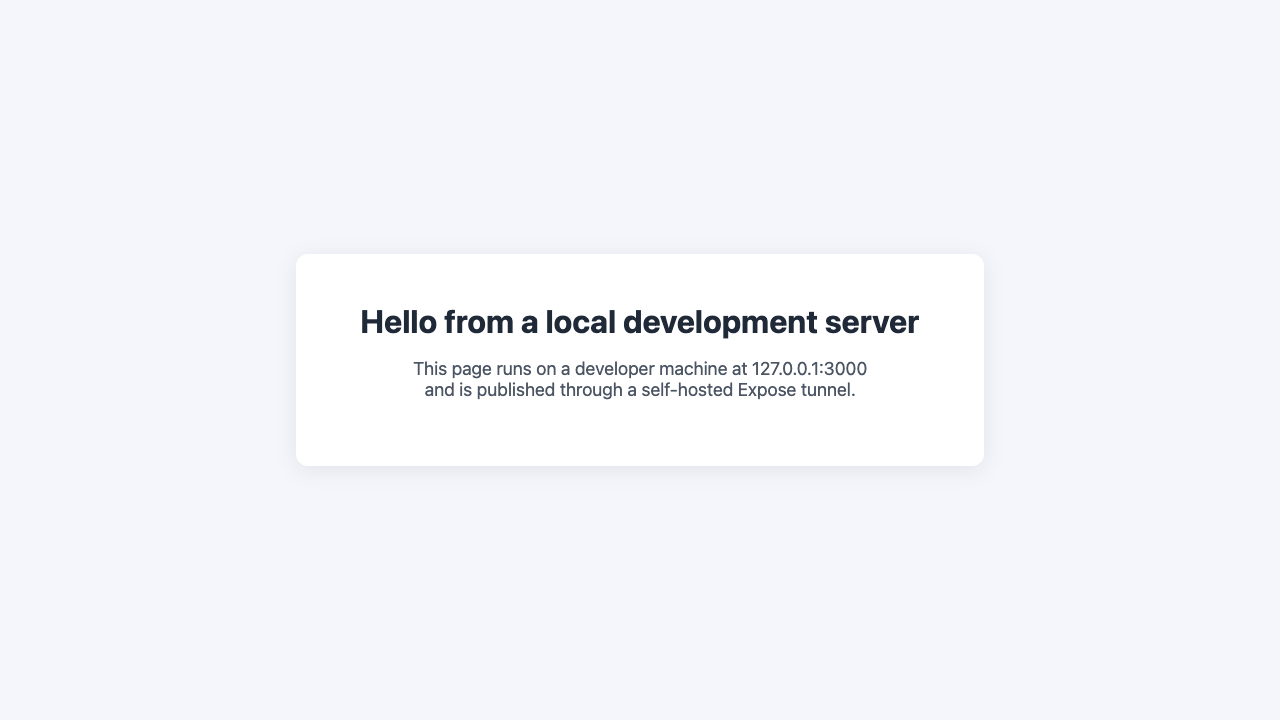
The client prints the public URL, for example https://demo.tunnels.example.com. Every request to it is sent down the tunnel to localhost:3000:
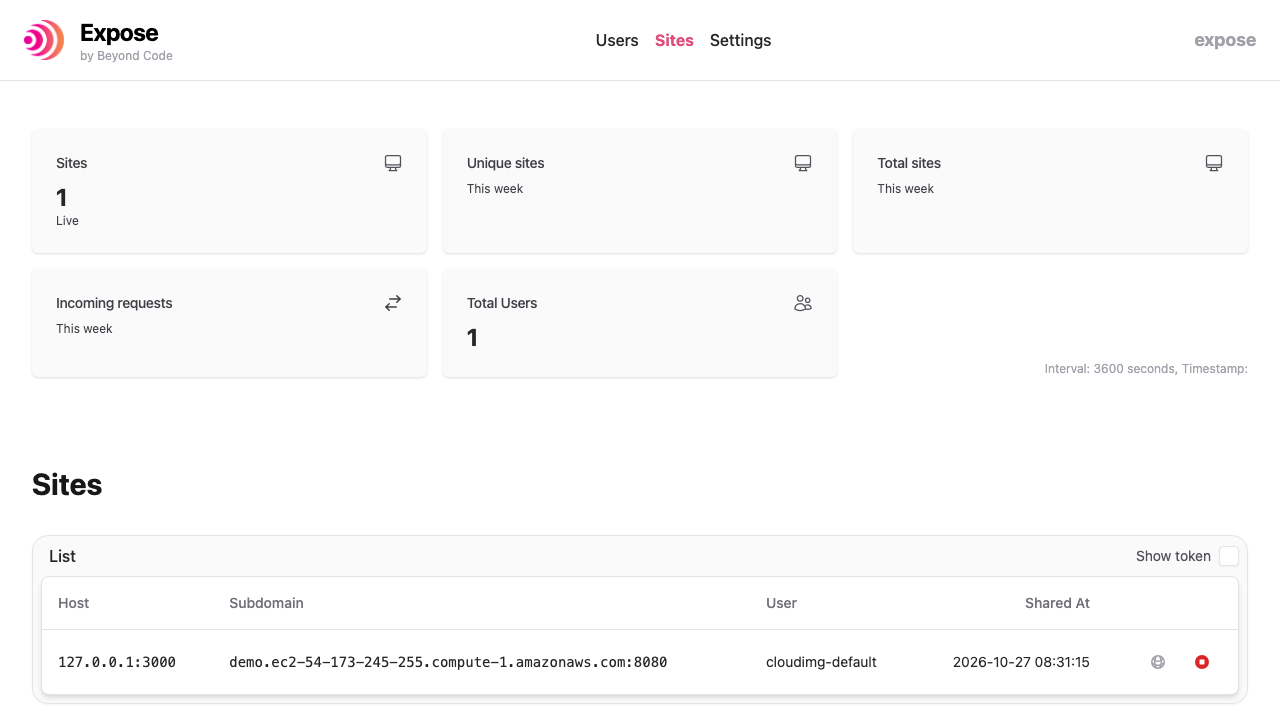
The dashboard's Sites page lists the live tunnel. It shows the server's internal port (:8080) after the name; the public address is always https://<name>.<domain>/ on port 443:
A client with a wrong token gets Authentication failed. Please check your authentication token and try again. and no tunnel.
Step 8: Change the admin password
expose-set-admin-password generates a new random 32-character dashboard password, writes it to /etc/expose/admin.ini and /root/expose-info.txt and restarts Expose (open tunnels reconnect automatically). It never prints the password:
sudo expose-set-admin-password
SET_ADMIN_PASSWORD_OK (new password in /root/expose-info.txt)
Step 9: Use your own certificate
For a certificate your browsers and Expose clients already trust, obtain a wildcard certificate for tunnels.example.com and *.tunnels.example.com (for example from Let's Encrypt with a DNS challenge) and install it in place of the self-signed one:
sudo install -m 0644 fullchain.pem /etc/expose/tls/expose.crt
sudo install -m 0600 privkey.pem /etc/expose/tls/expose.key
sudo nginx -t && sudo systemctl reload nginx
Running expose-set-domain again later issues a new self-signed certificate, so copy your certificate back afterwards. Clients then connect without the openssl.cafile setting from Step 7.
Step 10: The Expose build on your instance
/opt/expose/DEPENDENCY-MANIFEST.txt records the build and every bundled library version. The libraries cloudimg raised (within Expose's own version rules) are:
head -5 /opt/expose/DEPENDENCY-MANIFEST.txt
grep -E '^(symfony/http-foundation|twig/twig|guzzlehttp/guzzle|guzzlehttp/psr7) ' /opt/expose/DEPENDENCY-MANIFEST.txt
Expose server 3.2.0 - cloudimg rebuild b1 (d-579)
tag commit        ac29a9497bd1074bfec6cdc82c77592739d02484 (source unedited)
phar sha256       5bf48d6264e88604974023228385b491c4d44a3c31d53ee44dcfd30702598ce8
migrations sha256 ec6b84a9923e76fa44ebb85eb7cc6504fd7dad1cee227ff4426b5a9b15b12442
raised within composer.json constraints: symfony/* 7.4 LTS, twig/twig 3.30, guzzlehttp/guzzle 7.16, guzzlehttp/psr7 2.13
guzzlehttp/guzzle                             7.16.1
guzzlehttp/psr7                               2.13.2
symfony/http-foundation                       v7.4.21
twig/twig                                     v3.30.0
When an Expose release ships these fixes itself, cloudimg moves this version back onto the official build.
Step 11: Metadata access is blocked
The Expose server (including its SQLite worker) and nginx carry an IPAddressDeny rule for the metadata addresses, so nothing a tunnel or a dashboard request can influence reaches the instance's credentials:
for u in expose-server nginx; do printf '%-14s %s\n' "$u" "$(systemctl show -p IPAddressDeny --value "$u.service")"; done
expose-server  fd00:ec2::254/128 169.254.169.254/32 168.63.129.16/32
nginx          fd00:ec2::254/128 169.254.169.254/32 168.63.129.16/32
Step 12: How the fail-closed start works
Both services are gated on /var/lib/cloudimg/expose-bootstrap-ready, which first boot writes only after this instance's login, names and certificate exist. The files holding secrets are readable only by root and, for the login, the expose service:
systemctl cat expose-server.service nginx.service | grep '^ConditionPathExists='
sudo stat -c '%a %U:%G %n' /root/expose-info.txt /etc/expose/admin.ini /etc/expose/expose-server.php /etc/expose/tls/expose.key
ConditionPathExists=/var/lib/cloudimg/expose-bootstrap-ready
ConditionPathExists=/var/lib/cloudimg/expose-bootstrap-ready
600 root:root /root/expose-info.txt
640 root:expose /etc/expose/admin.ini
640 root:expose /etc/expose/expose-server.php
600 root:root /etc/expose/tls/expose.key
Network ports
| Port | Listens on | Purpose |
|---|---|---|
| 22/tcp | all addresses | SSH administration (restrict to your own address) |
| 443/tcp | all addresses | Dashboard, Expose client connections and published tunnels over HTTPS |
| 8080/tcp | 127.0.0.1 | The Expose server, behind nginx |
Port 80 is not used: tunnels and the dashboard are HTTPS only.
Where things live
| Path | What it is |
|---|---|
/root/expose-info.txt |
Dashboard URL, admin login, tunnel token, domain and certificate fingerprint |
/etc/expose/admin.ini |
The dashboard login the server reads at start |
/etc/expose/expose-server.php |
Expose server settings (token validation, messages, limits) |
/etc/expose/expose.env |
The instance address and tunnel domain |
/etc/expose/tls/ |
The certificate and key nginx serves |
/etc/nginx/sites-available/cloudimg-expose |
The HTTPS site (dashboard, client connection, tunnels) |
/opt/expose/app/ |
The Expose 3.2.0 server; /opt/expose/DEPENDENCY-MANIFEST.txt lists its libraries |
/var/lib/expose/expose.db |
Users, tokens, domains and request logs (created on first boot) |
Logs are in the journal: journalctl -u expose-server, journalctl -u expose-firstboot for first boot. nginx logs tunnel requests in /var/log/nginx/.
Troubleshooting
- The client says "Authentication failed": the token is wrong or its user was deleted; copy
EXPOSE_AUTH_TOKENagain or add a user in the dashboard. - The client cannot connect (TLS or certificate errors): pass this instance's certificate with
php -d openssl.cafile=expose.crt(Step 7) or install a trusted certificate (Step 9), and use the domain the certificate names as--server-host. - A tunnel URL does not resolve: create the wildcard DNS record
*.<domain>(Step 6) and check it withdig demo.<domain>. - The browser shows "connection closed": you used a name nginx is not configured for. Use
EXPOSE_ADMIN_URL, your domain orexpose.<domain>, or runsudo expose-set-domain(Step 6). - The instance's public IP changed (stop and start without an Elastic IP): run
sudo expose-set-domainagain (with your domain, or no argument) and update your DNS records. - The journal shows
Since symfony/console 7.3deprecation warnings: they come from the raised libraries and are harmless. - First boot did not finish:
journalctl -u expose-firstbootshows the step that failed; both services stay stopped until it succeeds, and a reboot retries it.
Security recommendations
- Keep TCP 22 open only to your management addresses. Open TCP 443 only as widely as your tunnels need.
- Give each developer their own user and token in the dashboard, and delete users who leave.
- Change the generated admin password when people change roles (Step 8), and do not reuse it elsewhere.
- Expose upstream renders user names on the dashboard's Users page without escaping them inside a script block, so only add user names you trust: anyone who can add a user is already an administrator.
- Install a certificate your clients trust (Step 9) instead of copying the self-signed one around.
- Leave unattended security upgrades on, and reboot after kernel updates.
Support and licensing
Expose is developed by Beyond Code and distributed under the MIT License (/opt/expose/LICENSE). This image runs the Expose server 3.2.0 built from its unmodified 3.2.0 source with newer versions of its bundled libraries (symfony 7.4, Twig 3.30, Guzzle 7.16, psr7 2.13) chosen within Expose's own dependency rules, as described above. cloudimg provides the packaging, the integration, the dependency raise, the secure defaults, the per-instance credentials and certificate, the metadata block, the fail-closed start, the self-test and 24/7 support.
cloudimg is not affiliated with or endorsed by Beyond Code. Expose is a trademark of its respective owner and is used here only to identify the software.
For help with deployment or configuration, email support@cloudimg.co.uk or visit cloudimg support.