
File Browser on AWS User Guide
Overview
This image runs File Browser, the open source, self-hosted web file manager - browse, upload, download, edit, preview and share the files in a directory through a clean, fast web UI, with multi-user support and per-user scopes and permissions. A lightweight alternative to hosted file managers, deployable in your own VPC.
The File Browser server is a single Go binary that serves both the REST API and the web UI. It runs behind nginx as a reverse proxy. The datastore is an embedded SQLite database. The server listens on 127.0.0.1:8080 and is reached through nginx on port 80 (and 443 once you add TLS).
On the first boot of every deployed instance, a one-shot service recreates the database (which yields a fresh per-instance session signing key) and creates a single administrator account with a per-instance password. The login is written to /root/filebrowser-credentials.txt with mode 0600.
Prerequisites
Before you deploy this image you need:
- An Amazon Web Services account where you can launch EC2 instances
- IAM permissions to launch instances, create security groups, and subscribe to AWS Marketplace products
- An EC2 key pair in the target Region for SSH access to the instance
- A VPC and subnet in the target Region, with a security group allowing inbound port 22 from your management network and inbound ports 80 and 443 from the networks your users will reach File Browser on
- The AWS CLI (version 2) installed locally if you plan to deploy from the command line
Step 1: Launch the Instance from the AWS Marketplace
Sign in to the AWS Management Console, open the EC2 service, and select Launch instance. Under Application and OS Images choose AWS Marketplace AMIs and search for File Browser. Select the cloudimg listing and choose Select, then Continue on the subscription summary.
Pick an instance type of t3.small or larger. Choose your EC2 key pair under Key pair (login). Under Network settings select your VPC and subnet, and either create or select a security group that allows inbound port 22 from your management network and inbound ports 80 and 443 from the networks your users use. Leave the root volume at the default size or larger.
Select Launch instance. First boot initialisation takes under a minute after the instance state becomes Running and the status checks pass.
Step 2: Launch the Instance from the AWS CLI
The following block launches an instance from the cloudimg File Browser Marketplace AMI into an existing subnet and security group. Replace <ami-id> with the AMI ID shown on the Marketplace listing, <key-name> with your EC2 key pair name, <subnet-id> with your subnet ID, and <security-group-id> with a security group that opens ports 22, 80, and 443 as described above.
aws ec2 run-instances \
  --image-id <ami-id> \
  --instance-type t3.small \
  --key-name <key-name> \
  --subnet-id <subnet-id> \
  --security-group-ids <security-group-id> \
  --block-device-mappings '[{"DeviceName":"/dev/sda1","Ebs":{"VolumeSize":30,"VolumeType":"gp3"}}]' \
  --tag-specifications 'ResourceType=instance,Tags=[{Key=Name,Value=filebrowser-01}]'
The command prints a JSON document on success. Note the instance ID, then retrieve its public address once it is running with aws ec2 describe-instances --instance-ids <instance-id> --query "Reservations[].Instances[].PublicIpAddress" --output text.
Step 3: Connect and Retrieve the Administrator Login
Connect over SSH with the key pair you selected and the public IP address from step 2. The SSH login user depends on the operating system of the AMI variant you launched:
| AMI variant | SSH login user |
|---|---|
| File Browser 2.63 on Ubuntu 24.04 | ubuntu |
The first boot service runs before the SSH daemon becomes ready, so the credentials file is always in place when you log in for the first time.
ssh <login-user>@<public-ip>
sudo cat /root/filebrowser-credentials.txt
You will see a plain text file containing the URL, the administrator username (admin) and the password. From the same SSH session you can confirm the deployment is healthy - the health endpoint is open:
curl -fsS -o /dev/null -w '%{http_code}\n' http://127.0.0.1/health
200
A 200 response confirms the full stack - nginx and the File Browser server - is serving.
Step 4: First Sign-in
Open a web browser and navigate to http://<public-ip>/. File Browser presents its sign-in page. Enter the username admin and the password from /root/filebrowser-credentials.txt, then sign in.
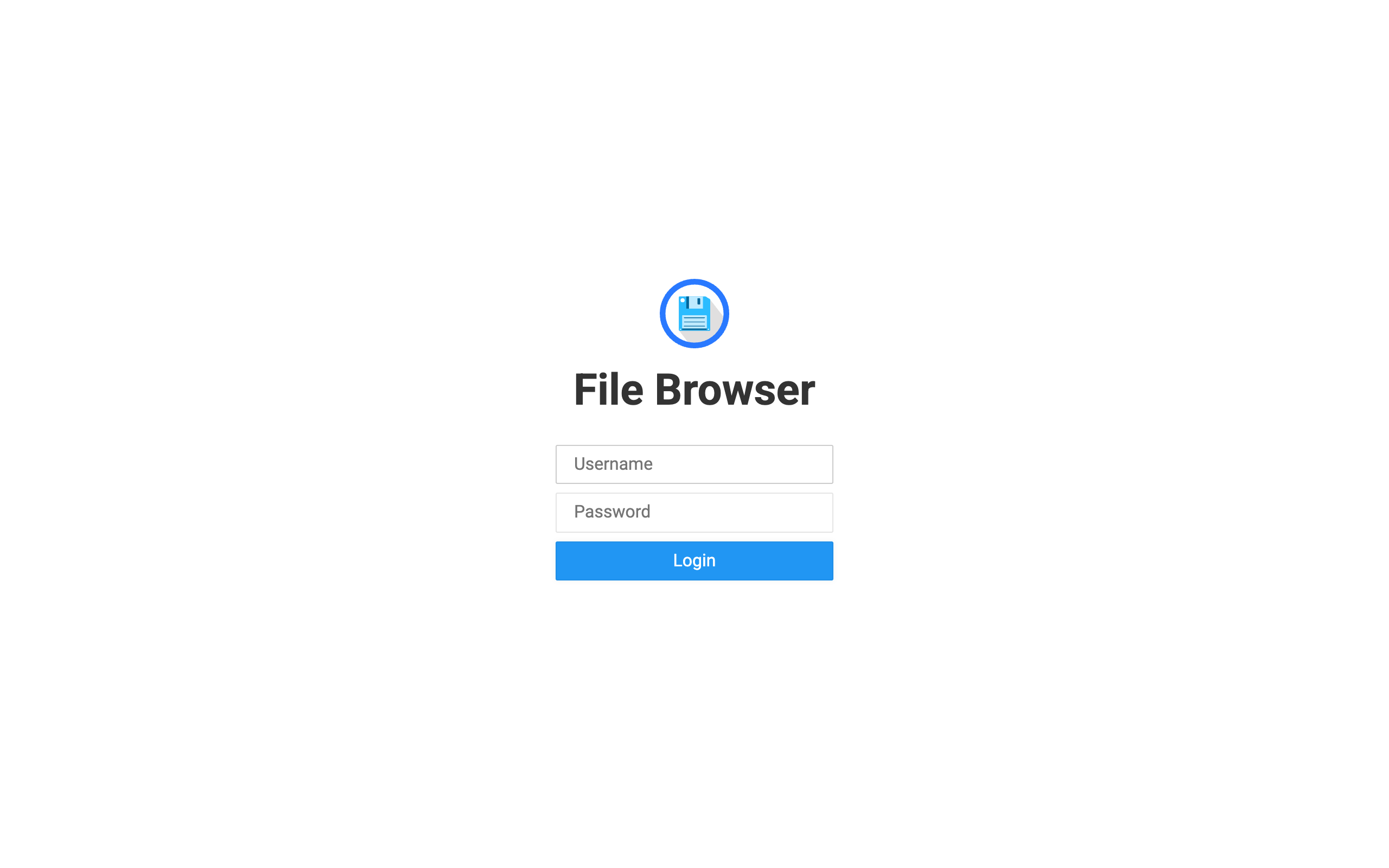
The File Browser sign-in, protected by a per-instance administrator password.
Step 5: Browse and Manage Files
After signing in you see the file listing for the data directory (the files root is /var/lib/filebrowser/files). Create folders, upload and download, rename, move, edit text files inline, preview images and media, and select items for bulk actions - all from the toolbar and the left sidebar.
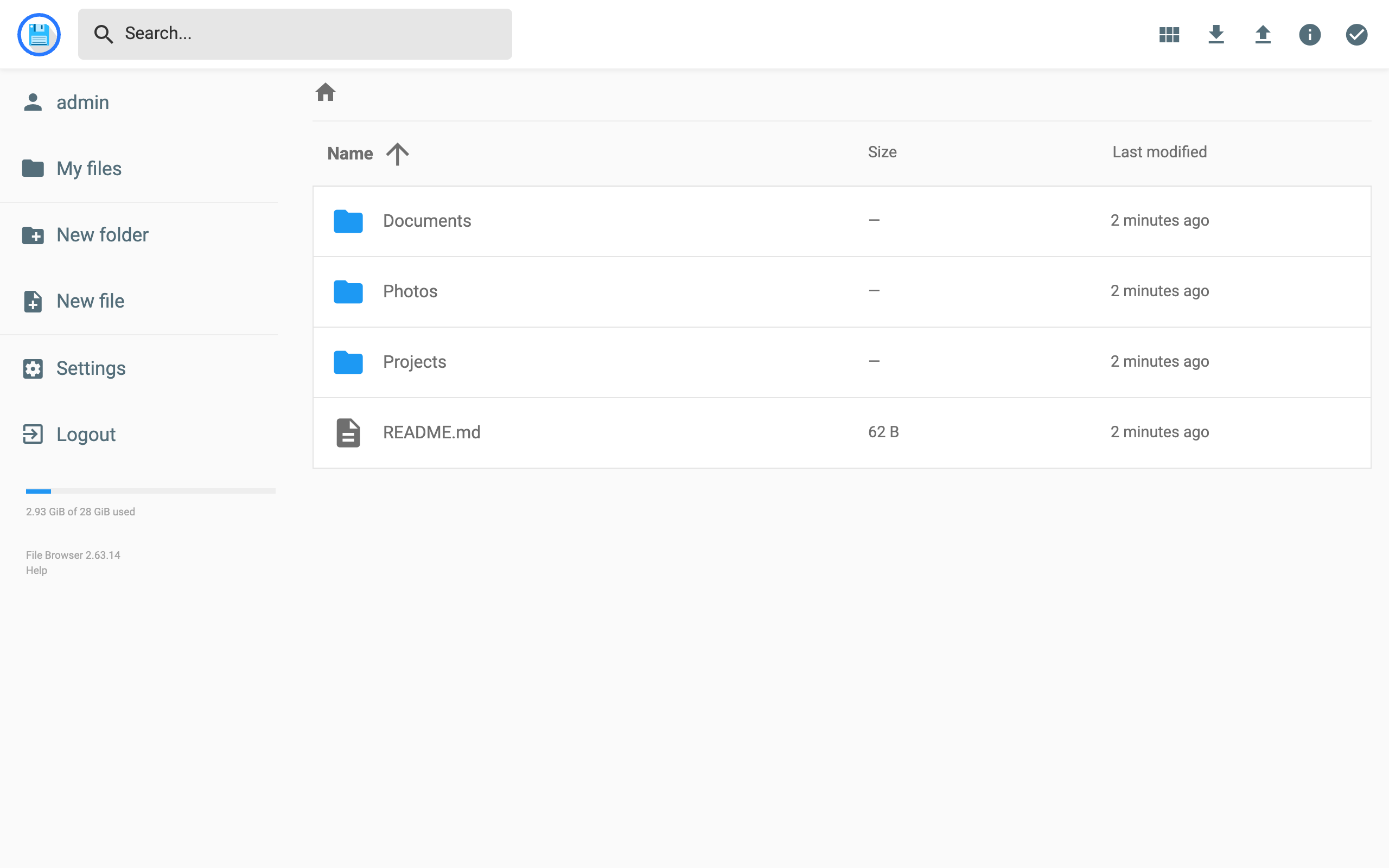
Browse, upload, download and manage files and folders through the web UI.
Put the files you want to manage under /var/lib/filebrowser/files (over SSH with scp/rsync, or directly through the web UI). To create a public share link for a file or folder, select it and choose Share.
Step 6: Add Users
Open Settings -> User Management to add users, each with their own home scope (a subdirectory they are restricted to) and granular permissions (create, rename, modify, delete, share, download). This lets you give different people access to different parts of the tree.
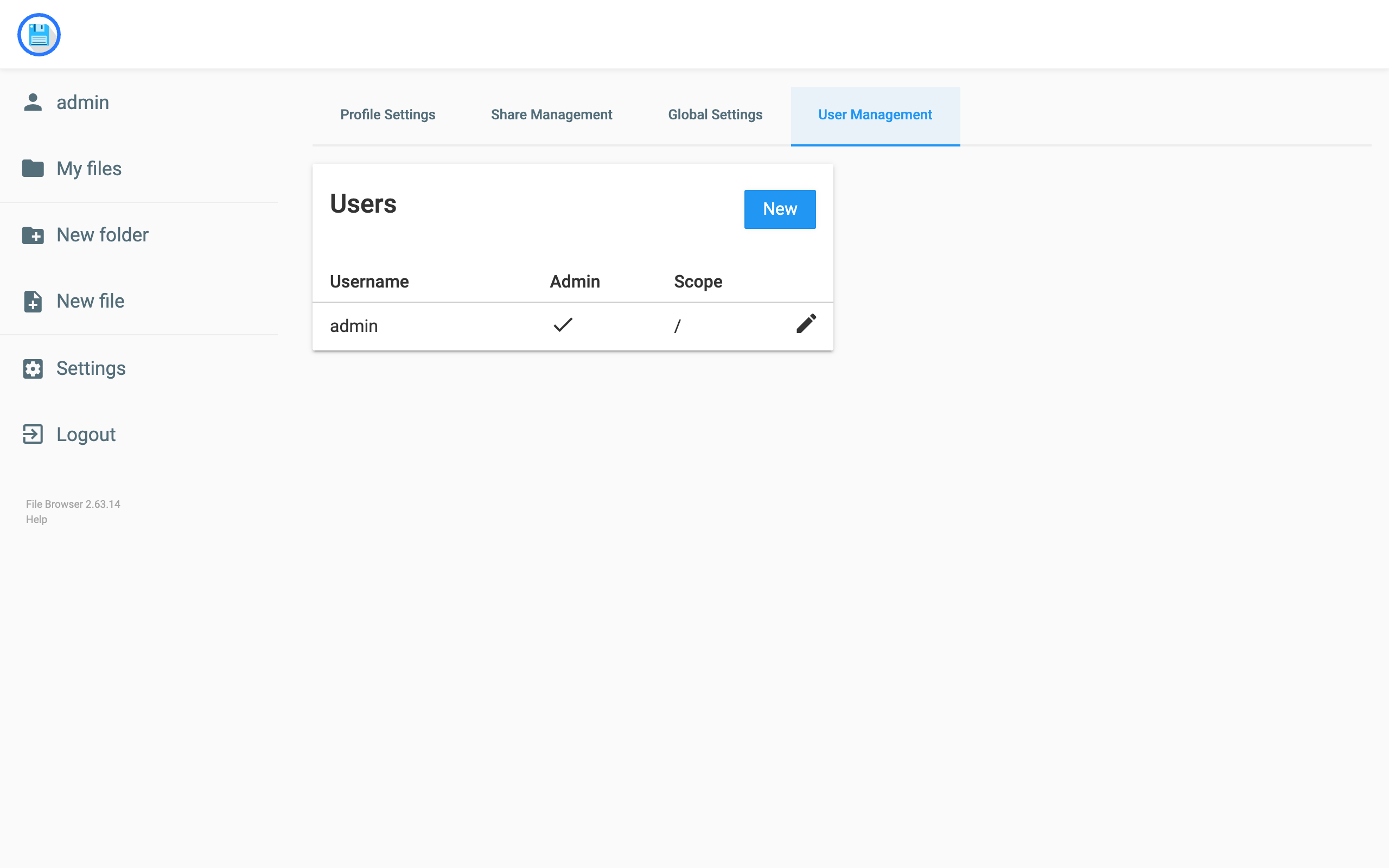
Add users with their own scopes and permissions from Settings.
Step 7: The REST API
Every action is available through the REST API. Obtain a token, then call the API with the X-Auth header:
TOKEN=$(curl -s -H "Content-Type: application/json" \
  -d '{"username":"admin","password":"<password>"}' \
  http://<public-ip>/api/login)
curl -s -H "X-Auth: $TOKEN" http://<public-ip>/api/resources/
Step 8: Enable HTTPS with Let's Encrypt
For any production deployment serve File Browser over HTTPS so the login cannot be intercepted. The image ships with nginx, which certbot can configure automatically.
The following assumes you have a DNS record pointing your fully qualified domain name at the instance's public IP address.
sudo apt-get update && sudo apt-get install -y certbot python3-certbot-nginx
sudo certbot --nginx -d files.your-domain.example \
  --non-interactive --agree-tos -m you@your-domain.example \
  --redirect
Step 9: Backups and Maintenance
File Browser keeps its users, settings and session key in the SQLite database at /var/lib/filebrowser/filebrowser.db, and your content under /var/lib/filebrowser/files. Back both up regularly:
sudo systemctl stop filebrowser
sudo tar czf <backup-dir>/filebrowser-$(date +%F).tgz -C /var/lib/filebrowser filebrowser.db files
sudo systemctl start filebrowser
Ship the archive to an Amazon S3 bucket or another object store. Because the database and files share a dedicated EBS volume, you can also take coordinated EBS snapshots. To upgrade File Browser, replace /usr/local/bin/filebrowser with a newer release and restart. See https://filebrowser.org/.
Step 10: Scaling and Operations
- Attach a larger or additional EBS volume for
/var/lib/filebrowser/filesas your data grows - Use per-user scopes to keep teams isolated to their own directories
- Use the REST API and share links to integrate File Browser with other workflows
Each of these is documented in the official File Browser documentation at https://filebrowser.org/.
Support
cloudimg provides 24/7/365 expert technical support for this image. Guaranteed response within 24 hours, one hour average for critical issues. Contact support@cloudimg.co.uk.
For general File Browser questions consult the documentation at https://filebrowser.org/. File Browser is a trademark of its respective owner; use here is nominative and does not imply affiliation or endorsement.