
Frappe CRM 16.0.2 on AWS User Guide
Overview
This guide covers launching and using Frappe CRM 16.0.2 on Ubuntu 24.04 from cloudimg on Amazon EC2. It is one version of the cloudimg Hardened Dolibarr & ERP and CRM AMIs listing on AWS Marketplace; you pick it as the software version when you subscribe and launch. The other products in the listing are described on the listing's guide hub.
Frappe CRM is an open source sales CRM built on the Frappe framework. Sales teams work leads and deals through configurable statuses in list, Kanban and group-by views, keep contacts and organizations, and record notes, tasks, calls, comments and emails on each record's activity timeline. Assignment rules route new leads to the right owner and service level agreements keep first-response times visible. Frappe CRM is licensed under the GNU Affero General Public License v3 (AGPL-3.0) and the Frappe framework under the MIT License.
What is on the image:
- Frappe CRM 16.0.2 (pinned
v16.0.2release tag) on the Frappe framework v16.55.2 (pinnedv16.55.2release tag); both apps are checked against their release commits at build time - Python 3.14 and Node.js 24, both upstream requirements of Frappe v16, with the front-end assets (Frappe and the CRM app) pre-compiled
- HTTPS from first boot: nginx serves the site on port 443 with a certificate created on your instance's first boot (an end-entity certificate for the site name, never a certificate authority), and port 80 redirects to HTTPS. The application servers listen on localhost only
- MariaDB and Redis on localhost only. The site database user authenticates with a per-instance password, and MariaDB's
rootstays on unix-socket authentication (no root password exists) - One Frappe site with the setup wizard completed and the CRM at
/crm, holding no records: no leads, deals, contacts or organizations, and exactly two users,AdministratorandGuest frappe-crm-firstboot.service, which runs before the application may start and creates your instance's Administrator password, site database password and Frappe encryption keycloudimg-frappe-crm-egress.service, an egress backstop for the application account (see Security posture)frappe-crm-set-hostname, which moves the site to your own DNS name- wkhtmltopdf for print-to-PDF, and a functional self-test (
frappe-crm-selftest.sh) - Dependency security fixes applied on top of the upstream release (see Security notes)
Default user: ubuntu · Architecture: x86_64 · Root volume: 30 GiB gp3 (sized for the Frappe bench, its Python environment and the MariaDB data directory, with room to grow)
Connecting to your instance
| Operating system | SSH user |
|---|---|
| Ubuntu 24.04 | ubuntu |
Security posture
- No default login. A stock Frappe site signs in as
Administratorwith a password set at install time. On this image that password is discarded: the Administrator password, the site database password and Frappe'sencryption_key(which encrypts stored secrets such as email and telephony credentials) are all generated on each instance's first boot, before the application starts. None of them is in the image and no two instances share one.Guestcannot sign in. - No build-time database. The MariaDB data directory in the image was destroyed and re-initialised from a credential-free dump of the site at build time, so it holds no account, password hash, session or record from the build. First boot creates the database accounts with this instance's own passwords.
- Fails closed. The application servers (supervisor) and nginx start only after first boot has finished and written the per-instance secrets. Before every start, supervisor also runs a guard that refuses (and stays down, rather than retrying) unless the site has a database password, an encryption key and an HTTPS site address, and the egress backstop is loaded. If first boot cannot finish, the site stays down rather than open.
- Private by default. The CRM opens only for signed-in users who hold a Sales role. Self sign-up is off, and anonymous users cannot upload files or read leads, deals, contacts, organizations or users through the REST API.
- Outbound integrations off. The image ships with telephony (Twilio and Exotel), the ERPNext connector, WhatsApp, lead enrichment (which would fetch each lead's website from a background worker) and every email account turned off and holding no credentials, and with Frappe's usage telemetry and update checks off. You turn on what you use (see Step 9).
- Egress backstop for the application. gunicorn, the background workers, the scheduler, the realtime server and wkhtmltopdf all run as the
frappeaccount, and an iptables backstop refuses that account any connection to the instance metadata service, link-local addresses, every private (RFC 1918) and carrier-grade-NAT range, your VPC's own address blocks, and other reserved ranges. The application can still reach public internet services (an email provider, a telephony API, the currency-rate service), but a URL a user supplies cannot be turned against your internal network. Thefrappeaccount has no IPv6 egress at all. Private addresses you do need (an SMTP relay or an ERPNext server in your VPC) are allowed one CIDR at a time (Step 9). - Loopback services only for their owners. gunicorn (8000), Redis (6379) and MariaDB (3306) accept local connections only from the accounts that use them (nginx and
frappe), root and members of thesudogroup, so another local account cannot talk to the database or the job queue directly. - Unprivileged application. gunicorn, the background workers, the scheduler and the realtime (Socket.IO) server all run as the unprivileged
frappeuser, never as root. - The application cannot reach root through supervisor. supervisor runs as root, so its program file
/etc/supervisor/conf.d/frappe-bench.confis a root-owned file generated at build time (not a link to thefrappeuser's bench configuration), every program in it runs asfrappe, its logs are in the root-owned/var/log/frappe-crm/, and its control socket is usable by root only. - Only nginx faces the network. The listening set is exactly 22, 80 and 443. gunicorn, MariaDB and Redis are bound to localhost, and the realtime server listens on a UNIX socket that only nginx can reach. 3306 and 6379 are never exposed.
- The site address comes from configuration, never from the request. First boot reads it from
/etc/cloudimg/frappe-crm-hostnameor the EC2 instance metadata service (IMDSv2) and freezes it as the site'shost_name, the nginxserver_nameand the certificate name. nginx answers only that name and drops any other Host or SNI, so a request cannot rewrite the links in emails and password-reset messages. nginx overwritesX-Forwarded-Forwith the real client address, so a client cannot spoof its IP. - Cross-origin requests refused. A state-changing request or a WebSocket upgrade that carries another site's
Originheader is refused by nginx before it reaches the application. Frappe also runs many API methods on a plain GET and checks its CSRF token only on POST, PUT, DELETE and PATCH, so a link on another site could otherwise call them as you. When a signed-in browser sends a GET to the Frappe API (/api/method/...or a?cmd=request) that came from another site, or was opened from outside the browser, nginx refuses it with403. The CRM itself and API clients using API keys are unaffected. - Uploads cannot run in your browser. Every response under
/files/and/private/files/carriesX-Content-Type-Options: nosniffand a sandboxing Content-Security-Policy, and anything that is not an image, PDF, font, audio or video file is served as a download. - No instance metadata access for the application. The
mariadb,redis-server,nginx,supervisorand first-boot services are blocked from reaching the instance metadata endpoints (169.254.169.254, its IPv4-mapped IPv6 form and fd00:ec2::254), on top of the egress backstop. Only first boot reads metadata, for the site address, through a separate short-lived unit. - IMDSv2 required. The AMI is registered with
ImdsSupport v2.0, so instances launched from it refuse token-less (IMDSv1) metadata requests. - Key-only SSH. Password and keyboard-interactive logins, root login and X11 forwarding are turned off in
/etc/ssh/sshd_config.d/00-cloudimg.conf; you sign in asubuntuwith your EC2 key pair. - Per-instance identity. SSH host keys, the machine ID, the NVMe host identity, the site certificate and the site database password, Administrator password and Frappe encryption key are all generated fresh on every instance.
Prerequisites
- An AWS account where you can subscribe to AWS Marketplace products and launch EC2 instances
- An EC2 key pair in the target Region
- A VPC and subnet, with a public IP address on the instance if your users reach it over the internet
- A security group that allows
22/tcpfrom your management network, and80/tcpand443/tcpfrom your users' networks. No other port is needed; do not open 3306 or 6379
Recommended instance type: m5.large (2 vCPU, 8 GiB RAM) suits a sales team. Use m5.xlarge (4 vCPU, 16 GiB RAM) for larger teams, heavy email capture or many background jobs.
Step 1: Launch from AWS Marketplace
- Open the Hardened Dolibarr & ERP and CRM AMIs listing by cloudimg and choose View purchase options, then subscribe.
- Choose Continue to Configuration. Under Software version choose
Frappe CRM 16.0.2 on Ubuntu 24.04, pick your Region, and choose Continue to Launch. - Under Choose Action select Launch through EC2.
- Set the instance type to m5.large, choose your key pair, and use the seller's security group settings (ports 22, 80 and 443), narrowing port 22 to your management network. Keep the 30 GiB root volume.
- Launch. First boot completes within two to three minutes of the instance reaching the running state.
Step 2: Launch from the AWS CLI
Workstation commands. Replace <ami-id> with the AMI ID shown for the Frappe CRM 16.0.2 on Ubuntu 24.04 software version on the listing's launch page, and use your own VPC, subnet, key pair and address ranges.
aws ec2 create-security-group --group-name frappe-crm-sg \
  --description "Frappe CRM" --vpc-id <vpc-id>
aws ec2 authorize-security-group-ingress --group-id <security-group-id> \
  --protocol tcp --port 22 --cidr <your-ip>/32
aws ec2 authorize-security-group-ingress --group-id <security-group-id> \
  --protocol tcp --port 80 --cidr <users-cidr>
aws ec2 authorize-security-group-ingress --group-id <security-group-id> \
  --protocol tcp --port 443 --cidr <users-cidr>

aws ec2 run-instances --image-id <ami-id> --instance-type m5.large \
  --key-name <key-name> --subnet-id <subnet-id> \
  --security-group-ids <security-group-id> --associate-public-ip-address \
  --metadata-options HttpTokens=required \
  --tag-specifications 'ResourceType=instance,Tags=[{Key=Name,Value=frappe-crm}]'

aws ec2 describe-instances --instance-ids <instance-id> \
  --query "Reservations[].Instances[].[PublicDnsName,PublicIpAddress]" --output text
Step 3: Connect over SSH
ssh -i <key.pem> ubuntu@<public-dns>
The login user is ubuntu.
Step 4: Retrieve your credentials
First boot writes your instance's credentials to a root-only file:
sudo cat /root/frappe-crm-credentials.txt
It looks like this (your values differ):
# Frappe CRM 16.0.2 (on Frappe v16.55.2) — generated on this instance's first boot by frappe-crm-firstboot.service.
# These credentials are unique to THIS instance. Store them somewhere safe.
# Guide: https://www.cloudimg.co.uk/guides/frappe-crm-16-0-2-on-ubuntu-24-04-aws/

crm.url=https://ec2-203-0-113-10.compute-1.amazonaws.com/crm
crm.desk.url=https://ec2-203-0-113-10.compute-1.amazonaws.com/app
crm.admin.login=Administrator
crm.admin.pass=<25-character random password>
mariadb.benchadmin.login=benchadmin
mariadb.benchadmin.pass=<32-character random password>

# Served over HTTPS (nginx, self-signed certificate created on first boot); http:// redirects to https://.
# Change the site name with:  sudo frappe-crm-set-hostname <your-dns-name>
# benchadmin is a per-instance MariaDB superuser on 127.0.0.1/localhost only (for WARN: You should not run this command as root etc.);
# root@localhost authenticates over the local socket (sudo mysql) and has no password.
The site address is taken from /etc/cloudimg/frappe-crm-hostname if that file exists, otherwise from IMDSv2: the instance's public DNS name, else its public IPv4 address, else its private IPv4 address. If you keep credentials centrally, copy them into AWS Secrets Manager.
Step 5: Verify the services
systemctl is-active mariadb redis-server supervisor nginx cloudimg-frappe-crm-egress
ls /var/lib/cloudimg/frappe-crm-firstboot.done
All five services print active, and the first-boot marker exists (first boot runs once; after a reboot its unit shows as skipped, which is expected).
Only 22, 80 and 443 listen on a public address. gunicorn (8000), MariaDB (3306), Redis (6379) and the loopback health listener (8088) are on localhost:
sudo ss -Hltn | awk '{print $4}' | sort -u
0.0.0.0:22
0.0.0.0:443
0.0.0.0:80
127.0.0.1:3306
127.0.0.1:6379
127.0.0.1:8000
127.0.0.1:8088
127.0.0.53%lo:53
127.0.0.54:53
[::1]:6379
[::]:22
[::]:443
[::]:80
The two :53 lines are Ubuntu's local DNS stub resolver.
The application processes (gunicorn, the realtime server, the scheduler and the workers) all run as the unprivileged frappe user, and the realtime server listens on a UNIX socket owned by frappe and reachable only by nginx's group:
ps -eo user=,args= | awk '/[g]unicorn|[s]ocketio\.js|[b]ench_helper/{print $1}' | sort | uniq -c
sudo stat -c '%A %U %G %n' /run/frappe-socketio/socketio.sock
      6 frappe
srwxrwx--- frappe www-data /run/frappe-socketio/socketio.sock
supervisor itself runs as root, so the programs it starts are defined in a root-owned file that the frappe user cannot change, and its control socket is root-only:
sudo supervisorctl status
stat -c '%U:%G %a %n' /etc/supervisor/conf.d/frappe-bench.conf /var/run/supervisor.sock
frappe-bench-web:frappe-bench-frappe-web                  RUNNING   pid 1437, uptime 0:03:10
frappe-bench-web:frappe-bench-node-socketio               RUNNING   pid 1439, uptime 0:03:10
frappe-bench-workers:frappe-bench-frappe-long-worker-0    RUNNING   pid 1442, uptime 0:03:10
frappe-bench-workers:frappe-bench-frappe-schedule         RUNNING   pid 1440, uptime 0:03:10
frappe-bench-workers:frappe-bench-frappe-short-worker-0   RUNNING   pid 1441, uptime 0:03:10
root:root 644 /etc/supervisor/conf.d/frappe-bench.conf
root:root 700 /var/run/supervisor.sock
The health endpoint answers pong, the HTTPS front end on the configured name answers 200, port 80 redirects to HTTPS, and the realtime (Socket.IO) handshake through nginx answers 200:
SITE=$(sudo cat /var/lib/cloudimg/frappe-crm-current-hostname)
curl -s http://127.0.0.1:8088/api/method/ping; echo
curl -sk -o /dev/null -w "%{http_code}\n" --resolve "${SITE}:443:127.0.0.1" "https://${SITE}/login"
curl -s -o /dev/null -w "%{http_code}\n" --resolve "${SITE}:80:127.0.0.1" "http://${SITE}/"
curl -sk -o /dev/null -w "%{http_code}\n" --resolve "${SITE}:443:127.0.0.1" "https://${SITE}/socket.io/?EIO=4&transport=polling"
{"message":"pong"}
200
301
200
A request for any other host name is dropped (nginx closes the connection, so curl prints 000):
curl -sk -o /dev/null -w "%{http_code}\n" --resolve "evil.example:443:127.0.0.1" "https://evil.example/login" || true
Anonymous visitors cannot read CRM records. Listing leads through the REST API without signing in prints 403:
SITE=$(sudo cat /var/lib/cloudimg/frappe-crm-current-hostname)
curl -sk -o /dev/null -w "%{http_code}\n" --resolve "${SITE}:443:127.0.0.1" "https://${SITE}/api/resource/CRM%20Lead"
Step 6: Check the egress backstop
The backstop is loaded at every boot by cloudimg-frappe-crm-egress.service, before supervisor starts. Its chains for the frappe account and the loopback guard are in place, and the unit is enabled:
sudo iptables -S OUTPUT | grep -c CLOUDIMG-FRAPPE-CRM
sudo iptables -S CLOUDIMG-FRAPPE-CRM-EGRESS | grep -c -- '-j REJECT'
systemctl show -p UnitFileState --value cloudimg-frappe-crm-egress.service
2
24
enabled
This runs the same requests as the frappe account and from your shell. The metadata service is refused to frappe (000) and answers your shell (200); a public website answers both:
sudo -u frappe curl -s -m 5 -o /dev/null -w '%{http_code}\n' -X PUT -H 'X-aws-ec2-metadata-token-ttl-seconds: 60' http://169.254.169.254/latest/api/token || true
curl -s -m 5 -o /dev/null -w '%{http_code}\n' -X PUT -H 'X-aws-ec2-metadata-token-ttl-seconds: 60' http://169.254.169.254/latest/api/token
sudo -u frappe curl -s -m 10 -o /dev/null -w '%{http_code}\n' https://www.cloudimg.co.uk/
000
200
200
Step 7: Sign in
- Open the
crm.urladdress from Step 4 in a browser. Plainhttp://redirects to HTTPS. - The certificate is self-signed and unique to your instance, so the browser warns the first time. Before you continue, compare the SHA-256 fingerprint the browser shows with the one the instance prints (do not add the certificate to a trust store), or install a trusted certificate (Step 11):
sudo openssl x509 -in /etc/ssl/frappe-crm/frappe-crm.crt -noout -fingerprint -sha256
- Sign in as Administrator with the
crm.admin.passvalue.
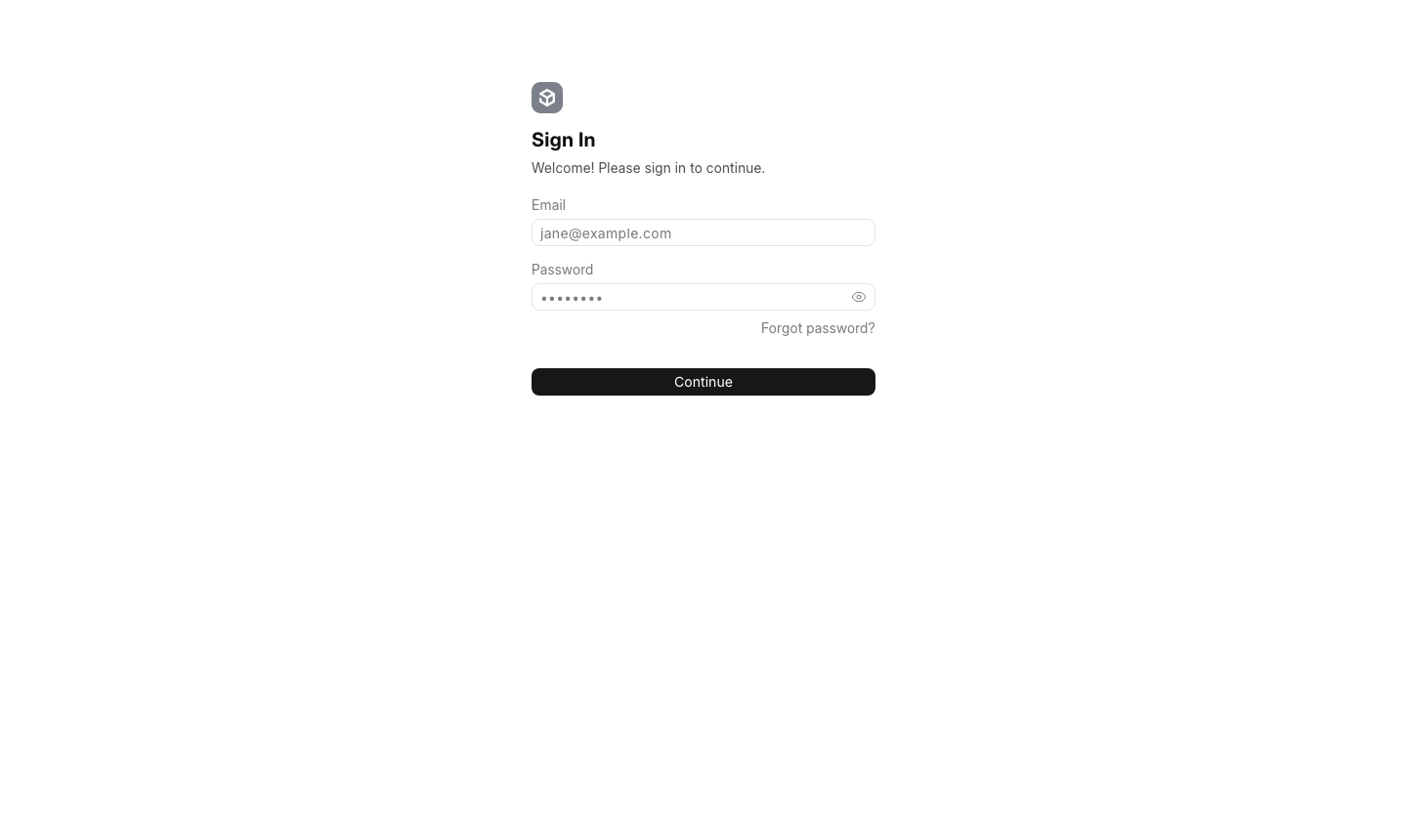
Common default passwords (admin, password, changeme, frappe, crm and the like) are rejected; only the per-instance password works. Change it after your first sign-in under My Settings in the desk (/app).
- The first time you open
/crm, Frappe CRM shows its Set up Frappe CRM wizard (connect email, invite your team). Work through it or choose Skip setup; you can do every step later from Settings, and the Getting started checklist stays in the sidebar until you dismiss it. The wizard's Share usage data box is ticked by default. This image ships with Frappe's telemetry off and with no telemetry destination configured, so nothing is sent whichever way you leave the box, but untick it if you want the setting to say so.
Step 8: Work with leads and deals
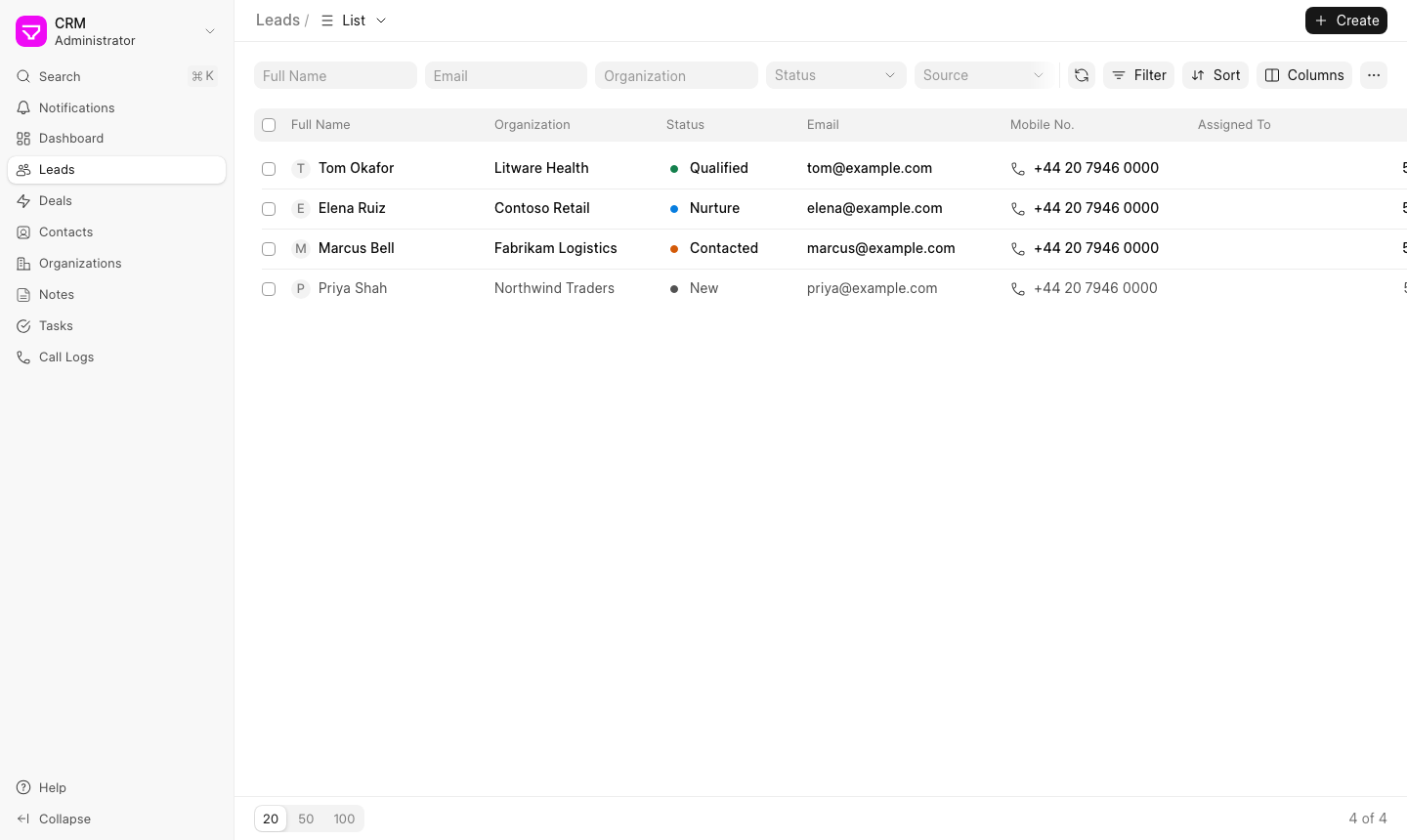
The CRM opens on Leads. Use Create to add a lead, and the filter, sort, group-by and column controls to shape the list; switch between list, Kanban and group-by views from the view selector. The image ships with no records, so the lists start empty.
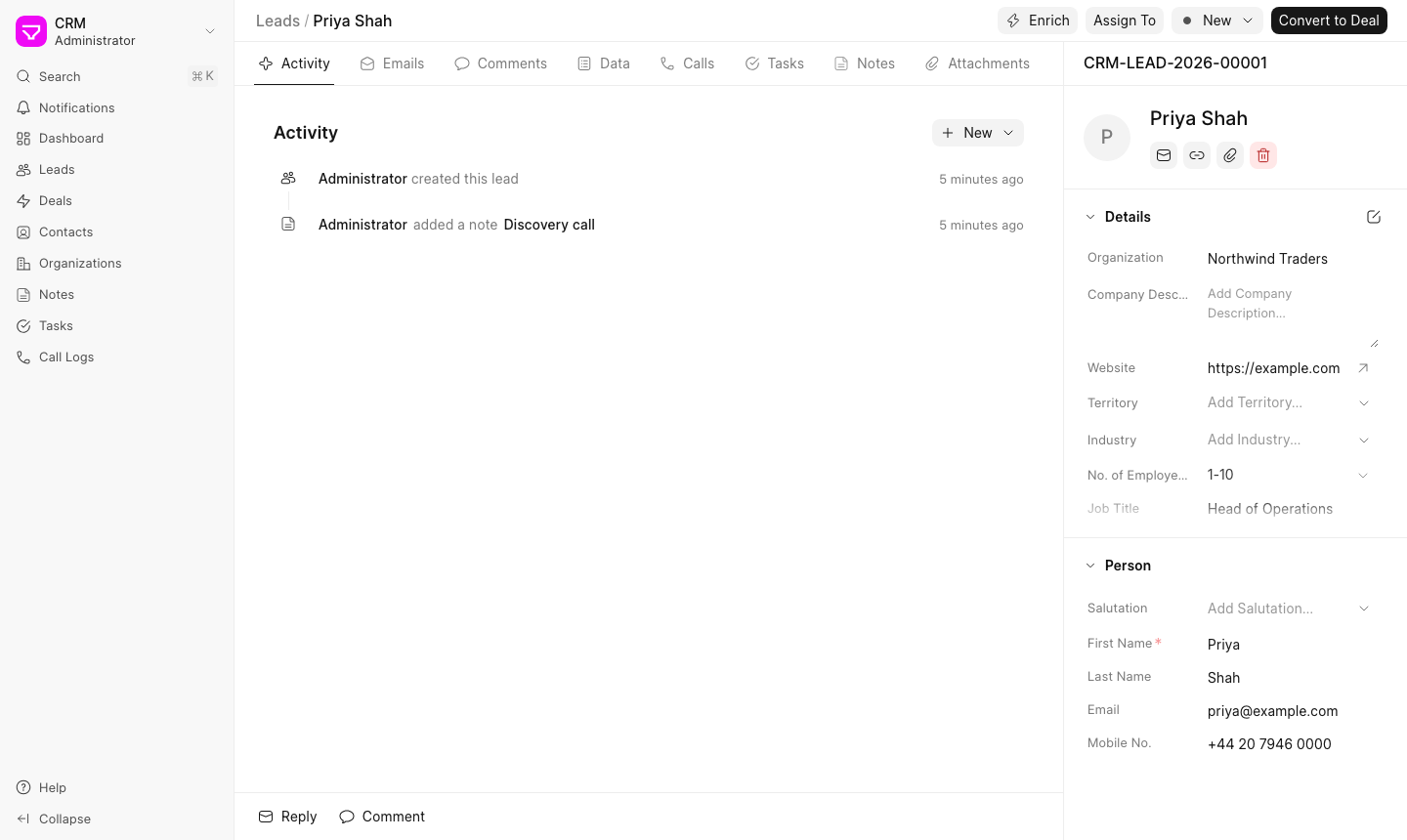
Open a lead to see its record: the side panel holds the person, organization, status and owner, and the activity timeline collects notes, tasks, comments, calls and emails, so the history of the relationship sits in one place. When a lead is qualified, Convert to Deal creates a deal that carries the contact and organization across.
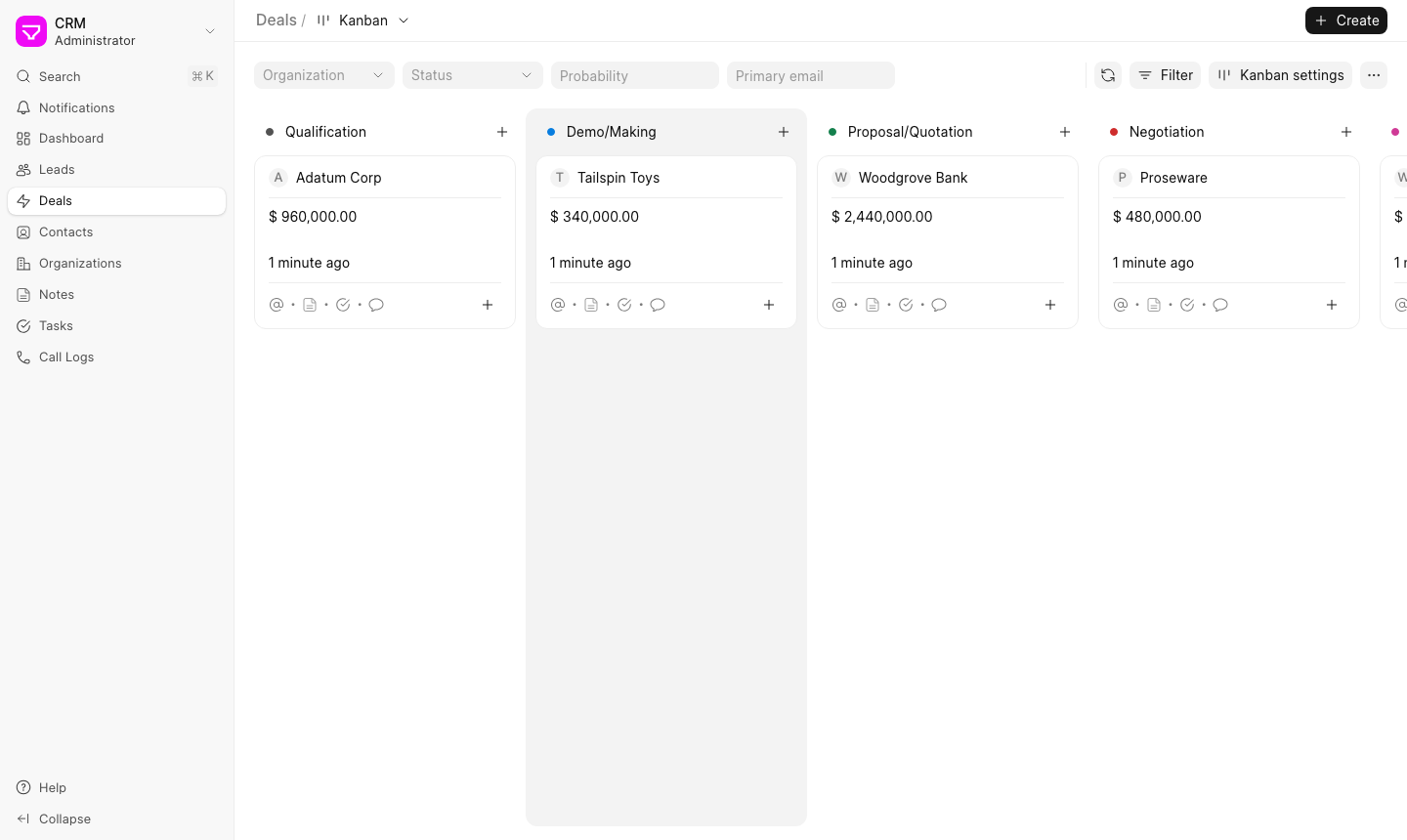
Deals hold the opportunities in your pipeline, each with its value, expected close date, probability, contacts and timeline. The Kanban view groups deals by status, so you move a deal to the next stage by dragging it.
Add your team as users: open Settings from the user menu in the CRM, then Members, or create the user in the desk at /app/user (self sign-up is off). A Sales User works the leads and deals assigned to them; a Sales Manager also sees and manages everyone's records and the CRM settings. Lead and deal statuses, assignment rules and service level agreements are under the same Settings.
Step 9: Turn on the integrations you use
Every outbound integration ships off. Turn on only what you use, from the CRM's Settings:
- Email. Add an email account under Settings > Email so replies are captured onto the lead or deal. The provider's password or app token is stored encrypted with your instance's own encryption key.
- Telephony. Twilio and Exotel are under Settings > Telephony; WhatsApp needs the Frappe WhatsApp app.
- ERPNext. The ERPNext connector is under Settings > ERPNext.
- Lead enrichment. Enrichment fetches each lead's website from a background worker. It is off on this image; turn it on in the desk at
/app/crm-enrichment-settingsif you want it. - Exchange rates. Deals in a currency other than your default fetch the exchange rate from the public
frankfurter.appservice when a deal needs it. Nothing is fetched until then.
The egress backstop allows public internet services, so cloud email providers and telephony APIs work as soon as you configure them. To let the application reach a service on a private address (an SMTP relay or an ERPNext server in your VPC, for example), add its CIDR to the allow-list, one per line, then reload the backstop. Only private ranges are accepted, and metadata or link-local addresses are always refused:
echo 10.20.30.40/32 | sudo tee -a /etc/cloudimg/frappe-crm-egress-allow
sudo systemctl reload cloudimg-frappe-crm-egress
The frappe account has no IPv6 egress; give the service an IPv4 address (or add its IPv6 unique-local range to the allow-list).
Step 10: Use your own hostname
Frappe builds the links in emails and password-reset messages from the site's host_name, which this image sets from configuration. To serve the CRM on your own DNS name, point a DNS record (for example in Amazon Route 53) at the instance's public IP (an Elastic IP keeps it stable), then run on the instance:
sudo frappe-crm-set-hostname crm.example.org
The helper writes the name to /etc/cloudimg/frappe-crm-hostname, issues a new self-signed certificate for it, rewrites the site host_name, the nginx server_name and the cross-origin allow-list, updates the credentials file, and restarts the application and nginx. An instance without an Elastic IP gets a new public DNS name when it is stopped and started; run the helper with the new name so links and the certificate follow it.
Step 11: Install a trusted certificate
The site certificate is /etc/ssl/frappe-crm/frappe-crm.crt and its key /etc/ssl/frappe-crm/frappe-crm.key (mode 600, root). To use Let's Encrypt, first set your DNS name (Step 10), open port 80 to the internet, then:
sudo apt-get install -y certbot
sudo certbot certonly --standalone -d crm.example.org \
  --pre-hook "systemctl stop nginx" --post-hook "systemctl start nginx" \
  --deploy-hook "install -m 644 \$RENEWED_LINEAGE/fullchain.pem /etc/ssl/frappe-crm/frappe-crm.crt && install -m 600 \$RENEWED_LINEAGE/privkey.pem /etc/ssl/frappe-crm/frappe-crm.key"
Maintenance
- Self-test. The self-test creates a CRM lead, reads it back and deletes it:
sudo /usr/local/sbin/frappe-crm-selftest.sh
- Backups. Take a backup with files from the bench directory; it is written under the site's
private/backups. Copy it off the instance (for example to Amazon S3) on a schedule.
cd /opt/frappe/frappe-bench
sudo -u frappe bench --site crm.localhost backup --with-files
- Security updates. Unattended-upgrades is enabled and applies OS security updates.
- Application updates. The
frappeandcrmapps are pinned for a reproducible image and ship without git history. To move to a newer release, take a backup and re-fetch the app withbench get-app --overwriteat the release you want, thenbench --site crm.localhost migrateandbench build, in a maintenance window.bench setup supervisoronly rewrites the bench's ownconfig/supervisor.conf, which supervisor does not read; the programs supervisor runs are defined in the root-owned/etc/supervisor/conf.d/frappe-bench.conf, so review that file (it must keepuser=frappeon every program) if an update adds a process. Re-fetching an app re-applies upstream's own dependency pins, which are older than the fixed versions this image ships (see Security notes); re-checkpip-auditandnpm auditafter an update. - Source code. Frappe CRM is AGPL-3.0. Its source for the shipped release is the
v16.0.2tag ofhttps://github.com/frappe/crm, and the image also carries it on disk under/opt/frappe/frappe-bench/apps/crm. If you modify the CRM and let users interact with it over a network, the AGPL requires you to offer those users your modified source.
Security notes
The upstream releases pin several Python and JavaScript dependencies at versions with published advisories. This image ships fixed versions and the build fails if an audit finds anything else:
- Python (bench virtual environment). Pillow 13.0.0, pypdf 6.21.4 and orjson 3.11.9 replace Frappe v16.55.2's own pins (pypdf 6.19.0 carries advisories that 6.21.3 and later fix), installed from hash-pinned wheels;
filelockandGitPythonare moved to their fixed releases. The pinned list is/usr/share/doc/cloudimg/frappe-crm/d575-override-requirements.txt. - Browser code in the CRM app. The
/crmsingle-page app is rebuilt with fixed releases of the libraries compiled into it: DOMPurify 3.4.17 (CRM 16.0.2 pins 3.4.0, which has sanitizer bypasses), prosemirror-view 1.42.8 with prosemirror-model 1.25.12, the@tiptapeditor packages 3.32.0, Vue 3.5.44 and the Socket.IO client libraries. The build fails unless the shipped bundle carries DOMPurify 3.4.17. - The realtime server and the desk. Frappe's Node.js packages move to fixed
socket.io,ws,engine.io,lodash,moment,postcssand related releases, inside the ranges Frappe declares. - Audit results shipped with the image.
pip-audit.json,npm-audit-crm.jsonandnpm-audit-frappe.jsonin/usr/share/doc/cloudimg/frappe-crm/record what remains:pdfkit1.0.0 (PYSEC-2026-2860) has no fixed release. It is reachable only through print-format HTML, which only System Managers can author.- The CRM app's remaining findings (2 high, 7 moderate, 3 low:
vite,brace-expansion,glob,workbox-buildand similar) are all in build tools. They run only while the image is built, and theirnode_modulesdirectories are removed afterwards. - Frappe's remaining moderate findings are its
esbuildbuild tool and, in the desk that only signed-in users reach,quill(the rich-text editor) andshowdown(Markdown rendering). Frappe v16 has no fixed release of these inside its supported ranges.
Troubleshooting
- The site does not answer. Check first boot:
systemctl status frappe-crm-firstboot.serviceandsudo journalctl -u frappe-crm-firstboot. Supervisor and nginx stay stopped until first boot finishes. If supervisor isfailed, its start guard refused:sudo journalctl -u supervisornames the reason (for example the egress backstop not loaded;sudo systemctl restart cloudimg-frappe-crm-egressand thensudo systemctl restart supervisor). - Certificate warning. Expected until you install your own certificate; the first-boot certificate is self-signed. Compare its fingerprint as in Step 7.
- An integration cannot connect to a server in your network. The egress backstop refuses private addresses to the application. Add the server's CIDR to
/etc/cloudimg/frappe-crm-egress-allowand reload (Step 9). - "Not permitted" when a user opens the CRM. The user needs the Sales User or Sales Manager role.
- 403 on an API link opened from another site or typed into the address bar. Expected for a signed-in browser: such GET requests to
/api/method/...are refused (see Security posture). Open the page from the CRM instead. - 403 on a form or action. The origin guard refuses cross-origin state-changing requests; use the site's own address, not a raw IP that does not match the configured name.
- Print to PDF fails or hangs. This image renders PDFs with wkhtmltopdf (Print Settings > PDF Generator is set to
wkhtmltopdf). Frappe 16's Chrome engine is not set up here: choosing it makes the first print download a headless Chromium build into the bench, which cannot start on this server. Keep the generator onwkhtmltopdf. - Live updates do not appear. The realtime server runs under supervisor as
frappe-bench-web:frappe-bench-node-socketio; check it withsudo supervisorctl statusand its log in/var/log/frappe-crm/node-socketio.error.log(supervisor writes every program log under/var/log/frappe-crm/). - You need the Administrator password again. It is only ever written to
/root/frappe-crm-credentials.txton that instance. If it has been changed and lost, reset it withcd /opt/frappe/frappe-bench && sudo -u frappe bench --site crm.localhost set-admin-password(the command prompts for the new password).
What this image is and is not
This is Frappe CRM 16.0.2 on the Frappe framework v16.55.2, hardened and automated by cloudimg for AWS Marketplace: HTTPS on first boot, per-instance secrets, a credential-free and record-free database, outbound integrations off, an egress backstop for the application, unprivileged application processes, localhost-bound data services and dependency security fixes. It is not affiliated with or endorsed by Frappe Technologies. Frappe and Frappe CRM are trademarks of their respective owners; the software is used under the AGPL-3.0 (Frappe CRM) and MIT (Frappe framework) licences.