Frappe Helpdesk 1.31.1 on AWS User Guide
Overview
This guide covers launching and using Frappe Helpdesk 1.31.1 on Ubuntu 24.04 from cloudimg on Amazon EC2. It is one version of the cloudimg help desk, IT service and project management listing on AWS Marketplace; you pick it as the software version when you subscribe and launch.
Frappe Helpdesk is an open source customer service application built on the Frappe framework. Agents work tickets in a modern agent interface with assignment rules, teams, SLA policies, canned responses and a knowledge base; customers raise and follow their tickets on a self-service portal; e-mail becomes tickets once you connect a mailbox. Frappe Helpdesk and its telephony companion app are licensed under the GNU Affero General Public License version 3 (AGPL 3.0); the Frappe framework is MIT licensed.
What is on the image:
- Frappe Helpdesk 1.31.1 (pinned
v1.31.1release tag) with its required companion apptelephony(pinned to a reviewed commit), on the Frappe framework v16.54.0 (pinnedv16.54.0release tag) - Python 3.14 (from the deadsnakes APT repository, which keeps it on the normal security-update path) and Node.js 24 LTS (the realtime server), both upstream requirements of Frappe v16, with the agent and portal front end pre-compiled
- HTTPS from first boot: nginx serves the site on port 443 with a certificate created on your instance's first boot, and port 80 redirects to HTTPS. The application servers listen on localhost only
- MariaDB and Redis on localhost only. The site database user authenticates with a per-instance password, and MariaDB's
rootstays on unix-socket authentication (no root password exists) - One Frappe site with the setup completed, Helpdesk's default ticket types, priorities, SLA and a sample welcome ticket
frappe-helpdesk-firstboot.service, which runs before the application may start and creates your instance's Administrator password, database passwords and Frappe encryption keyfrappe-helpdesk-set-hostname, which moves the site to your own DNS name- wkhtmltopdf for PDF print formats, and a functional self-test (
frappe-helpdesk-selftest.sh) - Dependency security fixes applied on top of the upstream release (see Security notes)
Default user: ubuntu · Architecture: x86_64 · Root volume: 30 GiB gp3 (sized for the Frappe bench, the MariaDB data directory and attachments, with room to grow)
Security posture
- No default login. A stock Frappe site signs in as
Administratorwith a password set at install time. On this image that password is discarded: the Administrator password, the site database password and Frappe'sencryption_key(which encrypts stored secrets such as e-mail account passwords) are all generated on each instance's first boot, before the application starts. None of them is in the image and no two instances share one. MariaDB'sroothas no password at all (unix-socket authentication). - No build-time database. The MariaDB data directory in the image was destroyed and re-initialised from a credential-free dump of the site at build time, so it holds no account, password hash or session from the build.
- Closed by default. Website sign-up is off, so nobody can create an account on your help desk: you add agents and customers yourself. No agent account exists other than Administrator. Customer-portal users can reach only Helpdesk's own API (Frappe's
block_endpointsis on), not the rest of the Frappe API. No e-mail account is configured, so nothing is received or sent until you connect one. The telephony app's Twilio, Exotel and SMS integrations and its unauthenticated one-time-password endpoints are off. - Customers cannot change agent-only ticket fields. Helpdesk 1.31.1 enforces permission levels on ticket fields (upstream fix #3930): a customer-portal user cannot change a ticket's priority, SLA status or any other agent-only field through any API, and can still reply to and close their own tickets. The image's build checks this as a real customer account and fails if any attempt gets through.
- No anonymous OAuth client registration. Frappe v16 turns on OAuth dynamic client registration by default. This image turns it off in OAuth Settings, so nobody can register an OAuth client without signing in. Turn it back on yourself only if an OAuth or MCP client you connect needs it.
- Fails closed. The application servers (supervisor) and nginx start only after first boot has finished and written the per-instance secrets; supervisor additionally refuses to start without a database password, an encryption key and an HTTPS site address.
- Unprivileged application. gunicorn, the background workers, the scheduler and the realtime (Socket.IO) server all run as the unprivileged
frappeuser, never as root. Root-run helpers never write into thefrappeuser's files: the site configuration is edited asfrappe, refusing a symbolic link. - The application cannot reconfigure its process supervisor. supervisord runs as root, so it reads only a root-owned copy of the bench's program list (every program runs as
frappe), and its control socket is root-only (mode 0700): thefrappeuser cannot add a program or runsupervisorctl. - Only nginx faces the network. The listening set is exactly 22, 80 and 443. gunicorn, MariaDB and Redis are bound to localhost, and the realtime server listens on a UNIX socket that only nginx can reach.
- The site address comes from configuration, never from the request. First boot reads it from
/etc/cloudimg/frappe-helpdesk-hostnameor the EC2 instance metadata service (IMDSv2) and freezes it as the site'shost_name, the nginxserver_nameand the certificate name. nginx answers only that name, so a request cannot rewrite the links in notification and password-reset e-mails. nginx overwritesX-Forwarded-Forwith the real client address. - Cross-site requests refused. A state-changing request or WebSocket upgrade from another site's
Originis refused, and a signed-in browser cannot be made to call a Frappe API method or document method from another site (cross-siteGETincluded). - Login throttling. Every sign-in, password-reset and sign-up route shares one per-address budget in nginx, and Frappe locks an address out after repeated failures.
- No instance metadata access for the application. Frappe can be asked to fetch URLs (print formats, attachments by URL, webhooks, background jobs), so the
mariadb,redis-server,nginxandsupervisorservices are blocked from reaching the instance metadata endpoints. Only the first-boot unit reads metadata, for the site address. - IMDSv2 required. The AMI is registered with
ImdsSupport v2.0. - Key-only SSH. Password and keyboard-interactive logins, root login and X11 forwarding are turned off in
/etc/ssh/sshd_config.d/00-cloudimg.conf; you sign in asubuntuwith your EC2 key pair. - Per-instance identity. SSH host keys, the machine ID, the site certificate and every password and key above are generated fresh on every instance.
Prerequisites
- An AWS account where you can subscribe to AWS Marketplace products and launch EC2 instances
- An EC2 key pair in the target Region
- A VPC and subnet, with a public IP address on the instance if your agents and customers reach it over the internet
- A security group that allows
22/tcpfrom your management network, and80/tcpand443/tcpfrom your users' networks. No other port is needed; do not open 3306 or 6379
Recommended instance type: m5.large (2 vCPU, 8 GiB RAM) suits evaluation and a small support team. Use m5.xlarge (4 vCPU, 16 GiB RAM) or larger for a larger team or high ticket volume.
Step 1: Launch from AWS Marketplace
- Open the listing by cloudimg and choose View purchase options, then subscribe.
- Choose Continue to Configuration. Under Software version choose
Frappe Helpdesk 1.31.1 on Ubuntu 24.04, pick your Region, and choose Continue to Launch. - Under Choose Action select Launch through EC2.
- Set the instance type to m5.large (or larger), choose your key pair, and use the seller's security group settings (ports 22, 80 and 443), narrowing port 22 to your management network. Keep the 30 GiB root volume.
- Launch. First boot completes within two to three minutes of the instance reaching the running state.
Step 2: Launch from the AWS CLI
Workstation commands. Replace <ami-id> with the AMI ID shown for the Frappe Helpdesk 1.31.1 on Ubuntu 24.04 software version on the listing's launch page, and use your own VPC, subnet, key pair and address ranges.
aws ec2 create-security-group --group-name frappe-helpdesk-sg \
  --description "Frappe Helpdesk" --vpc-id <vpc-id>
aws ec2 authorize-security-group-ingress --group-id <security-group-id> \
  --protocol tcp --port 22 --cidr <your-ip>/32
aws ec2 authorize-security-group-ingress --group-id <security-group-id> \
  --protocol tcp --port 80 --cidr <users-cidr>
aws ec2 authorize-security-group-ingress --group-id <security-group-id> \
  --protocol tcp --port 443 --cidr <users-cidr>

aws ec2 run-instances --image-id <ami-id> --instance-type m5.large \
  --key-name <key-name> --subnet-id <subnet-id> \
  --security-group-ids <security-group-id> --associate-public-ip-address \
  --metadata-options HttpTokens=required \
  --tag-specifications 'ResourceType=instance,Tags=[{Key=Name,Value=frappe-helpdesk}]'

aws ec2 describe-instances --instance-ids <instance-id> \
  --query "Reservations[].Instances[].[PublicDnsName,PublicIpAddress]" --output text
Step 3: Connect over SSH
ssh -i <key.pem> ubuntu@<public-dns>
The login user is ubuntu.
Step 4: Retrieve your credentials
First boot writes your instance's credentials to a root-only file:
sudo cat /root/frappe-helpdesk-credentials.txt
It looks like this (your values differ):
helpdesk.url=https://ec2-203-0-113-10.compute-1.amazonaws.com/helpdesk
helpdesk.desk.url=https://ec2-203-0-113-10.compute-1.amazonaws.com/app
helpdesk.admin.login=Administrator
helpdesk.admin.pass=<generated-per-instance>
mariadb.benchadmin.login=benchadmin
mariadb.benchadmin.pass=<generated-per-instance>
The site address is taken from /etc/cloudimg/frappe-helpdesk-hostname if that file exists, otherwise from IMDSv2: the instance's public DNS name, else its public IPv4 address, else its private IPv4 address. benchadmin is a per-instance MariaDB account on localhost for bench maintenance commands. If you keep credentials centrally, copy them into AWS Secrets Manager.
Step 5: Verify the services
systemctl is-active mariadb redis-server supervisor nginx
ls /var/lib/cloudimg/frappe-helpdesk-firstboot.done
All four services print active, and the first-boot marker exists (first boot runs once; after a reboot its unit shows as skipped, which is expected).
Only 22, 80 and 443 listen on a public address. gunicorn (8000), MariaDB (3306), Redis (6379) and the loopback health listener (8088) are on localhost:
sudo ss -Hltn | awk '{print $4}' | sort -u
0.0.0.0:22
0.0.0.0:443
0.0.0.0:80
127.0.0.1:3306
127.0.0.1:6379
127.0.0.1:8000
127.0.0.1:8088
127.0.0.53%lo:53
127.0.0.54:53
[::1]:6379
[::]:22
[::]:443
[::]:80
The two :53 lines are Ubuntu's local DNS stub resolver.
The application processes all run as the unprivileged frappe user, and the realtime server listens on a UNIX socket that only nginx's group can reach:
ps -eo user=,args= | awk '/[g]unicorn|[s]ocketio\.js|[b]ench_helper/{print $1}' | sort | uniq -c
sudo stat -c '%A %U %G %n' /run/frappe-socketio/socketio.sock
      6 frappe
srwxrwx--- frappe www-data /run/frappe-socketio/socketio.sock
The process supervisor is out of the application's reach: its program list is a root-owned file, its control socket is root-only, and supervisorctl as the frappe user is refused:
sudo stat -c '%U:%G %a %F %n' /etc/supervisor/conf.d/frappe-bench.conf "$(readlink -f /var/run/supervisor.sock)"
sudo -u frappe supervisorctl status >/dev/null 2>&1 && echo "frappe can control supervisor" || echo "supervisorctl refused for frappe"
root:root 644 regular file /etc/supervisor/conf.d/frappe-bench.conf
root:root 700 socket /run/supervisor.sock
supervisorctl refused for frappe
The health endpoint answers pong, the HTTPS front end on the configured name answers 200, port 80 redirects to HTTPS, and the realtime (Socket.IO) handshake through nginx answers 200:
SITE=$(cat /var/lib/cloudimg/frappe-helpdesk-current-hostname)
curl -s http://127.0.0.1:8088/api/method/ping; echo
curl -sk -o /dev/null -w "%{http_code}\n" --resolve "${SITE}:443:127.0.0.1" "https://${SITE}/login"
curl -s -o /dev/null -w "%{http_code} %{redirect_url}\n" --resolve "${SITE}:80:127.0.0.1" "http://${SITE}/"
curl -sk -o /dev/null -w "%{http_code}\n" --resolve "${SITE}:443:127.0.0.1" "https://${SITE}/socket.io/?EIO=4&transport=polling"
{"message":"pong"}
200
301 https://ec2-203-0-113-10.compute-1.amazonaws.com/
200
A request for any other host name is dropped (nginx closes the connection, so curl prints 000):
curl -sk -o /dev/null -w "%{http_code}\n" --resolve "evil.example:443:127.0.0.1" "https://evil.example/login" || true
The application cannot reach the instance metadata service. This runs the same request from inside supervisor.service (gunicorn, the workers and the realtime server) as the frappe user, and from your shell; the first prints 000 (blocked), the second 200:
CG=$(systemctl show -p ControlGroup --value supervisor.service)
sudo bash -c "echo \$\$ > /sys/fs/cgroup${CG}/cgroup.procs; exec setpriv --reuid=frappe --regid=frappe --init-groups curl -s -m 5 -o /dev/null -w '%{http_code}\n' -X PUT -H 'X-aws-ec2-metadata-token-ttl-seconds: 60' http://169.254.169.254/latest/api/token"
curl -s -m 5 -o /dev/null -w '%{http_code}\n' -X PUT -H 'X-aws-ec2-metadata-token-ttl-seconds: 60' http://169.254.169.254/latest/api/token
Step 6: Check the certificate fingerprint
The site certificate is self-signed and unique to your instance, so your browser warns the first time you open the site. Before you continue past the warning, compare the certificate's SHA-256 fingerprint in the browser (click the padlock or warning icon, then view the certificate) with the one on the instance:
sudo openssl x509 -in /etc/ssl/frappe-helpdesk/frappe-helpdesk.crt -noout -fingerprint -sha256
Continue only if they match. Do not add this certificate to your computer's trusted certificates; for everyday use install a certificate from a public certificate authority (Step 9).
Step 7: Sign in and set up your help desk
- Open the
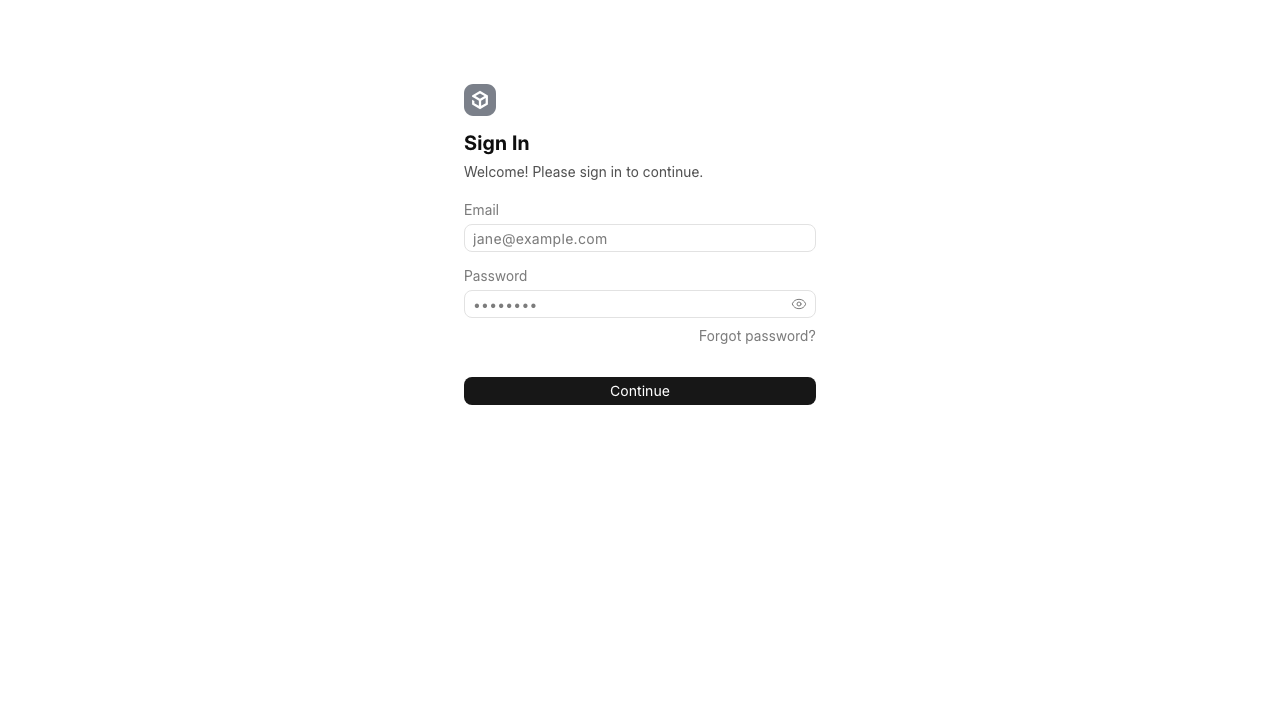
helpdesk.urladdress from Step 4 in a browser. Plainhttp://redirects to HTTPS. - Sign in as Administrator with the
helpdesk.admin.passvalue. Common default passwords (admin,password123,changeme,frappe,helpdeskand the like) are rejected. Change the password after your first sign-in.
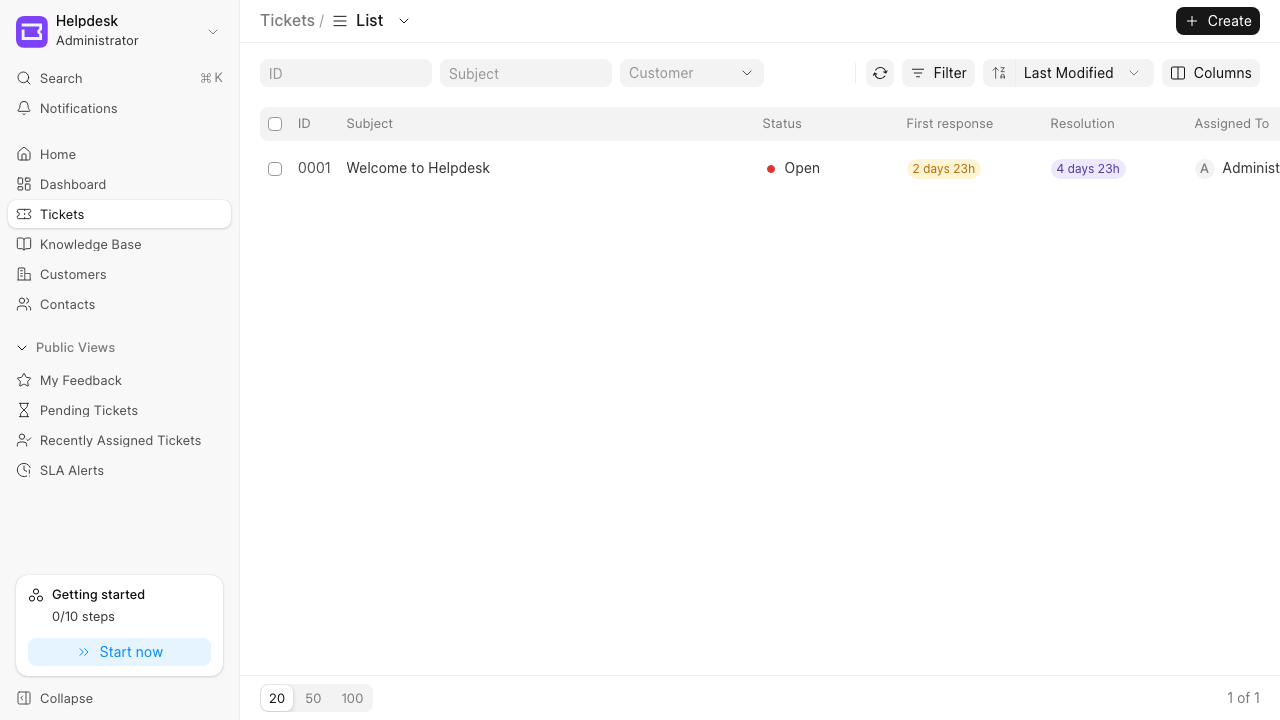
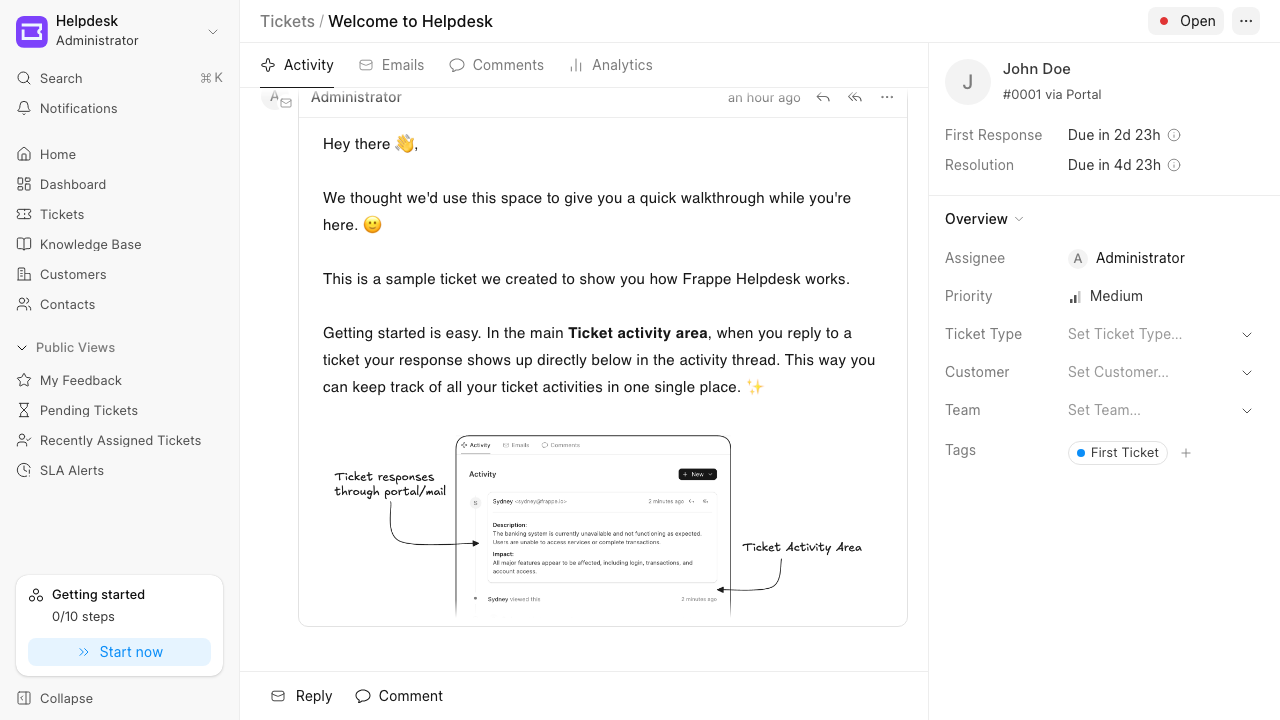
The agent interface opens at /helpdesk with the ticket list. The sample welcome ticket walks through the interface.
Then, from the Helpdesk admin settings:
- Agents. Invite your team as agents. No agent account other than Administrator exists on a new instance.
- E-mail. Connect a support mailbox as an e-mail account (incoming and outgoing) so customer e-mails become tickets and replies reach customers. Until an outgoing e-mail account exists, Helpdesk refuses agent replies with "Please setup default outgoing email account"; if you want to work only through the customer portal for now, turn on Skip e-mail workflow in the Helpdesk settings instead.
- Customers. Sign-up is off, so customers do not create their own accounts. Add customers and their contacts yourself (they get the portal at
/helpdesk/my-tickets), or, if you want public sign-up, turn it back on deliberately in the Helpdesk settings and accept that anyone who can reach the site can then register. - Knowledge base. Publish articles for customers under Knowledge base.
Step 8: Use your own hostname
Frappe builds the links in notification and password-reset e-mails from the site's host_name, which this image sets from configuration. To serve the site on your own DNS name, point a DNS record (for example in Amazon Route 53) at the instance's public IP (an Elastic IP keeps it stable), then run on the instance:
sudo frappe-helpdesk-set-hostname support.example.com
The helper writes the name to /etc/cloudimg/frappe-helpdesk-hostname, issues a new self-signed certificate for it, rewrites the site host_name, the nginx server_name and the cross-site guard, updates the credentials file, and restarts the application and nginx. An instance without an Elastic IP gets a new public DNS name when it is stopped and started; run the helper with the new name so links and the certificate follow it.
Step 9: Install a publicly trusted certificate
The site certificate is /etc/ssl/frappe-helpdesk/frappe-helpdesk.crt and its key /etc/ssl/frappe-helpdesk/frappe-helpdesk.key (mode 600, root). To use Let's Encrypt, first set your DNS name (Step 8), open port 80 to the internet, then:
sudo apt-get install -y certbot
sudo certbot certonly --standalone -d support.example.com \
  --pre-hook "systemctl stop nginx" --post-hook "systemctl start nginx" \
  --deploy-hook "install -m 644 \$RENEWED_LINEAGE/fullchain.pem /etc/ssl/frappe-helpdesk/frappe-helpdesk.crt && install -m 600 \$RENEWED_LINEAGE/privkey.pem /etc/ssl/frappe-helpdesk/frappe-helpdesk.key"
Maintenance
- Self-test. The self-test raises a ticket, reads it back and deletes it, proving Helpdesk works end to end:
sudo /usr/local/sbin/frappe-helpdesk-selftest.sh
- Backups. Take a backup with files from the bench directory; it is written under the site's
private/backups. Copy it off the instance (for example to Amazon S3) on a schedule.
cd /opt/frappe/frappe-bench
sudo -u frappe bench --site helpdesk.localhost backup --with-files
- Security updates. Unattended-upgrades is enabled and applies OS security updates. Python 3.14 is apt-managed via deadsnakes and Node.js via NodeSource, and both stay on that path.
- Application updates. The
frappe,telephonyandhelpdeskapps are pinned for a reproducible image and ship without git history. To move to a newer release, take a backup and re-fetch the app withbench get-app --overwriteat the release you want, thenbench --site helpdesk.localhost migrateandbench build, in a maintenance window. Re-fetching re-applies upstream's own dependency pins, which can be older than the fixed versions this image ships (see Security notes); re-checkpip-auditandnpm auditafter an update.
Security notes
The upstream releases pin some Python and JavaScript dependencies at versions with published advisories. This image ships fixed versions and the build fails if an audit finds anything else:
- Python (bench environment): Pillow 13.0.0, pypdf 6.21.2 and orjson 3.11.6 (hash-pinned; the image's own validation exercises them as ordinary agent and customer users: image attachments in six formats, thumbnails, a knowledge-base image and a ticket printed to PDF), GitPython 3.2.1, filelock 4.2.4, and bleach 6.4.0 over the telephony app's 6.3 pin.
- Agent and portal front end: DOMPurify 3.4.17, the tiptap editor 3.32.0, prosemirror-view 1.42.8, sanitize-html 2.18.1, Vue 3.5.44 and the fixed Socket.IO client libraries, compiled into the shipped interface.
- Realtime server (Node.js): socket.io 4.8.4, engine.io 6.6.11, socket.io-parser 4.2.7 and ws 8.21.3, plus fixed bundled libraries.
- No runtime downloads: Helpdesk's search downloads language corpora from the internet on a schedule; this image ships those corpora (pinned by SHA-256), so a running instance makes no such request.
Recorded residual advisories (no fixed release in the same major version, and not reachable as described). The audit records are in /usr/share/doc/cloudimg/frappe-helpdesk/:
- zod 3.25 (GHSA-mrhx-c7xc-m3w5, high, memory exhaustion while validating a large array against an array schema; fixed only in zod 4): Helpdesk's interface uses zod only to check single text fields (an e-mail address and a phone number) in the agent's own browser, never an array schema; the image's build fails if that changes.
- deepmerge 4.3.1 (GHSA-gcqx-w48m-w2h4, low, client-side): no fixed release exists.
- pdfkit 1.0.0 (PYSEC-2026-2860, path traversal in
from_string, local): no fixed release exists. Reachable only through print-format HTML, which only System Managers can author. - showdown 2.1.0 and quill 2.0.3 / 1.3.7 (moderate and low, client-side editor components reachable only by signed-in desk users), and the build-time tools postcss-selector-parser and esbuild 0.14 (never on the request path).
Troubleshooting
- The site does not answer. Check first boot:
systemctl status frappe-helpdesk-firstboot.serviceandsudo journalctl -u frappe-helpdesk-firstboot. Supervisor and nginx stay stopped until first boot finishes. - Certificate warning. Expected until you install a publicly trusted certificate; compare the fingerprint (Step 6).
- "Please setup default outgoing email account" when replying. Connect an e-mail account, or turn on Skip e-mail workflow in the Helpdesk settings (Step 7).
- 403 on a form or action. The cross-site guard refuses requests from other sites; use the site's own address, not a raw IP that does not match the configured name.
- Live updates do not appear. The realtime server runs under supervisor as
frappe-bench-web:frappe-bench-node-socketio; check it withsudo supervisorctl statusand its log in/var/log/frappe-helpdesk/node-socketio.error.log(supervisor's program logs live in root-owned/var/log/frappe-helpdesk/).
What this image is and is not
This is Frappe Helpdesk 1.31.1 on the Frappe framework v16.54.0, hardened and automated by cloudimg for AWS Marketplace: HTTPS on first boot, per-instance secrets, a credential-free database, closed-by-default sign-up and portal, unprivileged application processes, localhost-bound data services and dependency security fixes. It is not affiliated with or endorsed by Frappe Technologies. Frappe and Frappe Helpdesk are trademarks of their respective owners; the software is used under AGPL 3.0 (Helpdesk, telephony) and MIT (Frappe framework).