
frp Server 0.71.1 on AWS User Guide
Overview
This guide covers launching and verifying frp Server 0.71.1 on Ubuntu 24.04 from cloudimg on Amazon EC2. It is one version of the cloudimg Hardened WireGuard VPN & VPN, Proxy and Remote Access AMIs listing on AWS Marketplace; you pick it as the software version when you subscribe and launch. The other VPN, proxy and remote access servers in the listing are described on the listing's guide hub.
frp (fast reverse proxy) publishes a service that sits behind NAT or a firewall, such as a web app on a laptop, an SSH server in a home lab or an API in a private network, on a public server. The frpc client runs next to the service and opens an outbound connection to the frps server; frps then listens on a port you choose and relays every connection on it back through the client. This image is the server side: frps, its web dashboard, and the secure defaults around them.
frps 0.71.1 on this image is compiled by cloudimg from the upstream v0.71.1 release tag with Go 1.26.10 and an updated golang.org/x/net (v0.60.0). The upstream release binary is built with Go 1.26.8, which carries Go standard-library advisories fixed in Go 1.26.9 and 1.26.10; the cloudimg build clears them without changing any frp source file. The dashboard is built from the tag's own web sources. /usr/share/doc/frp/BUILD-PROVENANCE.txt lists every pinned input and the checksum of the installed binary.
What is on the image:
- frps 0.71.1 (
frps.service): the client control port 7000 (TLS required), the client ports 20000-20099 (opened only while an authenticated client uses them), and the dashboard on loopback only (127.0.0.1:7500) - nginx (
nginx.service): serves the dashboard over HTTPS on port 443 with a certificate generated on your instance, and redirects port 80 to HTTPS - Secrets of its own: the client token, the dashboard password and the TLS key are generated on your instance's first boot; no two instances share them
- Helpers:
frp-selftest(an end-to-end check) andfrp-set-host(serve the dashboard and certificate under your own DNS name)
Default user: ubuntu · Architecture: x86_64 · Root volume: 8 GiB gp3
Security posture
- No default credential. The image holds no client token, dashboard password or TLS key. First boot generates a 64-character hex client token, a 32-character dashboard password and a new TLS key, writes them into
/etc/frp/frps.tomland/root/frp-credentials.txt(readable only by root), and proves the dashboard refuses no password, a wrong password andadmin/adminwhile it accepts yours. A start check (frp-guard) refuses to run frps while the configuration still holds the image's placeholders, a dashboard password under 20 characters or a token under 32. - Clients must authenticate and use TLS. frps accepts a client only with your token, and only over TLS (
transport.tls.force = true): a client that does not speak TLS is refused before it can log in. The server presents your instance's own certificate on port 7000, so clients can pin it (Step 6). - Clients can open only the ports you allow. A client may ask for remote ports 20000-20099 only (
allowPorts); any other port, including the dashboard's, is refused. HTTP/HTTPS virtual hosts, TCP multiplexing over HTTP CONNECT, the KCP and QUIC transports (no UDP port is open), the SSH tunnel gateway, server plugins, Prometheus metrics and the profiler are all off. frps only accepts connections and relays them to the client that asked for the port; it never connects to an address a client names. - Dashboard over HTTPS, on loopback. The frps dashboard and its API listen on
127.0.0.1:7500with HTTP Basic authentication; nginx serves them over HTTPS on port 443 with your instance's certificate (TLS 1.2 and 1.3). nginx answers only the instance's own address and public DNS name (a request for any other host name has its connection closed), and port 80 only redirects to the configured address. - Cross-site requests refused. A browser keeps Basic credentials after you sign in, so another web page could otherwise make your browser call the dashboard API (the API can delete offline proxy records and prune data). nginx refuses every
/apirequest that does not prove it comes from the dashboard's own page (Sec-Fetch-Site,OriginorReferer), and the dashboard itself keeps working. - Client addresses from the connection. nginx overwrites
X-Forwarded-ForandX-Real-IPwith the address of the connection and removesTrue-Client-IP,ForwardedandX-Forwarded-Host. - No SSRF to instance credentials.
frps.serviceandnginx.servicecarry anIPAddressDenyrule for the metadata addresses (169.254.169.254, fd00:ec2::254, 168.63.129.16), so neither service can reach the instance metadata service. The AMI is registered IMDSv2 only. - Least privilege. frps runs as the unprivileged
frpuser with no capabilities, a read-only system (ProtectSystem=strict), no access to home directories and no write access anywhere on disk. - Fails closed.
frps.serviceandnginx.servicestart only after first boot has written its ready marker, and every frps start runs the guard first. If first boot cannot finish, both stay stopped and the next boot starts over. - Secrets stay out of the logs. The dashboard password is handed to
curlthrough a configuration file on a memory file system, never on a command line. cloudimg checked that the token and the password appear in no log file and not in the journal. - Per-instance identity. SSH host keys and the machine ID are generated fresh on every instance.
- Security notes.
govulncheckfinds no vulnerability in the frps binary on this image (a scan of the compiled binary, and a source scan of the release tag with Go 1.26.10);golang.org/x/crypto/openpgp, which has an advisory with no fix, is not part of frps. The dashboard's production npm packages have no known advisory (npm audit). frp 0.71.1 is not affected by the published frp advisories GHSA-26gq-p25f-99cp (SSH tunnel gateway, fixed in 0.70.1) and GHSA-pq96-pwvg-vrr9 (routeByHTTPUser, fixed in 0.68.1).
Prerequisites
- An AWS account and permission to launch EC2 instances
- An EC2 key pair in the Region you launch in
- A public IP address (an Elastic IP is best: frpc clients and the certificate use the address fixed at first boot) if clients outside the VPC will connect
- The frpc client 0.71.1 (or a recent 0.6x/0.7x release) on each machine whose service you want to publish
Recommended instance type: m5.large. frps itself is light; size for the traffic you relay.
Connecting to your instance
| Version | Operating system | SSH user |
|---|---|---|
| frp Server 0.71.1 on Ubuntu 24.04 | Ubuntu 24.04 LTS | ubuntu |
Step 1: Launch the instance
Option A: AWS Marketplace console
- Open the cloudimg Hardened WireGuard VPN & VPN, Proxy and Remote Access AMIs listing on AWS Marketplace and choose View purchase options, then Subscribe. One subscription covers every version in the listing.
- Once the subscription is active, choose Launch your software.
- Choose Launch from EC2 Console. In Version, choose frp Server 0.71.1 on Ubuntu 24.04, then choose your Region.
- Pick an instance type (
m5.largerecommended; the software charge is $0.04 per vCPU per hour) and your key pair. - Security group: allow SSH (22) from your own IP address only; HTTPS (443) and HTTP (80) from the networks you manage the dashboard from; TCP 7000 from the networks your frpc clients connect from (
0.0.0.0/0for clients on changing networks); and later, only the ports in 20000-20099 that you publish, from the people who should reach them (Step 7). The server is of no use without port 7000, and nothing is published until you open a client port. - Choose a subnet with a public IP, leave the metadata defaults (the image already requires IMDSv2), then choose Launch. If you want a stable address, associate an Elastic IP before first boot finishes, or run
sudo frp-set-hostafterwards (Step 9).
Option B: AWS CLI
Run this on your own workstation. It creates a security group that allows SSH and HTTPS from your management address and the client control port from anywhere, then launches the instance. Replace the AMI ID with the one shown for your Region on the Marketplace launch page, and the VPC, subnet, key pair and address ranges with your own:
SG=$(aws ec2 create-security-group --group-name frp-server \
  --description "frp server" --vpc-id vpc-0123456789abcdef0 \
  --query GroupId --output text)
aws ec2 authorize-security-group-ingress --group-id "$SG" --protocol tcp --port 22 --cidr <your-mgmt-cidr>
aws ec2 authorize-security-group-ingress --group-id "$SG" --protocol tcp --port 443 --cidr <your-mgmt-cidr>
aws ec2 authorize-security-group-ingress --group-id "$SG" --protocol tcp --port 7000 --cidr 0.0.0.0/0
aws ec2 run-instances \
  --image-id ami-0123456789abcdef0 \
  --instance-type m5.large \
  --key-name my-key-pair \
  --security-group-ids "$SG" \
  --subnet-id subnet-0123456789abcdef0 \
  --associate-public-ip-address \
  --tag-specifications 'ResourceType=instance,Tags=[{Key=Name,Value=frp-server}]'
You do not need --metadata-options: the AMI already makes IMDSv2 required.
Step 2: Connect and read your server details
Connect as ubuntu with the key pair you chose:
ssh -i ~/.ssh/my-key-pair.pem ubuntu@<public-ip>
First boot finishes within a minute of launch. It creates the certificate and the secrets, starts frps and nginx and proves them. The details are in /root/frp-credentials.txt, readable only by root. This command shows everything except the dashboard password and the client token:
sudo grep -vE '^(FRP_DASHBOARD_PASSWORD|FRP_AUTH_TOKEN)=' /root/frp-credentials.txt
# frp Server 0.71.1 (frps) - generated on first boot by frp-firstboot.service.
# Every value below is unique to this instance; nothing was baked into the image. Keep this file private.

# Web dashboard (HTTPS, self-signed certificate unique to this instance): sign in as admin with the password below.
FRP_DASHBOARD_URL=https://44.201.238.162/
FRP_DASHBOARD_USER=admin

# frpc clients: serverAddr = FRP_HOST, serverPort = 7000, auth.token = FRP_AUTH_TOKEN (TLS is required).
FRP_HOST=44.201.238.162
FRP_SERVER_PORT=7000
# Remote ports clients may open (open them in your security group): 20000-20099
FRP_ALLOW_PORTS=20000-20099

# The certificate served on 443 and 7000 (/etc/frp/tls/frp.crt). Clients can pin it: transport.tls.trustedCaFile.
TLS_CERT_SHA256=92:E5:35:93:F1:78:87:20:7F:21:EC:71:8B:96:44:99:09:69:DF:10:88:B8:24:2F:EB:56:F0:76:32:D8:73:4E

# Self-test: sudo frp-selftest      Change the name: sudo frp-set-host <dns-name>
# Guide: https://www.cloudimg.co.uk/guides/frp-server-0-71-1-on-ubuntu-24-04-aws/
Your values differ. To print the dashboard password or the client token when you need them:
sudo sed -n 's/^FRP_DASHBOARD_PASSWORD=//p' /root/frp-credentials.txt
sudo sed -n 's/^FRP_AUTH_TOKEN=//p' /root/frp-credentials.txt
Treat the token like a password: anyone who has it can publish ports on your server.
Step 3: Confirm the server is running
Both services are active, the dashboard listens on loopback only, frps listens on 7000 and nginx on 80 and 443:
systemctl is-active frps.service nginx.service
frps --version
sudo ss -Htlnp | awk '{print $4, $6}' | grep -E ':(22|80|443|7000|7500) ' | sed -E 's/,pid=[0-9]+,fd=[0-9]+//g' | sort -u
active
active
0.71.1
*:7000 users:(("frps"))
0.0.0.0:22 users:(("sshd"),("systemd"))
0.0.0.0:443 users:(("nginx"),("nginx"),("nginx"))
0.0.0.0:80 users:(("nginx"),("nginx"),("nginx"))
127.0.0.1:7500 users:(("frps"))
[::]:22 users:(("sshd"),("systemd"))
[::]:443 users:(("nginx"),("nginx"),("nginx"))
[::]:80 users:(("nginx"),("nginx"),("nginx"))
No UDP port is open. Ports 20000-20099 appear only while a client publishes one of them.
Step 4: Run the self-test
The shipped self-test checks the services and the listeners, proves the dashboard API over HTTPS (401 without a password, for a wrong password and for admin/admin; 200 with yours) and checks that port 7000 serves your certificate over TLS. It prints no secret:
sudo frp-selftest
SELFTEST_OK frps+nginx active; dashboard 127.0.0.1:7500 only; healthz 200; API 401 anonymous/wrong/default, 200 per-instance password; TLS on 7000; host 44.201.238.162
Step 5: Open the dashboard
The certificate is unique to your instance. Check its fingerprint against TLS_CERT_SHA256 from Step 2:
sudo openssl x509 -in /etc/frp/tls/frp.crt -noout -subject -enddate -ext subjectAltName
sudo openssl x509 -in /etc/frp/tls/frp.crt -noout -fingerprint -sha256
subject=O = cloudimg, CN = 44.201.238.162
notAfter=Oct 24 13:01:30 2036 GMT
X509v3 Subject Alternative Name:
    IP Address:127.0.0.1, IP Address:44.201.238.162, DNS:ec2-44-201-238-162.compute-1.amazonaws.com, IP Address:172.31.81.104
sha256 Fingerprint=92:E5:35:93:F1:78:87:20:7F:21:EC:71:8B:96:44:99:09:69:DF:10:88:B8:24:2F:EB:56:F0:76:32:D8:73:4E
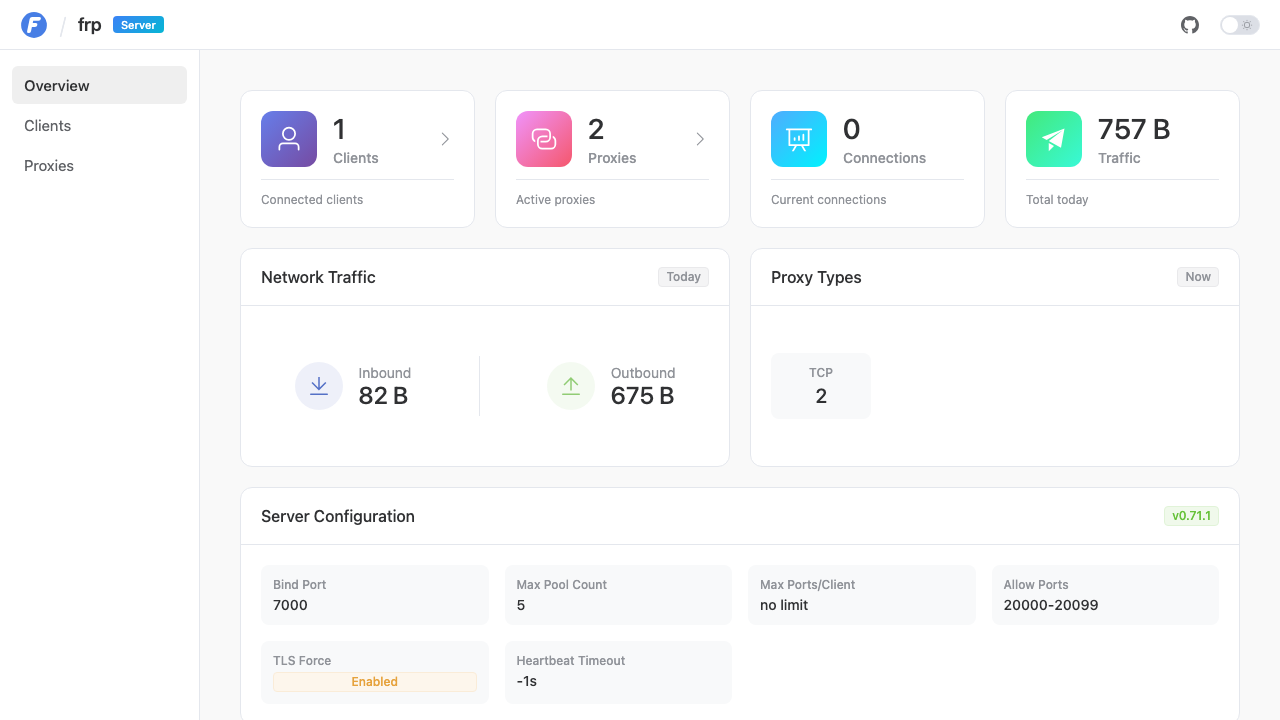
Open https://<FRP_HOST>/ in a browser. The browser warns that the certificate is not from a known authority: confirm the fingerprint matches, accept it (or install it as trusted, or use a CA certificate, Step 9), then sign in as admin with the dashboard password. The overview shows the server's settings, including the allowed ports and TLS enforcement:
Step 6: Connect an frpc client
On the machine whose service you want to publish, download frpc 0.71.1 for its platform from the frp releases page and check the archive against the release's frp_sha256_checksums.txt. Copy your server's certificate to that machine so frpc can verify the server:
ssh -i ~/.ssh/my-key-pair.pem ubuntu@<public-ip> 'sudo cat /etc/frp/tls/frp.crt' > frps.crt
Create frpc.toml next to it. This example publishes a local web app on port 8080 as remote port 20080, and the machine's SSH server as remote port 20022:
serverAddr = "<FRP_HOST>"
serverPort = 7000
auth.token = "<FRP_AUTH_TOKEN>"
transport.tls.enable = true
transport.tls.trustedCaFile = "frps.crt"
transport.tls.serverName = "<FRP_HOST>"

[[proxies]]
name = "web"
type = "tcp"
localIP = "127.0.0.1"
localPort = 8080
remotePort = 20080

[[proxies]]
name = "ssh"
type = "tcp"
localIP = "127.0.0.1"
localPort = 22
remotePort = 20022
Start it with ./frpc -c frpc.toml. It logs login to server success and [web] start proxy success for each proxy. Keep frpc.toml readable only by you, because it holds the token. With transport.tls.trustedCaFile, frpc refuses a server that does not present your certificate. Leave it out and frpc still uses TLS but does not check who answers. A client without the token, or one that does not use TLS, is refused.
cloudimg tested this on the image with frpc 0.71.1. A client with the token, TLS and the pinned certificate published a remote port and carried traffic through it. A client with no token or a wrong token was refused with token in login doesn't match token from configuration, a client without TLS and a client pinning the wrong certificate were refused, and requests for remote port 30000, for the dashboard's port 7500 and for an http virtual-host proxy were refused.
Step 7: Open the published ports and check them
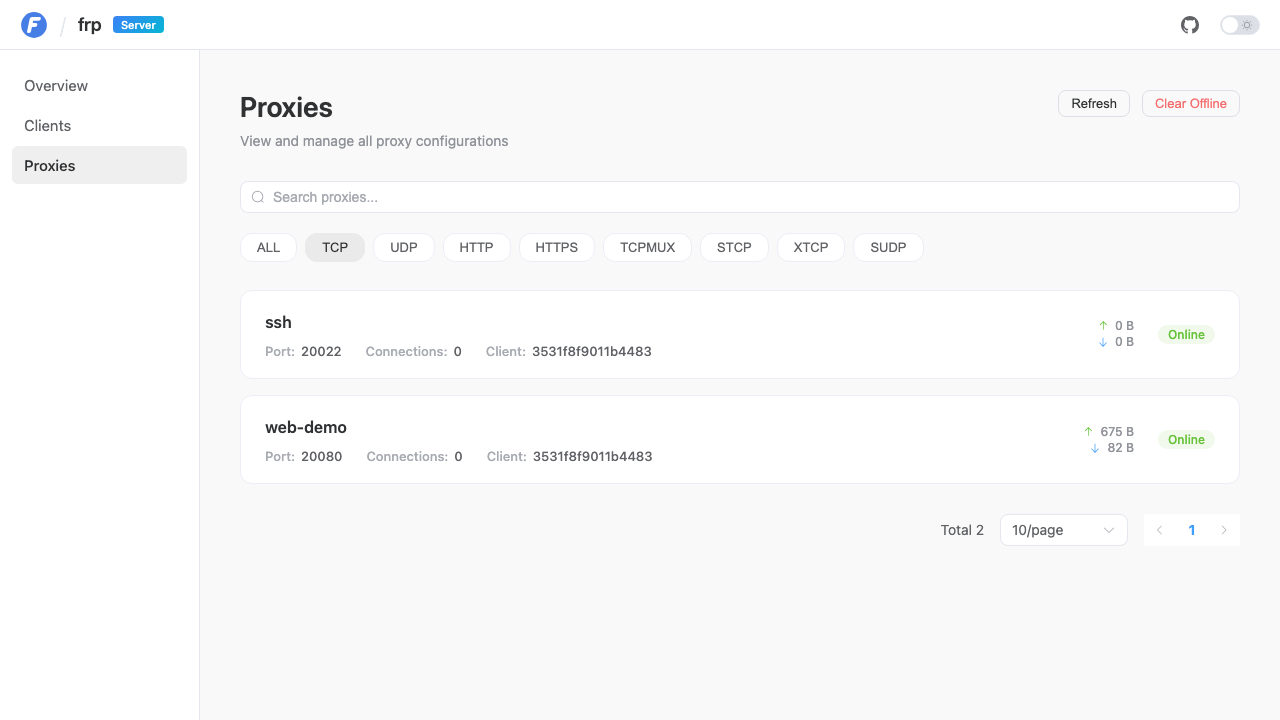
A published port is reachable only once your security group allows it. Open just the ports you use, from the addresses that should reach them, for example TCP 20080 from your office range. The dashboard's Proxies page shows every published port, its client and its traffic:
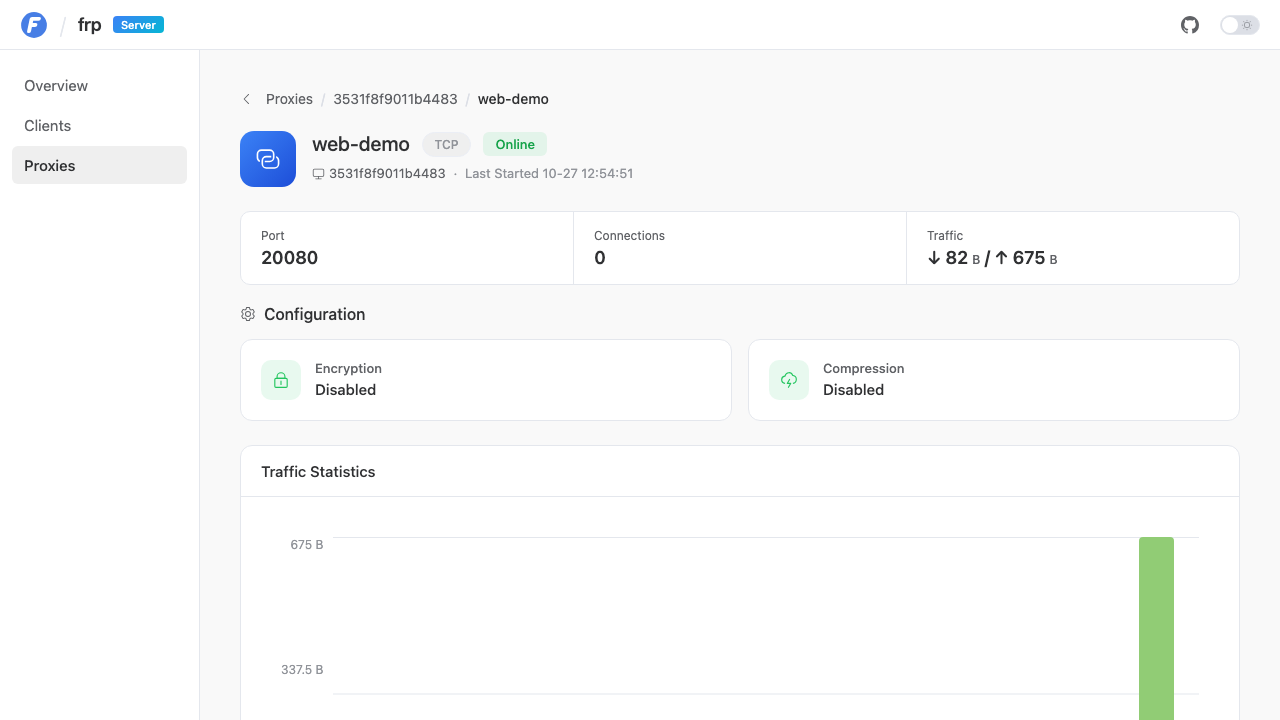
Each proxy has a detail page with its traffic history:
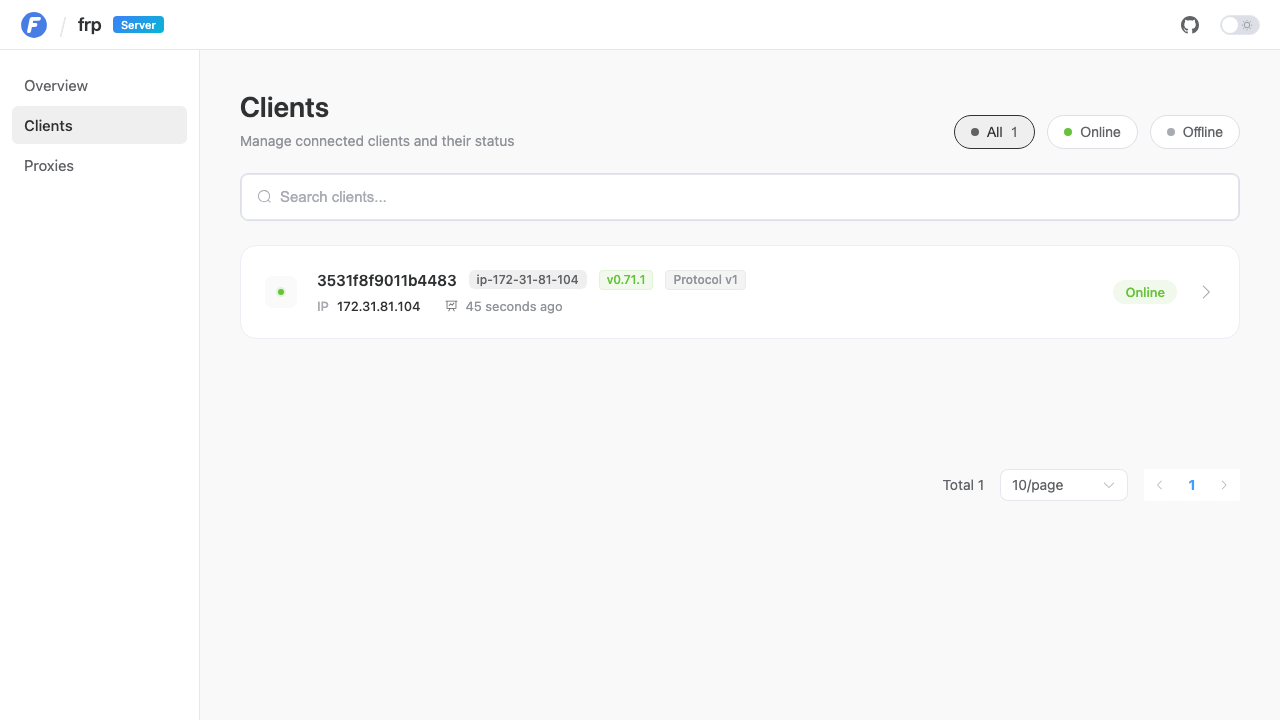
The Clients page lists connected frpc clients with their address and version:
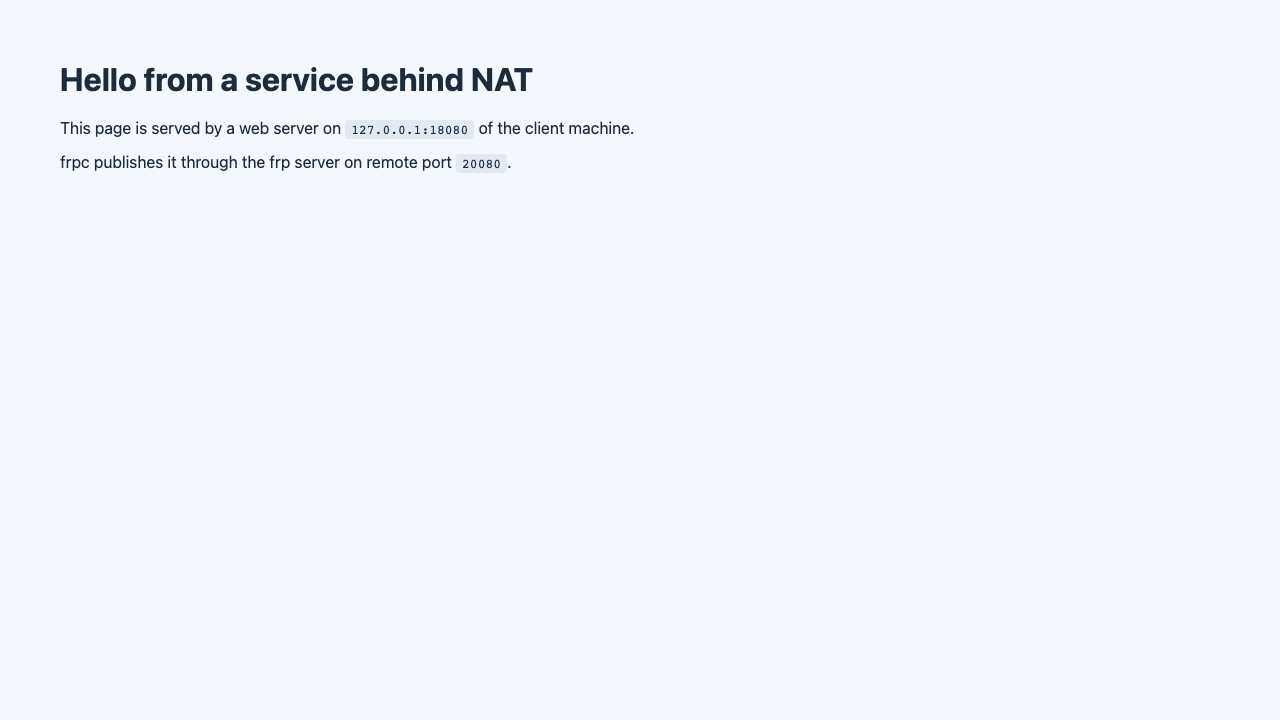
A browser pointed at http://<FRP_HOST>:20080/ now reaches the client's local web app:
The same information is in the dashboard API. This reads the password from the credentials file and passes it to curl on standard input, so it never appears on a command line; without the password the API answers 401. On a new instance with no client connected, the list is empty:
H=$(sudo sed -n 's/^FRP_HOST=//p' /root/frp-credentials.txt)
sudo sed -n 's/^FRP_DASHBOARD_PASSWORD=//p' /root/frp-credentials.txt | sed 's/^/user = "admin:/; s/$/"/' | sudo curl -sS -K - --cacert /etc/frp/tls/frp.crt --resolve "$H:443:127.0.0.1" -H 'Sec-Fetch-Site: same-origin' "https://$H/api/proxy/tcp"; echo
curl -sS -o /dev/null -w 'without the password: %{http_code}\n' -k --resolve "$H:443:127.0.0.1" -H 'Sec-Fetch-Site: same-origin' "https://$H/api/proxy/tcp"
{"proxies":[]}

without the password: 401
Scripts that call /api must send Sec-Fetch-Site: same-origin (or an Origin of https://<FRP_HOST>); requests without it are refused by the cross-site check described in the security posture.
Step 8: Configuration
The configuration is /etc/frp/frps.toml (readable by root and the frp group). The settings cloudimg chose (the token and password lines are left out here):
sudo grep -nvE '^(#|$|auth\.token|webServer\.password)' /etc/frp/frps.toml
8:bindAddr = "0.0.0.0"
9:bindPort = 7000
12:auth.method = "token"
16:allowPorts = [
17:  { start = 20000, end = 20099 }
18:]
22:transport.tls.force = true
23:transport.tls.certFile = "/etc/frp/tls/frp.crt"
24:transport.tls.keyFile = "/etc/frp/tls/frp.key"
28:webServer.addr = "127.0.0.1"
29:webServer.port = 7500
30:webServer.user = "admin"
39:log.to = "console"
40:log.level = "info"
41:log.disablePrintColor = true
Edit the file with sudo, then run sudo systemctl restart frps. Common changes:
- More or different client ports: extend
allowPorts(for example{ start = 20000, end = 20199 }) and open the same range in your security group. Ports below 1024 are not available, because frps runs without privileges. - A limit per client: add
maxPortsPerClient = 5. - HTTP/HTTPS virtual hosts (
type = "http"proxies routed by host name): addvhostHTTPPort = 8080(andsubDomainHostif you use subdomains), and open that port. Front them with your own TLS: frps does not issue certificates. - Rotate the client token or the dashboard password: replace the value in
frps.toml, use at least 32 characters for the token and 20 for the password (the start check refuses anything shorter), restart frps, update/root/frp-credentials.txtand every client.
Keep webServer.addr on 127.0.0.1 and transport.tls.force = true: the start check refuses anything else, because nginx is the only listener meant to serve the dashboard and every client should use TLS. See frp's full server configuration reference.
Step 9: Use your own DNS name (and a CA certificate)
The dashboard address and the certificate are fixed at first boot to the instance's public IPv4 (and its public DNS name). To use your own DNS name, point an A record at the instance (an Elastic IP keeps it stable), then:
sudo frp-set-host frp.example.com
SET_HOST_OK host=frp.example.com
It issues a new self-signed certificate for the name (used on 443 and on 7000), restarts frps and reloads nginx. With no argument it returns to the instance's current address (use that after a stop and start changed the public IP). Clients that pin the certificate need the new one; clients then use serverAddr = "frp.example.com" and transport.tls.serverName = "frp.example.com".
To use a certificate from a public CA for that name instead, put the chain and key in place and restart:
sudo install -m 0644 fullchain.pem /etc/frp/tls/frp.crt
sudo install -m 0640 -g frp privkey.pem /etc/frp/tls/frp.key
sudo systemctl restart frps && sudo systemctl reload nginx
(Running frp-set-host again issues a new self-signed certificate over it.) Clients then need no trustedCaFile.
Step 10: How the fail-closed start works
frps.service runs only when first boot's ready marker exists, every start runs the guard as root first, and both services are denied the metadata service:
systemctl cat frps.service | grep -E '^(ConditionPathExists|ExecStartPre|ExecStart|User|ProtectSystem|CapabilityBoundingSet)='
systemctl show -p IPAddressDeny frps.service nginx.service
sudo stat -c '%a %U:%G %n' /root/frp-credentials.txt /etc/frp/frps.toml /etc/frp/tls/frp.key
ConditionPathExists=/var/lib/cloudimg/frp-bootstrap-ready
User=frp
ExecStartPre=+/usr/local/sbin/frp-guard
ExecStart=/usr/local/bin/frps -c /etc/frp/frps.toml
ProtectSystem=strict
CapabilityBoundingSet=
IPAddressDeny=169.254.169.254/32 fd00:ec2::254/128 168.63.129.16/32

IPAddressDeny=169.254.169.254/32 fd00:ec2::254/128 168.63.129.16/32
600 root:root /root/frp-credentials.txt
640 root:frp /etc/frp/frps.toml
640 root:frp /etc/frp/tls/frp.key
Port 80 only redirects to the configured address (and answers a health probe at /healthz):
curl -sS -o /dev/null -w '%{http_code} %{redirect_url}\n' http://127.0.0.1/
curl -sS http://127.0.0.1/healthz
301 https://44.201.238.162/
ok
Step 11: Logs, backup and upgrades
journalctl -u frps shows the server log: client logins, proxies starting and stopping, refused clients, and dashboard requests (by path only; passwords and tokens are never logged). nginx's HTTPS access log is in /var/log/nginx/:
sudo journalctl -u frps --no-pager -n 6 -o cat | cut -c1-140
2026-10-27 13:01:33.703 [I] [http/middleware.go:35] http request: [/api/serverinfo]
2026-10-27 13:01:33.703 [I] [http/middleware.go:38] http response [/api/serverinfo]: code [200]
2026-10-27 13:02:10.337 [I] [http/middleware.go:35] http request: [/api/serverinfo]
2026-10-27 13:02:10.337 [I] [http/middleware.go:38] http response [/api/serverinfo]: code [200]
2026-10-27 13:02:10.677 [I] [http/middleware.go:35] http request: [/api/proxy/tcp]
2026-10-27 13:02:10.677 [I] [http/middleware.go:38] http response [/api/proxy/tcp]: code [200]
Backup: frps keeps no data. Back up /etc/frp (the configuration and the TLS key) and /root/frp-credentials.txt, and keep the copy as private as the server; EBS snapshots of the instance work too.
Upgrades: Ubuntu security updates install automatically. frps is a single binary at /usr/local/bin/frps; cloudimg ships updated builds as new versions of this listing. To move to a newer frp release yourself, download frp_<version>_linux_amd64.tar.gz from the releases page, check it against the release's frp_sha256_checksums.txt, read the release notes for configuration changes, then copy the new frps over /usr/local/bin/frps and run sudo systemctl restart frps (keep the old binary until the new one runs).
Step 12: Security recommendations
- Keep SSH and the dashboard (443) open only to your management addresses.
- Open only the client ports you publish, and only to the people who should reach them; a published port is as open as your security group makes it.
- Pin the server certificate on every client (
transport.tls.trustedCaFile), so a client cannot be talked into connecting to an impostor. - Rotate the client token if a client machine is lost or the token may have been seen, and give each team its own server if they should not share one token.
- Remember that the published service's own protocol is what travels between its users and frps: put TLS on the service itself (HTTPS, SSH) when its users connect over the internet.
- Use an Elastic IP or a DNS name, so the address your clients know never changes under them.
Support and licensing
frp is open-source software by fatedier and the frp contributors, distributed under the Apache License 2.0; the licence is in /usr/share/doc/frp/LICENSE, the licences of the dashboard's bundled npm packages are in /usr/share/doc/frp/dashboard-licenses/, and /usr/share/doc/frp/BUILD-PROVENANCE.txt describes how this build was made from the upstream source. cloudimg provides the build, the per-instance token, password and certificate, the HTTPS front end and the other secure defaults, the fail-closed start, the metadata block, the self-test and 24/7 support.
cloudimg is not affiliated with or endorsed by the frp project.
For help with deployment or configuration, email support@cloudimg.co.uk or visit cloudimg support.