
HomeGallery Photo and Video Gallery on AWS User Guide
Overview
This image runs HomeGallery, the open source, self-hosted photo and video gallery. It indexes a media directory into a fast, file based database and serves a clean, browsable web gallery: a photo grid, a full screen lightbox, an interactive map of geotagged media, a timeline, faceted search and content based similar-image discovery. There is no external database and no object store to run, so it is an ideal privacy-respecting alternative to cloud photo services, deployable entirely in your own VPC.
HomeGallery ships as a single self contained binary that bundles its own runtime, image processing and video tooling. It serves the web gallery directly on port 3000 - there is no separate interpreter, database server or reverse proxy to manage. Your media, the file based index and the generated previews live on a dedicated, independently resizable EBS data volume mounted at /var/lib/home-gallery, keeping gallery data off the operating system disk.
Upstream HomeGallery serves with no authentication by default; this cloudimg image never does. Authentication is enabled with a deny all except loopback rule and no usable account, and the gallery service does not start until first boot. On first boot the instance generates a strong administrator password that is unique to that instance, stores only a salted hash in the configuration, writes the plaintext to a root only file, and only then begins serving. Every network client must present that per-instance password; the loopback interface is allowed unauthenticated so local health checks work. No shared, default or known credential is baked into the image.
To give you something to look at immediately, the image ships a handful of public domain NASA and Hubble sample images already indexed. You replace them with your own photos and videos.
Prerequisites
Before you deploy this image you need:
- An Amazon Web Services account where you can launch EC2 instances
- IAM permissions to launch instances, create security groups, and subscribe to AWS Marketplace products
- An EC2 key pair in the target Region for SSH access to the instance
- A VPC and subnet in the target Region, with a security group allowing inbound port 22 from your management network and inbound port 3000 from the networks your users will reach the gallery on
- The AWS CLI (version 2) installed locally if you plan to deploy from the command line
Connecting to Your Instance
Connect over SSH as the default login user for the operating system variant you launched. HomeGallery runs the same on every variant; only the login user differs.
| Operating system variant | SSH login user |
|---|---|
| Ubuntu 24.04 LTS | ubuntu |
Step 1: Launch the Instance from the AWS Marketplace
Sign in to the AWS Management Console, open the EC2 service, and select Launch instance. Under Application and OS Images choose AWS Marketplace AMIs and search for HomeGallery. Select the cloudimg listing, choose Select, then Continue on the subscription summary.
Pick an instance type of m5.large or larger. Choose your EC2 key pair under Key pair (login). Under Network settings select your VPC and subnet, and either create or select a security group that allows inbound port 22 from your management network and inbound port 3000 from the networks your users will use. Leave the root volume and the attached data volume at their default sizes, or increase the data volume if you plan to index a large library.
Select Launch instance. First boot initialisation takes under a minute after the instance state becomes Running and the status checks pass.
Step 2: Launch the Instance from the AWS CLI
The following block launches an instance from the cloudimg HomeGallery Marketplace AMI into an existing subnet and security group. Replace <ami-id> with the AMI ID shown on the Marketplace listing, <key-name> with your EC2 key pair name, <subnet-id> with your subnet ID, and <security-group-id> with a security group that opens ports 22 and 3000 as described above.
aws ec2 run-instances \
  --image-id <ami-id> \
  --instance-type m5.large \
  --key-name <key-name> \
  --subnet-id <subnet-id> \
  --security-group-ids <security-group-id> \
  --tag-specifications 'ResourceType=instance,Tags=[{Key=Name,Value=home-gallery}]'
Step 3: Connect to the Instance
Connect over SSH using your key pair and the login user from the table above. Replace <public-ip> with the instance's public IP address.
ssh -i /path/to/your-key.pem ubuntu@<public-ip>
Step 4: Retrieve Your Per-Instance Admin Password
The administrator password is generated on first boot and is unique to this instance. Read it over SSH:
$ sudo cat /root/home-gallery-credentials.txt
HOMEGALLERY_URL=http://<public-ip>:3000/
HOMEGALLERY_USERNAME=admin
HOMEGALLERY_PASSWORD=<HOMEGALLERY_PASSWORD>
Keep this password somewhere safe - it is the only administrator credential and it is never shown anywhere else.
You can confirm the gallery is running and that the network surface enforces authentication without ever printing the password. This checks the service, the local health endpoint, and that a network request is rejected without the password but accepted with it:
systemctl is-active home-gallery.service
curl -s -o /dev/null -w 'local health endpoint: HTTP %{http_code}\n' http://127.0.0.1:3000/
PW=$(sudo grep '^HOMEGALLERY_PASSWORD=' /root/home-gallery-credentials.txt | cut -d= -f2-)
IP=$(hostname -I | awk '{print $1}')
echo "network request without password: HTTP $(curl -s -o /dev/null -w '%{http_code}' -u wrong:wrong http://$IP:3000/)"
echo "network request with your password: HTTP $(curl -s -o /dev/null -w '%{http_code}' -u admin:"$PW" http://$IP:3000/)"
A healthy instance reports active, HTTP 200 on the local endpoint, HTTP 401 for the network request without a password, and HTTP 200 for the network request with your password.
Step 5: Open the Gallery
Browse to http://<public-ip>:3000/ and sign in as admin with the password from Step 4 (your browser prompts for HTTP credentials). The gallery opens on the photo grid, showing the seeded sample media. Use the navigation bar to switch between Show All, Years, Videos, Tags, Map, and the Search box.
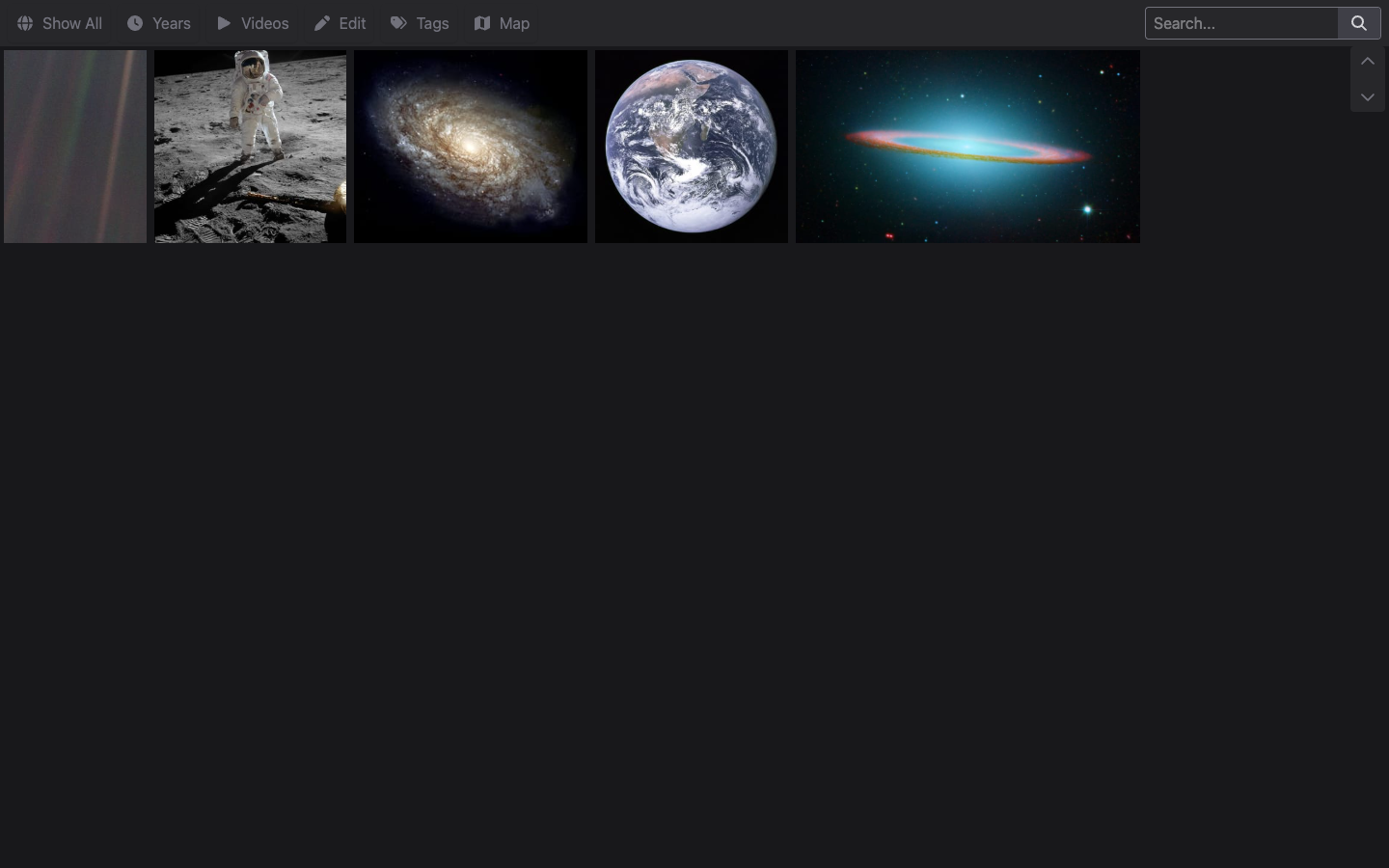
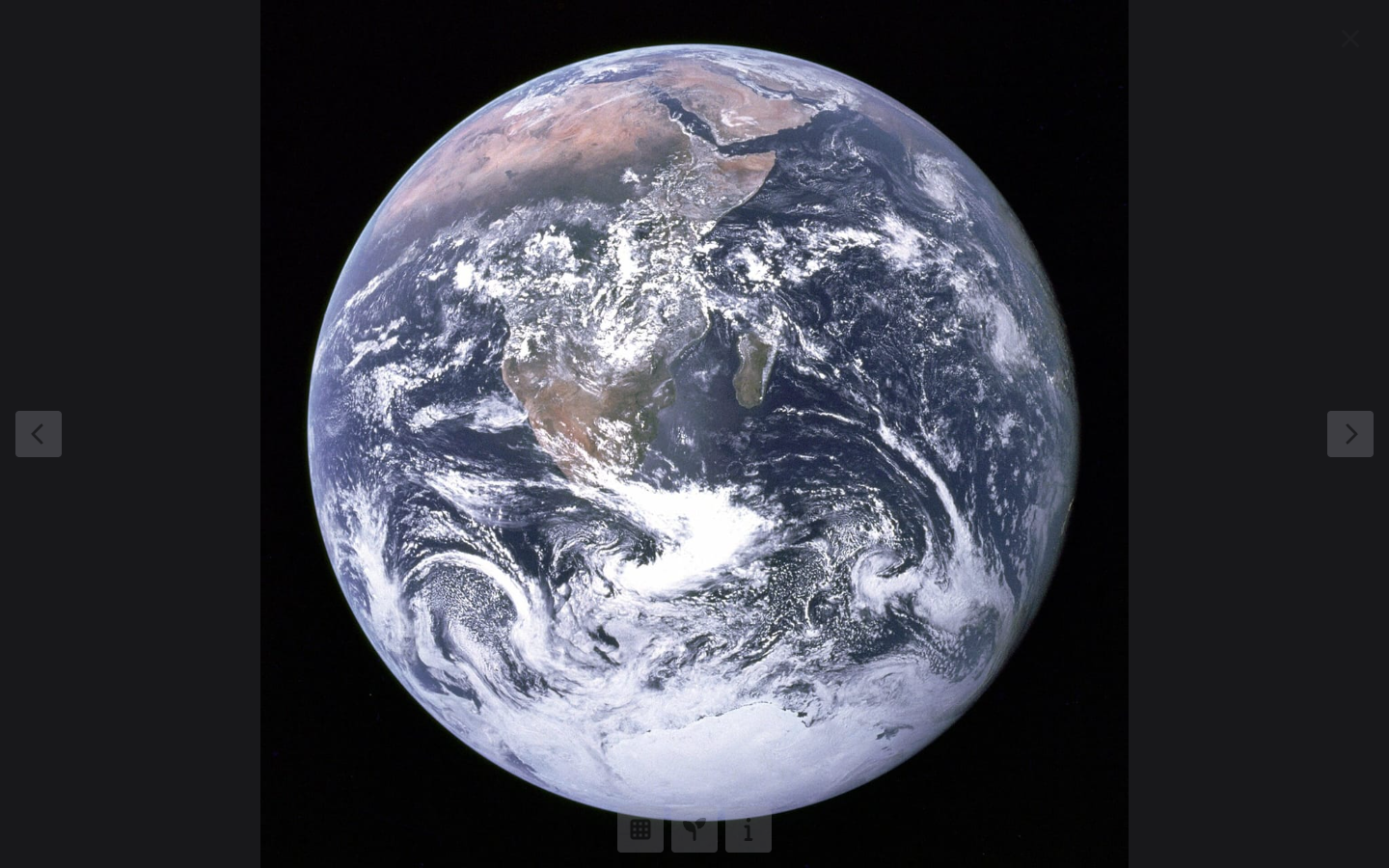
Click any photo to open the full screen lightbox, where you can step through your library, view metadata, and find visually similar images.
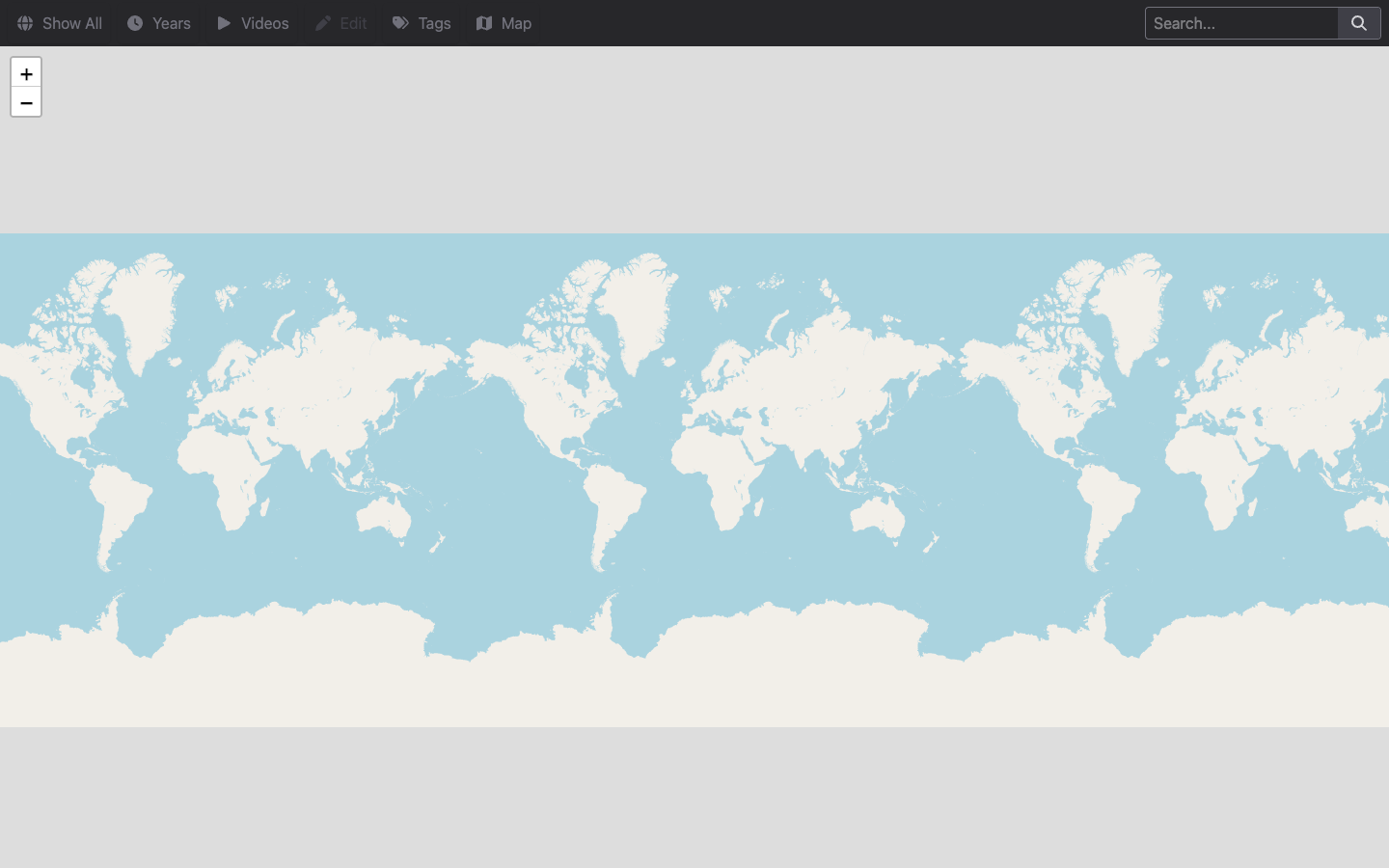
Open Map to see geotagged photos and videos plotted on an interactive world map, so you can browse your library by place. (The seeded samples carry no location data, so your own geotagged media is what will appear here.)
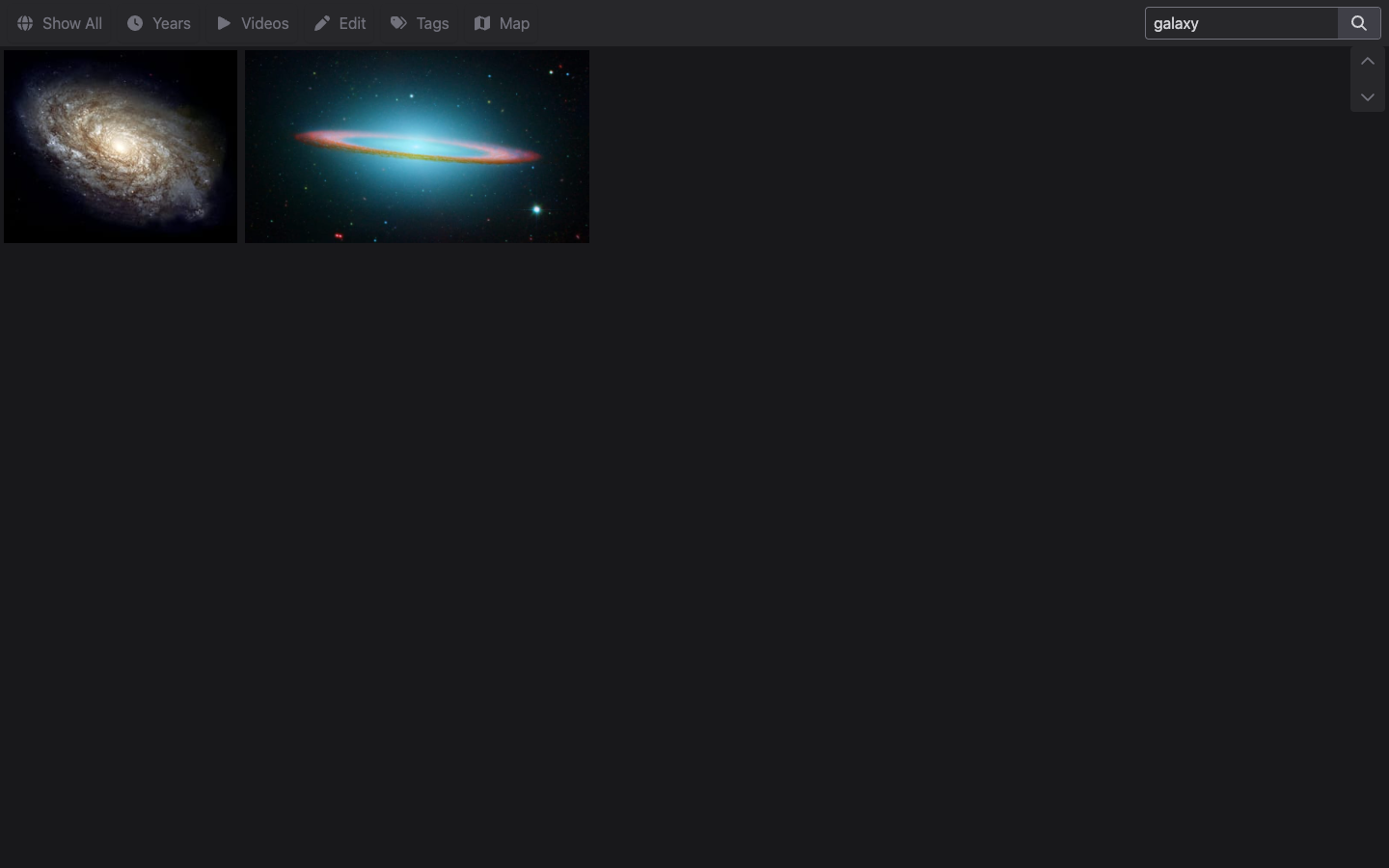
Type a term into the Search box to filter the library instantly. Search matches file names, dates, tags and detected content.
Step 6: Add Your Own Photos and Videos
Copy your media into the gallery's media directory on the dedicated data volume, then rebuild the index so the new files appear in the grid, map and search. Run this over SSH (it processes your files and updates the file based database, so it is a one-off you run whenever you add media):
$ sudo cp -r /path/to/your/photos/. /var/lib/home-gallery/media/
$ sudo chown -R homegallery:homegallery /var/lib/home-gallery/media
$ sudo -u homegallery env HOME=/var/lib/home-gallery \
    GALLERY_BASE_DIR=/var/lib/home-gallery \
    GALLERY_CONFIG_DIR=/var/lib/home-gallery/config \
    GALLERY_CACHE_DIR=/var/lib/home-gallery/cache \
    /opt/home-gallery/gallery run import \
    -c /var/lib/home-gallery/config/gallery.config.yml
Refresh the gallery in your browser and your media appears alongside (or in place of) the samples. To remove the sample images first, delete them from /var/lib/home-gallery/media/ before importing.
Step 7: Confirm the Dedicated Data Volume
Gallery media, the file based index and previews live on their own EBS volume so you can grow storage independently of the OS disk. Confirm it is mounted:
df -h /var/lib/home-gallery | tail -1
To enlarge your library later, expand the EBS volume in the AWS console, then grow the filesystem on the instance with sudo resize2fs on the underlying device - cloudimg support can walk you through it.
Step 8: Restrict Access
The gallery is protected by the per-instance admin password, but you should still limit who can reach port 3000. In your EC2 security group, restrict the inbound rule for TCP port 3000 to the specific IP ranges your users connect from, rather than leaving it open to the internet. Keep port 22 restricted to your management network.
Step 9: Enable HTTPS
For production, terminate TLS in front of the gallery on your own domain. Point a DNS record at the instance, put a reverse proxy such as nginx or Caddy in front of port 3000, and obtain a certificate with a tool such as certbot. The following outline shows the shape; cloudimg support provides a full, tested configuration for your domain:
# Install a reverse proxy and certbot, proxy your-domain to 127.0.0.1:3000,
# then request a certificate:
$ sudo certbot --nginx -d your-domain.example.com
Step 10: Backups and Maintenance
Everything that matters lives under /var/lib/home-gallery - your media, the file based database at config/database.db, and the generated previews. Back up that directory (or snapshot the data EBS volume) on a schedule. Because HomeGallery has no external database, a filesystem-level backup of that one directory is a complete backup.
Manage the service with systemctl (home-gallery), for example to restart it after a configuration change or to check its logs with journalctl -u home-gallery. cloudimg handles tested upgrade paths between HomeGallery releases.
Step 11: Scaling and Operations
HomeGallery is efficient and runs comfortably on an m5.large for typical libraries. Indexing large collections (especially videos, which generate previews) is CPU and IO intensive, so a larger instance speeds up the initial import; you can resize the instance afterwards. Grow the data volume as your library grows. For high-traffic deployments, place a caching reverse proxy in front and serve previews from the proxy.
Support
cloudimg provides 24/7 technical support for this product by email and live chat. We help with deployment, media indexing, TLS termination, HomeGallery version upgrades, backup strategy, data migration and troubleshooting. Contact us at support@cloudimg.co.uk.
HomeGallery is a trademark of its respective owner. All product and company names are trademarks or registered trademarks of their respective holders. Use of them does not imply any affiliation with or endorsement by them.