Red Hat JBoss EAP 8.1 on RHEL 8 — AWS User Guide
Red Hat JBoss EAP 8.1 on RHEL 8 — AWS Marketplace
Red Hat JBoss Enterprise Application Platform (JBoss EAP) 8.1 preinstalled on Red Hat Enterprise Linux 8.10, running the standalone-full Jakarta EE profile with Java 21 LTS.
This is one variant of the cloudimg Red Hat JBoss EAP listing. For a different EAP version, return to all JBoss EAP versions →.
- HTTP application port: 8080
- Management console port: 9990
- JBoss home:
/opt/jboss-eap-8.1 - Systemd service:
jboss-eap.service - Server log:
/opt/jboss-eap-8.1/standalone/log/server.log
Prerequisites
- An AWS account with an EC2 key pair
- Security group with inbound rules for TCP 22 (SSH), TCP 8080 (HTTP), and TCP 9990 (Management Console)
- The instance type
m5.largeor larger is recommended for production workloads
Step 1: Connect via SSH
Connect as ec2-user using your EC2 key pair:
ssh -i your-key.pem ec2-user@<instance-public-ip>
Step 2: Retrieve the management admin credentials
On first boot, a jboss-eap-firstboot.service generates a unique admin password and writes it to /root/jboss-eap-credentials.txt:
sudo cat /root/jboss-eap-credentials.txt
Expected output:
jboss.admin.user=admin
jboss.admin.pass=f804bc0537fc90c1Aa1#a978
jboss.management.url=http://172.31.91.32:9990
jboss.http.url=http://172.31.91.32:8080
Step 3: Verify the JBoss EAP service
systemctl status jboss-eap.service
Expected output:
● jboss-eap.service - Red Hat JBoss EAP
   Loaded: loaded (/etc/systemd/system/jboss-eap.service; enabled; vendor preset: disabled)
   Active: active (running) since Wed 2026-05-27 19:50:30 UTC; 2min ago
 Main PID: 2049 (standalone.sh)
    Tasks: 67 (limit: 22525)
   Memory: 390.1M
Check that EAP has started fully:
grep 'WFLYSRV0025' /opt/jboss-eap-8.1/standalone/log/server.log | tail -1
Expected output:
2026-05-27 19:50:37,870 INFO [org.jboss.as] (Controller Boot Thread) WFLYSRV0025: JBoss EAP 8.1 (WildFly Core 27.1.0.Final-redhat-00010) started in 7396ms - Started 365 of 580 services (338 services are lazy, passive or on-demand) - Server configuration file in use: standalone-full.xml
Step 4: Access the Management Console
Open a browser and navigate to:
http://<instance-public-ip>:9990/console
Sign in with:
- Username: admin
- Password: the value from jboss.admin.password in /root/jboss-eap-credentials.txt
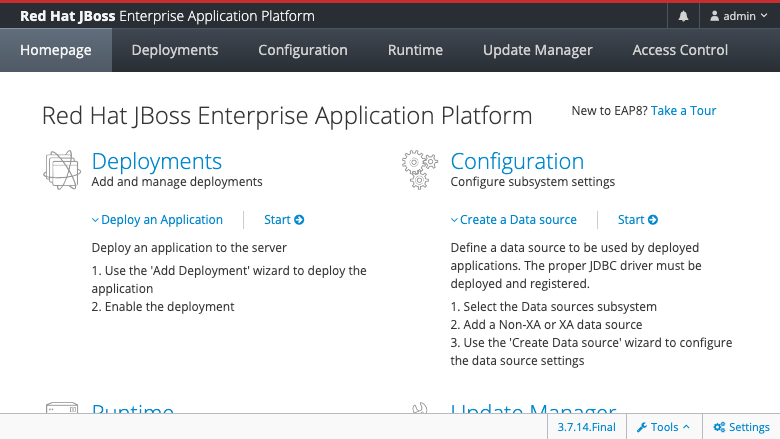
The Management Console homepage shows Deployments, Configuration, Runtime, Update Manager, and Access Control sections.
Step 5: Deploy a sample application via the Management Console
- Open the Management Console at
http://<instance-public-ip>:9990/console - Click Deployments in the top navigation
- Click + (Add Deployment) and upload your WAR or EAR file
- Enable the deployment — it will be available immediately at
http://<instance-public-ip>:8080/<context-root>
Deploy via the CLI
You can also deploy from the command line using jboss-cli.sh:
sudo -u jboss /opt/jboss-eap-8.1/bin/jboss-cli.sh --connect \
  --command="deploy /path/to/<your-app>.war"
List deployed applications:
sudo -u jboss /opt/jboss-eap-8.1/bin/jboss-cli.sh --connect --command="deployment-info"
Step 6: Service management
Start, stop, and restart the JBoss EAP service:
sudo systemctl start jboss-eap.service
sudo systemctl stop jboss-eap.service
sudo systemctl restart jboss-eap.service
The service is enabled by default and starts automatically on reboot.
Step 7: JNDI and datasource configuration
JBoss EAP 8.1 ships with the standalone-full.xml profile which includes the JMS messaging subsystem (ActiveMQ Artemis). View available JNDI bindings:
sudo -u jboss /opt/jboss-eap-8.1/bin/jboss-cli.sh --connect \
  --command="/subsystem=naming:jndi-view"
To add a datasource, use the Management Console under Configuration → Subsystems → Datasources, or via the CLI. You will need to deploy the appropriate JDBC driver JAR first.
Log locations
| Log | Path |
|---|---|
| Server log | /opt/jboss-eap-8.1/standalone/log/server.log |
| GC log | /opt/jboss-eap-8.1/standalone/log/gc.log |
| Audit log | /opt/jboss-eap-8.1/standalone/log/audit.log |
| Firstboot log | /var/log/jboss-eap-firstboot.log |
Follow the server log in real time:
sudo tail -f /opt/jboss-eap-8.1/standalone/log/server.log
Key paths
| Resource | Path |
|---|---|
| JBoss home | /opt/jboss-eap-8.1 |
| Standalone configuration | /opt/jboss-eap-8.1/standalone/configuration/standalone-full.xml |
| Deployment directory | /opt/jboss-eap-8.1/standalone/deployments |
| CLI tool | /opt/jboss-eap-8.1/bin/jboss-cli.sh |
| Admin credentials | /root/jboss-eap-credentials.txt |
| Systemd unit | /etc/systemd/system/jboss-eap.service |
Screenshots
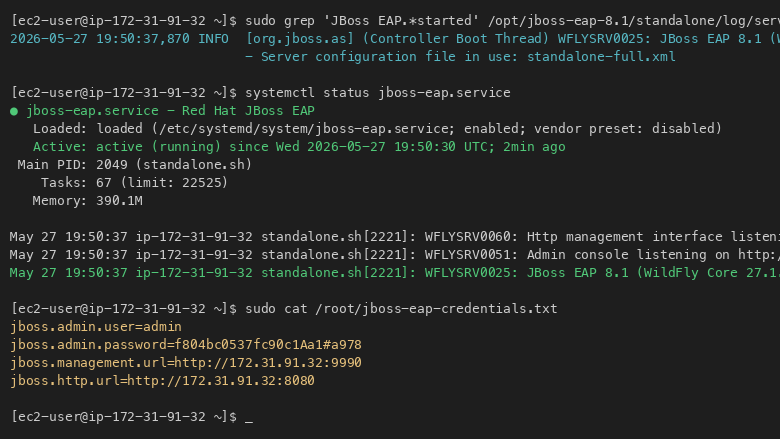
Terminal showing JBoss EAP 8.1 version information and active systemd service status on RHEL 8.
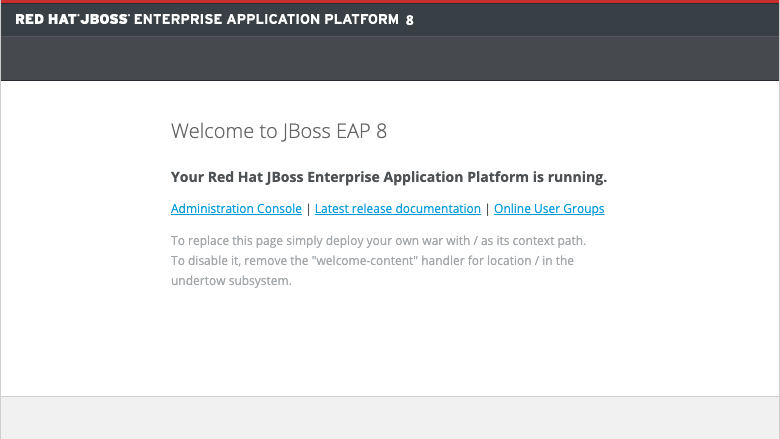
The JBoss EAP 8.1 Management Console login page served on port 9990.
The JBoss EAP 8.1 Management Console home page showing server status, deployments, and subsystem configuration.
Support
This product includes 24/7 technical support from cloudimg. For assistance with JBoss EAP deployment, application configuration, datasource setup, JMS messaging, clustering, or performance tuning, contact us at support@cloudimg.co.uk.