LAMP Stack on AWS User Guide
LAMP Stack on AWS User Guide
The cloudimg LAMP Stack AMI delivers the classic open source web application platform — Linux, Apache, MariaDB and PHP — preinstalled, configured and ready to host any PHP web application within minutes of launch. phpMyAdmin is bundled for browser-based MariaDB administration. This guide walks you through launching the AMI from the AWS Marketplace, retrieving the per-instance database credentials and confirming the stack is healthy.
What is in the image
| Component | Version | Role |
|---|---|---|
| Apache HTTP Server | 2.4 | Web server, serving on port 80 |
| MariaDB | 10.11 | Database engine (MySQL drop-in replacement), localhost socket only |
| PHP | 8.3 (FPM) | PHP runtime, proxied by Apache through mod_proxy_fcgi |
| phpMyAdmin | 5.2.1 | Browser-based MariaDB administration at /phpmyadmin |
The image is built on Ubuntu 24.04 LTS. The database tier and the application tier each live on their own EBS volume — /var/lib/mysql for MariaDB and /var/www for the Apache document root — so a customer can resize each tier independently of the OS disk.
Connecting to your instance
| OS variant | SSH user |
|---|---|
| Ubuntu 24.04 | ubuntu |
ssh -i your-key.pem ubuntu@<instance-public-ip>
First-boot credential rotation
On the first boot of your instance, lamp-firstboot.service runs once and:
- Rotates the MariaDB
rootpassword to a fresh per-instance value - Rotates the phpMyAdmin
pmauser password to a fresh per-instance value - Writes both passwords (and connection URLs) to
/root/lamp-credentials.txt, mode0600, root-only
The build-time MariaDB datadir is wiped during AMI capture, so no shared, default or build-time database credentials ship in the image, and the default OS maintenance database user is removed at build time.
Retrieve the rotated credentials over SSH:
sudo cat /root/lamp-credentials.txt
Sample output:
# cloudimg LAMP Stack — generated on first boot by lamp-firstboot.service
# These credentials are unique to this VM. Store them somewhere safe.

lamp.url=http://10.0.0.5/
phpmyadmin.url=http://10.0.0.5/phpmyadmin/

mariadb.host=localhost
mariadb.root.user=root
mariadb.root.pass=<rotated-mariadb-root-password>

phpmyadmin.pma.user=pma
phpmyadmin.pma.pass=<rotated-phpmyadmin-pma-password>
Verifying the welcome page
In a browser, navigate to http://<instance-public-ip>/. The cloudimg LAMP Stack welcome page confirms Apache is serving the document root with PHP enabled.

The welcome page links to the phpinfo helper and to phpMyAdmin.
Confirming the PHP runtime
Browse to http://<instance-public-ip>/phpinfo.php. PHP returns its runtime configuration — version, loaded extensions, FPM runtime, ini paths and the environment.

This page also confirms that Apache successfully proxies PHP requests to PHP-FPM over the UNIX socket. You should remove phpinfo.php from the document root once you have verified the runtime, as it exposes configuration that you may not want public:
sudo rm /var/www/html/phpinfo.php
Administering MariaDB through phpMyAdmin
Browse to http://<instance-public-ip>/phpmyadmin/. Sign in as root with the value of mariadb.root.pass from /root/lamp-credentials.txt, or as pma with phpmyadmin.pma.pass — both users have full privileges on the local MariaDB instance.

Once signed in you can create databases, manage users, run SQL, import dumps and export backups through the phpMyAdmin UI.
Verifying the database from the shell
You can also connect to MariaDB directly from the instance shell using the rotated root password:
PASS=$(sudo grep '^mariadb.root.pass=' /root/lamp-credentials.txt | cut -d= -f2-)
mariadb -u root -p"$PASS" -e 'SELECT VERSION();'
The query returns the running MariaDB version, confirming the rotated password is correct.
Hosting your own PHP application
Two ways to host your application:
- Drop into the default document root. Replace the contents of
/var/www/htmlwith your application files. Apache's default vhost serves anything in this directory at/. - Add a virtual host. Create a new conf file in
/etc/apache2/sites-available/, drop your application code under/var/www/<app>, enable the site withsudo a2ensite <app>, thensudo systemctl reload apache2.
PHP-FPM picks up new code automatically — there is no separate restart needed for a vanilla code drop. If you change php.ini or add a new PHP extension, run sudo systemctl restart php8.3-fpm.
File locations and service names
| Item | Path / name |
|---|---|
| Apache document root | /var/www/html |
| Apache vhost directory | /etc/apache2/sites-available/ |
| PHP-FPM pool config | /etc/php/8.3/fpm/pool.d/www.conf |
| PHP ini drop-ins (cloudimg) | /etc/php/8.3/{fpm,cli}/conf.d/99-lamp.ini |
| MariaDB datadir | /var/lib/mysql (dedicated EBS volume) |
| phpMyAdmin | /usr/share/phpmyadmin |
| phpMyAdmin Apache conf | /etc/apache2/conf-available/phpmyadmin.conf |
| Credentials file | /root/lamp-credentials.txt (0600 root) |
| Firstboot sentinel | /var/lib/cloudimg/lamp-firstboot.done |
Service names:
sudo systemctl status apache2
sudo systemctl status mariadb
sudo systemctl status php8.3-fpm
Enabling HTTPS with Let's Encrypt
The image opens port 443 in its security group but does not ship a TLS certificate (no DNS name to bind to at build time). When you have a DNS A record pointing at your instance, install certbot and request a certificate:
sudo apt-get update
sudo apt-get install -y certbot python3-certbot-apache
sudo certbot --apache -d your-domain.example.com
Certbot rewrites the Apache vhost to listen on :443, installs an automatic renewal timer and reloads Apache.
Where to go from here
- Drop a PHP web application into
/var/www/htmlor add a new vhost - Use phpMyAdmin at
/phpmyadminto create application databases and users - Take regular EBS snapshots of the
/var/lib/mysqlvolume for backup - Tune PHP via
/etc/php/8.3/fpm/conf.d/99-lamp.iniand reloadphp8.3-fpm - Enable HTTPS with the certbot section above when you have a DNS name
Screenshots
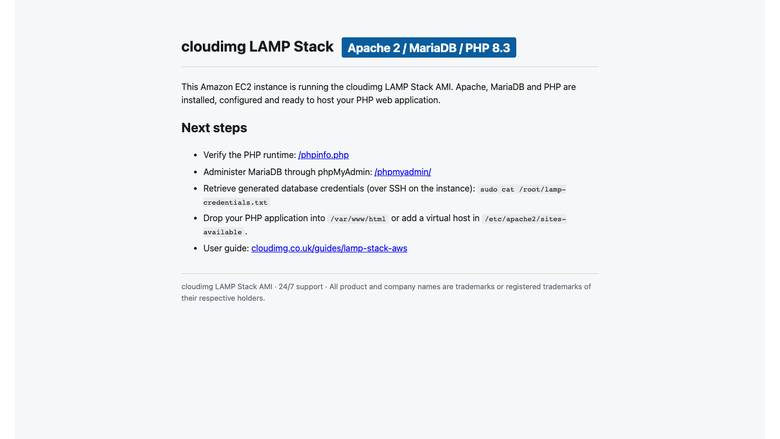
The cloudimg LAMP Stack welcome page served by Apache on port 80 with no manual setup.
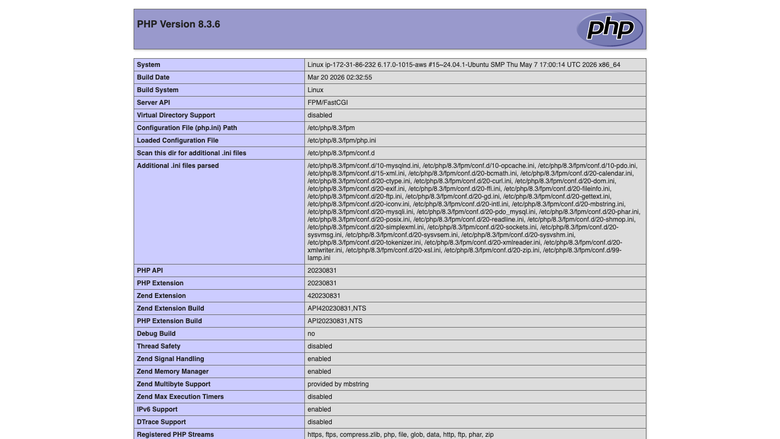
The phpinfo helper page confirming PHP 8.3, loaded extensions and the FPM runtime.
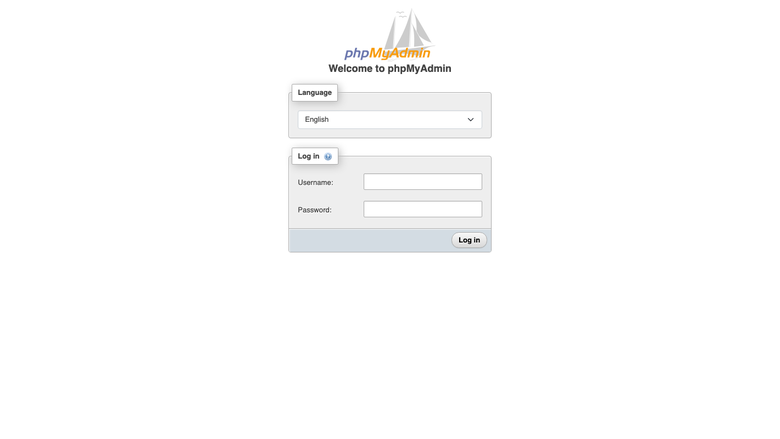
The phpMyAdmin sign-in page at /phpmyadmin for browser-based MariaDB administration.