
Nextcloud on AWS User Guide
Overview
This image runs Nextcloud behind nginx, with PHP FPM 8.3 and OPcache enabled. MariaDB provides the database and Redis provides distributed caching and transactional file locking, all on the same instance and bound to the loopback interface only. Nextcloud's background jobs run every five minutes through a systemd timer in cron mode, the configuration Nextcloud recommends for production.
Nextcloud administrator and MariaDB credentials are generated on the first boot of every deployed instance. Two instances launched from the same Amazon Machine Image never share passwords. The initial administrator password and the MariaDB password are written to /root/nextcloud-credentials.txt with mode 0600 so that only the root user can read them.
The Nextcloud application code lives under /var/www/nextcloud and user data under /var/www/nextcloud/data, on a dedicated EBS volume separate from the operating system disk. The MariaDB data directory sits on its own EBS volume at /var/lib/mysql. Each tier can be resized independently of the others.
Prerequisites
Before you deploy this image you need:
- An Amazon Web Services account where you can launch EC2 instances
- IAM permissions to launch instances, create security groups, and subscribe to AWS Marketplace products
- An EC2 key pair in the target Region for SSH access to the instance
- A VPC and subnet in the target Region, with a security group allowing inbound port 22 from your management network and inbound ports 80 and 443 from the networks your users will reach Nextcloud on
- The AWS CLI (version 2) installed locally if you plan to deploy from the command line
Step 1: Launch the Instance from the AWS Marketplace
Sign in to the AWS Management Console, open the EC2 service, and select Launch instance. Under Application and OS Images choose AWS Marketplace AMIs and search for Nextcloud. Select the cloudimg listing and choose Select, then Continue on the subscription summary.
Pick an instance type of m5.large or larger — the Nextcloud workload is PHP, MariaDB and Redis heavy, and file operations benefit from memory. Choose your EC2 key pair under Key pair (login). Under Network settings select your VPC and subnet, and either create or select a security group that allows inbound port 22 from your management network and inbound ports 80 and 443 from the networks your users use. Leave the root volume at the default size or larger.
Select Launch instance. First boot initialisation takes approximately one minute after the instance state becomes Running and the status checks pass.
Step 2: Launch the Instance from the AWS CLI
The following block launches an instance from the cloudimg Nextcloud Marketplace AMI into an existing subnet and security group. Replace <ami-id> with the AMI ID shown on the Marketplace listing, <key-name> with your EC2 key pair name, <subnet-id> with your subnet ID, and <security-group-id> with a security group that opens ports 22, 80, and 443 as described above.
aws ec2 run-instances \
  --image-id <ami-id> \
  --instance-type m5.large \
  --key-name <key-name> \
  --subnet-id <subnet-id> \
  --security-group-ids <security-group-id> \
  --block-device-mappings '[{"DeviceName":"/dev/sda1","Ebs":{"VolumeSize":30,"VolumeType":"gp3"}}]' \
  --tag-specifications 'ResourceType=instance,Tags=[{Key=Name,Value=nextcloud-01}]'
The command prints a JSON document on success. Note the instance ID, then retrieve its public address once it is running with aws ec2 describe-instances --instance-ids <instance-id> --query "Reservations[].Instances[].PublicIpAddress" --output text.
Step 3: Connect and Retrieve Initial Credentials
Connect over SSH with the key pair you selected and the public IP address from step 2. The SSH login user depends on the operating system of the AMI variant you launched:
| AMI variant | SSH login user |
|---|---|
| Nextcloud 33 on Ubuntu 24.04 | ubuntu |
The first boot service runs before the SSH daemon becomes ready, so the credentials file is always in place when you log in for the first time.
ssh <login-user>@<public-ip>
sudo cat /root/nextcloud-credentials.txt
You will see a plain text file containing the Nextcloud URL, the administrator username (admin), the administrator password, and the MariaDB database name, user, and password. Copy these values somewhere secure (a password manager or encrypted vault). Do not commit them to source control.
From the same SSH session you can confirm the deployment is healthy. The status endpoint is open and returns JSON:
curl -fsS http://127.0.0.1/status.php
{"installed":true,"maintenance":false,"needsDbUpgrade":false,"version":"33.0.5.1","versionstring":"33.0.5","edition":"","productname":"Nextcloud","extendedSupport":false}
An "installed":true response with a 33.x version confirms the full stack — nginx, PHP, MariaDB and Redis — is serving Nextcloud.
Step 4: Trusted Domains
Nextcloud only answers requests whose Host header is listed in its trusted_domains configuration; any other host receives an "access through untrusted domain" page. The image ships localhost and 127.0.0.1 as trusted, and on first boot the instance's own public and private IPv4 addresses are added automatically, so the site works immediately on its launch address.
When you put Nextcloud behind a custom domain name or a load balancer, add that hostname to the trusted domains list. From an SSH session:
sudo -u www-data php /var/www/nextcloud/occ config:system:set trusted_domains 4 --value <your-domain>
List the current trusted domains at any time with sudo -u www-data php /var/www/nextcloud/occ config:system:get trusted_domains.
Step 5: First Login to the Nextcloud Web Interface
Open a web browser and navigate to http://<public-ip>/. Nextcloud presents its sign-in page. Enter the administrator username admin and the administrator password from /root/nextcloud-credentials.txt, then select the arrow to log in.
On first sign-in Nextcloud shows a short welcome dialog with links to the desktop and mobile apps; close it to reach the Files view, which is the heart of the platform — upload, organise, share and synchronise files and folders here.
Step 6: Change the Administrator Password
For a production deployment rotate the administrator password that was generated on first boot. Select your avatar at the top right, choose Settings, then Security, and use the password change controls. While you are in Personal information, set a real email address on the account so password recovery and system notifications reach you.
You can also reset the administrator password from the command line. Either run sudo -u www-data php /var/www/nextcloud/occ user:resetpassword admin interactively and type the new password when prompted, or set it non-interactively from an environment variable:
OC_PASS='<new-password>' sudo -u www-data php /var/www/nextcloud/occ user:resetpassword --password-from-env admin
Step 7: Create Users and Groups
Open the avatar menu and choose Administration settings, then Users. Select New user to create an account, set a display name, password and email, and optionally assign the user to one or more groups and set a storage quota. Groups let you target shares and apply quotas to teams. The Users screen is also where you disable or remove accounts.
Step 8: Install Apps
Nextcloud's functionality is extended through apps. Open the avatar menu and choose Apps. The catalogue is grouped by category — Files, Office & text, Organization, Multimedia, Security and more. Useful additions for a fresh deployment include Calendar, Contacts, Notes, Deck (kanban boards) and Nextcloud Office for collaborative document editing.
Select Download and enable on any app. You can also manage apps from the command line — list installed apps, then enable one by its id (for example occ app:enable calendar):
sudo -u www-data php /var/www/nextcloud/occ app:list
Step 9: Connect Desktop and Mobile Clients
Nextcloud's value is keeping files in sync across devices. Install the desktop sync client (Windows, macOS, Linux) from https://nextcloud.com/install/#install-clients, and the iOS or Android app from the respective app store. Point each client at your instance address, sign in as a Nextcloud user, and choose which folders to synchronise. The same OCS APIs that the apps use are served by this image — you can verify the API is live and gated:
# Without credentials the API returns 401
curl -s -o /dev/null -w '%{http_code}\n' -H 'OCS-APIRequest: true' http://127.0.0.1/ocs/v1.php/cloud/user
# With the admin credentials it returns 200
curl -s -o /dev/null -w '%{http_code}\n' -u admin:<new-password> -H 'OCS-APIRequest: true' http://127.0.0.1/ocs/v1.php/cloud/user
Step 10: Configure Outbound Email
Nextcloud needs to send mail for share notifications, password resets and activity digests. Open Administration settings, then Basic settings, and complete the Email server section. For reliable delivery on a cloud instance route mail through an SMTP provider such as Amazon SES, SendGrid, or Mailgun: set the send mode to SMTP, enter the provider host, port, encryption and credentials, then send a test email.
Step 11: Enable HTTPS with Let's Encrypt
For any production Nextcloud deployment serve the site over HTTPS so session cookies and file transfers cannot be intercepted. The image ships with nginx, which certbot can configure automatically.
The following assumes you have a DNS record pointing your fully qualified domain name at the instance's public IP address, and that you have added that domain to trusted_domains (step 4).
sudo apt-get update && sudo apt-get install -y certbot python3-certbot-nginx
sudo certbot --nginx -d nextcloud.your-domain.example \
  --non-interactive --agree-tos -m you@your-domain.example \
  --redirect
After certbot finishes, set Nextcloud's public URL so it generates HTTPS links throughout:
sudo -u www-data php /var/www/nextcloud/occ config:system:set overwrite.cli.url --value https://<your-domain>
sudo -u www-data php /var/www/nextcloud/occ config:system:set overwriteprotocol --value https
Step 12: Backups and Maintenance
Nextcloud has three things that must be backed up together: the MariaDB database, the config/config.php file, and the user data in /var/www/nextcloud/data. Put the instance into maintenance mode while you snapshot so the database and files are consistent:
sudo -u www-data php /var/www/nextcloud/occ maintenance:mode --on
sudo mysqldump --single-transaction nextcloud > /var/backups/nextcloud-db-$(date +%F).sql
sudo tar --acls --xattrs -czf /var/backups/nextcloud-files-$(date +%F).tgz \
  -C /var/www nextcloud/config nextcloud/data
sudo -u www-data php /var/www/nextcloud/occ maintenance:mode --off
Ship both artifacts to an Amazon S3 bucket or another object store. Because the data and database tiers are on their own EBS volumes, you can also take coordinated EBS snapshots while in maintenance mode. The background-jobs timer installed with the image runs Nextcloud's scheduled tasks every five minutes in cron mode.
For kernel and package updates, Ubuntu's unattended-upgrades is enabled by default — security patches apply automatically. To update Nextcloud core and apps, use the built in updater under Administration settings, then Overview, or the command line occ upgrade workflow documented at https://docs.nextcloud.com/.
Step 13: Scaling Beyond a Single Instance
For larger deployments decouple Nextcloud from the single instance pattern:
- Move MariaDB to Amazon RDS for MariaDB and update the database host in
/var/www/nextcloud/config/config.php - Move the data directory to Amazon EFS or configure Nextcloud's primary object storage against an Amazon S3 bucket
- Move Redis to Amazon ElastiCache for Redis and point Nextcloud's
redisconfiguration at the cluster endpoint - Put the web tier behind an Application Load Balancer and scale horizontally with an Auto Scaling group, adding each instance's hostname to
trusted_domains - Serve static assets through Amazon CloudFront
Each of these is documented in the official Nextcloud administration manual at https://docs.nextcloud.com/server/latest/admin_manual/.
Screenshots
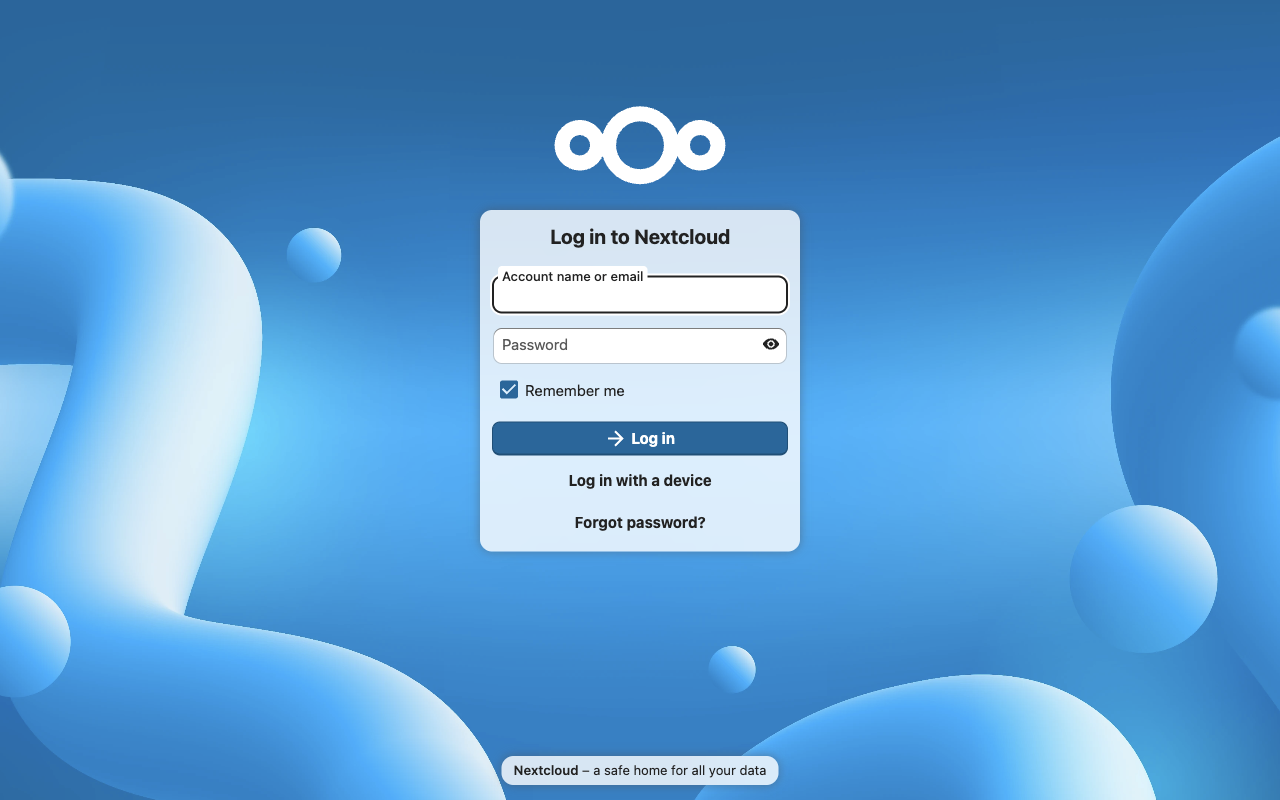
The Nextcloud sign-in page, served on first boot with a per-instance administrator password and no manual setup.
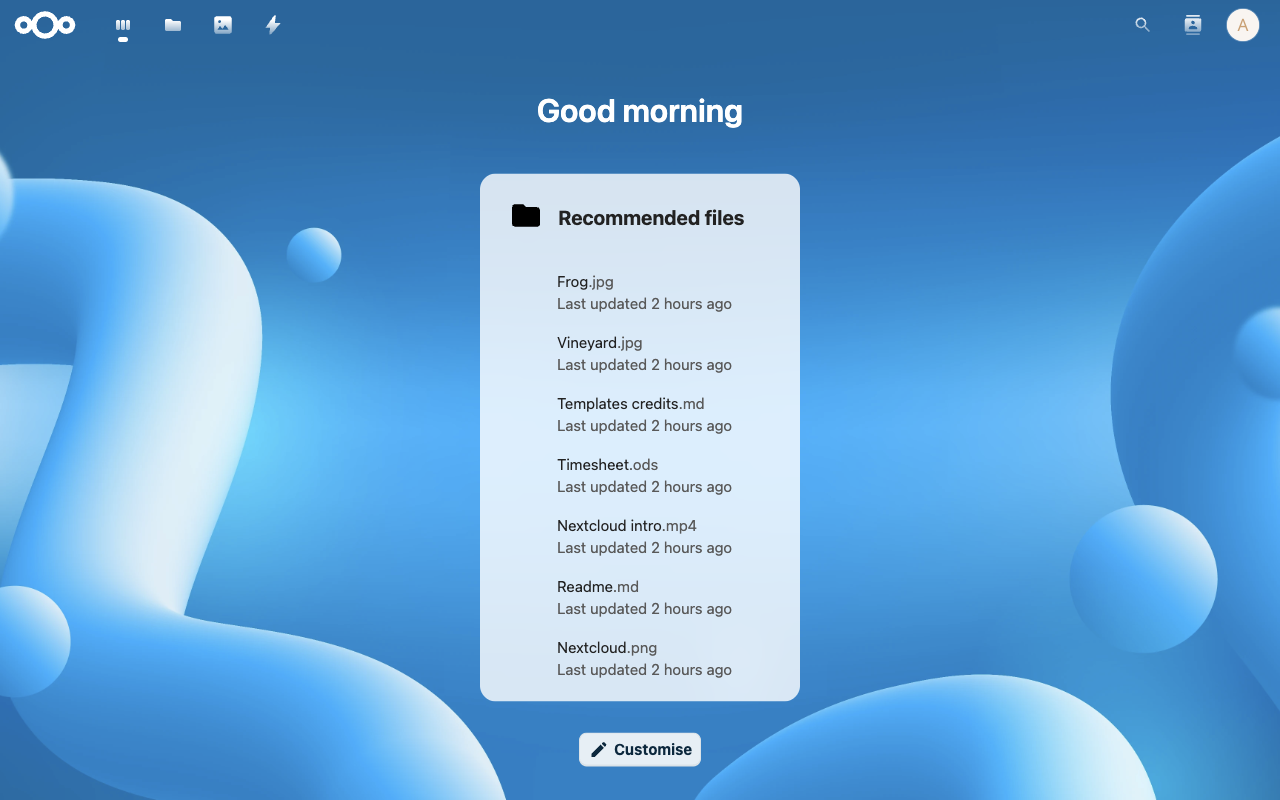
The Nextcloud dashboard after signing in as the administrator.
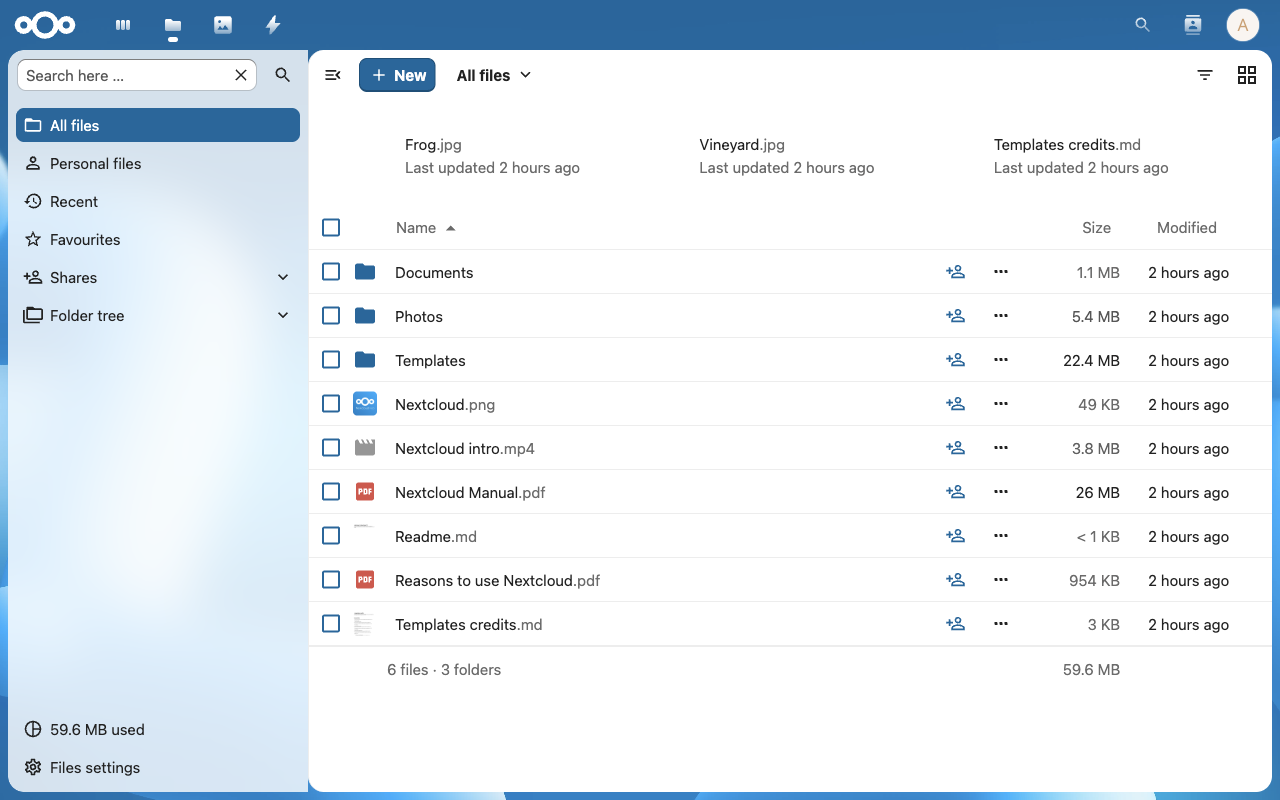
The Files app: upload, organise, share and synchronise files and folders - the core of the platform.
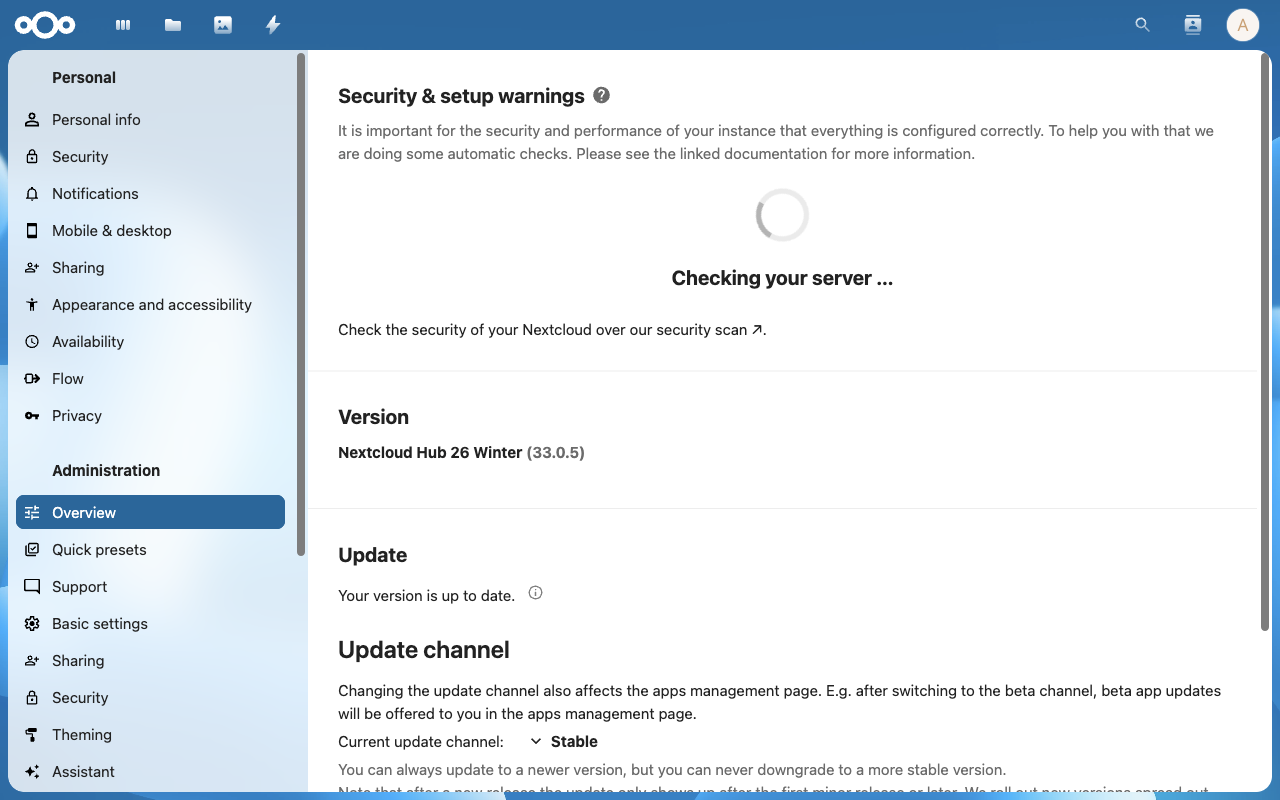
The administration overview showing Nextcloud Hub 26 (33.0.5) running and up to date on the cloudimg AMI.
Support
cloudimg provides 24/7/365 expert technical support for this image. Guaranteed response within 24 hours, one hour average for critical issues. Contact support@cloudimg.co.uk.
For general Nextcloud administration questions consult the documentation at https://docs.nextcloud.com/ and the community at https://help.nextcloud.com/.