
OpenEduCat 19.0.1.0 on AWS User Guide
Overview
This guide covers launching and using OpenEduCat 19.0.1.0 on Ubuntu 24.04 from cloudimg on Amazon EC2. It is one version of the cloudimg Hardened Moodle & E-Learning Platforms AMIs listing on AWS Marketplace; you pick it as the software version when you subscribe and launch. The other learning platforms in the listing are described on the listing's guide hub.
OpenEduCat is an open source student information and school management application built on the Odoo 19 Community framework. It covers the academic lifecycle: admissions and applicants, student and guardian records, programs, courses, batches and subjects, attendance, assignments, exams and results, timetables, fees, a parent portal and a library. OpenEduCat and Odoo Community are licensed under the GNU Lesser General Public License version 3 (LGPL 3.0).
The image ships with the database already created and every OpenEduCat module installed, so you sign in and start working. No student, guardian, admission or fee records are seeded: school records are yours to enter.
What is on the image:
- OpenEduCat 19.0.1.0 (pinned commit of the 19.0 branch) on Odoo 19.0 Community from the official Odoo APT repository; the exact Odoo build is recorded in
/etc/cloudimg/openeducat-versionsand theodoopackage is held - The OpenEduCat suite: Core, Admission, Assignment, Attendance, Activity, Classroom, Exam, Facility, Fees, Library, Parent portal and Timetable
- HTTPS from first boot: nginx serves the site on port 443 with a certificate created on your instance's first boot, and port 80 redirects to HTTPS. Odoo itself listens on
127.0.0.1:8069only - PostgreSQL 16 on localhost only, with password authentication
- One Odoo database named
openeducat; the database manager and database selector are disabled openeducat-firstboot.service, which runs before Odoo may start and creates your instance's Odoo master password, Administrator password, PostgreSQL password and Odoo signing secretopeneducat-set-hostname, which moves the site to your own DNS name- wkhtmltopdf for PDF reports, and a functional self-test
Default user: ubuntu · Architecture: x86_64 · Root volume: 20 GiB gp3
Security posture
- No default login. A stock Odoo install signs in as
admin/admin. On this image that login is rejected: the Administrator password, the Odoo master password, the PostgreSQL password and Odoo'sdatabase.secret(the key that signs sessions, CSRF tokens and sign-up and reset links) are created on each instance's first boot. None of them is in the image and no two instances share one. - Fails closed. Odoo and nginx start only after first boot has finished, and Odoo also refuses to start without a non-trivial master and database password. If first boot cannot finish, the site stays down rather than open.
- Only nginx faces the network. The listening set is exactly 22, 80 and 443. Odoo (8069) and PostgreSQL (5432) listen on localhost only, and the image's mDNS responder (avahi, pulled in by a dependency) is masked.
- The site address comes from configuration, never from the request. First boot reads it from
/etc/cloudimg/openeducat-hostnameor the EC2 instance metadata service (IMDSv2). nginx answers only that name, drops any other Host, and passes Odoo the configured name;web.base.urlis frozen so a request cannot rewrite the links in emails and reports. - Real client addresses. nginx overwrites
X-Forwarded-ForandX-Real-IPwith the connecting address, so a forged header cannot make a remote caller look local. - Cross-origin requests refused. A state-changing request or WebSocket upgrade that carries another site's
Originis refused by nginx before it reaches Odoo. - No instance metadata access for the application. Odoo can be asked to fetch URLs (attachments, link previews, image and website imports), so
odoo.service,nginx.serviceand PostgreSQL are blocked from reaching the instance metadata service (169.254.169.254 and fd00:ec2::254). Only the first-boot unit reads it, for the site address. - IMDSv2 required. The AMI is registered with
ImdsSupport v2.0, so instances launched from it refuse token-less (IMDSv1) metadata requests. - Per-instance identity. SSH host keys, the machine ID, the site certificate and PostgreSQL's TLS key are generated fresh on every instance.
Prerequisites
- An AWS account where you can subscribe to AWS Marketplace products and launch EC2 instances
- An EC2 key pair in the target Region
- A VPC and subnet, with a public IP address on the instance if your users reach it over the internet
- A security group that allows
22/tcpfrom your management network, and80/tcpand443/tcpfrom your users' networks. No other port is needed; do not open 5432 or 8069
Recommended instance type: m5.large (2 vCPU, 8 GiB RAM). It comfortably serves a single school or small institution; use m5.xlarge or larger for a large student body or heavy concurrent use.
Step 1: Launch from AWS Marketplace
- Open the Hardened Moodle & E-Learning Platforms AMIs listing by cloudimg and choose View purchase options, then subscribe.
- Choose Continue to Configuration. Under Software version choose
OpenEduCat 19.0.1.0 on Ubuntu 24.04, pick your Region, and choose Continue to Launch. - Under Choose Action select Launch through EC2.
- Set the instance type to m5.large, choose your key pair, and use the seller's security group settings (ports 22, 80 and 443), narrowing port 22 to your management network.
- Launch. First boot finishes within two to three minutes.
Step 2: Launch from the AWS CLI
Workstation commands. Replace <ami-id> with the AMI ID shown for the OpenEduCat 19.0.1.0 on Ubuntu 24.04 software version on the listing's launch page, and use your own VPC, subnet, key pair and address ranges.
aws ec2 create-security-group --group-name openeducat-sg \
  --description "OpenEduCat" --vpc-id <vpc-id>
aws ec2 authorize-security-group-ingress --group-id <security-group-id> \
  --protocol tcp --port 22 --cidr <your-ip>/32
aws ec2 authorize-security-group-ingress --group-id <security-group-id> \
  --protocol tcp --port 80 --cidr <users-cidr>
aws ec2 authorize-security-group-ingress --group-id <security-group-id> \
  --protocol tcp --port 443 --cidr <users-cidr>

aws ec2 run-instances --image-id <ami-id> --instance-type m5.large \
  --key-name <key-name> --subnet-id <subnet-id> \
  --security-group-ids <security-group-id> --associate-public-ip-address \
  --metadata-options HttpTokens=required \
  --tag-specifications 'ResourceType=instance,Tags=[{Key=Name,Value=openeducat}]'

aws ec2 describe-instances --instance-ids <instance-id> \
  --query "Reservations[].Instances[].[PublicDnsName,PublicIpAddress]" --output text
Step 3: Connect over SSH
ssh -i <key.pem> ubuntu@<public-dns>
The login user is ubuntu.
Step 4: Retrieve your credentials
First boot writes your instance's credentials to a root-only file:
sudo cat /root/openeducat-credentials.txt
It looks like this (your values differ):
OPENEDUCAT_URL=https://ec2-203-0-113-10.compute-1.amazonaws.com/web/login
OPENEDUCAT_ADMIN_LOGIN=admin
OPENEDUCAT_ADMIN_PASSWORD=<generated-per-instance>
OPENEDUCAT_MASTER_PASSWORD=<generated-per-instance>
OPENEDUCAT_URL is the site address. First boot takes it from /etc/cloudimg/openeducat-hostname if that file exists, otherwise from IMDSv2: the instance's public DNS name, else its public IPv4 address, else its private IPv4 address. The PostgreSQL password is the db_password line of /etc/odoo/odoo.conf (mode 640, root:odoo). If you keep credentials centrally, copy them into AWS Secrets Manager.
Step 5: Verify the services
systemctl is-active odoo nginx postgresql@16-main
ls /var/lib/cloudimg/openeducat-firstboot.done
All three services print active, and the first-boot marker exists (first boot runs once; after a reboot its unit shows as skipped, which is expected). Only 22, 80 and 443 listen on a public address; Odoo (8069) and PostgreSQL (5432) are on localhost:
sudo ss -Hltn | awk '{print $4}' | sort -u
Odoo's health endpoint on localhost, and the HTTPS front end on the configured name, both answer 200:
curl -s -o /dev/null -w "%{http_code}\n" http://127.0.0.1:8069/web/health
SITE=$(cat /var/lib/cloudimg/openeducat-current-hostname)
curl -sk -o /dev/null -w "%{http_code}\n" --resolve "${SITE}:443:127.0.0.1" "https://${SITE}/web/login"
Port 80 redirects to HTTPS on the same name:
SITE=$(cat /var/lib/cloudimg/openeducat-current-hostname)
curl -s -o /dev/null -w "%{http_code} %{redirect_url}\n" --resolve "${SITE}:80:127.0.0.1" "http://${SITE}/web/login"
Every OpenEduCat module is installed:
sudo -u postgres psql -d openeducat -tAc \
  "SELECT name || ' ' || state FROM ir_module_module WHERE name LIKE 'openeducat%' ORDER BY name;"
The application cannot reach the instance metadata service. This runs the same request from inside odoo.service and from your shell; the first prints 000 (blocked), the second 200:
CG=$(systemctl show -p ControlGroup --value odoo.service)
sudo bash -c "echo \$\$ > /sys/fs/cgroup${CG}/cgroup.procs; exec curl -s -m 5 -o /dev/null -w '%{http_code}\n' -X PUT -H 'X-aws-ec2-metadata-token-ttl-seconds: 60' http://169.254.169.254/latest/api/token"
curl -s -m 5 -o /dev/null -w '%{http_code}\n' -X PUT -H 'X-aws-ec2-metadata-token-ttl-seconds: 60' http://169.254.169.254/latest/api/token
Step 6: Sign in
- Open the
OPENEDUCAT_URLfrom Step 4 in a browser. Plainhttp://redirects to HTTPS. - The certificate is self-signed and unique to your instance, so the browser warns the first time. Accept it, or install a trusted certificate (Step 8).
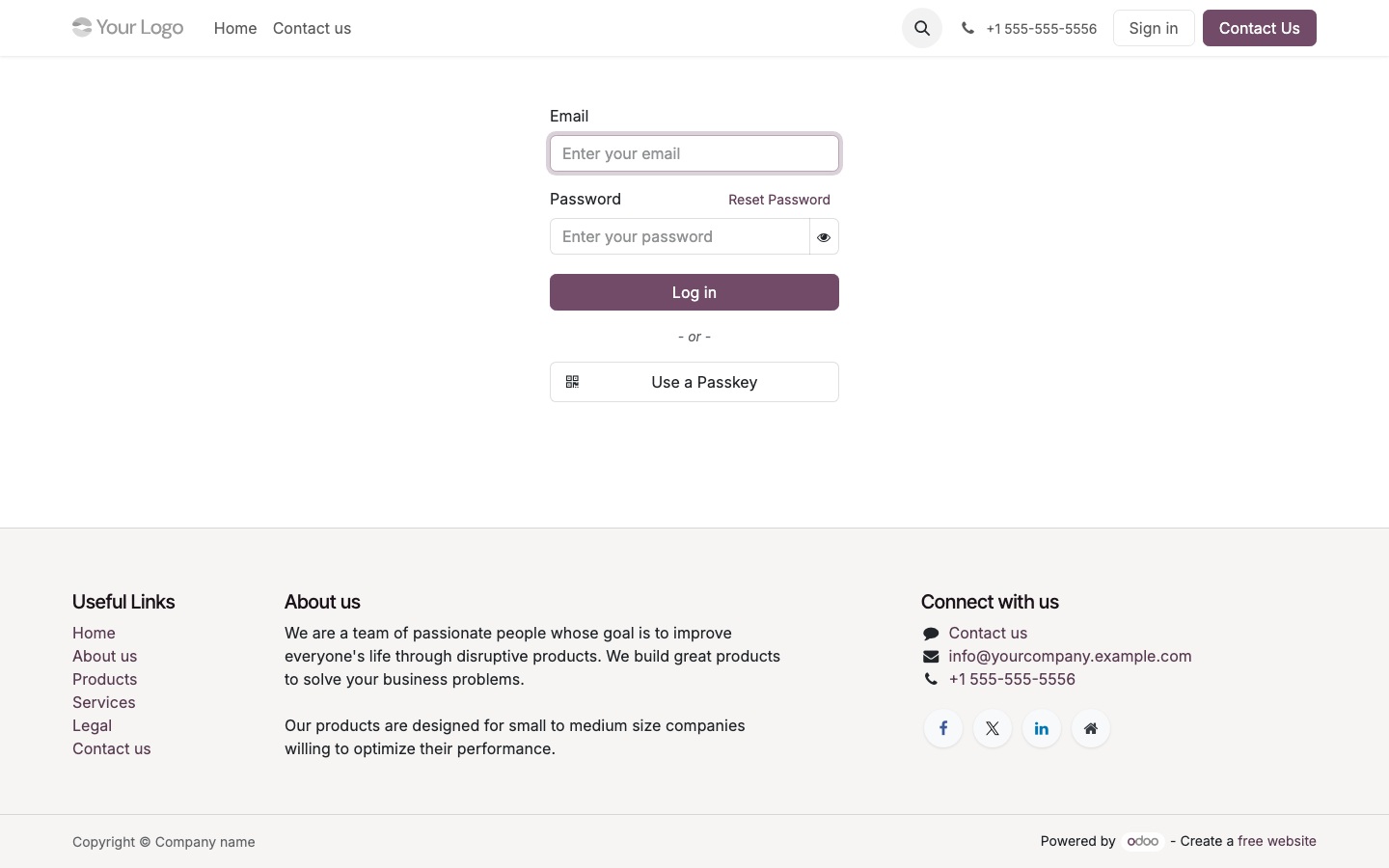
- Enter admin as the email and the
OPENEDUCAT_ADMIN_PASSWORDvalue, then choose Log in.
You land in the Odoo backend. The app switcher (the grid icon, top left) lists the OpenEduCat apps alongside the Odoo apps they build on.
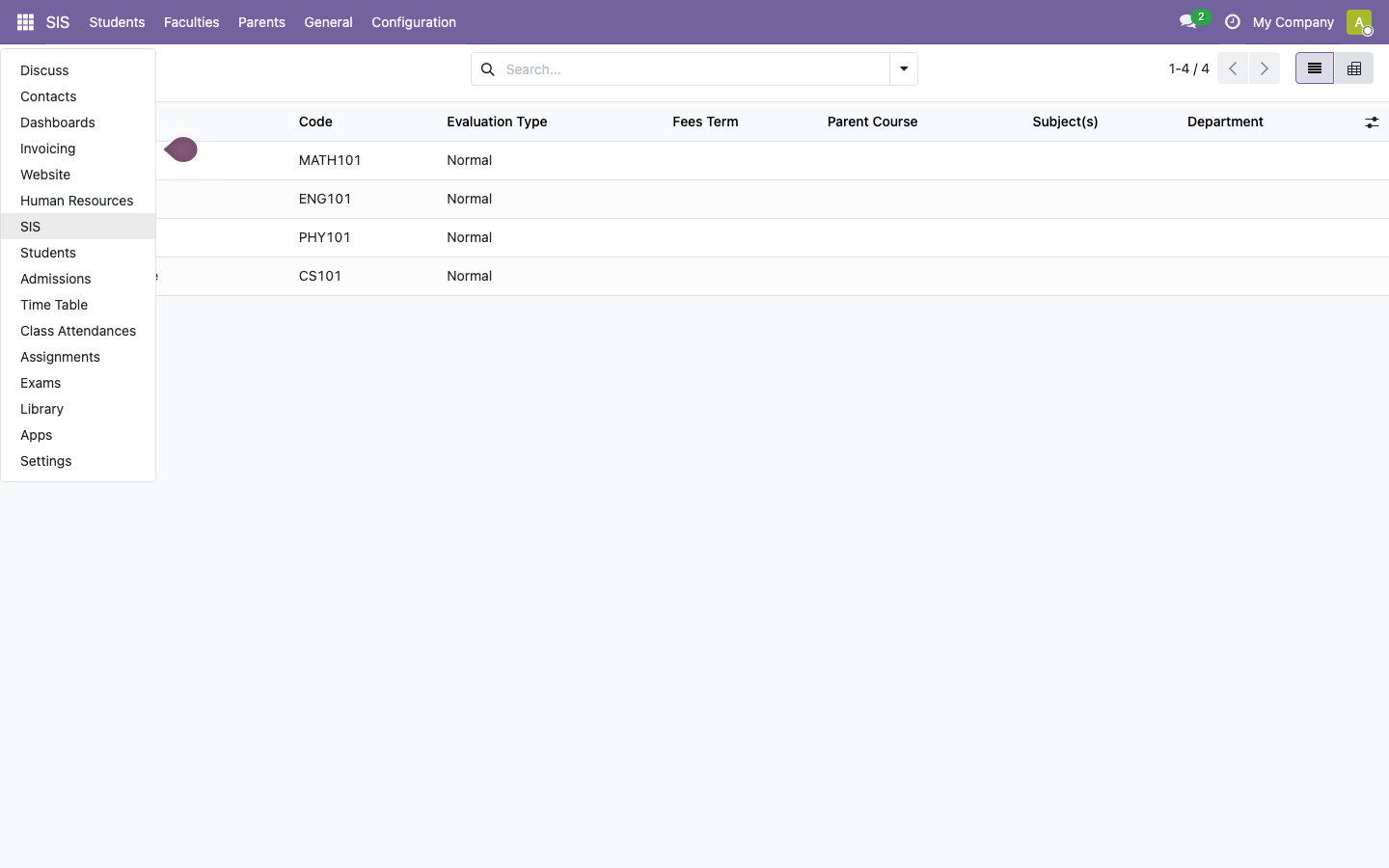
The site answers only on its configured name; a request naming any other host is dropped. Browse to the OPENEDUCAT_URL address, or the name you set in Step 7.
Step 7: Use your own hostname
Odoo builds the links in emails, the parent portal and reports from web.base.url, which this image sets from configuration and freezes. To serve the site on your own DNS name, point a DNS record (for example in Amazon Route 53) at the instance's public IP (an Elastic IP keeps it stable), then run on the instance:
sudo openeducat-set-hostname school.example.org
The helper writes the name to /etc/cloudimg/openeducat-hostname, sets web.base.url to https://school.example.org, rewrites the nginx server_name and the cross-origin guard, issues a new self-signed certificate for the name, updates OPENEDUCAT_URL in the credentials file, and restarts Odoo and nginx. An instance without an Elastic IP gets a new public DNS name when it is stopped and started; run the helper with the new name so links and the certificate follow it.
Step 8: Install a trusted certificate
The site certificate is /etc/ssl/openeducat/openeducat.crt and its key /etc/ssl/openeducat/openeducat.key (mode 600, root). To use Let's Encrypt, first set your DNS name (Step 7), open port 80 to the internet, then:
sudo apt-get install -y certbot
sudo certbot certonly --standalone -d school.example.org \
  --pre-hook "systemctl stop nginx" --post-hook "systemctl start nginx" \
  --deploy-hook "install -m 644 \$RENEWED_LINEAGE/fullchain.pem /etc/ssl/openeducat/openeducat.crt && install -m 600 \$RENEWED_LINEAGE/privkey.pem /etc/ssl/openeducat/openeducat.key"
certbot keeps the hooks for every renewal. Running openeducat-set-hostname again replaces the certificate with a self-signed one, so run sudo certbot renew --force-renewal afterwards. For a certificate from another authority, copy the full chain and key to the same two paths and run sudo systemctl reload nginx.
Step 9: Add your first students and courses
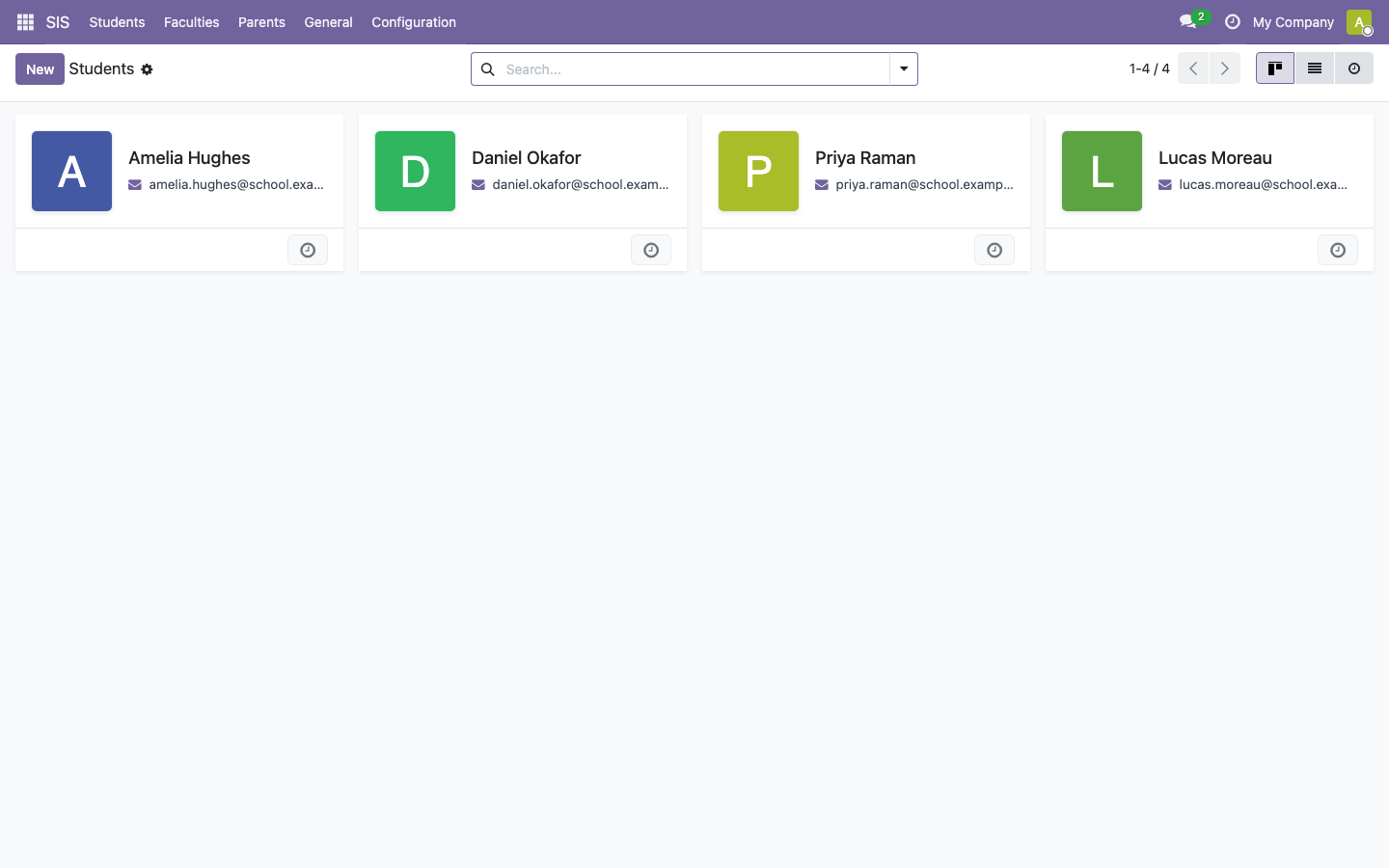
- Open Students from the app switcher and choose New. Enter the first name, last name and email, then save.
- Under SIS > Configuration > Program Level, create a program level (for example, Undergraduate).
- Under SIS > Configuration > Programs, create a program at that level.
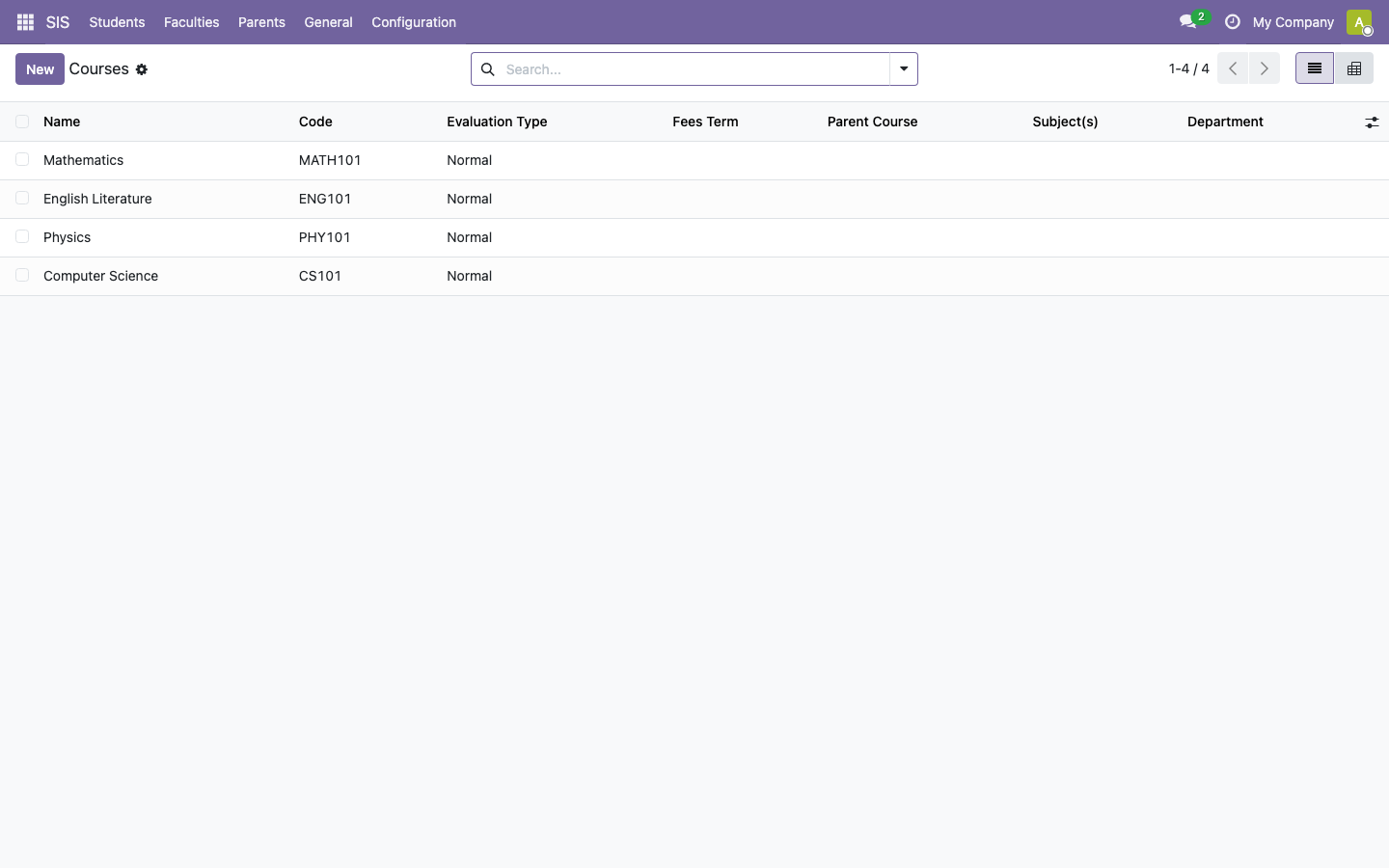
- Under SIS > Configuration > Courses, create courses in the program, each with a short unique code.
- Open a student and use the Course Details tab to enrol them in a course.
Step 10: Admissions, attendance, exams and the library
- Admissions: admission registers and the applicant workflow.
- Time Table and Class Attendances: schedule sessions and record attendance per session.
- Assignments and Exams: assignments with due dates, exam sessions, marksheets and results.
- Library: catalogue media, issue and return items, print library cards.
- Parents: give guardians portal access to their child's record.
Each app works the same way: New creates a record, and the app's Configuration menu holds the master data (academic years, terms, departments, subjects, batches, classrooms and fee terms).
Step 11: Server components
| Component | Version | Notes |
|---|---|---|
| OpenEduCat | 19.0.1.0 (commit 8738c4a, 19.0 branch) | github.com/openeducat/openeducat_erp, LGPL 3.0 |
| Odoo Community | 19.0 nightly build recorded in /etc/cloudimg/openeducat-versions |
Official Odoo APT repository; package held |
| nginx | Ubuntu 24.04 package | TLS front end on 80/443 |
| PostgreSQL | 16 | localhost only, password authentication |
| Python | 3.12 | Ubuntu 24.04 system Python |
| wkhtmltopdf | Ubuntu 24.04 package | PDF reports |
cat /etc/cloudimg/openeducat-versions
odoo --version
Step 12: Filesystem layout
| Path | Purpose |
|---|---|
/etc/odoo/odoo.conf |
Odoo configuration (mode 640, root:odoo) |
/etc/nginx/sites-available/openeducat.conf |
nginx site, written by openeducat-apply-hostname |
/etc/ssl/openeducat/ |
Site certificate and key |
/etc/cloudimg/openeducat-hostname |
Your configured site name (created by openeducat-set-hostname) |
/var/lib/odoo/filestore/openeducat/ |
Odoo filestore (attachments) |
/opt/openeducat/addons-src |
OpenEduCat modules (pinned commit) |
/var/log/odoo/odoo-server.log |
Odoo server log |
/root/openeducat-credentials.txt |
Your credentials (mode 600, root) |
/var/log/openeducat-firstboot.log |
First boot log |
/var/lib/cloudimg/openeducat-firstboot.done |
First boot marker; Odoo and nginx start only when it exists |
Step 13: Managing the services
systemctl status odoo nginx --no-pager -n 0
sudo tail -n 20 /var/log/odoo/odoo-server.log
Restart Odoo with sudo systemctl restart odoo and reload nginx with sudo systemctl reload nginx. The Amazon CloudWatch agent can ship /var/log/odoo/odoo-server.log and /var/log/nginx/*.log to CloudWatch Logs.
Step 14: Backups
Dump the database with the PostgreSQL password from odoo.conf, and keep the filestore with it:
PGPASSWORD=$(sudo sed -n 's/^db_password[[:space:]]*=[[:space:]]*//p' /etc/odoo/odoo.conf) \
  pg_dump -h 127.0.0.1 -U odoo -F c -f ~/openeducat-$(date +%Y%m%d).dump openeducat
sudo tar -czf ~/openeducat-filestore-$(date +%Y%m%d).tar.gz -C /var/lib/odoo/filestore openeducat
Copy both to an Amazon S3 bucket or another durable destination. EBS snapshots of the root volume are a simple whole-instance backup:
aws ec2 create-snapshot --volume-id <volume-id> --description "openeducat $(date +%F)"
Step 15: Troubleshooting
The browser cannot connect, or the connection is dropped. Browse to the configured name (cat /var/lib/cloudimg/openeducat-current-hostname); other host names are dropped by design. Check that ports 80 and 443 are open in the security group.
Odoo or nginx is not running after launch. Both start only after first boot completes:
ls -la /var/lib/cloudimg/openeducat-firstboot.done
sudo tail -n 20 /var/log/openeducat-firstboot.log
If the marker is missing, first boot did not finish (for example, the metadata service was unreachable). Fix the cause, then run it again:
sudo systemctl restart openeducat-firstboot
sudo systemctl start odoo nginx
Confirm OpenEduCat itself works. The self-test creates a course, reads it back and deletes it:
sudo /usr/local/sbin/openeducat-selftest.sh | tail -n 1
It prints OPENEDUCAT_SELFTEST_OK.
Step 16: Security recommendations
- Keep port 22 limited to your management network.
- The database manager is disabled (
dbfilter = ^openeducat$,list_db = False); keep it that way, and back up withpg_dump(Step 14). - Change the Administrator password under Settings > Users & Companies > Users if you share it with anyone.
To rotate the Odoo master password:
NEW_PW=$(openssl rand -hex 24)
sudo sed -i "s|^admin_passwd = .*|admin_passwd = ${NEW_PW}|" /etc/odoo/odoo.conf
sudo systemctl restart odoo
To rotate the PostgreSQL password (pass it to psql on stdin, so it never appears on a command line, and keep db_password in step):
NEW_PG_PW=$(openssl rand -hex 24)
printf "ALTER ROLE odoo WITH PASSWORD '%s';\n" "${NEW_PG_PW}" | sudo -u postgres psql -q
sudo sed -i "s|^db_password = .*|db_password = ${NEW_PG_PW}|" /etc/odoo/odoo.conf
sudo systemctl restart odoo
Apply Ubuntu security updates regularly (sudo apt-get update && sudo apt-get upgrade). The odoo package is held so an upgrade never replaces Odoo underneath the installed modules. To move to a newer Odoo 19.0 build, take a backup, run sudo apt-mark unhold odoo && sudo apt-get install odoo, update the modules with sudo -u odoo odoo --config=/etc/odoo/odoo.conf -d openeducat -u all --stop-after-init, and restart Odoo.
Step 17: Support and licensing
OpenEduCat and Odoo Community Edition are licensed under the GNU Lesser General Public License version 3 (LGPL 3.0). You are responsible for the data protection of the student records you enter. OpenEduCat and Odoo are trademarks of their respective owners; cloudimg is not affiliated with or endorsed by OpenEduCat Inc. or Odoo S.A.
cloudimg provides 24/7 technical support by email and live chat: support@cloudimg.co.uk. Every product in this listing is on the Hardened Moodle & E-Learning Platforms AMIs guide hub.