Oracle Database 19c EE on AWS User Guide
Overview
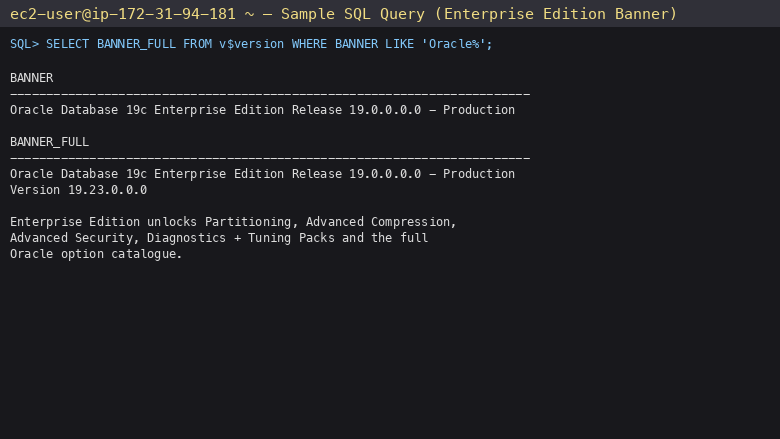
This image runs Oracle Database 19c Long Term Support Enterprise Edition on Oracle Linux 8. Oracle Database 19c is Oracle's Long Term Support release covered by Oracle Extended Support through April 2027 and is the recommended target for new Oracle Database deployments that do not yet need the 23ai feature set. Enterprise Edition unlocks the full Oracle option catalogue, including Partitioning, Advanced Compression, Advanced Security, the Diagnostics and Tuning Packs, Data Guard, and Real Application Clusters (RAC One Node), making it the right choice for mission critical workloads where Standard Edition 2's two socket and sixteen user thread cap is too restrictive.
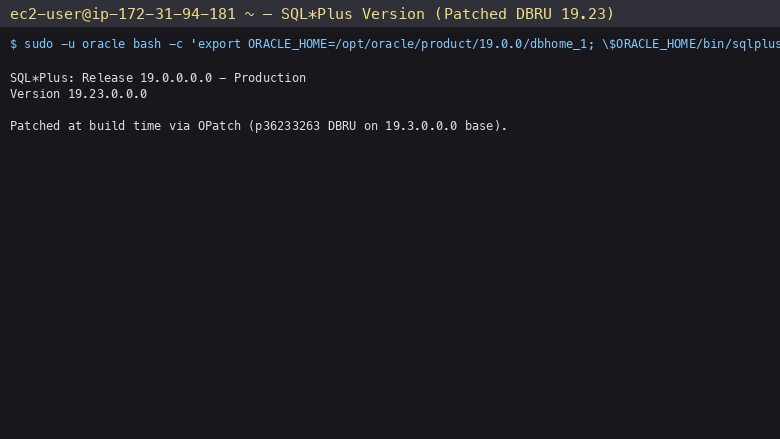
The image ships with the binaries patched to the current Database Release Update applied via OPatch at build time, so the customer launches into a release that is already patched against the public CVE set covered by the Oracle DBRU cycle. A starter non container database named ORCL is preconfigured, the SQL*Plus command line client is available in the Oracle home, and the Oracle listener on port 1521 is bound to the loopback address 127.0.0.1 only, so the database is not reachable from the network until you decide to make it so. SQL Developer and JDBC clients on your workstation connect through an SSH tunnel (Step 7), and Step 7 also explains how to open port 1521 deliberately, with network encryption, if you need direct connections. The Oracle binaries and datafiles live on a dedicated 30 GiB EBS gp3 volume mounted at /opt/oracle, separate from the operating system disk, so the database tier is independently resizable. A systemd unit oracle-db.service starts the database on boot via Oracle's dbstart script, and only once first boot has completed.
The image ships with no usable credentials. On the first boot of every launched instance, a one shot service named oracle-db-19c-firstboot.service runs before the database is reachable. With no listener running, it sets a unique random 24 character password on the SYS and SYSTEM accounts, and re-keys every other password account (such as DBSNMP and the sample schemas) with a random value and leaves it locked and expired. It then starts the listener on 127.0.0.1 only, proves that each new password works and that the historic and default passwords are refused, and checks that no plaintext password reached the audit trail or the trace files. Only then does it write the passwords to /root/oracle-db-credentials.txt with mode 0600, so that only the root user can read them, followed by the ready marker /var/lib/cloudimg/oracle-db-19c-firstboot.done. oracle-db.service starts only after that marker exists. Two instances launched from the same image never share credentials.
Prerequisites
Before you deploy this image you need:
- An Amazon Web Services account where you can launch EC2 instances
- IAM permissions to launch instances, create security groups, and subscribe to AWS Marketplace products
- An EC2 key pair in the target Region for SSH access to the instance
- A VPC and subnet in the target Region, with a security group allowing inbound port 22 from your management network. Port 1521 does not need to be open: the listener is bound to
127.0.0.1and remote tools reach it through an SSH tunnel - The AWS CLI (version 2) installed locally if you plan to deploy from the command line
Step 1: Launch the Instance from the AWS Marketplace
Sign in to the AWS Management Console, open the EC2 service, and select Launch instance. Under Application and OS Images choose AWS Marketplace AMIs and search for Oracle Database. Select the cloudimg listing for Oracle Database 19c EE on Oracle Linux 8 and choose Select, then Continue on the subscription summary.
Pick an instance type of m5.large (2 vCPUs / 8 GiB RAM) or larger. The starter database is sized for m5.large. Enterprise Edition has no socket cap, so any of the M5, M6i, R5, R6i, C5 or C6i families are valid based on workload — m5.large is the recommended baseline for development and test; m5.xlarge, m5.2xlarge, m5.4xlarge and the memory optimised R5 family are appropriate for production OLTP, after you raise the database memory as described in Step 8. Choose your EC2 key pair under Key pair (login). Under Network settings select your VPC and subnet, and either create or select a security group that allows inbound port 22 from your management network only. The default security group of this listing opens port 22 only: the listener is bound to 127.0.0.1, so port 1521 does not need to be open. Step 7 covers the SSH tunnel, and how to open port 1521 deliberately if you need to. Never open port 1521 to the public internet.
Leave the root volume at the default size. The image adds a second 30 GiB gp3 EBS volume at /opt/oracle automatically; that is where the Oracle home and the ORCL datafiles live.
Select Launch instance. First boot initialisation takes several minutes after the instance state becomes Running and the status checks pass, a few minutes longer than a plain database start, because the firstboot service sets and then proves every credential before the database is allowed to start. SSH can become available before first boot has finished; Step 3 shows how to tell when it is done.
Step 2: Launch the Instance from the AWS CLI
The following block launches an instance from the cloudimg Oracle Database 19c EE Marketplace AMI into an existing subnet and security group. Replace <ami-id> with the AMI ID shown on the Marketplace listing, <key-name> with your EC2 key pair name, <subnet-id> with your subnet ID, and <security-group-id> with a security group that opens port 22 from your management network, as described above. Port 1521 stays closed.
aws ec2 run-instances \
  --image-id <ami-id> \
  --instance-type m5.large \
  --key-name <key-name> \
  --subnet-id <subnet-id> \
  --security-group-ids <security-group-id> \
  --block-device-mappings '[{"DeviceName":"/dev/sda1","Ebs":{"VolumeSize":50,"VolumeType":"gp3"}},{"DeviceName":"/dev/sdb","Ebs":{"VolumeSize":30,"VolumeType":"gp3"}}]' \
  --tag-specifications 'ResourceType=instance,Tags=[{Key=Name,Value=oracle-db-19c-ee-01}]'
The command prints a JSON document on success. Note the instance ID, then retrieve its public address once it is running with aws ec2 describe-instances --instance-ids <instance-id> --query "Reservations[].Instances[].PublicIpAddress" --output text.
Step 3: Connect over SSH and Retrieve the Credentials
Wait for the EC2 instance to reach 2/2 status checks and for first boot to complete. Connect over SSH with the key pair you selected, using the ec2-user login name:
ssh -i <your-key.pem> ec2-user@<public-ip>
Once you are on the instance, confirm that first boot has completed. The ready marker exists only after every password has been set and proven:
sudo test -f /var/lib/cloudimg/oracle-db-19c-firstboot.done && echo "first boot complete"
If the command prints nothing, first boot is still running; follow its progress with sudo journalctl -u oracle-db-19c-firstboot.service -b -f, and see If first boot fails below if it does not finish. When it has completed, read the credentials file with sudo:
sudo cat /root/oracle-db-credentials.txt
The file contains the per instance SYS and SYSTEM passwords, the Oracle SID (ORCL), and the listener address (127.0.0.1:1521). Sample contents:
# Oracle Database 19c Enterprise Edition - per-instance credentials (cloudimg)
# Generated Sun Oct 18 15:30:00 UTC 2026 on i-0123456789abcdef0. Root-only (0600). Unique to this instance.

SYS_PASSWORD=TmKwQ8YzBnA9hSdF2pXRqLe4
SYSTEM_PASSWORD=EhYrkP1QmW9XnZA8tLpVcGu7

ORACLE_SID=ORCL
LISTENER=127.0.0.1:1521 (localhost only - use an SSH tunnel, or see the guide to open it deliberately with encryption)

Every other database account is locked and expired with a random password.
Connect: sudo su - oracle ; . ~/setEnv.sh ; sqlplus /nolog ; then CONNECT system@//localhost:1521/ORCL
Copy these values somewhere secure such as a password manager or an encrypted vault, and do not commit them to source control. Every command block in this guide that talks to Oracle begins by reading the SYSTEM password from the credentials file into a SYSPWD shell variable, so every block is self contained.
The file uses KEY=value lines. Images released before October 2026 wrote KEY= value, with a space after the equals sign; the extraction used throughout this guide handles both forms:
SYSPWD=$(sudo awk -F'= *' '/^SYSTEM_PASSWORD=/{print $2}' /root/oracle-db-credentials.txt)
test -n "$SYSPWD" && echo "SYSTEM password read (${#SYSPWD} characters)"
Every other account is locked
Only SYS and SYSTEM can log in. Every other password account in the database, including DBSNMP and the sample schemas, was given a random password that nobody knows and is locked and expired. To use one of these accounts, set your own password and unlock it as SYSDBA:
ALTER USER <name> IDENTIFIED BY "<new-strong-password>" ACCOUNT UNLOCK;
If first boot fails
First boot fails closed. If it cannot complete every step, it stops the database and the listener on purpose, writes no credentials file, and leaves /root/oracle-db-FIRSTBOOT-FAILED.txt explaining what happened. Read the notice and the service journal, then reboot once to retry; first boot runs again on every boot until it succeeds:
sudo cat /root/oracle-db-FIRSTBOOT-FAILED.txt
sudo journalctl -u oracle-db-19c-firstboot.service -b
sudo reboot
If it fails again, contact cloudimg support with the journal output.
Run the security self-test
The image includes a self-test that re-proves the security state of the instance: each password in the credentials file works and the historic and default passwords are refused, every other account is locked, the listener is bound to 127.0.0.1 only, and no listener started before the passwords were set:
sudo /usr/local/sbin/cloudimg-oracle-selftest
Each check prints a PASS line and the run ends with SELFTEST_OK. Abridged sample output:
PASS: ready marker present
PASS: no first-boot error notice
PASS: /root/oracle-db-credentials.txt is 0600 root:root
PASS: SYS@ORCL refuses a historic/default password
PASS: SYS@ORCL accepts its per-instance password
PASS: SYSTEM@ORCL refuses a historic/default password
PASS: SYSTEM@ORCL accepts its per-instance password
PASS: every other password account is locked
PASS: listener.ora binds 127.0.0.1 only
PASS: no database socket on a non-loopback address
PASS: oracle-db.service gated on the ready marker
PASS: memory fits m5.large: sga_target 2304M, pga_aggregate_target 768M
...
SELFTEST_OK
The self-test checks the instance as delivered. After you rotate a password, open port 1521 or raise the database memory as described in this guide, the matching checks report FAIL by design.
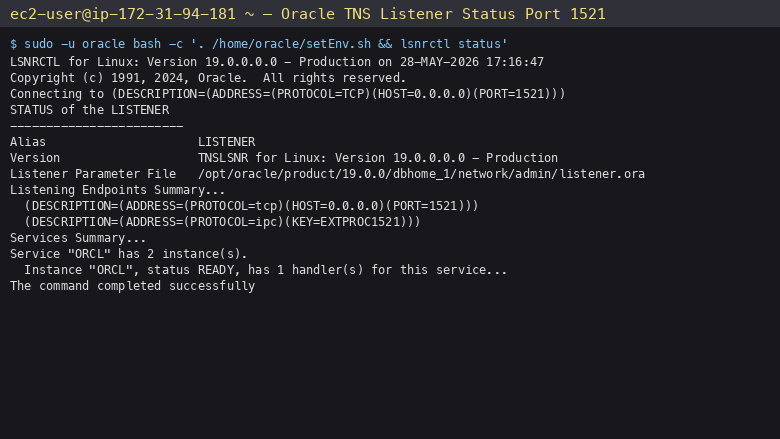
Step 4: Verify the Listener is Running
Oracle's TNS listener is the network endpoint for all client connections. Confirm it is up and serving the ORCL service:
sudo -u oracle bash -c "
    export ORACLE_HOME=/opt/oracle/product/19.0.0/dbhome_1
    export ORACLE_SID=ORCL
    export PATH=\$ORACLE_HOME/bin:\$PATH
    export LD_LIBRARY_PATH=\$ORACLE_HOME/lib
    lsnrctl status
"
The expected response confirms the listener is bound to the loopback address 127.0.0.1 on TCP port 1521 and that the ORCL service has registered with it:
LSNRCTL for Linux: Version 19.0.0.0.0 - Production on 28-MAY-2026 15:30:00

Connecting to (DESCRIPTION=(ADDRESS=(PROTOCOL=TCP)(HOST=127.0.0.1)(PORT=1521)))
STATUS of the LISTENER
------------------------
Alias                     LISTENER
Version                   TNSLSNR for Linux: Version 19.0.0.0.0 - Production
Listening Endpoints Summary...
  (DESCRIPTION=(ADDRESS=(PROTOCOL=tcp)(HOST=127.0.0.1)(PORT=1521)))
  (DESCRIPTION=(ADDRESS=(PROTOCOL=ipc)(KEY=EXTPROC1521)))
Services Summary...
Service "ORCL" has 1 instance(s).
  Instance "ORCL", status READY, has 1 handler(s) for this service...
The command completed successfully
The kernel level confirmation that port 1521 is listening on the loopback address only. The command prints the local address of every socket listening on port 1521:
sudo ss -Hltn 'sport = :1521' | awk '{print $4}'
Returns:
127.0.0.1:1521
Step 5: Connect Locally with SQL*Plus
The simplest way to talk to the database from the instance is the SQL*Plus client that ships with the Oracle Database installation. Read the SYSTEM password from the credentials file, then connect to the ORCL service over the listener:
SYSPWD=$(sudo awk -F'= *' '/^SYSTEM_PASSWORD=/{print $2}' /root/oracle-db-credentials.txt)
sudo -u oracle bash -c "
    export ORACLE_HOME=/opt/oracle/product/19.0.0/dbhome_1
    export ORACLE_SID=ORCL
    export PATH=\$ORACLE_HOME/bin:\$PATH
    export LD_LIBRARY_PATH=\$ORACLE_HOME/lib
    cat > /tmp/version-query.sql <<EOF
SELECT banner FROM v\\\$version WHERE banner LIKE 'Oracle%';
EXIT;
EOF
    sqlplus -S system/${SYSPWD}@localhost:1521/ORCL @/tmp/version-query.sql
    rm /tmp/version-query.sql
"
The expected response confirms the installed Oracle Database release with the applied DBRU patch level:
BANNER
--------------------------------------------------------------------------------
Oracle Database 19c Enterprise Edition Release 19.0.0.0.0 - Production
You can also connect interactively. Switch to the oracle OS user and run sqlplus from that shell:
sudo su - oracle
export ORACLE_HOME=/opt/oracle/product/19.0.0/dbhome_1
export ORACLE_SID=ORCL
export PATH=$ORACLE_HOME/bin:$PATH
export LD_LIBRARY_PATH=$ORACLE_HOME/lib
sqlplus / as sysdba
In an interactive session, type EXIT; to leave SQL*Plus.
Step 6: Run a Sample Query
Create a small table, insert two rows, read them back, then drop the table. This exercise confirms that the database is writable and that the SYSTEM user has the standard DDL grants:
SYSPWD=$(sudo awk -F'= *' '/^SYSTEM_PASSWORD=/{print $2}' /root/oracle-db-credentials.txt)
sudo -u oracle bash -c "
    export ORACLE_HOME=/opt/oracle/product/19.0.0/dbhome_1
    export ORACLE_SID=ORCL
    export PATH=\$ORACLE_HOME/bin:\$PATH
    export LD_LIBRARY_PATH=\$ORACLE_HOME/lib
    cat > /tmp/demo.sql <<EOF
CREATE TABLE demo_users (id NUMBER, name VARCHAR2(50), created_at DATE);
INSERT INTO demo_users VALUES (1, 'Alice', SYSDATE);
INSERT INTO demo_users VALUES (2, 'Bob',   SYSDATE);
COMMIT;
SELECT id, name, TO_CHAR(created_at,'YYYY-MM-DD') AS created_at FROM demo_users;
DROP TABLE demo_users;
EXIT;
EOF
    sqlplus -S system/${SYSPWD}@localhost:1521/ORCL @/tmp/demo.sql
    rm /tmp/demo.sql
"
Expected response:
Table created.

1 row created.

1 row created.

Commit complete.

        ID NAME                                               CREATED_AT
---------- -------------------------------------------------- ----------
         1 Alice                                              2026-05-28
         2 Bob                                                2026-05-28

Table dropped.
Step 7: Connect from a Remote Machine
The listener is bound to 127.0.0.1, and the default security group opens port 22 only, so the database is not reachable from the network. The recommended way to connect a client on your workstation is an SSH tunnel, which carries the Oracle traffic inside your existing SSH connection and needs no change to the instance or the security group.
Connect through an SSH tunnel
On your workstation, open a tunnel that forwards local port 1521 to the listener on the instance, and leave it running while you work:
ssh -i <your-key.pem> -N -L 1521:127.0.0.1:1521 ec2-user@<public-ip>
While the tunnel is open, localhost:1521 on your workstation reaches the database. From a host with sqlplus installed (the Oracle Instant Client tarball contains it), supply the SYSTEM password from /root/oracle-db-credentials.txt and connect using Oracle's "Easy Connect" syntax:
sqlplus system@localhost:1521/ORCL
SQL*Plus prompts for the password, which keeps it out of your shell history. The connection string localhost:1521/ORCL is equivalent to the following TNS descriptor, which you would use from an application that reads a tnsnames.ora file:
ORCL =
  (DESCRIPTION =
    (ADDRESS = (PROTOCOL = TCP)(HOST = localhost)(PORT = 1521))
    (CONNECT_DATA =
      (SERVER = DEDICATED)
      (SERVICE_NAME = ORCL)
    )
  )
For JDBC, use the URL jdbc:oracle:thin:@//localhost:1521/ORCL.
Or use SQL Developer
Oracle SQL Developer is a free graphical client published by Oracle. With the SSH tunnel open, launch SQL Developer locally and create a new connection with the values below:
| Setting | Value |
|---|---|
| Connection Name | cloudimg-oracle-19c-ee (or any name you choose) |
| Authentication | Default |
| Username | SYSTEM |
| Password | Value of SYSTEM_PASSWORD from /root/oracle-db-credentials.txt |
| Connection Type | Basic |
| Role | default |
| Hostname | localhost (through the SSH tunnel) |
| Port | 1521 |
| Service Name | ORCL |
Click Test, and while the SSH tunnel is running the status bar reports Success. Click Connect to open a SQL Worksheet.
Opening port 1521 deliberately
If your applications must connect directly rather than through a tunnel, open the listener deliberately, in three steps, and only to your own network. Run these commands yourself; none of them is needed for the SSH tunnel.
1. Require Oracle native network encryption and integrity. As the oracle user, append the following to $ORACLE_HOME/network/admin/sqlnet.ora:
sudo su - oracle
export ORACLE_HOME=/opt/oracle/product/19.0.0/dbhome_1
cat >> $ORACLE_HOME/network/admin/sqlnet.ora <<'EOF'
SQLNET.ENCRYPTION_SERVER = required
SQLNET.ENCRYPTION_TYPES_SERVER = (AES256)
SQLNET.CRYPTO_CHECKSUM_SERVER = required
SQLNET.CRYPTO_CHECKSUM_TYPES_SERVER = (SHA256)
EOF
Alternatively, configure TCPS (TLS) with an Oracle wallet instead; see "Configuring Transport Layer Security Authentication" in the Oracle Database 19c Security Guide at https://docs.oracle.com/en/database/oracle/oracle-database/19/dbseg/configuring-transport-layer-security-authentication.html.
2. Bind the listener to all interfaces. In $ORACLE_HOME/network/admin/listener.ora, change (HOST = 127.0.0.1) to (HOST = 0.0.0.0), then restart the listener as the oracle user. The database registers with the restarted listener within a minute:
sudo su - oracle
export ORACLE_HOME=/opt/oracle/product/19.0.0/dbhome_1
export PATH=$ORACLE_HOME/bin:$PATH
sed -i 's/(HOST = 127.0.0.1)/(HOST = 0.0.0.0)/' $ORACLE_HOME/network/admin/listener.ora
lsnrctl stop
lsnrctl start
3. Allow TCP 1521 from your own network only. Add a security group rule for your management or application CIDR. Never use 0.0.0.0/0:
aws ec2 authorize-security-group-ingress --group-id <security-group-id> --protocol tcp --port 1521 --cidr <your-mgmt-cidr>
Clients then connect to <public-ip>:1521/ORCL (or the private IP from inside the VPC) and must also use encryption. The JDBC thin driver, and therefore SQL Developer, negotiates it automatically when the server requires it; other Oracle clients do the same with their default sqlnet.ora settings.
Instances launched from earlier images
On instances launched from images released before October 2026, the listener binds 0.0.0.0 and the old default security group opened port 1521 to the internet. To bring such an instance in line with the current image, remove that security group rule, then set the listener back to 127.0.0.1 in the same listener.ora file and restart it:
aws ec2 revoke-security-group-ingress --group-id <security-group-id> --protocol tcp --port 1521 --cidr 0.0.0.0/0

sudo su - oracle
export ORACLE_HOME=/opt/oracle/product/19.0.0/dbhome_1
export PATH=$ORACLE_HOME/bin:$PATH
sed -i 's/(HOST = 0.0.0.0)/(HOST = 127.0.0.1)/' $ORACLE_HOME/network/admin/listener.ora
lsnrctl stop
lsnrctl start
Check that the HOST entry in listener.ora now reads 127.0.0.1, then connect through the SSH tunnel described above. If you need direct access instead, follow Opening port 1521 deliberately.
Step 8: Manage the Oracle Service
The database is started on boot by the systemd unit oracle-db.service, which delegates to Oracle's dbstart script in $ORACLE_HOME/bin. Manage the service with the standard systemctl commands:
sudo systemctl status oracle-db.service --no-pager
Returns:
oracle-db.service - Oracle Database 19c Enterprise Edition (cloudimg) - starts only after first boot has set per-instance credentials
   Loaded: loaded (/etc/systemd/system/oracle-db.service; enabled; vendor preset: disabled)
   Active: active (running)
  Process: 14909 ExecStart=/opt/oracle/product/19.0.0/dbhome_1/bin/dbstart /opt/oracle/product/19.0.0/dbhome_1 (code=exited, status=0/SUCCESS)
   CGroup: /system.slice/oracle-db.service
           ├─ ora_pmon_ORCL
           ├─ ora_psp0_ORCL
           ├─ ora_vktm_ORCL
           ...
To stop the database and listener cleanly:
sudo systemctl stop oracle-db.service
To start them again:
sudo systemctl start oracle-db.service
There is also a one shot unit oracle-db-19c-firstboot.service whose only job is to set the per instance credentials on the very first boot. It runs before oracle-db.service, which will not start until the ready marker /var/lib/cloudimg/oracle-db-19c-firstboot.done exists. Once the marker is present, the first boot unit exits immediately on every subsequent boot.
Database memory and instance size
The starter database is sized for the recommended m5.large (8 GiB): it uses automatic shared memory management with 3072 MB in total, which gives an sga_target of about 2.3 GiB and a pga_aggregate_target of about 768 MiB, leaving room for the operating system. On m5.xlarge or a larger instance for production, raise the database memory as SYSDBA, for example:
ALTER SYSTEM SET sga_max_size=6G SCOPE=SPFILE;
ALTER SYSTEM SET sga_target=6G SCOPE=SPFILE;
ALTER SYSTEM SET pga_aggregate_target=2G SCOPE=BOTH;
Then restart the database so the new SGA size takes effect:
sudo systemctl restart oracle-db.service
Choose values that leave at least 2 GiB of the instance memory for the operating system.
Step 9: Filesystem Layout
The Oracle home and the ORCL database files live on the dedicated 30 GiB gp3 EBS volume mounted at /opt/oracle. This separation is intentional: the database tier can be resized independently of the operating system disk, and it can be snapshotted on its own for backup.
df -h /opt/oracle
Returns:
Filesystem      Size  Used Avail Use% Mounted on
/dev/nvme1n1     30G   16G   13G  56% /opt/oracle
The main directories the image exposes:
/opt/oracle/product/19.0.0/dbhome_1— the Oracle Database 19c home, owned by theoracleuser/opt/oracle/product/19.0.0/dbhome_1/bin— Oracle binaries, includingsqlplus,lsnrctl,dbstart,dbshut/opt/oracle/product/19.0.0/dbhome_1/network/admin— listener configuration (listener.ora) and TNS naming (tnsnames.ora)/opt/oracle/oradata/ORCL— datafiles, control file, online redo logs for the ORCL database/opt/oracle/diag— Automatic Diagnostic Repository, with the alert log under/opt/oracle/diag/rdbms/orcl/ORCL/trace/alert_ORCL.log/opt/oracle/oraInventory— the Oracle Universal Installer inventory/root/oracle-db-credentials.txt— per instanceSYSandSYSTEMpasswords, mode 0600 root only/usr/local/sbin/cloudimg-oracle-selftest— the security self-test described in Step 3
Sample listing of the datafile directory:
sudo ls -la /opt/oracle/oradata/ORCL/
Returns:
-rw-r----- 1 oracle oinstall   9748480 May 28 15:30 control01.ctl
-rw-r----- 1 oracle oinstall  52429312 May 28 15:30 redo01.log
-rw-r----- 1 oracle oinstall  52429312 May 28 15:30 redo02.log
-rw-r----- 1 oracle oinstall  52429312 May 28 15:30 redo03.log
-rw-r----- 1 oracle oinstall 765411328 May 28 15:30 sysaux01.dbf
-rw-r----- 1 oracle oinstall 943718400 May 28 15:30 system01.dbf
-rw-r----- 1 oracle oinstall  62914560 May 28 15:30 temp01.dbf
-rw-r----- 1 oracle oinstall  78651392 May 28 15:30 undotbs01.dbf
-rw-r----- 1 oracle oinstall   5251072 May 28 15:30 users01.dbf
Step 10: Enterprise Edition Options
Enterprise Edition unlocks the full Oracle option catalogue. The licensable options shipped with this image are:
| Option | Status | Purpose |
|---|---|---|
| Partitioning | enabled | Range, list, hash, and composite partitioning on tables and indexes |
| Advanced Compression | enabled | Compress tablespaces, LOBs, backups, and Data Pump exports |
| Advanced Security | enabled | Transparent Data Encryption, Network Encryption, Data Redaction |
| Diagnostics Pack | enabled | AWR snapshots, ASH reports, SQL Monitor, Real Time SQL Monitoring |
| Tuning Pack | enabled | SQL Tuning Advisor, SQL Access Advisor, SQL Profiles |
| Data Guard | enabled | Active Standby, Far Sync, role transitions |
| RAC One Node | available | Single instance RAC with rolling failover (requires additional GI setup) |
| Database Vault | available | Realms, command rules, factor based access control |
| Label Security | available | Row level labels and mediation policies |
| Real Application Testing | available | Database Replay, SQL Performance Analyzer |
| Spatial and Graph | available | SDO_GEOMETRY, network and property graph |
| OLAP | available | Multidimensional analytic workspaces |
Confirm that Enterprise Edition options are visible in the running database by querying V$OPTION:
sudo -u oracle bash -c "
    export ORACLE_HOME=/opt/oracle/product/19.0.0/dbhome_1
    export ORACLE_SID=ORCL
    export PATH=\$ORACLE_HOME/bin:\$PATH
    export LD_LIBRARY_PATH=\$ORACLE_HOME/lib
    cat > /tmp/options.sql <<EOF
SET PAGESIZE 100 LINESIZE 200
COLUMN parameter FORMAT A40
SELECT parameter, value FROM V\\\$OPTION
WHERE parameter IN ('Partitioning','Advanced Compression','Advanced replication','Real Application Clusters','Data Mining')
ORDER BY parameter;
EXIT;
EOF
    sqlplus -S / as sysdba @/tmp/options.sql
    rm /tmp/options.sql
"
Returns (Enterprise Edition):
PARAMETER                                VALUE
---------------------------------------- ----------------------------------------
Advanced Compression                     TRUE
Advanced replication                     TRUE
Data Mining                              TRUE
Partitioning                             TRUE
Real Application Clusters                TRUE
TRUE means the option is enabled in the running binary and licensed under Enterprise Edition. Note that licensing of paid options (Advanced Compression, Diagnostics + Tuning Packs, Advanced Security, Partitioning, Data Guard for some Cloud configurations, RAC) is separate from the technical availability in the binary, and you must hold appropriate Oracle licensing before using a chargeable option in production.
Step 11: Use Partitioning
Partitioning is an Enterprise Edition option. Create a range partitioned table and insert rows that land in different partitions:
SYSPWD=$(sudo awk -F'= *' '/^SYSTEM_PASSWORD=/{print $2}' /root/oracle-db-credentials.txt)
sudo -u oracle bash -c "
    export ORACLE_HOME=/opt/oracle/product/19.0.0/dbhome_1
    export ORACLE_SID=ORCL
    export PATH=\$ORACLE_HOME/bin:\$PATH
    export LD_LIBRARY_PATH=\$ORACLE_HOME/lib
    cat > /tmp/partition.sql <<EOF
CREATE TABLE sales_by_year (id NUMBER, region VARCHAR2(20), amount NUMBER, sale_date DATE)
PARTITION BY RANGE (sale_date) (
  PARTITION p2024 VALUES LESS THAN (TO_DATE('2025-01-01','YYYY-MM-DD')),
  PARTITION p2025 VALUES LESS THAN (TO_DATE('2026-01-01','YYYY-MM-DD')),
  PARTITION p2026 VALUES LESS THAN (MAXVALUE)
);
INSERT INTO sales_by_year VALUES (1,'EU', 100, TO_DATE('2024-06-01','YYYY-MM-DD'));
INSERT INTO sales_by_year VALUES (2,'NA', 200, TO_DATE('2025-06-01','YYYY-MM-DD'));
INSERT INTO sales_by_year VALUES (3,'AP', 300, TO_DATE('2026-06-01','YYYY-MM-DD'));
COMMIT;
SELECT partition_name, num_rows FROM user_tab_partitions WHERE table_name='SALES_BY_YEAR';
DROP TABLE sales_by_year PURGE;
EXIT;
EOF
    sqlplus -S system/${SYSPWD}@localhost:1521/ORCL @/tmp/partition.sql
    rm /tmp/partition.sql
"
Expected response shows the three partitions accepting their respective rows.
Step 12: Confirm the Applied DBRU Patch Level
This image is shipped with the current Oracle Database Release Update applied via OPatch at build time. Confirm the applied patches with the Oracle OPatch utility:
sudo -u oracle bash -c "
    export ORACLE_HOME=/opt/oracle/product/19.0.0/dbhome_1
    \$ORACLE_HOME/OPatch/opatch lsinventory -bugs_fixed | head -20
"
The sqlplus banner reports the patched release:
SYSPWD=$(sudo awk -F'= *' '/^SYSTEM_PASSWORD=/{print $2}' /root/oracle-db-credentials.txt)
sudo -u oracle bash -c "
    export ORACLE_HOME=/opt/oracle/product/19.0.0/dbhome_1
    export ORACLE_SID=ORCL
    export PATH=\$ORACLE_HOME/bin:\$PATH
    export LD_LIBRARY_PATH=\$ORACLE_HOME/lib
    cat > /tmp/vfull.sql <<EOF
SET HEADING OFF FEEDBACK OFF PAGESIZE 0
SELECT VERSION_FULL FROM V\\\$INSTANCE;
EXIT;
EOF
    sqlplus -S / as sysdba @/tmp/vfull.sql
    rm /tmp/vfull.sql
"
Returns the patched release identifier, for example 19.22.0.0.0 for the DBRU applied at this image's build time.
Step 13: Rotate the SYSTEM and SYS Passwords
For a production deployment, rotate the SYSTEM and SYS passwords that the first boot service generated. Connect as SYSDBA with operating system authentication and issue ALTER USER:
sudo -u oracle bash -c "
    export ORACLE_HOME=/opt/oracle/product/19.0.0/dbhome_1
    export ORACLE_SID=ORCL
    export PATH=\$ORACLE_HOME/bin:\$PATH
    export LD_LIBRARY_PATH=\$ORACLE_HOME/lib
    sqlplus -S / as sysdba <<EOF
ALTER USER SYSTEM IDENTIFIED BY \"<new-system-password>\";
ALTER USER SYS    IDENTIFIED BY \"<new-sys-password>\";
EXIT;
EOF
"
Store the new values in your secrets manager immediately. The file /root/oracle-db-credentials.txt is the per instance bootstrap record and should not be considered your source of truth after the first rotation.
Step 14: Tablespaces and Datafile Layout
The starter ORCL database has the standard Oracle tablespace layout: SYSTEM, SYSAUX, UNDOTBS1, USERS, and TEMP. The datafiles live under /opt/oracle/oradata/ORCL, which is on the dedicated 30 GiB gp3 EBS volume. As your workload grows, create application-specific tablespaces on the same volume and grow the volume in place.
SYSPWD=$(sudo awk -F'= *' '/^SYSTEM_PASSWORD=/{print $2}' /root/oracle-db-credentials.txt)
sudo -u oracle bash -c "
    export ORACLE_HOME=/opt/oracle/product/19.0.0/dbhome_1
    export ORACLE_SID=ORCL
    export PATH=\$ORACLE_HOME/bin:\$PATH
    export LD_LIBRARY_PATH=\$ORACLE_HOME/lib
    cat > /tmp/tspaces.sql <<EOF
SET PAGESIZE 100 LINESIZE 200
COLUMN tablespace_name FORMAT A20
COLUMN file_name FORMAT A55
SELECT tablespace_name, ROUND(bytes/1024/1024) AS mb, file_name
FROM dba_data_files ORDER BY tablespace_name;
EXIT;
EOF
    sqlplus -S system/${SYSPWD}@localhost:1521/ORCL @/tmp/tspaces.sql
    rm /tmp/tspaces.sql
"
To add a new application tablespace with autoextend and Advanced Compression enabled:
sudo -u oracle bash -c "
    export ORACLE_HOME=/opt/oracle/product/19.0.0/dbhome_1
    export ORACLE_SID=ORCL
    export PATH=\$ORACLE_HOME/bin:\$PATH
    export LD_LIBRARY_PATH=\$ORACLE_HOME/lib
    sqlplus -S / as sysdba <<EOF
CREATE TABLESPACE app_data
  DATAFILE '/opt/oracle/oradata/ORCL/app_data01.dbf' SIZE 1G
  AUTOEXTEND ON NEXT 256M MAXSIZE 16G
  DEFAULT COMPRESS FOR OLTP;
EXIT;
EOF
"
Step 15: Server Components
| Component | Version | Source |
|---|---|---|
| Oracle Database | 19c Long Term Support, Enterprise Edition (patched to current DBRU) | Oracle 19c installation media + p36233263 DBRU |
| Oracle Linux | 8 | cloudimg golden base image |
| SQL*Plus | 19c | bundled in $ORACLE_HOME/bin |
| systemd unit | oracle-db.service |
baked into the image |
| Firstboot unit | oracle-db-19c-firstboot.service |
baked into the image |
Step 16: Backup Recommendations
Oracle Database 19c supports a range of backup strategies. For a single-instance image like this one, the two pragmatic options are filesystem snapshot of the EBS data volume and Oracle's own Recovery Manager (RMAN).
For a quick consistent backup, stop the database cleanly, snapshot the /opt/oracle EBS volume from the AWS Console or CLI, then start the database again:
sudo systemctl stop oracle-db.service
aws ec2 create-snapshot --volume-id <volume-id-of-/opt/oracle> \
  --description "oracle-db-19c-ee $(date +%F)" \
  --tag-specifications 'ResourceType=snapshot,Tags=[{Key=Name,Value=oracle-data}]'
sudo systemctl start oracle-db.service
For a hot, point-in-time backup, configure RMAN to back up to an attached EBS volume or to S3 via an S3-compatible RMAN channel. RMAN integrates with Oracle's archive log mode and supports incremental backups. The full RMAN documentation is at the Oracle Database 19c Backup and Recovery User's Guide.
Step 17: Security Recommendations
Oracle Database 19c is the Long Term Support release covered by Oracle Extended Support through April 2027. Apply the following recommendations on a production deployment:
- Keep port 1521 closed. The listener is bound to
127.0.0.1and the default security group opens port 22 only; connect through an SSH tunnel. If you must open the port, follow Opening port 1521 deliberately in Step 7: require network encryption and allow only your own network. Never open the listener to the public internet. - Leave unused accounts locked. Every account other than
SYSandSYSTEMis locked and expired with a random password; unlock only the accounts you need, with a new strong password. - Rotate the SYSTEM and SYS passwords using the rotation step above, and store the new values in your secrets manager.
- Create per-application schema users with only the grants the application needs, instead of using
SYSTEMfor application traffic. - Enable Transparent Data Encryption (TDE) on application tablespaces. TDE is bundled with Enterprise Edition's Advanced Security option and is the recommended path for data at rest encryption.
- Apply the next Oracle Database Release Update when published by Oracle, by downloading the DBRU bundle from My Oracle Support and applying with OPatch and datapatch. This image is shipped with the current DBRU at build time, but Oracle publishes a new DBRU on a quarterly cadence.
- Enable Oracle Unified Auditing if your compliance regime requires it:
ALTER SYSTEM SET audit_trail=DB SCOPE=SPFILE;followed by a restart, thenAUDITstatements as needed. - Require Oracle Native Network Encryption in
sqlnet.ora(or TCPS) whenever the listener is reachable from the network, as shown in Step 7. The full set of encryption settings is documented in the Oracle Database Net Services Reference. - Apply OS security patches by running
sudo dnf update -yon a regular maintenance schedule. Reboot the instance after a kernel update. - Take regular EBS snapshots of the
/opt/oraclevolume and store them in a separate account or Region. - Limit SSH access to a small management CIDR; do not leave port 22 open to
0.0.0.0/0in production.
Screenshots
The following screenshots are taken from a running Oracle Database 19c EE instance launched from this image.
Support
cloudimg provides 24/7/365 expert technical support for this image. Guaranteed response within 24 hours, one hour average for critical issues. Contact support@cloudimg.co.uk.
For general Oracle Database questions, performance tuning, and migration help, consult the official Oracle Database 19c documentation set at https://docs.oracle.com/en/database/oracle/oracle-database/19/index.html.
Oracle, Oracle Database, and related marks are trademarks or registered trademarks of Oracle Corporation. Use of them does not imply any affiliation with or endorsement by Oracle Corporation.