Oracle WebLogic 15c on Windows User Guide
Overview
This guide covers the deployment and configuration of Oracle WebLogic Server 15c (15.1.1.0.0) on Windows Server using cloudimg AMIs from the AWS Marketplace.
What's included in this AMI:
- Oracle WebLogic Server 15c (15.1.1.0.0) with Jakarta EE 9.1 support
- Oracle JDK 21 LTS
- Pre-configured WebLogic domain with Admin Server on port 7001
- Scheduled Task for automatic startup at boot
- Oracle software installed on separate D: drive (20GB EBS volume)
- AWS CLI, Systems Manager Agent, and CloudWatch Agent
Supported Operating Systems: Windows Server 2022, Windows Server 2019
Important change in WebLogic 15c: The traditional web-based Administration Console has been removed in WebLogic Server 15.1.1. Server administration is now performed using the WebLogic Remote Console (a desktop application) or the REST Management API. See the Administration section below for details.
Prerequisites
Before launching this AMI, ensure you have:
- An active AWS account
- An active subscription to the Oracle WebLogic 15c on Windows listing on AWS Marketplace
- An RDP client (Remote Desktop Connection) on your local machine
- Familiarity with EC2 instance management
Recommended Instance Type: m5.large (2 vCPU, 8 GB RAM) or larger for production workloads.
Step 1: Launch the AMI
- Navigate to the AWS Marketplace and search for "Oracle WebLogic 15c Windows cloudimg"
- Click Continue to Subscribe, accept the terms, then Continue to Configuration
- Select your preferred Region and Software Version (Windows Server 2022 or 2019)
- Click Continue to Launch
- Choose Launch through EC2 for full control over instance configuration
- Select your instance type (
m5.largerecommended) - Configure your Security Group with the following inbound rules:
| Port | Protocol | Source | Purpose |
|---|---|---|---|
| 3389 | TCP | Your IP | RDP access |
| 7001 | TCP | Your IP | WebLogic Server / REST API |
| 7002 | TCP | Your IP | WebLogic Server (SSL) |
Important: Restrict all ports to your IP address only. Do not open these to 0.0.0.0/0.
Step 2: Connect via RDP
- In the EC2 console, select your instance and click Connect
- Choose the RDP client tab
- Click Get password and upload your key pair (.pem file) to decrypt the Administrator password
- Download the Remote Desktop file or note the Public DNS
- Open your RDP client and connect using:
- Computer: Your instance's Public IP or DNS
- Username:
Administrator - Password: The decrypted password from the EC2 console
Alternatively, use SSM Session Manager for console access without opening port 3389:
https://us-east-1.console.aws.amazon.com/systems-manager/session-manager/<instance-id>?region=us-east-1
Step 3: Retrieve WebLogic Credentials
The WebLogic admin password is unique to each AMI instance. To retrieve it, open a Command Prompt or PowerShell window and run:
type C:\CREDENTIALS.txt
- Username:
weblogic - Password: (unique per instance, see C:\CREDENTIALS.txt)
Important: Change the password after first use. See the Security Hardening section below.
Step 4: Verify the Installation
Open PowerShell and verify the WebLogic installation:
# Check JDK version
& "$env:JAVA_HOME\bin\java.exe" -version

# Check WebLogic home exists
Test-Path D:\Oracle\Middleware\wlserver\server\bin\setWLSEnv.cmd

# Check domain exists
Test-Path D:\Oracle\Middleware\user_projects\domains\base_domain\config\config.xml

# Check scheduled task
Get-ScheduledTask -TaskName OracleWebLogicServer | Select TaskName, State

# Check D: drive
Get-Volume -DriveLetter D
Step 5: Start WebLogic Server
WebLogic is configured to start automatically at boot via a Scheduled Task. To start it manually:
Start-ScheduledTask -TaskName OracleWebLogicServer
Wait approximately 60 to 90 seconds for the server to start. You can verify it's running:
# Check the scheduled task state
Get-ScheduledTask -TaskName OracleWebLogicServer | Select State

# Test the REST API
$cred = Get-Content C:\CREDENTIALS.txt | Select-String "Password" | ForEach-Object { ($_ -split ": ")[1] }
curl.exe -u "weblogic:$cred" http://localhost:7001/management/weblogic/latest/serverRuntime?fields=name,state
Step 6: Access the Server
Navigate to http://<public-ip>:7001/console/ in your browser. You will see the Welcome to WebLogic Server 15.1.1 page:
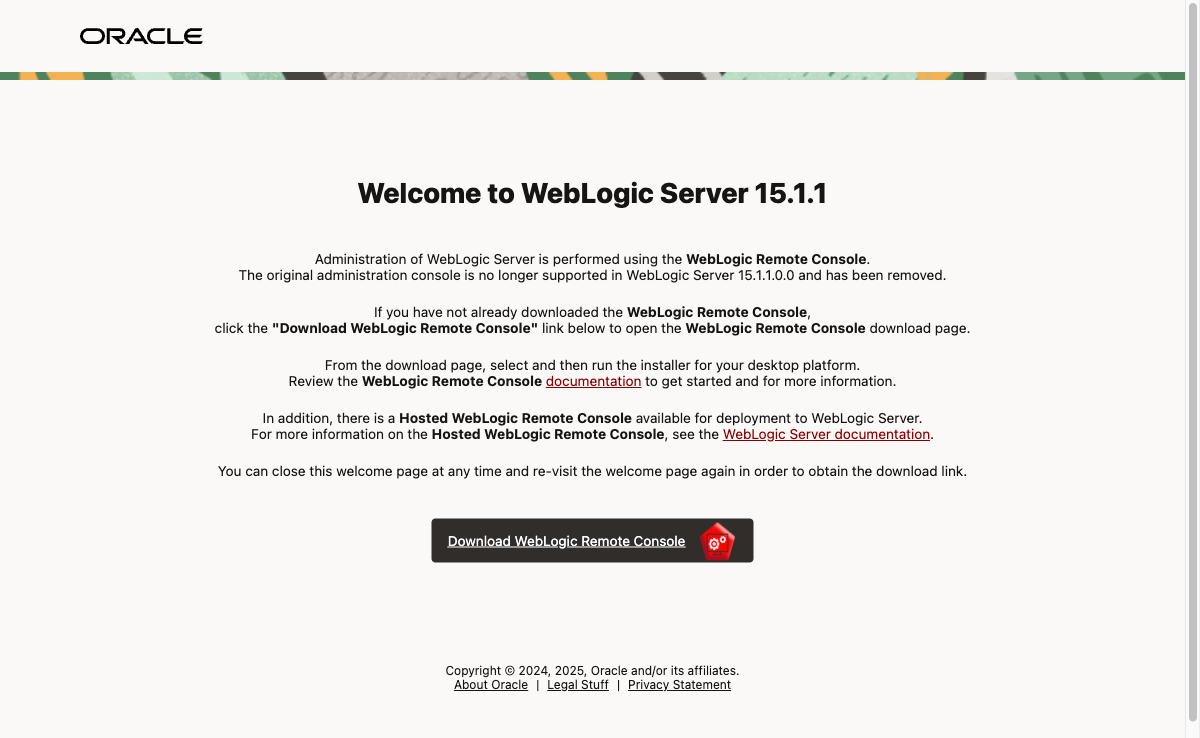
In WebLogic 15c, the traditional web-based Admin Console has been removed and replaced by the WebLogic Remote Console desktop application.
To verify your credentials are working, navigate to the Sign In page:
http://<public-ip>:7001/console/signin/
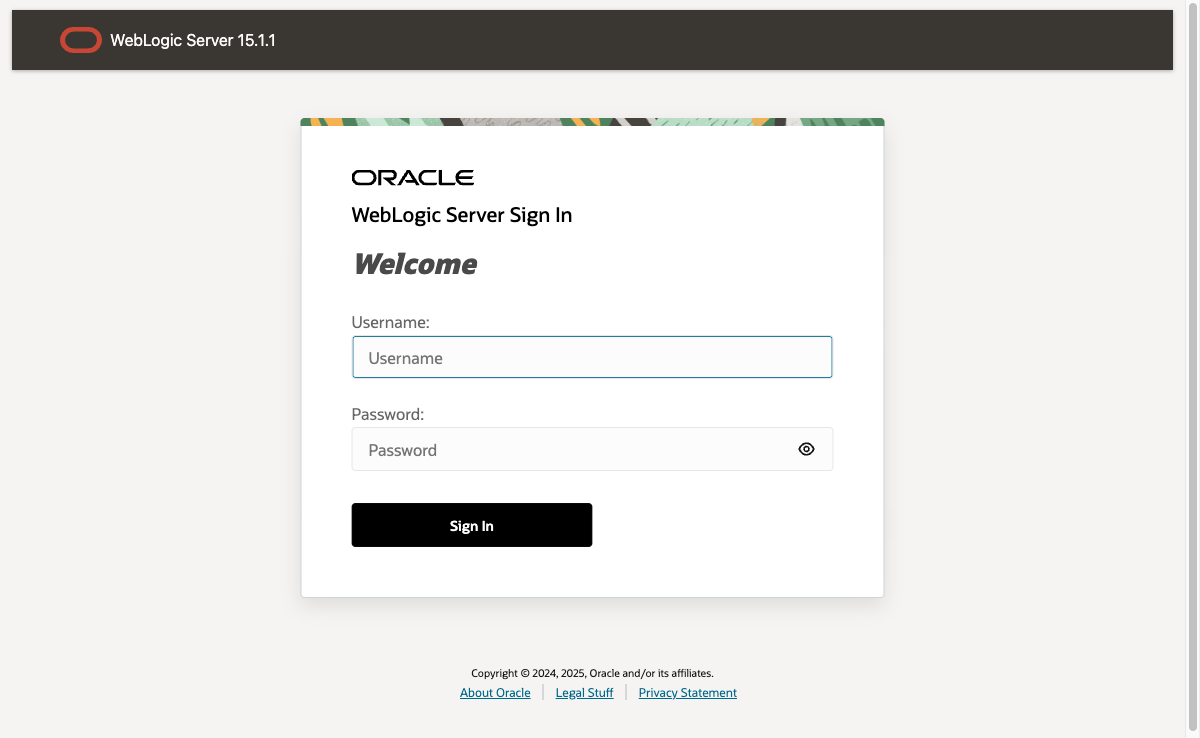
Enter your username and password from C:\CREDENTIALS.txt and click Sign In. A successful login redirects you back to the Welcome page.
You can also verify credentials via the REST API from PowerShell:
curl.exe -u "weblogic:<your-password>" http://localhost:7001/management/weblogic/latest/serverRuntime?fields=name,state
Directory Structure
| Path | Description |
|---|---|
D:\Oracle\Java\jdk-21.x.x\ |
Oracle JDK 21 LTS (JAVA_HOME) |
D:\Oracle\Middleware\ |
Middleware Home (MW_HOME / ORACLE_HOME) |
D:\Oracle\Middleware\wlserver\ |
WebLogic Server Home (WL_HOME) |
D:\Oracle\Middleware\user_projects\domains\base_domain\ |
Default Domain (DOMAIN_HOME) |
D:\Oracle\oraInventory\ |
Oracle Inventory |
C:\CREDENTIALS.txt |
Admin credentials file |
Environment variables are set system-wide:
JAVA_HOME = D:\Oracle\Java\jdk-21.x.x
MW_HOME = D:\Oracle\Middleware
WL_HOME = D:\Oracle\Middleware\wlserver
DOMAIN_HOME = D:\Oracle\Middleware\user_projects\domains\base_domain
Administration with WebLogic Remote Console
WebLogic 15c has replaced the traditional web-based Administration Console with the WebLogic Remote Console, a modern desktop application.
Option 1: WebLogic Remote Console (Desktop Application)
- Download the WebLogic Remote Console from GitHub Releases
- Install the application on your desktop (available for Windows, macOS, and Linux)
- Launch the Remote Console and connect to your WebLogic Server:
- URL:
http://<public-ip>:7001 - Username:
weblogic - Password: Your admin password from CREDENTIALS.txt
Option 2: REST Management API
# Get server runtime status
curl.exe -u "weblogic:<your-password>" http://localhost:7001/management/weblogic/latest/serverRuntime?fields=name,state

# Get domain configuration
curl.exe -u "weblogic:<your-password>" http://localhost:7001/management/weblogic/latest/domainConfig
Option 3: WLST Command Line
# Launch WLST
& "D:\Oracle\Middleware\wlserver\common\bin\wlst.cmd"

# In WLST shell:
connect('weblogic', '<your-password>', 't3://localhost:7001')
serverRuntime()
print('Server State: ' + cmo.getState())
Managing WebLogic Server
Using Scheduled Task
# Start WebLogic
Start-ScheduledTask -TaskName OracleWebLogicServer

# Stop WebLogic (graceful)
Stop-ScheduledTask -TaskName OracleWebLogicServer

# Check status
Get-ScheduledTask -TaskName OracleWebLogicServer | Select TaskName, State
Using Domain Scripts Directly
# Start
& "D:\Oracle\Middleware\user_projects\domains\base_domain\bin\startWebLogic.cmd"

# Stop
& "D:\Oracle\Middleware\user_projects\domains\base_domain\bin\stopWebLogic.cmd"
Security Hardening
Change the Default Admin Password
Use WLST to change the admin password:
& "D:\Oracle\Middleware\wlserver\common\bin\wlst.cmd"

# In WLST:
connect('weblogic', '<your-password>', 't3://localhost:7001')
cd('/SecurityConfiguration/base_domain/Realms/myrealm/AuthenticationProviders/DefaultAuthenticator')
cd('Users/weblogic')
cmo.setPassword('YourNewSecurePassword')
disconnect()
exit()
After changing the password, update boot.properties:
Set-Content -Path "D:\Oracle\Middleware\user_projects\domains\base_domain\servers\AdminServer\security\boot.properties" -Value "username=weblogic`npassword=YourNewSecurePassword"
Delete the credentials file:
Remove-Item C:\CREDENTIALS.txt
Restrict Network Access
Ensure your Security Group only allows access from trusted IP addresses:
- Port 3389 (RDP): Your IP only
- Port 7001/7002 (WebLogic Server): Your IP or VPN CIDR only
Troubleshooting
WebLogic Server fails to start
Check the server log:
Get-Content "D:\Oracle\Middleware\user_projects\domains\base_domain\servers\AdminServer\logs\AdminServer.log" -Tail 50
Common causes:
- Insufficient memory: Use an instance type with at least 4 GB RAM
- Port conflict: Ensure port 7001 is not in use
- Scheduled Task not running: Get-ScheduledTask -TaskName OracleWebLogicServer
Cannot connect via RDP
- Verify the instance is running in the EC2 console
- Check Security Group allows port 3389 from your IP
- Verify you have the correct Administrator password (decrypt via EC2 console)
- Use SSM Session Manager as an alternative
REST API returns 401
Verify you're using the correct password from C:\CREDENTIALS.txt, not a default password.
Oracle WebLogic 15c Key Features
- Jakarta EE 9.1 Platform: Full support for the
jakarta.*namespace - JDK 21 LTS: Latest long term support Java runtime
- WebLogic Remote Console: Modern desktop application replacing the traditional web console
- Dynamic Clustering: Elastic server instances for horizontal scaling
- Zero Downtime Patching: Apply patches without service interruption
- OIDC Support: OpenID Connect token handling
Support
cloudimg provides 24/7/365 support for all AWS Marketplace products.
- Email: support@cloudimg.co.uk
- Response Time: Guaranteed 24 hour response
- Support Plans: View support tiers
- Oracle Documentation: WebLogic 15.1.1 Documentation
- WebLogic Remote Console: Download and Documentation