
Jenkins LTS on AWS User Guide
Overview
This image runs Jenkins LTS, the leading open source automation server for continuous integration and continuous delivery. Jenkins builds source code, runs tests, packages artefacts, deploys applications, and orchestrates pipelines across distributed build agents.
The image ships Jenkins as a systemd service running on OpenJDK 21 headless, behind an nginx reverse proxy on TCP port 80. The Jenkins controller itself listens on 127.0.0.1:8080, and nginx forwards browser and webhook traffic to it with X-Forwarded headers and websocket upgrade for the build console and inbound agent traffic. The Jenkins setup wizard is disabled, and a Groovy init script in /var/lib/jenkins/init.groovy.d/cloudimg-init.groovy provisions the administrator user from a per-instance password file on every Jenkins start.
The Jenkins administrator password is generated on the first boot of every deployed instance. Two instances launched from the same Amazon Machine Image never share a password. The plain text value is written to /root/jenkins-credentials.txt with mode 0600 so that only the root user can read it. The default Jenkins initialAdminPassword file is deleted as part of first boot, so the image carries no default or shared credentials.
Jenkins' JENKINS_HOME directory (job configurations, build history, workspaces, plugins) lives on a dedicated EBS data volume mounted at /var/lib/jenkins, separate from the operating system disk, so the build history tier can be resized independently of the root volume.
Prerequisites
Before you deploy this image you need:
- An Amazon Web Services account where you can launch EC2 instances
- IAM permissions to launch instances, create security groups, and subscribe to AWS Marketplace products
- An EC2 key pair in the target Region for SSH access to the instance
- A VPC and subnet in the target Region, with a security group allowing inbound port 22 from your management network and inbound port 80 from the trusted networks that will browse to Jenkins
- The AWS CLI (version 2) installed locally if you plan to deploy from the command line
Step 1: Launch the Instance from the AWS Marketplace
Sign in to the AWS Management Console, open the EC2 service, and select Launch instance. Under Application and OS Images choose AWS Marketplace AMIs and search for Jenkins LTS. Select the cloudimg listing and choose Select, then Continue on the subscription summary.
Pick an instance type of m5.large or larger. Choose your EC2 key pair under Key pair (login). Under Network settings select your VPC and subnet, and either create or select a security group that allows inbound port 22 from your management network and inbound port 80 from the trusted networks that will reach Jenkins. Do not open port 80 to the public internet until you have configured TLS (see the HTTPS section).
Select Launch instance. First boot initialisation takes approximately one to two minutes after the instance state becomes Running and the status checks pass.
Step 2: Launch the Instance from the AWS CLI
The following block launches an instance from the cloudimg Jenkins LTS Marketplace AMI into an existing subnet and security group. Replace <ami-id> with the AMI ID shown on the Marketplace listing, <key-name> with your EC2 key pair name, <subnet-id> with your subnet ID, and <security-group-id> with a security group that opens ports 22 and 80 as described above.
aws ec2 run-instances \
  --image-id <ami-id> \
  --instance-type m5.large \
  --key-name <key-name> \
  --subnet-id <subnet-id> \
  --security-group-ids <security-group-id> \
  --block-device-mappings '[{"DeviceName":"/dev/sda1","Ebs":{"VolumeSize":30,"VolumeType":"gp3"}}]' \
  --tag-specifications 'ResourceType=instance,Tags=[{Key=Name,Value=jenkins-01}]'
The command prints a JSON document on success. Note the instance ID, then retrieve its public address once it is running with aws ec2 describe-instances --instance-ids <instance-id> --query "Reservations[].Instances[].PublicIpAddress" --output text.
Step 3: Connect and Retrieve the Administrator Password
Connect over SSH with the key pair you selected and the public IP address from step 2. The SSH login user depends on the operating system of the AMI variant you launched:
| AMI variant | SSH login user |
|---|---|
| Jenkins LTS 2 on Ubuntu 24.04 | ubuntu |
The first boot service runs after the SSH daemon becomes ready, so the credentials file is in place within about a minute of the instance entering the Running state. Wait for the file to appear before signing in to the web interface.
ssh <login-user>@<public-ip>
sudo cat /root/jenkins-credentials.txt
You will see a plain text file containing the Jenkins URL, the administrator username (admin), and the administrator password. Copy these values somewhere secure such as a password manager or an encrypted vault, and do not commit them to source control.
Each command block in this guide that talks to the Jenkins HTTP API begins by reading the administrator password from the credentials file into a PASSWORD shell variable, so every block is self contained:
PASSWORD="$(sudo awk -F= '/^JENKINS_ADMIN_PASSWORD=/ {print $2}' /root/jenkins-credentials.txt)"
echo "admin password length: ${#PASSWORD}"
Step 4: Verify the Server is Healthy
Jenkins exposes an unauthenticated /login page that confirms the controller and the nginx reverse proxy are both healthy, and the authenticated /api/json endpoint which proves that the administrator user can sign in:
PASSWORD="$(sudo awk -F= '/^JENKINS_ADMIN_PASSWORD=/ {print $2}' /root/jenkins-credentials.txt)"
curl -s -o /dev/null -w "login HTTP: %{http_code}\n" http://127.0.0.1/login
curl -s -o /dev/null -w "api HTTP:   %{http_code}\n" -u "admin:$PASSWORD" http://127.0.0.1/api/json
Both responses should return HTTP: 200. The /api/json endpoint additionally returns a JSON document describing the controller; with jq installed you can inspect the Jenkins version, the number of executors, and the mode:
PASSWORD="$(sudo awk -F= '/^JENKINS_ADMIN_PASSWORD=/ {print $2}' /root/jenkins-credentials.txt)"
curl -s -u "admin:$PASSWORD" http://127.0.0.1/api/json | jq '{numExecutors, mode, useSecurity, version: ._class}'
Step 5: Server Components
| Component | Version | Source |
|---|---|---|
| Jenkins LTS | 2.5xx.x | pkg.jenkins.io/debian-stable |
| OpenJDK | 21 headless | Ubuntu noble main |
| nginx | 1.24 | Ubuntu noble main |
| Ubuntu | 24.04 LTS | cloudimg golden base image |
| cloudimg overrides | cloudimg-overrides.conf + cloudimg-init.groovy |
baked into the image |
The image carries no second backend database, no message broker, and no second exposed port. Jenkins' built in user database is used for authentication, and the controller stores all of its state under /var/lib/jenkins.
Step 6: Filesystem Layout
Jenkins' working directory is JENKINS_HOME at /var/lib/jenkins, which lives on a dedicated EBS volume so it can be resized independently of the root volume. The main directories and files the image exposes are:
/usr/share/java/jenkins.war— the Jenkins controller WAR file from the APT package/etc/systemd/system/jenkins.service.d/cloudimg-overrides.conf— cloudimg systemd drop-in (binds 127.0.0.1:8080, disables setup wizard)/etc/nginx/sites-available/jenkins— nginx reverse proxy configuration/var/lib/jenkins/—JENKINS_HOME, on the dedicated data volume (job configs, build history, plugins, workspaces)/var/lib/jenkins/init.groovy.d/cloudimg-init.groovy— Groovy init script that provisions the admin user from/etc/jenkins/admin-password.txt/etc/jenkins/admin-password.txt— per instance admin password file, mode 0640 root:jenkins/etc/jenkins/jenkins-url.txt— Jenkins URL captured at first boot/var/log/jenkins/jenkins.log— Jenkins controller log/root/jenkins-credentials.txt— per instance administrator password, mode 0600 root only
Step 7: Start, Stop, and Check Status
Jenkins runs as the systemd service jenkins.service, fronted by nginx.service. The first boot unit is jenkins-firstboot.service and is skipped on every boot after the first because its sentinel lives at /var/lib/cloudimg/jenkins-firstboot.done. You interact with the main services using systemctl:
sudo systemctl status --no-pager jenkins
sudo systemctl is-active jenkins
sudo systemctl is-active nginx
To restart the controller after editing configuration:
sudo systemctl restart jenkins
Jenkins runs as the jenkins system user, owns /var/lib/jenkins, and writes its log to /var/log/jenkins/jenkins.log. The log is also visible via the journal with sudo journalctl -u jenkins -n 200 --no-pager.
Step 8: Open the Jenkins Web Interface
nginx fronts Jenkins on TCP port 80. Once you have opened port 80 from your management network in the security group, open the following URL in your browser:
http://<public-ip>/
Jenkins presents a sign in page. Enter the administrator username admin and the administrator password from /root/jenkins-credentials.txt.

After you sign in, Jenkins shows the dashboard. A freshly launched instance has no jobs, so the dashboard offers the Create a job shortcut, links to set up a distributed build, and the New Item action in the top left navigation. The footer reports the Jenkins version.

The New Item form lets you choose between a freestyle project, a pipeline, a multibranch pipeline, or a folder. Enter a name, pick a type, and select OK to drop into the job configuration form.

The Manage Jenkins section exposes system configuration, plugin management, user management, credential storage, build tools, agents and clouds. The screenshot below shows the System configuration page.

Because Jenkins exposes both a web interface and a REST API, anything you can do in the web interface can also be driven from curl, the Jenkins CLI, or one of the language SDKs.
Step 9: Create a Pipeline Job from the API
Every Jenkins write is either a web form POST or an XML config POST. The following block creates a freestyle job named hello-world that prints a message, then triggers a build:
PASSWORD="$(sudo awk -F= '/^JENKINS_ADMIN_PASSWORD=/ {print $2}' /root/jenkins-credentials.txt)"
CRUMB="$(curl -s -u admin:$PASSWORD 'http://127.0.0.1/crumbIssuer/api/json' | jq -r '.crumbRequestField + ":" + .crumb')"

cat > /tmp/hello-world.xml <<'XML'
<?xml version='1.1' encoding='UTF-8'?>
<project>
  <description>cloudimg smoke job</description>
  <keepDependencies>false</keepDependencies>
  <properties/>
  <scm class="hudson.scm.NullSCM"/>
  <canRoam>true</canRoam>
  <disabled>false</disabled>
  <builders>
    <hudson.tasks.Shell>
      <command>echo "Hello from Jenkins on $(hostname)"</command>
    </hudson.tasks.Shell>
  </builders>
  <publishers/>
  <buildWrappers/>
</project>
XML

curl -s -u admin:$PASSWORD -H "$CRUMB" \
  -H 'Content-Type: application/xml' --data-binary @/tmp/hello-world.xml \
  'http://127.0.0.1/createItem?name=hello-world'
curl -s -o /dev/null -w "create HTTP: %{http_code}\n" -u admin:$PASSWORD \
  'http://127.0.0.1/job/hello-world/api/json'
curl -s -o /dev/null -w "trigger HTTP: %{http_code}\n" -u admin:$PASSWORD -H "$CRUMB" \
  -X POST 'http://127.0.0.1/job/hello-world/build'
The job appears on the Jenkins dashboard. The first call creates the job (no body output on success); the second confirms its /api/json endpoint returns 200; the third triggers a build and Jenkins enqueues it for the next available executor.
To inspect the build log, browse to http://<public-ip>/job/hello-world/, select the latest build, and choose Console Output.
Step 10: Install Plugins from the Web Interface
Jenkins' default install does not include any plugins beyond the bare minimum required to boot the controller. You almost always want to add the Pipeline, Git, Credentials, and Workflow plugins, plus any plugins specific to your build agents and your SCM provider.
To install plugins from the web interface, browse to Manage Jenkins -> Plugins -> Available plugins. Search for the plugins you need, tick the boxes, and select Install. Jenkins downloads each plugin, resolves its dependencies, and applies them on the next restart.
Plugin installation can also be scripted via the Jenkins CLI or the REST API. The Jenkins CLI is delivered as a jar at http://<public-ip>/jnlpJars/jenkins-cli.jar once Jenkins is running:
sudo apt-get install -y openjdk-21-jre-headless
curl -sO http://<public-ip>/jnlpJars/jenkins-cli.jar
java -jar jenkins-cli.jar -s http://<public-ip>/ -auth admin:<password> install-plugin workflow-aggregator git credentials -deploy
java -jar jenkins-cli.jar -s http://<public-ip>/ -auth admin:<password> safe-restart
For declarative pipelines specifically, the Pipeline: Multibranch and Pipeline: GitHub Branch Source plugins are the most commonly added pair.
Step 11: Create Additional Users and Roles
The administrator account should not be used by individual developers. Create per developer accounts under Manage Jenkins -> Users -> Create User. The default authorization strategy is Logged-in users can do anything, which means that after sign in every user has full control. For finer-grained control, install the Role-based Authorization Strategy plugin and assign roles per project or per folder under Manage Jenkins -> Manage and Assign Roles.
For programmatic user creation from the CLI:
PASSWORD="$(sudo awk -F= '/^JENKINS_ADMIN_PASSWORD=/ {print $2}' /root/jenkins-credentials.txt)"
echo 'jenkins.model.Jenkins.instance.securityRealm.createAccount("alice", "change-me-in-your-secrets-manager")' \
  | java -jar /var/cache/jenkins/war/WEB-INF/lib/cli-*.jar -s http://127.0.0.1/ -auth admin:$PASSWORD groovy =
The Groovy script runs inside the controller and adds the user to the built in user database immediately.
Step 12: Rotate the Administrator Password
For a production deployment, rotate the administrator password that was generated on first boot. The cloudimg image makes this safe by reading the password file every time Jenkins starts: write a new value, restart Jenkins, and the Groovy init script updates the admin user's stored password to the new value.
NEW_PASSWORD="$(head -c 32 /dev/urandom | base64 | tr -d '/+=' | head -c 24)"
echo "$NEW_PASSWORD" | sudo tee /etc/jenkins/admin-password.txt > /dev/null
sudo chown root:jenkins /etc/jenkins/admin-password.txt
sudo chmod 0640 /etc/jenkins/admin-password.txt
sudo sed -i "s|^JENKINS_ADMIN_PASSWORD=.*|JENKINS_ADMIN_PASSWORD=$NEW_PASSWORD|" /root/jenkins-credentials.txt
sudo systemctl restart jenkins
Sign back in with the new password to confirm the rotation took effect. Store the new value in your secrets manager immediately.
Step 13: Set Up a Distributed Build Agent
Jenkins runs on a single controller by default. For real workloads, push build execution off the controller and onto distributed agents. A static agent connects to the controller over the JNLP protocol on a fixed TCP port; an inbound agent connects out from the agent host to the controller's /wsagents/ websocket endpoint (which the image's nginx configuration already forwards correctly).
The simplest production pattern is the inbound agent over websocket. On the controller, create a new node under Manage Jenkins -> Nodes -> New Node, choose Permanent Agent, and tick Launch agent by connecting it to the controller. Jenkins generates a one-line command that you run on the agent host:
java -jar agent.jar -url http://<public-ip>/ -webSocket -secret <secret> -name <agent-name> -workDir /var/jenkins-agent
The agent registers itself with the controller, picks up labels, and starts accepting builds. Tag jobs with agent { label '<agent-name>' } to restrict execution to the agent host.
Step 14: Enable HTTPS with a Reverse Proxy
The cloudimg image already provides nginx in front of Jenkins. For any deployment that carries customer traffic, terminate TLS with the nginx server block so credentials and webhook payloads are not sent in clear text. nginx with a Let's Encrypt certificate gives you HTTPS without changing the Jenkins configuration.
The following assumes you have a DNS record pointing your fully qualified domain name at the instance's public IP address.
sudo apt-get update && sudo apt-get install -y certbot python3-certbot-nginx
sudo certbot --nginx -d jenkins.your-domain.example \
  --non-interactive --agree-tos -m you@your-domain.example \
  --redirect
certbot rewrites /etc/nginx/sites-available/jenkins to listen on TCP 443 and redirect HTTP to HTTPS. After the rewrite, restart Jenkins so it learns its new public URL:
echo "https://jenkins.your-domain.example/" | sudo tee /etc/jenkins/jenkins-url.txt > /dev/null
sudo systemctl restart jenkins
Customer applications and webhook providers then talk to https://jenkins.your-domain.example, and the proxy speaks to Jenkins on localhost. Restrict port 80 in the security group to redirect-only traffic from the public internet, and port 443 to the trusted networks that need to reach Jenkins.
Step 15: Backups and Maintenance
Jenkins keeps all of its data under /var/lib/jenkins on the dedicated data volume: job configs in jobs/<name>/config.xml, build history under jobs/<name>/builds/, plugins under plugins/, and the user database under users/. For a point in time consistent backup, stop the service, snapshot the EBS volume, and start the service again:
sudo systemctl stop jenkins
sudo tar -czf /var/backups/jenkins-home-$(date +%F).tgz -C /var/lib/jenkins .
sudo systemctl start jenkins
Ship the archive to an Amazon S3 bucket or another object store. For larger Jenkins controllers, take an Amazon EBS snapshot of the /var/lib/jenkins volume instead, which is faster and does not need a service stop if your workload tolerates a crash consistent snapshot.
For kernel and package updates, Ubuntu's unattended-upgrades is enabled by default, so security patches apply automatically. To update Jenkins itself, use sudo apt-get update && sudo apt-get install --only-upgrade jenkins and then restart the service. Read the Jenkins LTS upgrade notes before applying a major version jump.
Step 16: Scaling Beyond a Single Controller
This image is a single controller Jenkins. For larger deployments:
- Grow the
/var/lib/jenkinsEBS volume and extend the filesystem when the build history and workspaces outgrow the initial disk - Push build execution off the controller and onto distributed agents (see step 13), keeping the controller for orchestration only
- Put the controller behind an Application Load Balancer with TLS termination, with the security group restricting port 80 to the load balancer and the management network
- Consider Jenkins Operations Center or a managed Jenkins offering for fleets of controllers
- Take regular snapshots of
JENKINS_HOMEand document the restore drill in your runbook
The official Jenkins documentation at https://www.jenkins.io/doc/ covers cluster setup, the configuration as code plugin, and pipeline authoring in detail.
Step 17: Security Recommendations
Jenkins is a powerful orchestration tool that can run arbitrary code on the controller and on every agent it talks to. Before taking customer traffic, apply the following:
- Never expose port 80 to the public internet without TLS. Configure HTTPS with Let's Encrypt (step 14) and restrict port 80 to redirect-only.
- Rotate the administrator password using the rotation step above and store the new value in your secrets manager.
- Create individual user accounts for every developer and stop using the administrator account for routine work. Use the role-based authorization strategy plugin for fine-grained access control.
- Restrict the security group so port 80 and port 443 are only reachable from your trusted networks and webhook providers.
- Run builds on distributed agents, not on the controller's built in node. The image keeps the built in node as the default executor for convenience; in production you should label it
masterand reserve it for orchestration only. - Keep plugins up to date. Plugin vulnerabilities are the most common Jenkins attack surface; the Manage Jenkins -> Plugins -> Updates tab lists every plugin with a pending update.
- Back up
/var/lib/jenkinsregularly and test restores.
Screenshots
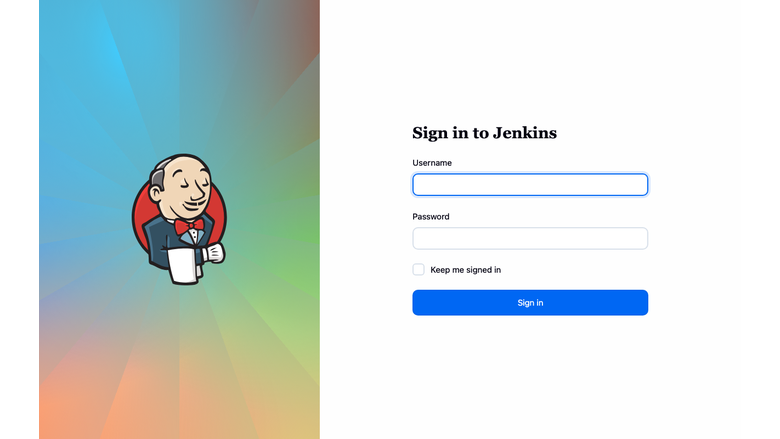
The Jenkins sign-in page served behind nginx on port 80, ready for the per-instance admin credentials.
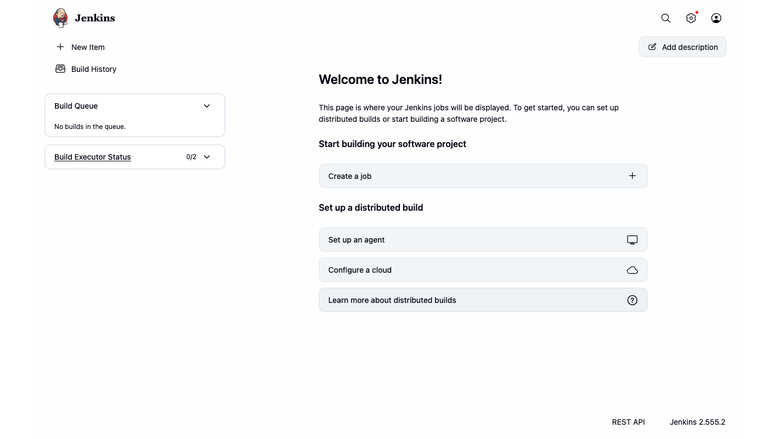
The Jenkins dashboard after sign-in, showing the build queue, executor status and the new item action.
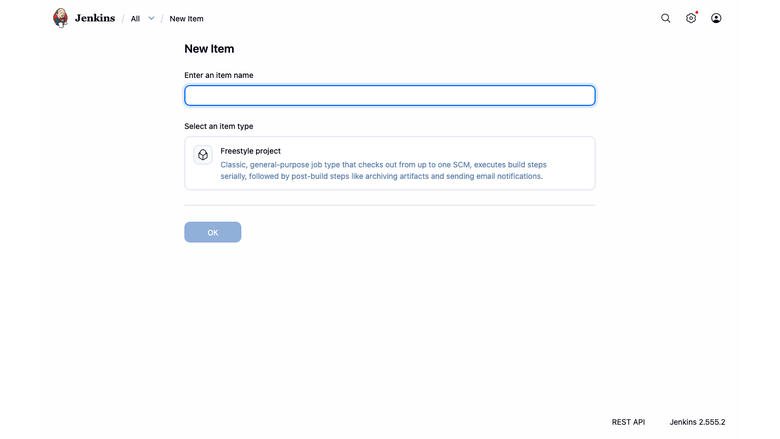
The Jenkins New Item form for creating freestyle projects, pipelines, multibranch pipelines and folders.
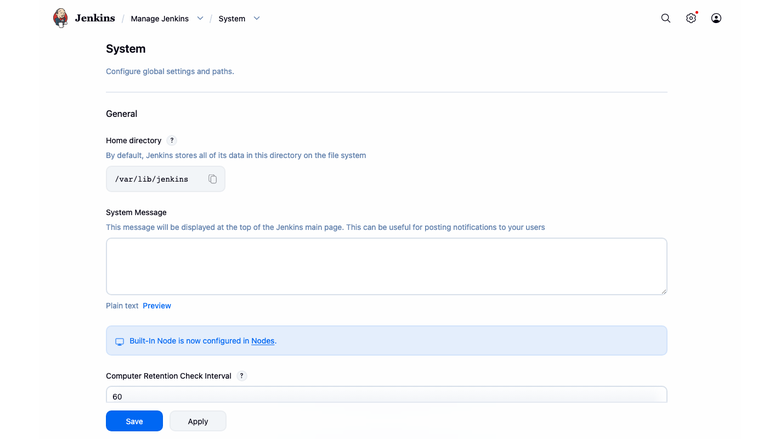
The Manage Jenkins system page exposing system configuration, plugin management, security and tools.
Support
cloudimg provides 24/7/365 expert technical support for this image. Guaranteed response within 24 hours, one hour average for critical issues. Contact support@cloudimg.co.uk.
For general Jenkins questions, tuning, and plugin selection, consult the official documentation at https://www.jenkins.io/doc/ and the Jenkins community at https://www.jenkins.io/participate/.