MEAN Stack on AWS User Guide
Overview
This image gives you the four components of the MEAN Stack -- MongoDB, Express, Angular and Node.js -- installed, configured and connected on a single Amazon EC2 instance, with a small sample full stack application running so that the moment the instance reaches the ready state you can browse to it on port 80 and see the stack working end to end.
Node.js 22 LTS is installed from the official NodeSource Debian repository. MongoDB 7 Community is installed from the official mongodb.org Debian repository and runs with SCRAM SHA 256 authentication enabled. A sample Express 4 API server lives at /opt/mean/cloudimg and runs under pm2 as a systemd service called mean-app.service, listening on the loopback interface on port 3000. nginx is configured as a reverse proxy in front of Express, terminating port 80 and forwarding all requests to the Node.js application. A prebuilt Angular 18 single page front end is served as static assets from /opt/mean/cloudimg/public.
MongoDB administrator, MongoDB application and Express session credentials are generated on the first boot of every deployed instance. Two instances launched from the same Amazon Machine Image never share passwords. They are written to /root/mean-credentials.txt with mode 0600 so that only the root user can read them.
The sample application is intended to be replaced by the customer with their own MEAN application. The surrounding scaffolding -- nginx, pm2 under systemd, MongoDB, the firstboot credential rotation -- stays the same. You replace /opt/mean/cloudimg with your own code, point mean-app.service at it, and ship.
Prerequisites
Before you deploy this image you need:
- An Amazon Web Services account where you can launch EC2 instances
- IAM permissions to launch instances, create security groups, and subscribe to AWS Marketplace products
- An EC2 key pair in the target Region for SSH access to the instance
- A VPC and subnet in the target Region, with a security group allowing inbound port 22 from your management network and inbound port 80 from the networks your visitors will use
- The AWS CLI (version 2) installed locally if you plan to deploy from the command line
Step 1: Launch the Instance from the AWS Marketplace
Sign in to the AWS Management Console, open the EC2 service, and select Launch instance. Under Application and OS Images choose AWS Marketplace AMIs and search for MEAN Stack. Select the cloudimg listing and choose Select, then Continue on the subscription summary.
Pick an instance type of m5.large or larger -- MongoDB and Node.js both benefit from extra memory under load. Choose your EC2 key pair under Key pair (login). Under Network settings select your VPC and subnet, and either create or select a security group that allows inbound port 22 from your management network and inbound port 80 from the networks your visitors use. Leave the root volume at the default size or larger.
Select Launch instance. First boot initialisation takes approximately one minute after the instance state becomes Running and the status checks pass.
Step 2: Launch the Instance from the AWS CLI
The following block launches an instance from the cloudimg MEAN Stack Marketplace AMI into an existing subnet and security group. Replace <ami-id> with the AMI ID shown on the Marketplace listing, <key-name> with your EC2 key pair name, <subnet-id> with your subnet ID, and <security-group-id> with a security group that opens ports 22 and 80 as described above.
aws ec2 run-instances \
  --image-id <ami-id> \
  --instance-type m5.large \
  --key-name <key-name> \
  --subnet-id <subnet-id> \
  --security-group-ids <security-group-id> \
  --block-device-mappings '[{"DeviceName":"/dev/sda1","Ebs":{"VolumeSize":20,"VolumeType":"gp3"}}]' \
  --tag-specifications 'ResourceType=instance,Tags=[{Key=Name,Value=mean-stack-01}]'
The command prints a JSON document on success. Note the instance ID, then retrieve its public address once it is running with aws ec2 describe-instances --instance-ids <instance-id> --query "Reservations[].Instances[].PublicIpAddress" --output text.
Step 3: Connect and Retrieve Initial Credentials
Connect over SSH with the key pair you selected and the public IP address from step 2. The SSH login user depends on the operating system of the AMI variant you launched:
| AMI variant | SSH login user |
|---|---|
| MEAN Stack on Ubuntu 24.04 | ubuntu |
Example for the Ubuntu 24.04 variant:
ssh -i <your-key>.pem ubuntu@<instance-public-ip>
Once you have shell access, read the credentials file that was generated on first boot:
sudo cat /root/mean-credentials.txt
The file contains the per instance MongoDB administrator user, the MongoDB application user, the database name and the Express app secret. Store the contents in a password manager and remove the file once the values are recorded.
Step 4: Browse the Sample Application
The sample application is served on port 80. Open a browser and visit:
http://<instance-public-ip>/
You will see the cloudimg MEAN Stack starter page. The page shows the four components of the stack, reports the health of the Express API, and lists the documents currently in the sample collection. A welcome document is inserted automatically the first time the API runs.

The starter page renders an Angular front end (served as static assets from /opt/mean/cloudimg/public) that calls the Express API at /api/items, which reads from and writes to the cloudimg.items collection in MongoDB. The full Angular -> Express -> MongoDB round trip is exercised on every page load.
Step 5: Add Items Through the Sample UI
The starter page includes a form to add new items. Enter a name and an optional note, then choose Add. The Angular front end issues an HTTP POST to /api/items. nginx forwards the request to Express on 127.0.0.1:3000. Express inserts a document into MongoDB using the application MongoDB user authenticated against the cloudimg database with SCRAM SHA 256. The new item appears at the top of the list.


The page after submission shows the new item at the top of the list, ordered by creation time.

You can delete items individually with the Delete button on each row -- the front end issues DELETE /api/items/<id> which Express routes to MongoDB.
Step 6: Exercise the API Directly with curl
The sample API is also reachable directly. From the EC2 instance:
curl -s http://127.0.0.1/api/health
This returns a small JSON document confirming the API is up and that the Express app secret has been loaded from the environment file. The secretConfigured field should report true.
To list items:
curl -s http://127.0.0.1/api/items
To create an item from the command line:
curl -s -X POST http://127.0.0.1/api/items \
  -H 'Content-Type: application/json' \
  -d '{"name":"my first item","note":"created from the command line"}'
Step 7: Connect to MongoDB
The MongoDB shell mongosh is preinstalled. Use it with the application credentials from /root/mean-credentials.txt:
APP_PASS=$(sudo grep '^mongo.app.password=' /root/mean-credentials.txt | cut -d= -f2-)
mongosh "mongodb://cloudimg:${APP_PASS}@127.0.0.1:27017/cloudimg?authSource=cloudimg"
Inside the shell, the items collection of the cloudimg database is the one the sample API reads and writes:
use cloudimg
db.items.countDocuments({})
db.items.find().sort({createdAt: -1}).limit(5)
For administrative work use the administrator credentials from the same file:
ADMIN_PASS=$(sudo grep '^mongo.admin.password=' /root/mean-credentials.txt | cut -d= -f2-)
mongosh "mongodb://marketplaceAdmin:${ADMIN_PASS}@127.0.0.1:27017/?authSource=admin"
MongoDB listens on port 27017 on all interfaces by default but only the AWS security group on the instance controls who can reach it. Open port 27017 in the security group only to the trusted networks that need direct database access.
Step 8: Replace the Sample With Your Own MEAN Application
The image is intended as a starting point. The sample at /opt/mean/cloudimg is what you replace with your own MEAN application.
The shape that mean-app.service expects is:
/opt/mean/cloudimg/package.jsondeclaring your Node.js dependencies and amainentry point/opt/mean/cloudimg/server.js(or whatevermainpoints to) being the Node.js process that pm2-runtime will launch- A static front end in
/opt/mean/cloudimg/public/(the Angular build output) that Express serves
The Express process reads the MongoDB connection string and the app secret from /etc/meanapp/cloudimg.env. The keys are:
NODE_ENV=production
PORT=3000
MONGO_DB=cloudimg
MONGO_URI=mongodb://cloudimg:<password>@127.0.0.1:27017/cloudimg?authSource=cloudimg
APP_SECRET=<random>
To deploy your own application:
# Stop the sample
sudo systemctl stop mean-app.service

# Replace the code (as ubuntu, then chown for the runtime user)
sudo rm -rf /opt/mean/cloudimg
sudo mkdir -p /opt/mean/cloudimg
sudo chown meanapp:meanapp /opt/mean/cloudimg
sudo -u meanapp git clone <your-repo-url> /opt/mean/cloudimg

# Install dependencies as the runtime user
cd /opt/mean/cloudimg
sudo -u meanapp env HOME=/var/lib/meanapp npm install --omit=dev --no-fund --no-audit

# If your Angular front end needs building, build it once here:
#   sudo -u meanapp env HOME=/var/lib/meanapp npm run build
# and copy the build output into /opt/mean/cloudimg/public/

# Restart the service
sudo systemctl restart mean-app.service
Your application now runs in place of the sample. The environment file, the MongoDB users, the nginx vhost and the systemd unit all continue to apply.
Step 9: Operate the Stack
The systemd units that make up the stack:
| Unit | Purpose |
|---|---|
mongod.service |
MongoDB 7 Community, listening on 27017 |
mean-app.service |
The Express API run by pm2 runtime, on 127.0.0.1:3000 |
nginx.service |
The reverse proxy, on 80 |
mean-firstboot.service |
Oneshot that rotates credentials on first boot |
Check the status of all services at once:
sudo systemctl is-active mongod.service mean-app.service nginx.service
Restart the Node.js application after a code or environment change:
sudo systemctl restart mean-app.service
Application stdout and stderr are written to /var/log/meanapp/stdout.log and /var/log/meanapp/stderr.log respectively. Tail them while you debug:
sudo tail -f /var/log/meanapp/stdout.log /var/log/meanapp/stderr.log
MongoDB logs go to /var/log/mongodb/mongod.log and nginx logs go to /var/log/nginx/.
Step 10: Enable HTTPS With Let's Encrypt
The image ships with port 80 open and port 443 closed by default. To enable HTTPS:
- Open port 443 inbound in the EC2 security group on the instance.
- Point a DNS A record at the instance public IP and wait for propagation.
- Install certbot and request a certificate:
sudo apt-get update
sudo apt-get install -y certbot python3-certbot-nginx
sudo certbot --nginx -d your-domain.example.com
Certbot reads the existing nginx vhost, requests a certificate, writes a new HTTPS server block and reloads nginx. The redirect from port 80 to port 443 is optional and certbot will offer to add it.
Backup and Restore
The MongoDB data directory is /var/lib/mongodb. The simplest path for backups is mongodump to S3:
ADMIN_PASS=$(sudo grep '^mongo.admin.password=' /root/mean-credentials.txt | cut -d= -f2-)
sudo mongodump --uri "mongodb://marketplaceAdmin:${ADMIN_PASS}@127.0.0.1:27017/?authSource=admin" \
  --archive=/tmp/mean-$(date +%F).archive --gzip
aws s3 cp /tmp/mean-*.archive s3://<your-backup-bucket>/mean/
Restore in the reverse direction with mongorestore --archive=<file> --gzip.
Troubleshooting
The page reports API not reachable. -- mean-app.service is not running. Restart it with sudo systemctl restart mean-app.service and inspect /var/log/meanapp/stderr.log for the failure reason.
The page renders but /api/items returns 502 Bad Gateway -- nginx is up but cannot reach Express. Confirm Express is listening with sudo ss -tlnp | grep 3000. If not, restart mean-app.service.
MongoDB authentication fails -- the credentials file was generated on first boot. Confirm /root/mean-credentials.txt exists and check the application user line matches the env file at /etc/meanapp/cloudimg.env. The two should agree -- both are written by mean-firstboot.service.
Credentials file is missing -- first boot did not run successfully. Check sudo systemctl status mean-firstboot.service for the failure reason. Once fixed, remove /var/lib/cloudimg/mean-firstboot.done and start the service again.
Screenshots
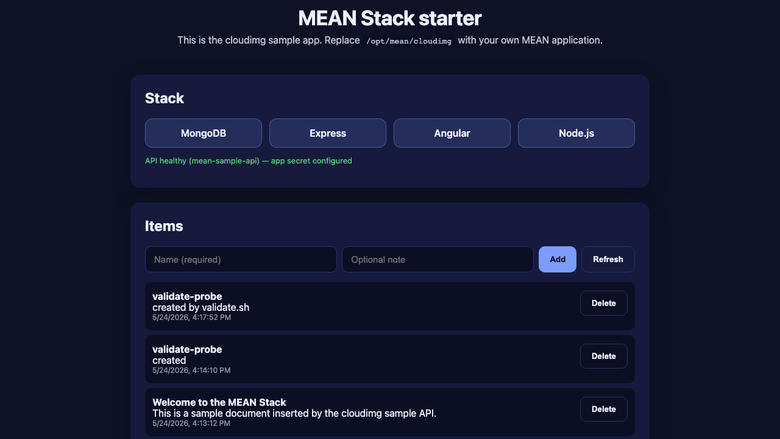
The sample MEAN application welcome page, served on first boot with no manual setup.
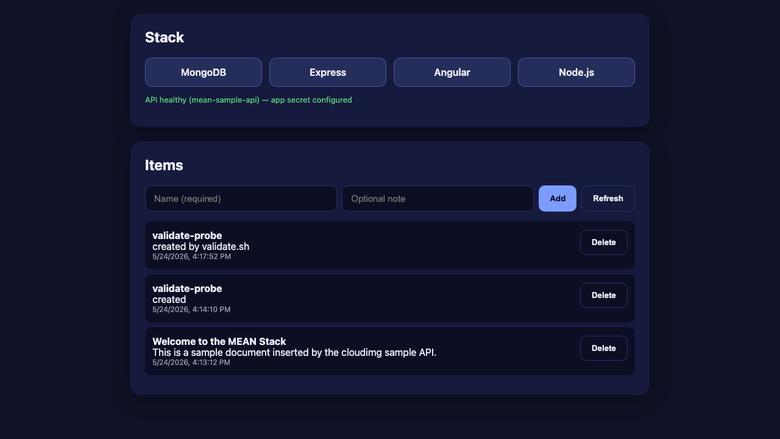
The sample Angular front end listing documents read from MongoDB via the Express API.
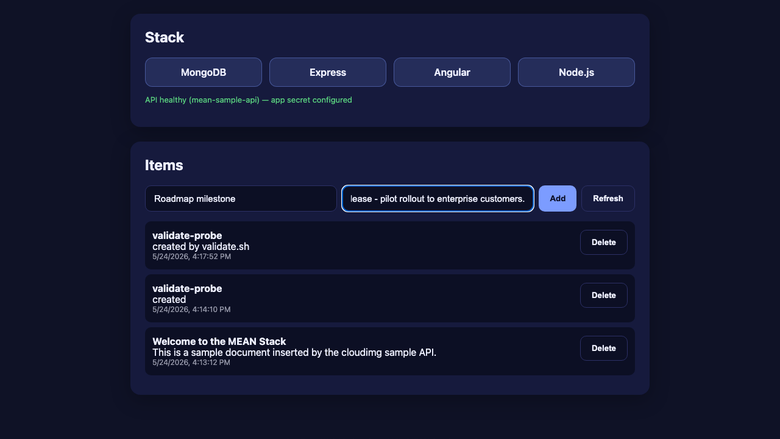
Creating a new item -- Angular POSTs to Express, which writes to MongoDB.
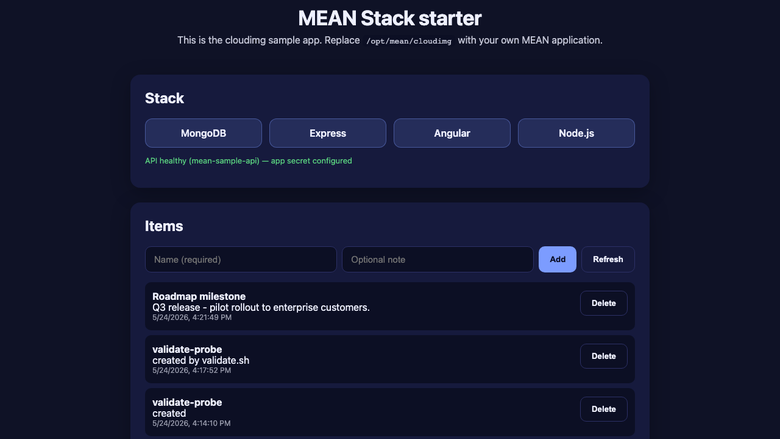
The MEAN Stack overview view showing the running service health.
Support
This image is sold on the AWS Marketplace by cloudimg, which provides 24x7 technical support by email and chat for installation, configuration, upgrades and tuning of the MEAN Stack.