Base
Hardened build
minimal ports, security patches applied at build time

Openfire, a real time XMPP messaging server, ready to host chat and presence the moment it boots.
Openfire is an open source real time collaboration server that implements the XMPP protocol for instant messaging, presence, and multi user group chat. Organisations use it to run private, self hosted messaging across desktop and mobile clients, administered through a friendly web console.
cloudimg delivers Openfire preconfigured and hardened so the messaging server and TLS fronted admin console are reachable straight after boot. The first run setup wizard is pre-completed, a unique admin credential is generated on first boot with no default login, the server database lives on a dedicated data volume, a step by step deploy guide is included, and 24/7 support is included.
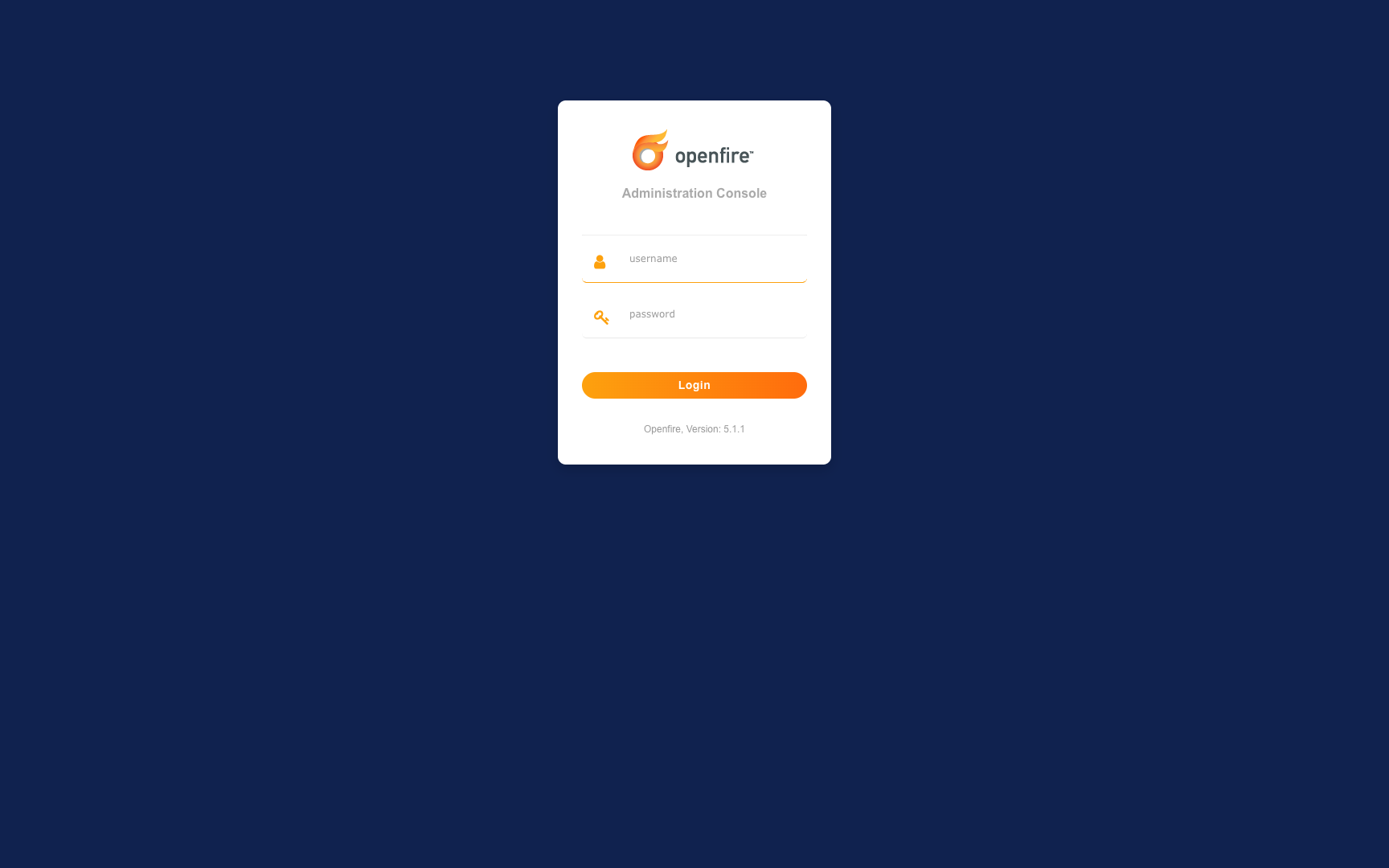
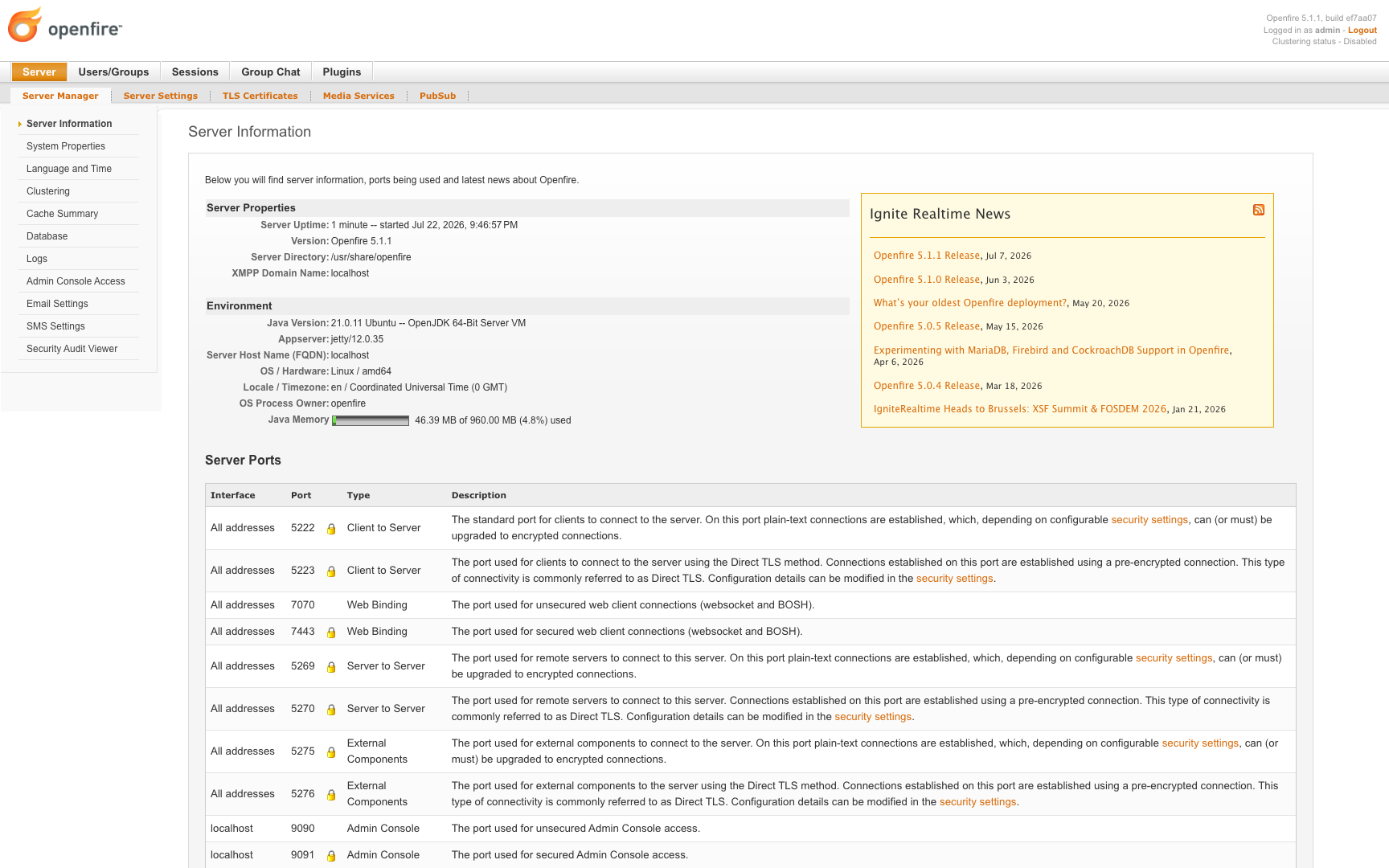
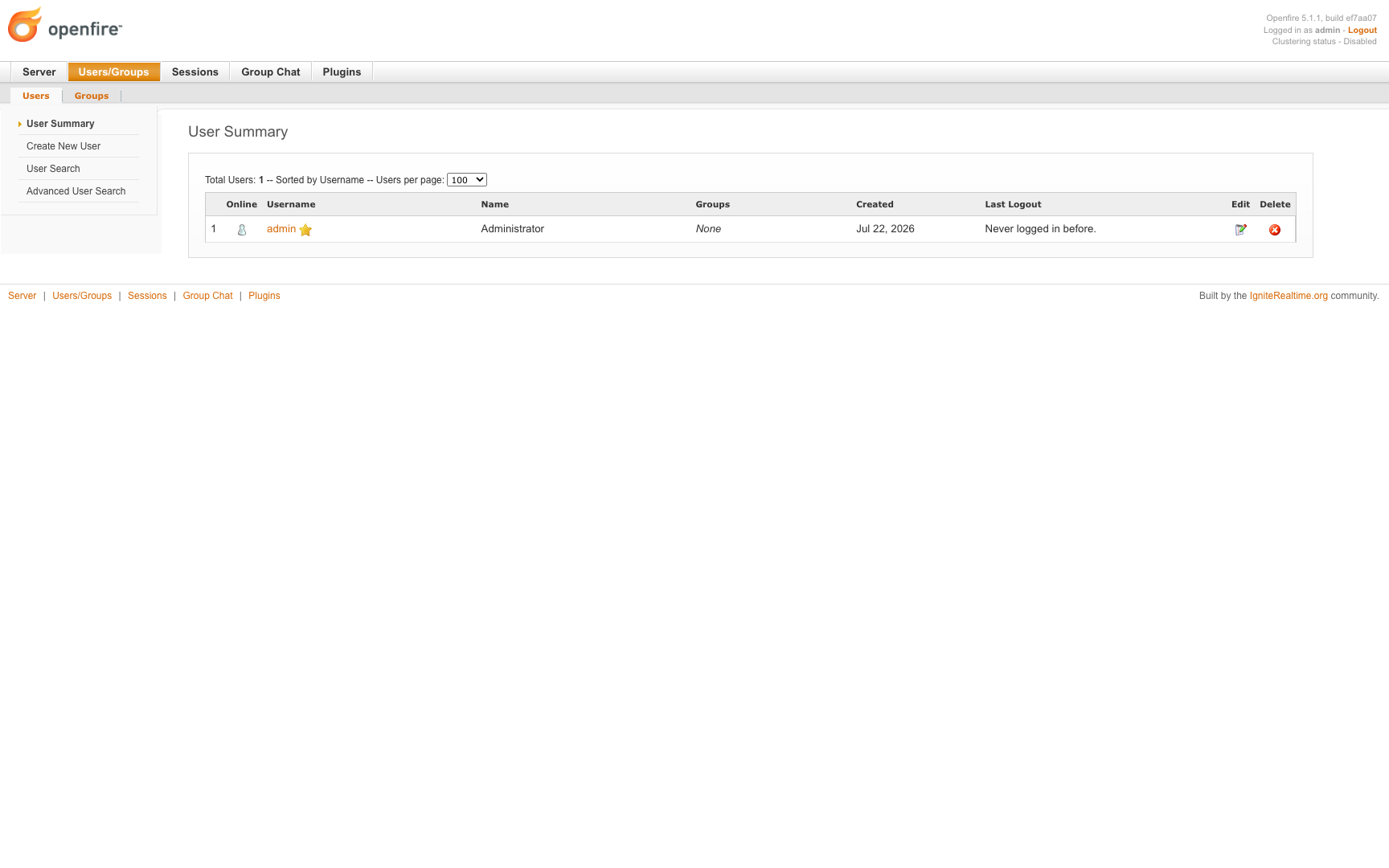
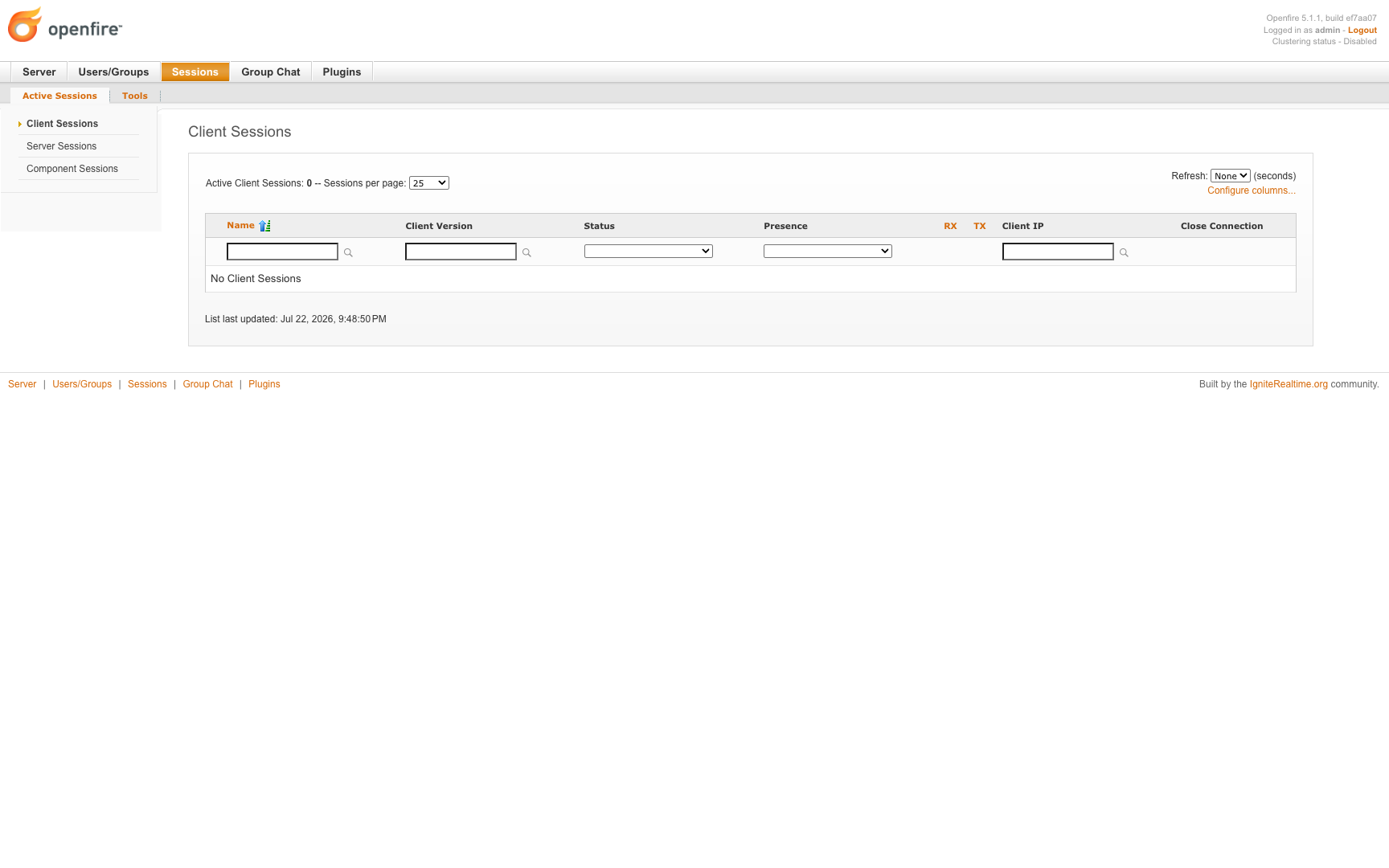
Real screenshots taken while testing this image against its deployment guide.
This is a repackaged open source software product wherein additional charges apply for cloudimg support services.
## Overview
Openfire is a mature, widely deployed open source XMPP (Jabber) real-time collaboration server. It delivers instant messaging, presence, multi-user group chat (MUC), rosters and publish-subscribe, all administered through a polished web admin console. This image gives you a private, self-hosted messaging server you run and control entirely in your own AWS account, delivered fully installed and secured so a working server is operational within minutes of launch.
## Why This Image vs a Manual Install
This image eliminates the manual package installation, first-run setup wizard, reverse-proxy and TLS configuration, and credential hardening a manual install requires. Openfire normally boots into an open, unauthenticated first-run setup wizard; this image pre-completes that wizard at build time so no privileged setup surface is ever exposed, and each instance generates its own administrator password on first boot. Launch the instance, read your unique credential, and sign in.
## Application Stack
Openfire is installed from the official upstream package and runs as an unprivileged system user under systemd. The web admin console is bound to the loopback interface only and fronted by an nginx reverse proxy on ports 80 and 443, with a self-signed TLS certificate regenerated uniquely on each instance's first boot. XMPP client-to-server traffic is served on ports 5222 and 5223 and server-to-server federation on port 5269. The server database lives on a dedicated data volume, independently resizable and separate from the OS disk.
## Security Hardening
This image follows a defence-in-depth approach:
Buyers requiring formal compliance documentation should contact cloudimg to discuss specific requirements.
## Concrete Use Cases
## AWS Integration
Deploy on any EC2 instance type. Use the unauthenticated health endpoint with an Application Load Balancer for availability monitoring. Back up your server database using EBS snapshots or AWS Backup. Resize the dedicated data volume independently of the OS disk as your user base grows. XMPP client traffic uses ports 5222 and 5223; server-to-server federation uses port 5269.
## Getting Started
Read your credential from the root-only file, open the admin console in your browser, and sign in as admin. Create users and groups, provision MUC group-chat rooms, install plugins and connect any standard XMPP client. To serve a real public domain instead of localhost and install a trusted certificate, follow the user guide.
## cloudimg Support
24/7 technical support by email and chat. Help with deployment, serving your own domain, installing a trusted TLS certificate, user and group provisioning, plugins, federation and backup planning for your messaging data.

Launch a ready-to-use AKHQ Kafka GUI with a pre-configured broker in minutes. Secured by default with unique credentials...

This image runs Apache ActiveMQ Artemis, the high performance, non blocking message broker from the Apache ActiveMQ proj...
This image runs Apache ActiveMQ Classic, the long established open source message broker from the Apache Software Founda...

Arroyo is a distributed stream processing engine that lets you run SQL over real-time data streams.

Centrifugo pre-configured behind an nginx reverse proxy: a scalable real-time messaging server that pushes events to onl...

RabbitMQ is a widely-used open source message broker that implements the AMQP protocol. This image provides RabbitMQ 4.3...